
Documentation menu
Agent Evaluations
Read the page as Markdown for LLMsAn agent evaluation in STAIR is a test that sends scripted requests to one agent and grades every answer with evaluators to give a pass rate.
How Agent Evaluations work in STAIR
An agent evaluation, called a test in the console, ties together three things:
- Target agent: the agent under test. A test checks one agent, the same way users reach it in STAIR Chat or through the API.
- Requests: scripted dialogs. Each request has a Dialog context: one or more messages with the roles User, Agent or System, ending with the User message whose answer is graded.
- Evaluations: for each request, the evaluators that grade the answer, with their parameters and the expected target, for example the text fragments the answer must contain.
When you run a test, STAIR sends every request to the target agent, waits up to the Question timeout for each answer and applies the evaluators. A request passes when all its checks pass. The test passes when the share of passed requests is at least the Minimum pass rate. Each run is saved, so you can see whether the agent got better or worse after a change.
Evaluators come in several kinds:
| Kind | Examples | What they check |
|---|---|---|
| Text checks | Contains All, Contains Any, Not Contains, Forbidden Regex, Normalized Exact Match, Output Length | The text of the answer |
| Structure and numbers | JSON Schema, Numeric Match, Report Sections, Answer Format Contract | The format of the answer or a number in it |
| Tool calls | Tool Called, Not Tool Called, Tool Call Sequence, All Tool Arguments Match | Which tools the agent called, how often, in which order, and with which arguments |
| LLM judge | Factual Correctness, Answer Relevance, Answer Completeness, Answer Coherence, Instruction Adherence | The meaning of the answer, graded by a judge model |
| Performance | Latency Under Limit | The total response time |
The Judge model is optional. It becomes required as soon as a request uses an LLM-judge evaluator.
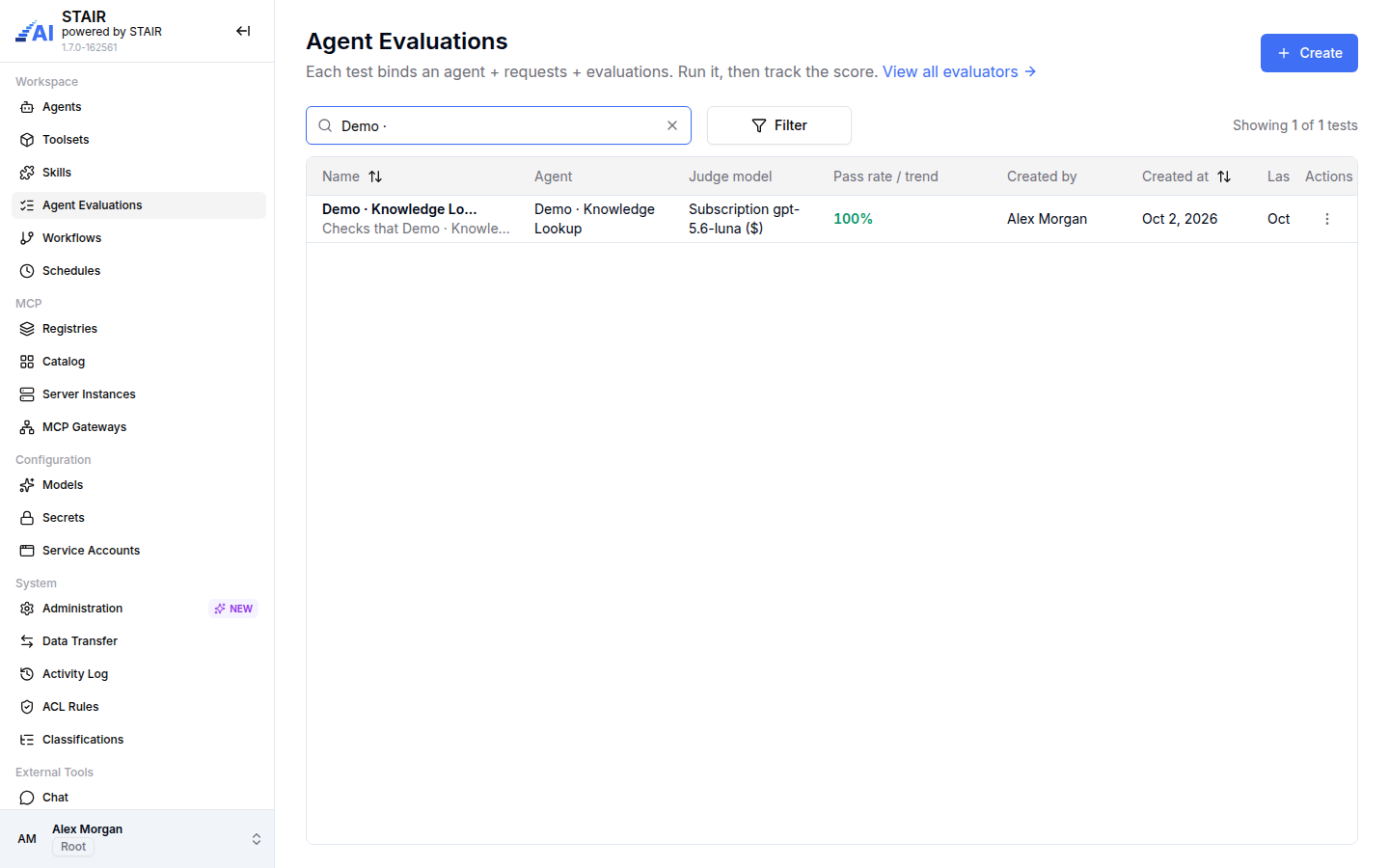
The list shows each test with its Agent, Judge model, Pass rate / trend, Created by, Created at and Last run. Use Filter to narrow the list by agent or judge model.
How to create an agent evaluation
- In the sidebar, open Agent Evaluations and click Create.
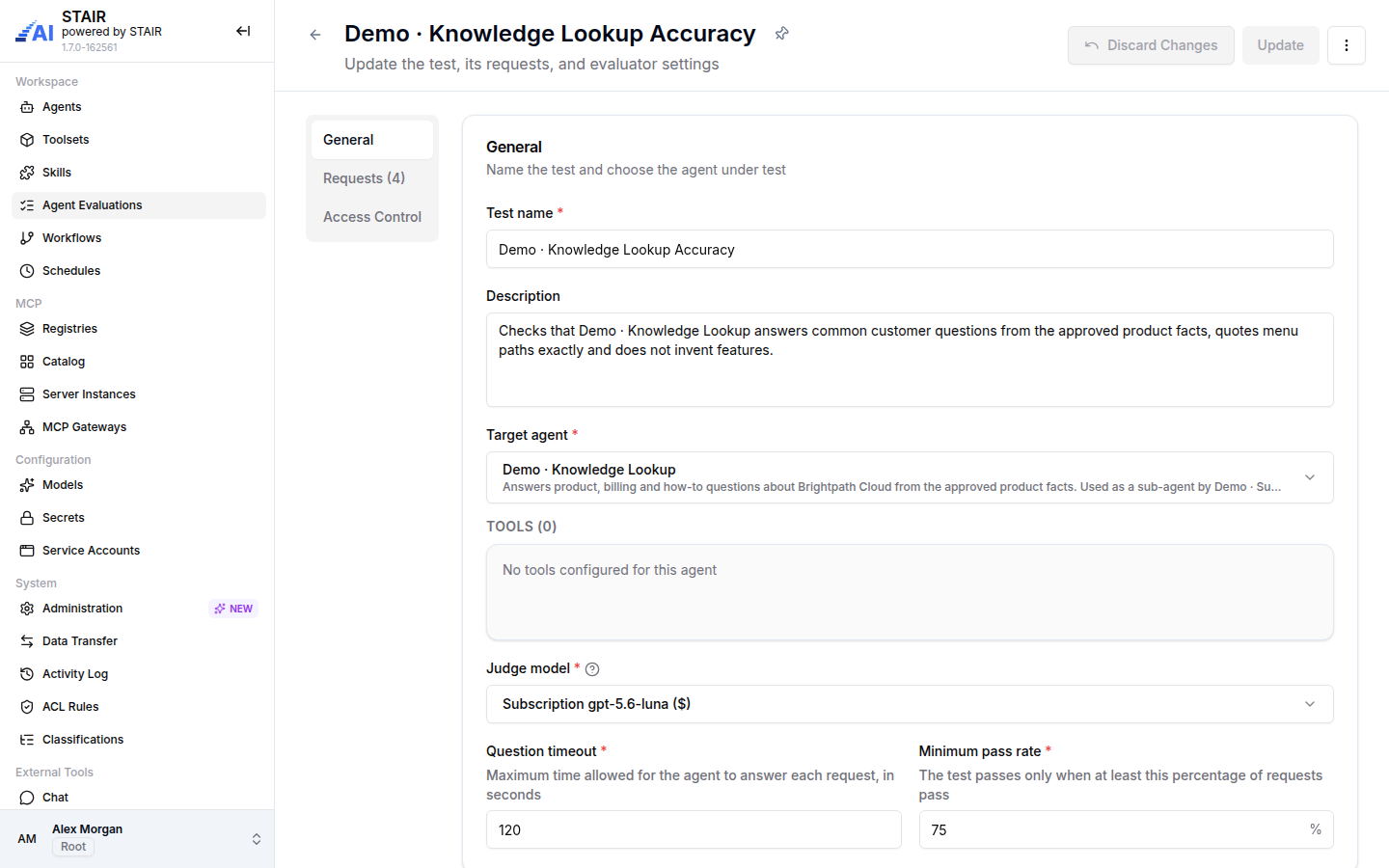
- On the General tab, enter a Test name and a Description, and pick the Target agent. STAIR shows the agent's toolsets and tools, so you can plan tool-call checks.
- Set Question timeout (seconds per request) and Minimum pass rate (%). Pick a Judge model if you plan to use LLM-judge evaluators.
- Open the Requests tab and click Add request. Enter a Request name.
- Under Dialog context, write the messages. Click Add message for each extra turn and use the role switch to set User, Agent or System. The last message must be a User message.
- Under Evaluations, click Add evaluator, tick one or more evaluators in Add evaluations and click Add. Fill in the parameters and the expected value of each evaluator.
- Repeat steps 4–6 for each request. Use Copy request to start a new request from an existing one.
- On the Access Control tab, set the Owner, Read, Write and Manage Access, and Execute Access for the users and teams who may run the test.
- Click Create.
To change a test, open its row menu (⋮) and click Edit. Then click Update to save or Discard Changes to cancel. Copy creates a new test with " (copy)" added to the name.
How to choose evaluators for a request
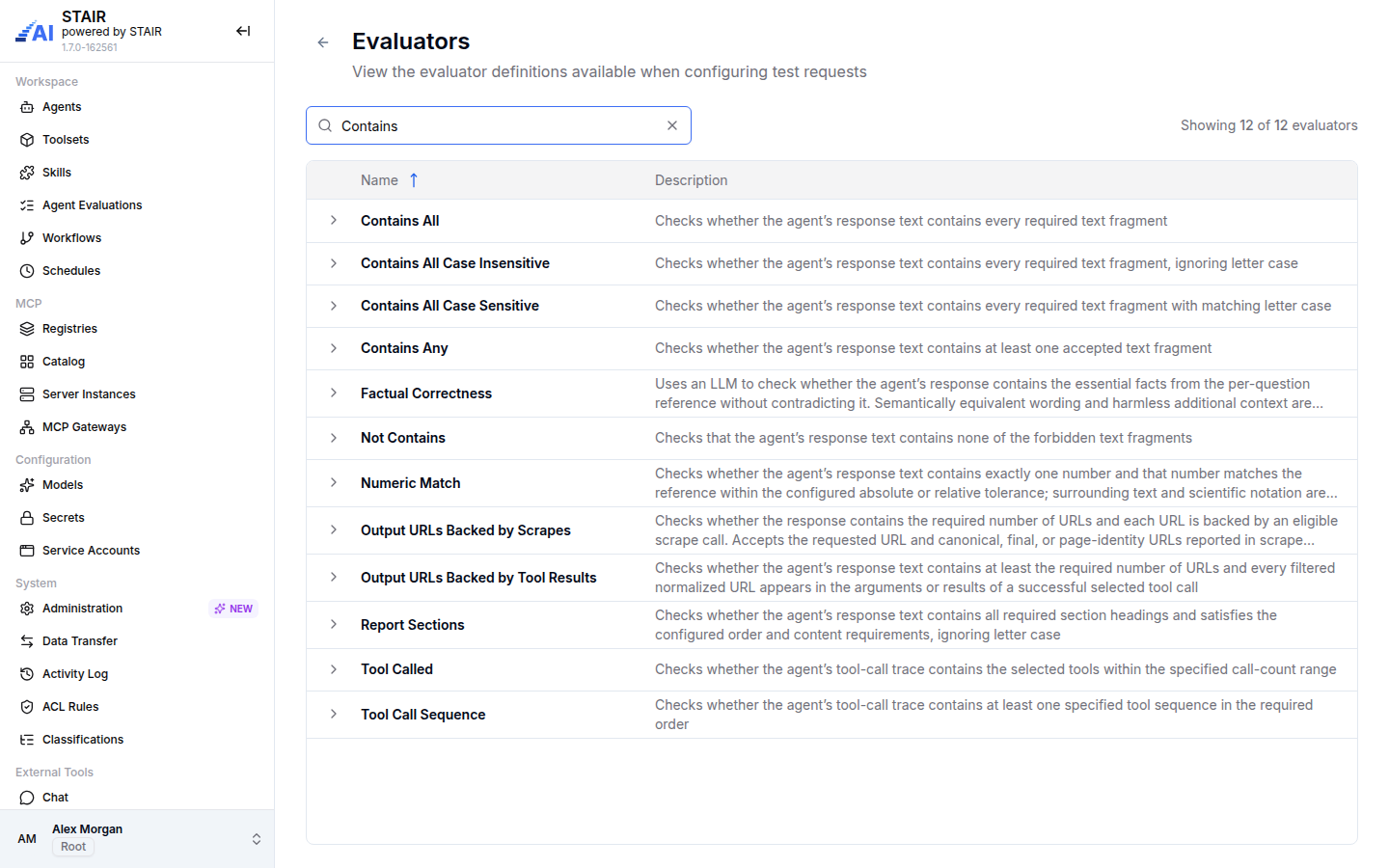
- Open View all evaluators at the top of the Agent Evaluations page. The Evaluators page lists every evaluator available on your installation.
- Search by name and expand a row to see its Editable parameters, Fixed parameters and each parameter's Default value.
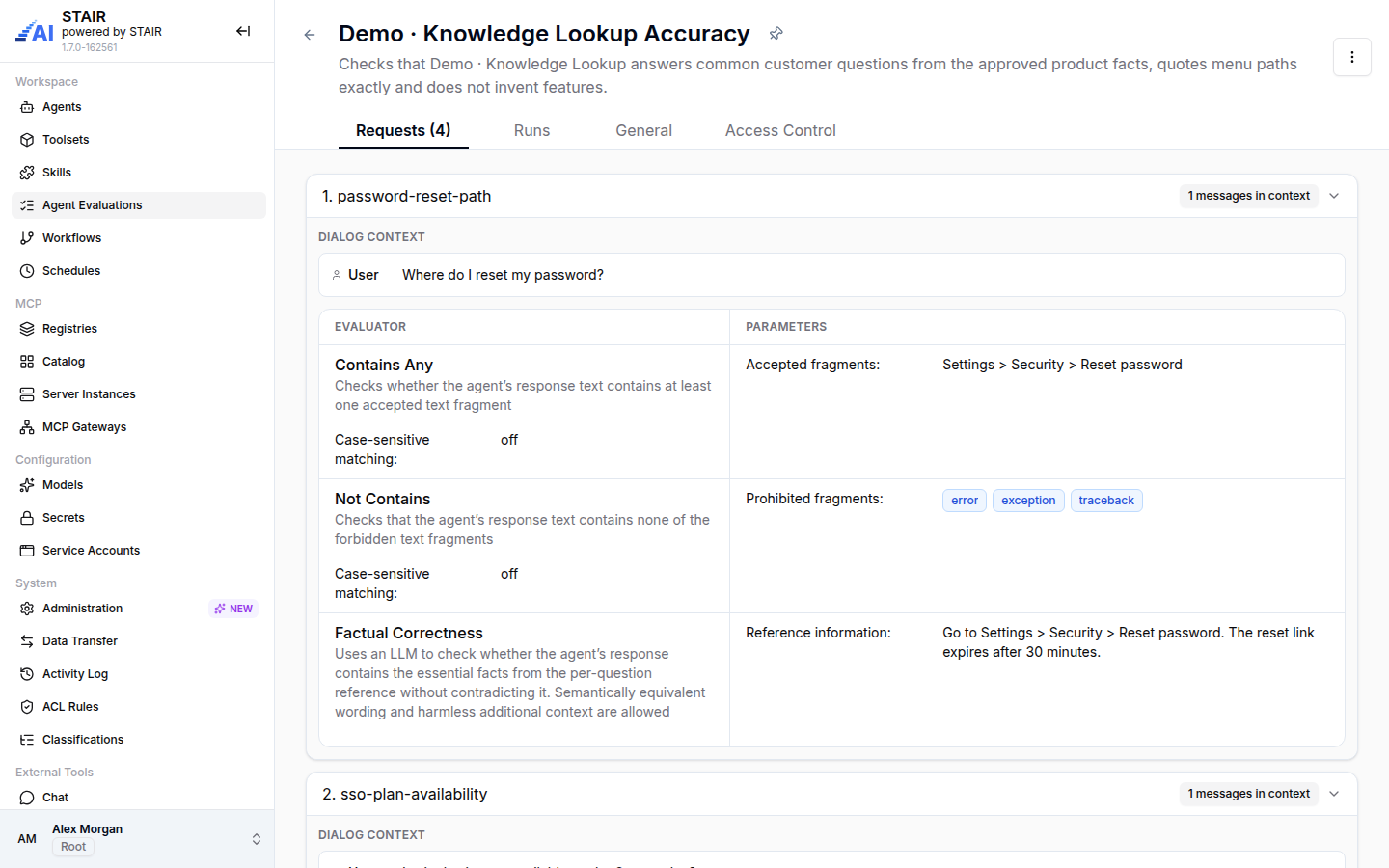
- In a request, add the evaluators that match what you want to check. Combine a few simple checks with one LLM judge. For example, use Contains Any for an exact menu path, Not Contains for error words, and Factual Correctness with a reference answer.
Tool-call evaluators have extra settings such as Call limits (minimum and maximum calls) and Argument checks. LLM-judge evaluators let you pick a Preset or write a Custom rubric. Text evaluators have a Case sensitive switch.
How to run an agent evaluation and read the results
- In the Agent Evaluations list, open the row menu (⋮) of the test and click Run. You can also open the test and use the ⋮ menu at the top right.
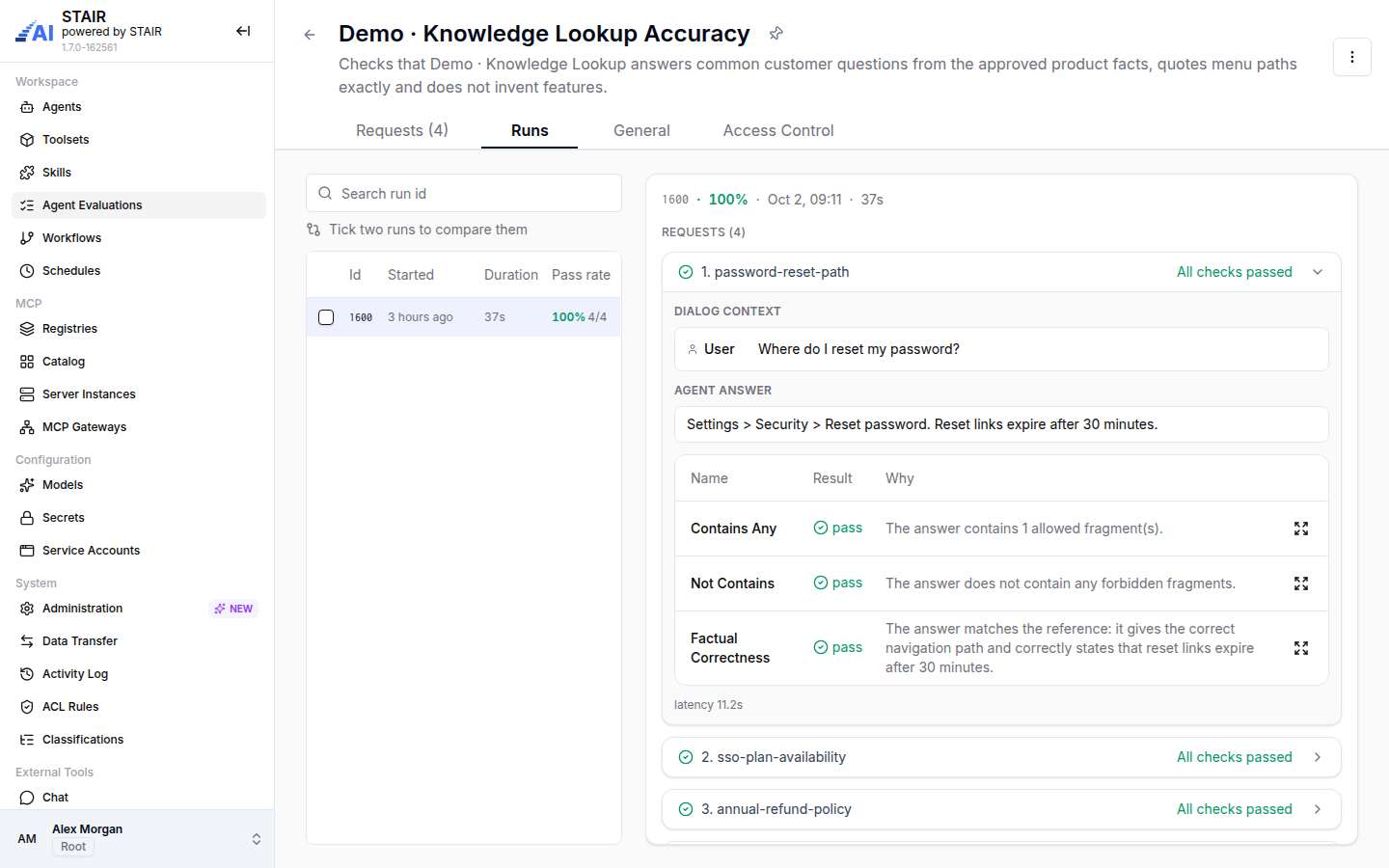
- Open the test and go to the Runs tab. Every run shows its Id, Started, Duration and Pass rate.
- Select a run. The right panel lists the requests with "All checks passed" or the number of failed checks.
- Expand a request to see its Dialog context, the Agent answer, and for each evaluator the Result (pass or fail) and Why. The request also shows its latency.
To run a test, you need Execute Access to the test and to its target agent.
How to compare two runs of an agent evaluation
- On the Runs tab, tick two runs and click Compare.
- The Compare runs page shows Baseline (A) and Current (B), the change in pass rate, and Score over runs.
- The Per-request diff marks each request as Fixed, Regressed, New, Removed, Changed or unchanged. Select a request to see both answers and evaluator results side by side.
- Click View agent configuration changes to see which agent fields changed between the two runs.
Use this after you change an agent's instructions, model or tools: run the test again and compare the new run with the previous one.
Agent evaluation settings reference
General tab
| Field | Required | Description |
|---|---|---|
| Test name | Yes | Name of the test. |
| Description | No | What the test checks and when to run it. |
| Target agent | Yes | The agent under test. |
| Judge model | When LLM-judge evaluators are used | The model that grades answers for LLM-judge evaluators. |
| Question timeout | Yes | Maximum time in seconds for the agent to answer each request. The default is 60. |
| Minimum pass rate | Yes | The test passes only when at least this percentage of requests pass. The default is 100. |
Requests tab
| Field | Required | Description |
|---|---|---|
| Request name | Yes | Name of the request, shown in results. |
| Dialog context | Yes | The messages sent to the agent. It must contain at least one message and end with a User message. |
| Evaluations | Yes | At least one evaluator, each with its parameters, expected value and settings. |
Access Control tab
| Field | Required | Description |
|---|---|---|
| Owner | Yes | The primary maintainer or team accountable for the test. |
| Read Access / Write Access | No | Users and teams that can view or edit the test. |
| Manage Access | Yes | Users and teams that can manage access and settings. |
| Execute Access | No | Users and teams that can run the test. They also need Execute Access to the target agent. |
Troubleshooting Agent Evaluations
"Judge model is required for the selected evaluations"
A request uses an LLM-judge evaluator such as Factual Correctness. Pick a Judge model on the General tab, or remove the LLM-judge evaluators.
"Dialog context must end with a User message"
The last message of a request has the role Agent or System. Add a User message at the end, or switch the role of the last message to User.
A request fails with a timeout
The agent needed longer than the Question timeout. Increase the timeout, or make the request simpler. Agents that call many tools need more time.
"This tool is not available for the selected agent"
A tool-call evaluator refers to a tool that the target agent no longer has. Add the tool to the agent again, or pick another tool in the evaluator.
FAQ
Is the judge model required?
No. You need a judge model only when a request uses an LLM-judge evaluator. Text, tool-call and latency evaluators work without one.
How is the pass rate calculated?
The pass rate is the share of requests in which all evaluators passed. The test passes when the pass rate is at least the Minimum pass rate.
Can I test multi-turn conversations?
Yes. Add several messages to the Dialog context with the roles User, Agent and System. Only the answer to the last User message is graded.
Can I check which tools the agent called?
Yes. Use tool-call evaluators such as Tool Called, Not Tool Called, Tool Call Sequence or All Tool Arguments Match.
Can I run a test automatically?
You run a test from the console. To run agents or workflows on a timetable, see Scheduled Agent Runs.