
Documentation menu
Agent Skills
Read the page as Markdown for LLMsAn agent skill in STAIR is a reusable instruction package, a SKILL.md file plus optional files, that an agent reads when a task matches the skill.
How agent skills work in STAIR
A skill holds know-how that several agents can share: a writing style, a ticket template, a checklist, a procedure with example files. It is not a tool. A skill adds no new actions; it tells the agent how to do a kind of task well.
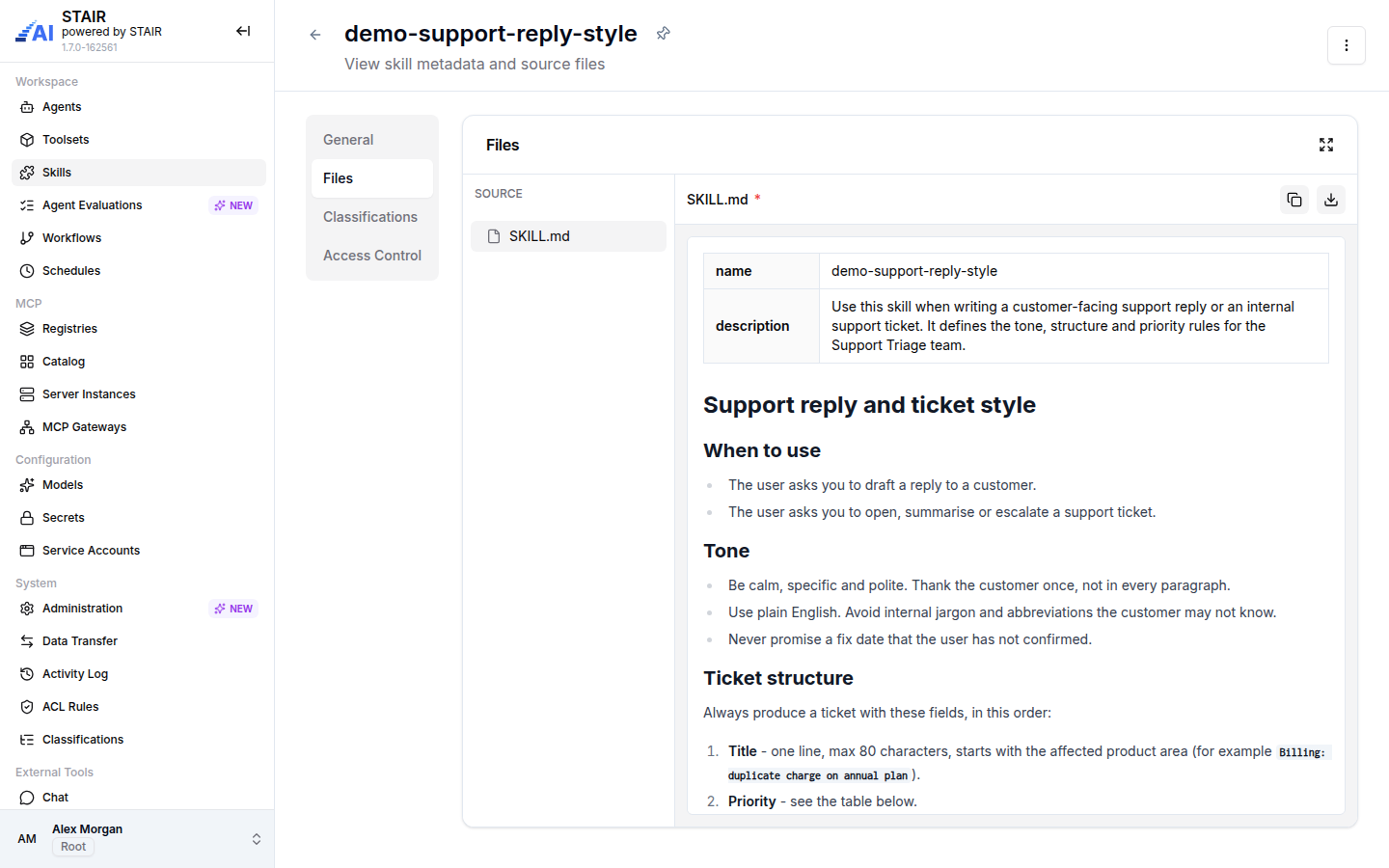
Every skill has a SKILL.md file at its root. The file starts with a front matter block that names the skill and says when to use it, followed by the instructions in Markdown:
---
name: demo-support-reply-style
description: Use this skill when writing a customer-facing support reply or an internal support ticket. It defines the tone, structure and priority rules for the Support Triage team.
---
# Support reply and ticket style

## When to use
- The user asks you to draft a reply to a customer.
- The user asks you to open, summarize or escalate a support ticket.
...
When an agent with attached skills runs, STAIR places the skill files in the agent's session workspace. The agent sees the name and description of each skill. When a request matches a description, the agent opens the full SKILL.md and any files it refers to, and follows them. Skills that do not match stay unread, so many skills can be attached without filling the prompt.
The agent reads skills as files, so the agent's Filesystem capability must be on. See AI Agents.
How to create an agent skill
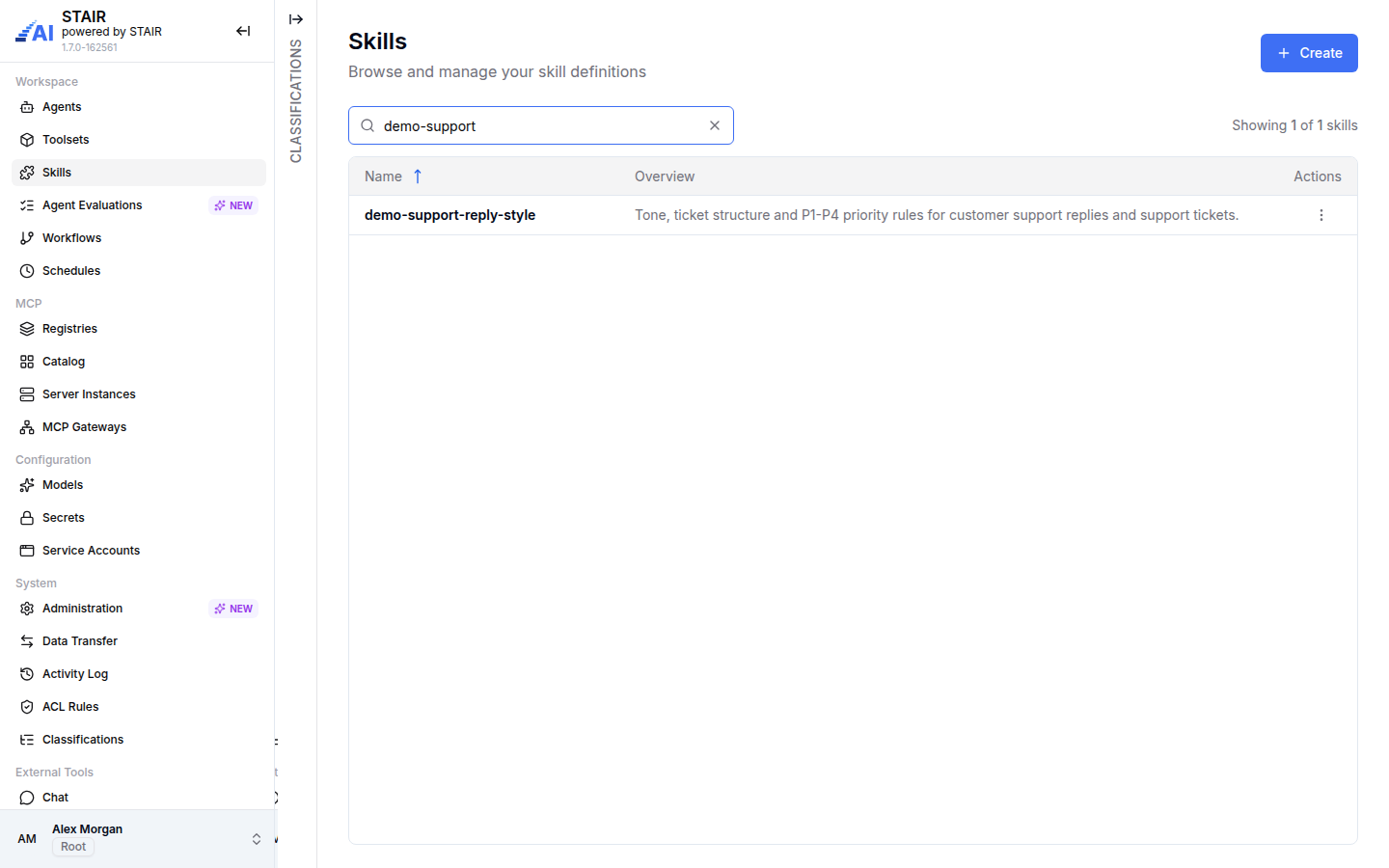
- In the sidebar, open Skills and click Create.
- On the General tab, enter a Name and an Overview (a short summary shown in the Skills list).
- Open the Files tab.
SKILL.mdis already there. - Select
SKILL.mdand write the front matter (name,description) and the instructions. Switch between Edit and Preview to check the Markdown. - To add more files, open the menu next to Source and choose New file, Upload file or New folder.
- On the Access Control tab, check Owner and Manage Access (both default to "Me") and add Read Access and Write Access if others should see or edit the skill.
- Click Create.
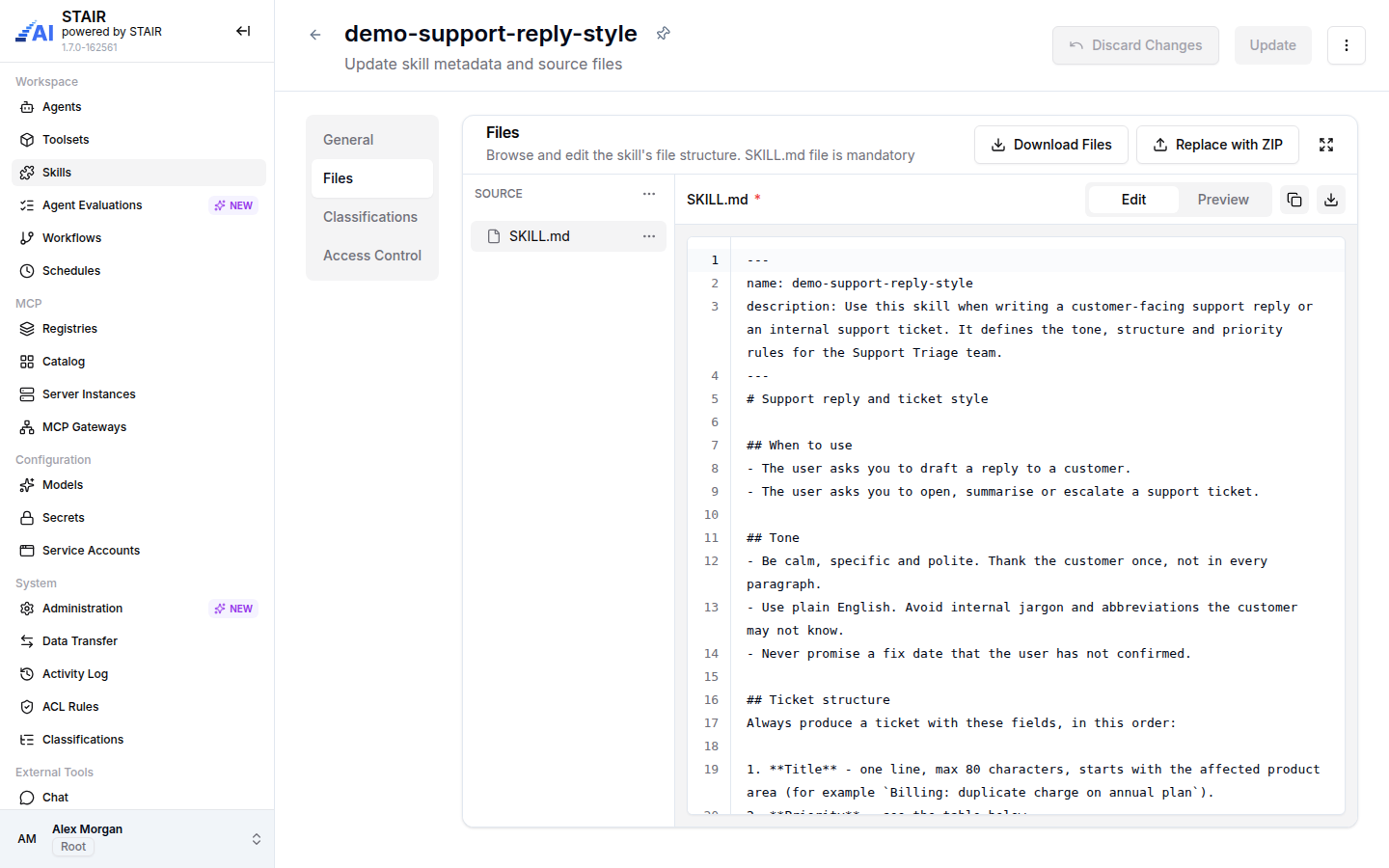
Use a lowercase, hyphenated skill Name that matches the name in the SKILL.md front matter, for example demo-support-reply-style. Write the description as a "use this skill when…" sentence: it is what the agent reads to decide whether the skill applies.
How to edit an agent skill
- In the Skills list, click the skill to open it, then open the actions menu (top right) and click Edit. You can also choose Edit in the row menu
⋮. - On the Files tab, select a file in the tree and change it in the editor. Each file and folder has a menu with Rename, Duplicate and Delete.
- Click Update to save, or Discard Changes to revert.
SKILL.md cannot be removed for good: if you delete it, the editor shows "SKILL.md file is required" with a link to restore the file.
Download Files on the Files tab (edit mode) downloads all files of the skill as one ZIP archive. Copy in the row menu creates a new skill from this one, with " (copy)" added to the name. Show History opens the Activity Log for the skill.
How to replace skill files with a ZIP archive
Use this to update a skill that you maintain outside STAIR, for example in a Git repository.
- Prepare a ZIP archive with
SKILL.mdat the root of the archive and the other files in their folders. - Open the skill in edit mode and go to the Files tab.
- Click Replace with ZIP. The "Replace All Files" dialog warns that the action cannot be undone: all existing files are replaced by the archive contents.
- Drag the ZIP file into the dialog or click browse to upload, then click Replace.
- Check the files and click Update.
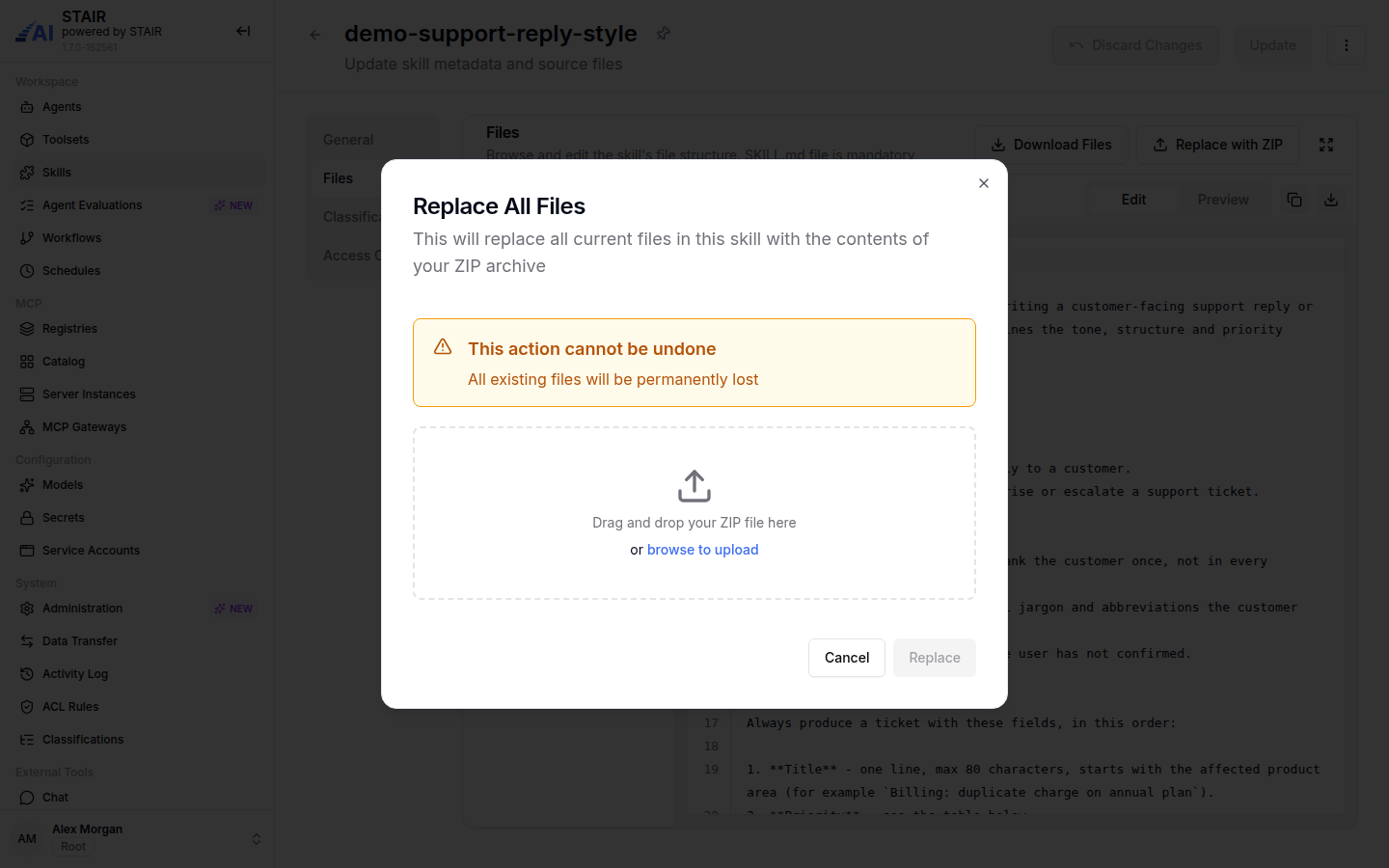
To keep a backup, click Download Files before you replace.
How to attach a skill to an agent
- In the sidebar, open Agents and open the agent in edit mode.
- Go to the Skills tab and click Add Skills.
- Search for the skill, tick it (you can select several) and confirm.
- Click Update.
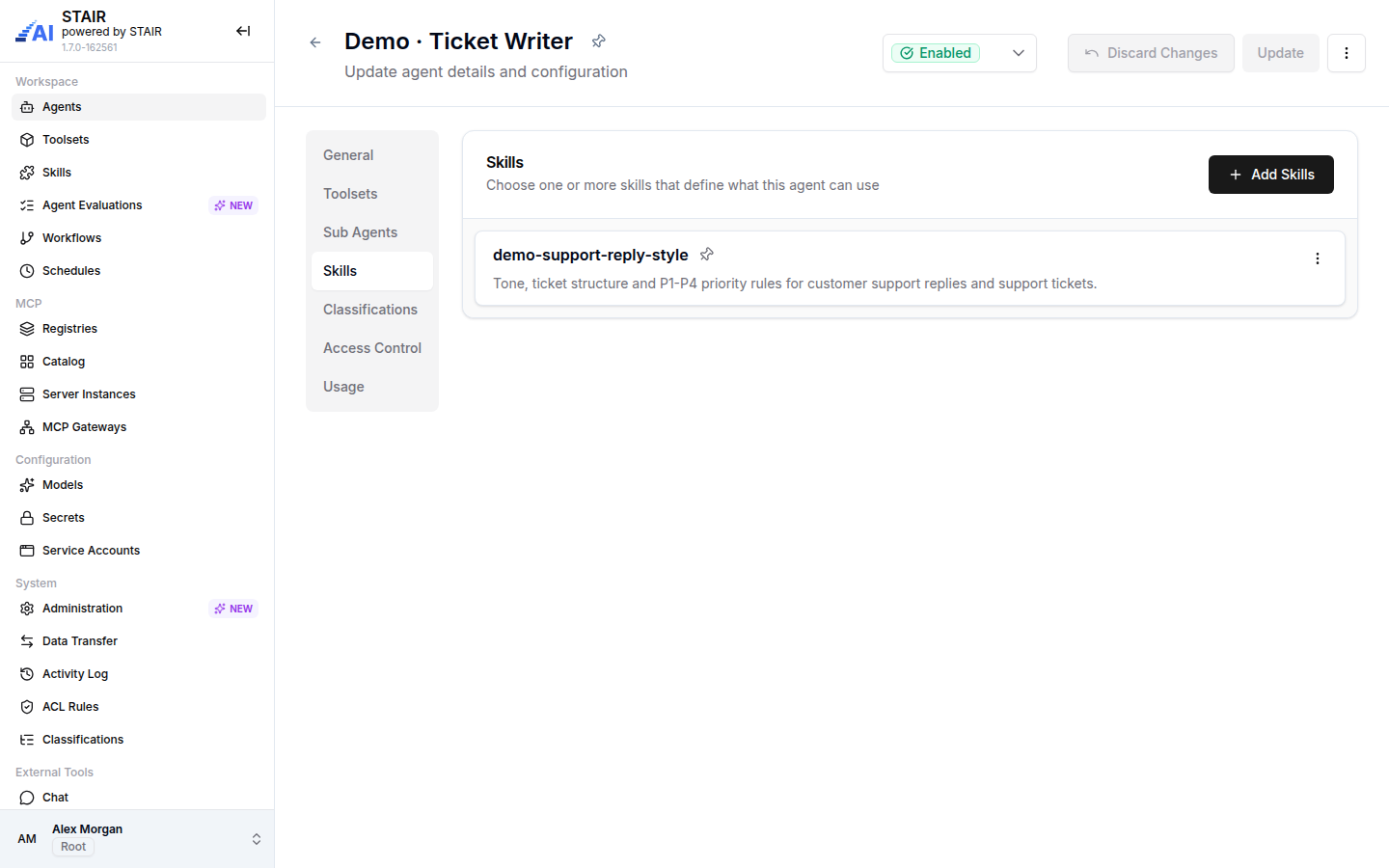
The skill card menu on the agent opens the skill's details or removes the skill from this agent. Removing a skill from an agent does not delete the skill. The Agents list can be filtered by skill with Filters → Skills.
In the demo set, Demo · Ticket Writer uses demo-support-reply-style to produce tickets with a fixed field order and a P1–P4 priority.
Agent skill settings reference
| Field | Required | Description |
|---|---|---|
| Name | Yes | Name of the skill. Use the same lowercase, hyphenated name as in the SKILL.md front matter. |
| Overview | Yes | Short summary shown in the Skills list and on agent skill cards. |
| Files | Yes (SKILL.md) |
The skill's file tree. SKILL.md is mandatory at the root; other files and folders are optional. |
| Owner | Yes | Primary maintainer (user or team) accountable for the skill. |
| Read Access / Write Access | No | Users and teams that can view / edit the skill. |
| Manage Access | Yes | Users and teams that can manage access and settings. |
| Classifications | No | Classifications of the skill (view and edit mode; needs the Classifier role). See Classifications. |
SKILL.md front matter
| Key | Required | Description |
|---|---|---|
name |
Yes | Skill identifier, lowercase with hyphens, equal to the skill Name. |
description |
Yes | When the agent should use the skill. The agent decides from this text alone whether to open the skill. |
Troubleshooting agent skills
The agent does not use the skill
The agent's Filesystem capability is off, the skill is not attached to the agent, or the description does not match the request. Turn on Filesystem, check the agent's Skills tab and rewrite the description as a clear "use this skill when…" sentence.
"SKILL.md file is required" appears in the editor
SKILL.md was deleted or renamed. Click the restore link in the message, or create a file named SKILL.md at the root of Source.
Replace with ZIP rejects the file
Only ZIP archives are accepted ("Only ZIP files are allowed"). Pack the files as .zip with SKILL.md at the root of the archive, not inside an extra top-level folder.
There is no Create from ZIP button
STAIR creates skills through the form only. Create the skill with Create, save it, then use Replace with ZIP in edit mode to load the archive.
FAQ
What is the difference between a skill and a toolset?
A toolset gives an agent callable tools from an MCP server. A skill gives an agent written instructions and reference files; it adds no new tools.
Can several agents use the same skill?
Yes. Attach the skill to each agent on its Skills tab. A change to the skill applies to all agents that use it.
Does every attached skill fill the agent's prompt?
No. The agent sees only each skill's name and description, and opens the full SKILL.md when a request matches.
Can a skill contain files other than SKILL.md?
Yes. Add files and folders in the Files tab or with Replace with ZIP, and refer to them from SKILL.md so the agent knows when to open them.
How do I back up a skill?
Open the skill in edit mode and click Download Files on the Files tab. You get a ZIP archive of all its files.