
Documentation menu
Scheduled Agent Runs
Read the page as Markdown for LLMsA schedule in STAIR runs a workflow or an agent automatically on a cron expression, in a chosen time zone, between a start and an end date.
How schedules work in STAIR
A schedule has a Type and a Target:
- Workflow: STAIR runs the selected workflow and passes the Initial Input as its initial instructions.
- Agent: STAIR sends the Prompt to the selected agent as one request.
The Cron expression decides when the schedule fires. It is read in the schedule's Time Zone. STAIR fires only between the Start Date and the End Date, and only while the schedule is Enabled. A disabled schedule keeps its settings but does not fire.
A scheduled run uses the identity of the user who created the schedule or saved it last. That user's access rights apply to the run, so the user needs access to the target workflow or agent. Every fire creates a run on the schedule's Runs tab. A workflow run also appears on the workflow's Runs tab.
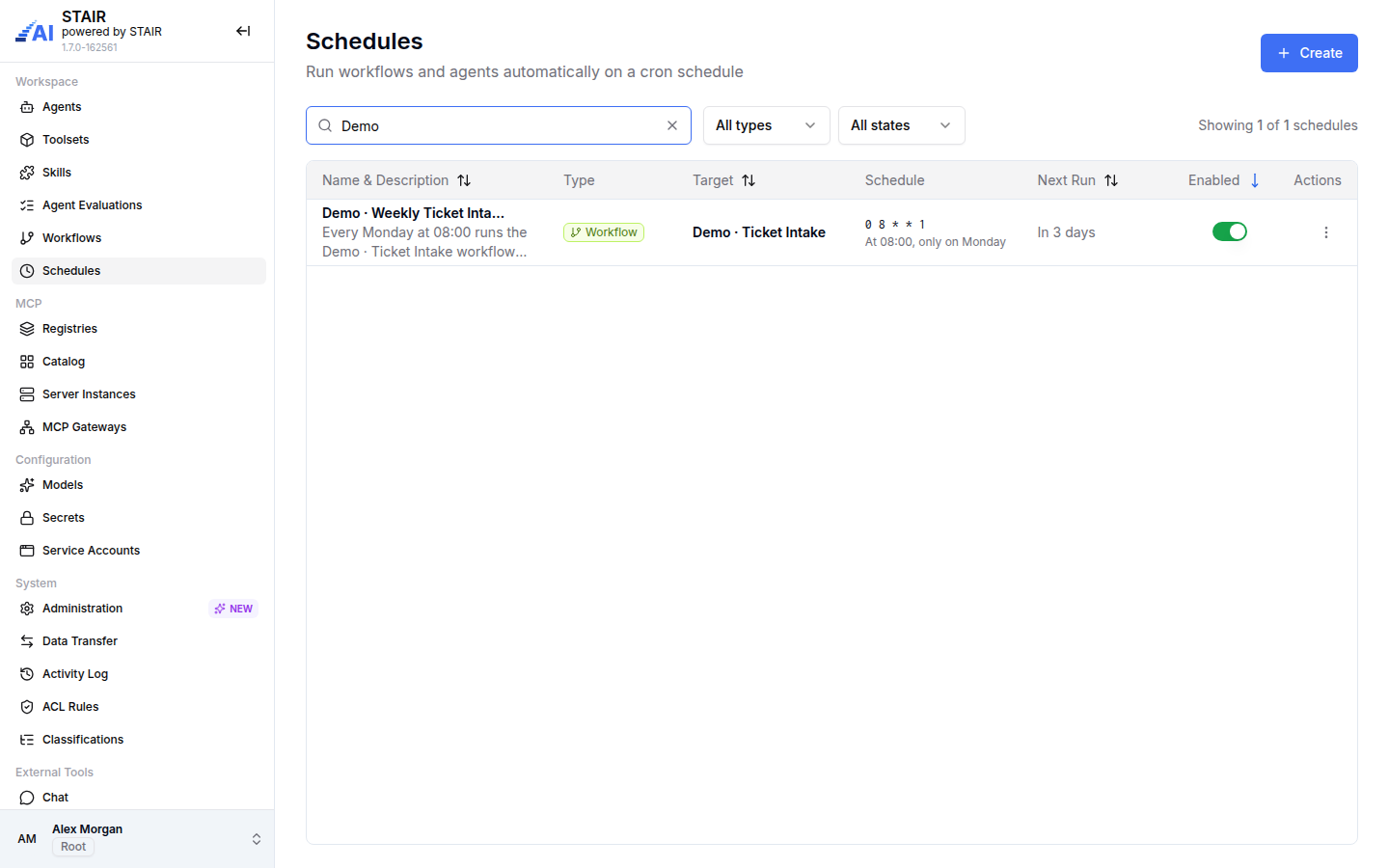
The list shows Name & Description, Type, Target, Schedule (the cron expression with a plain-language reading), Next Run and Enabled. Filter it with All types (Workflow, Agent) and All states (Enabled, Disabled).
How to create a schedule
- In the sidebar, open Schedules and click Create.
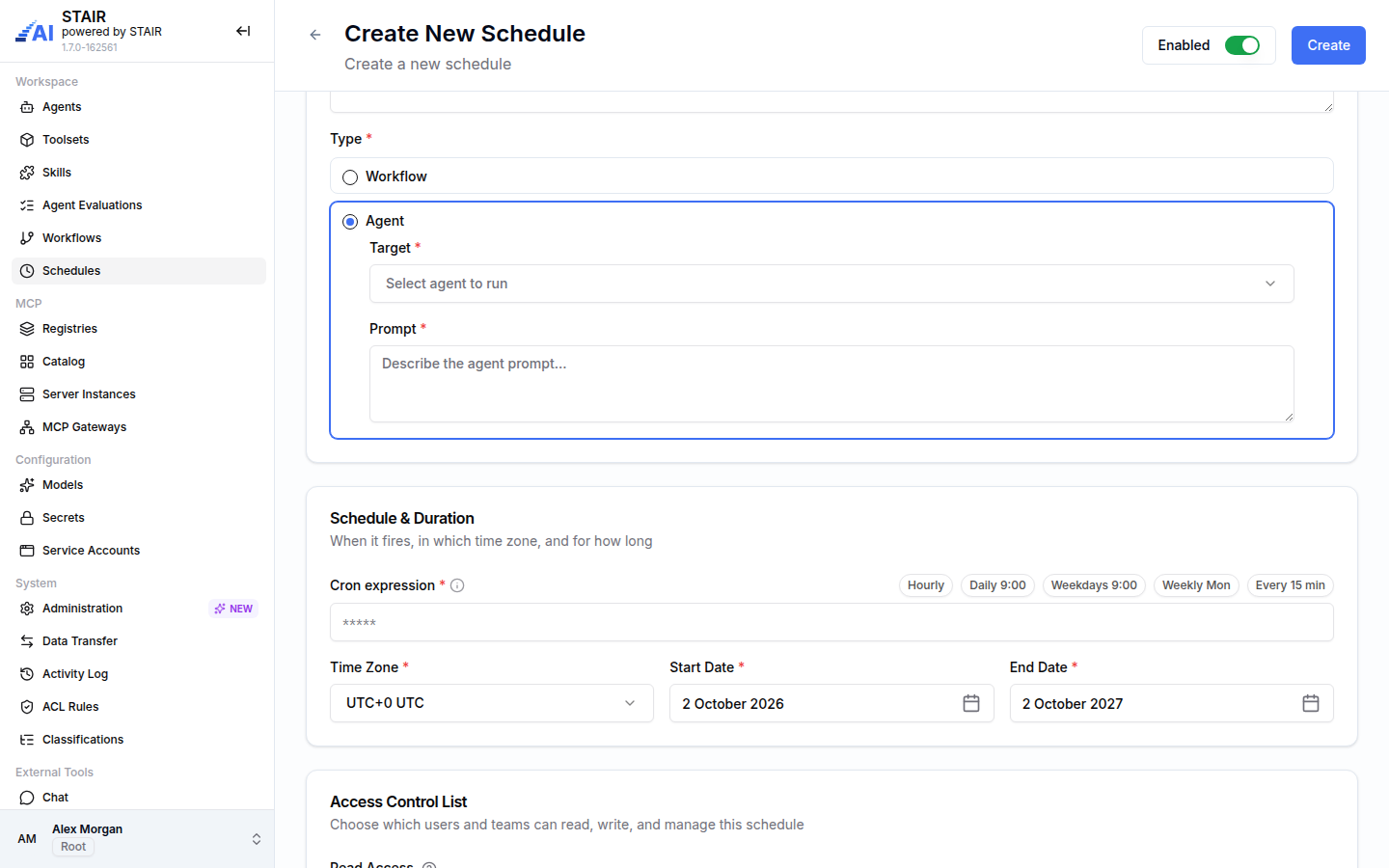
- Under Basic Information, enter a Name and a Description.
- Choose the Type:
- Workflow: pick the workflow in Target and write the Initial Input.
- Agent: pick the agent in Target and write the Prompt.
- Under Schedule & Duration, enter a Cron expression or click a preset: Hourly, Daily 9:00, Weekdays 9:00, Weekly Mon or Every 15 min. STAIR shows the expression in plain language, for example "At 08:00, only on Monday".
- Pick the Time Zone. Check Start Date and End Date: by default the schedule starts today and ends in one year.
- Under Access Control List, set Read Access, Write Access and Manage Access.
- Leave Enabled on at the top of the page to start firing right away, or turn it off to save the schedule without running it.
- Click Create.
How to write a cron expression for a schedule
A cron expression has five fields separated by spaces:
<minute> <hour> <day of month> <month> <day of week>
| Field | Allowed values | Special characters |
|---|---|---|
| Minute | 0-59 | * , - / |
| Hour | 0-23 | * , - / |
| Day of month | 1-31 | * , - / |
| Month | 1-12 | * , - / |
| Day of week | 0-6 (0 = Sunday) | * , - / |
* selects all values, , separates a list (1,3,5 in the day-of-week field means Monday, Wednesday and Friday), - defines a range (1-5 means Monday to Friday), and / defines a step (*/5 in the minute field means every 5 minutes). Examples:
| Expression | Meaning |
|---|---|
0 8 * * 1 |
Every Monday at 08:00 |
0 9 * * 1-5 |
Weekdays at 09:00 |
*/15 * * * * |
Every 15 minutes |
0 * * * * |
Every hour, on the hour |
The shortest interval is one minute. Click How to write a CRON expression next to the field for the same help in the console.
How to view, edit and stop a schedule
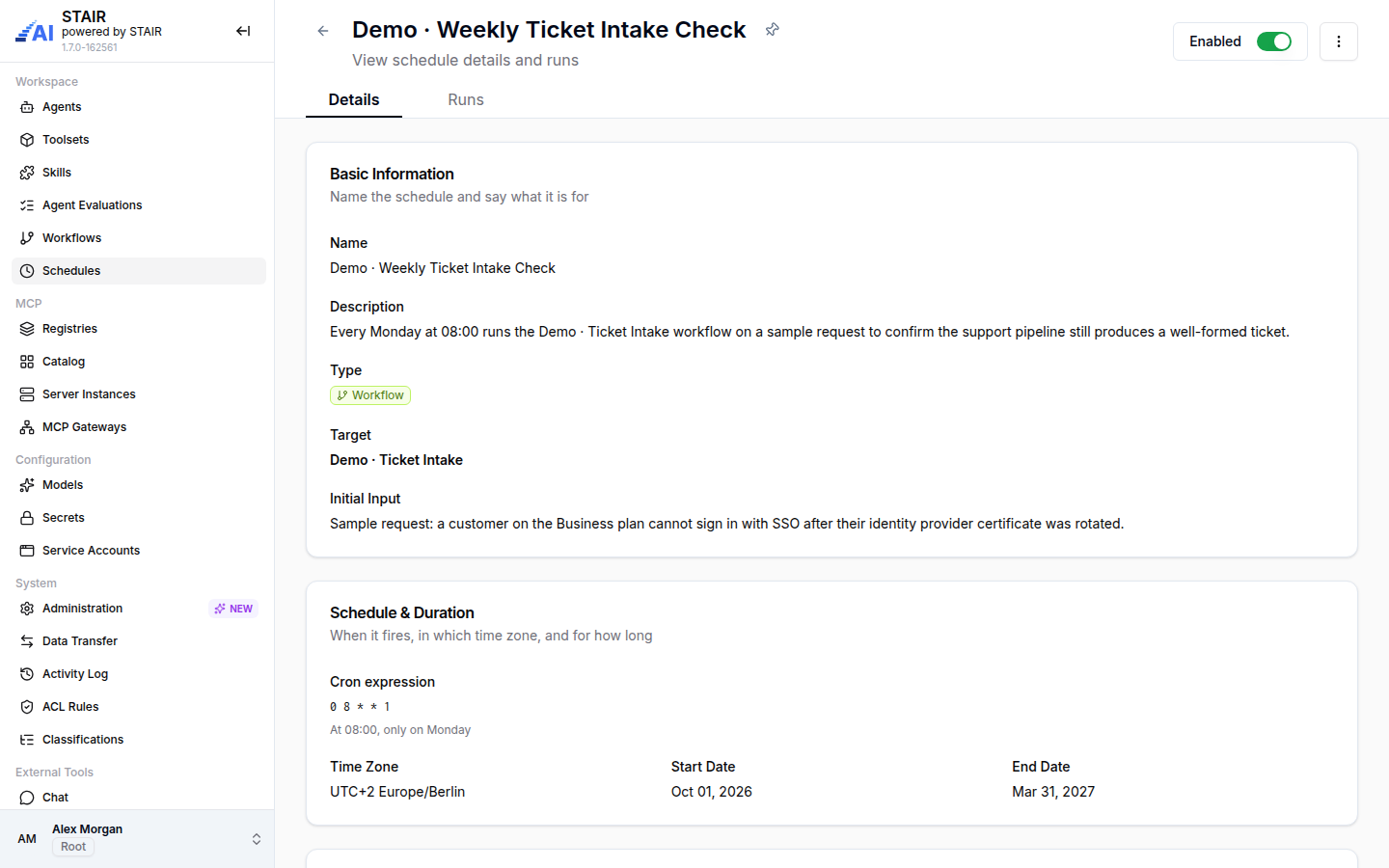
- Open the schedule from the list. The Details tab shows the basic information, the schedule and duration, and the access control list.
- To pause it, turn off Enabled at the top right. To resume it, turn it on again.
- To change it, open the ⋮ menu and click Edit, change the fields and click Save Changes.
- To delete it, open the ⋮ menu and click Delete.
How to check the runs of a schedule
- Open the schedule and go to the Runs tab.
- Each run shows Run ID, Status, Workflow name or Agent name, Created by and Created at.
- Use the row actions to open the target of a run.
- To clean up, select runs (or Select all runs) and delete them.
A run can end with a partial success when some workflow steps failed. Check the run details of the workflow to see which node failed.
Schedule settings reference
| Field | Required | Description |
|---|---|---|
| Name | Yes | Name of the schedule. |
| Description | Yes | What the schedule is for. |
| Type | Yes | Workflow or Agent. |
| Target | Yes | The workflow or agent to run. |
| Initial Input | For Workflow | The initial instructions passed to the workflow. |
| Prompt | For Agent | The request sent to the agent. |
| Cron expression | Yes | Five-field expression that sets when the schedule fires. |
| Time Zone | Yes | The time zone the cron expression is read in. The default is UTC. |
| Start Date | Yes | First day the schedule may fire. The default is today. |
| End Date | Yes | Last day the schedule may fire. It must be on or after the start date and not in the past. The default is one year from today. |
| Enabled | No | Turns firing on or off. On by default. |
| Read Access / Write Access | No | Users and teams that can view or edit the schedule. |
| Manage Access | Yes | Users and teams that can manage the schedule. |
Troubleshooting schedules
"Invalid cron expression"
The expression does not have five fields, or a value is out of range (for example, hour 24). Fix the field named in the message, or start from a preset.
The schedule never fires
The schedule is disabled, today is before the Start Date or after the End Date, or the time zone is not the one you expected. Check Next Run in the list. For example, 0 8 * * 1 with the time zone Europe/Berlin fires at 08:00 Berlin time.
"The configured workflow is no longer available or you do not have access to it"
The target was deleted, or your account lost access to it. Pick another target, or ask the owner of the workflow or agent for access.
Runs fail with an access error
The run uses the identity of the user who saved the schedule last. If that user lost access to the target, save the schedule again as a user who has access.
FAQ
Can a schedule run an agent without a workflow?
Yes. Choose the type Agent, pick the agent and write the Prompt. STAIR sends the prompt to the agent at every fire.
Which time zone does a schedule use?
The schedule uses the Time Zone set on it. The default is UTC. Cron times are read in that time zone.
What happens after the end date?
The schedule stops firing. To continue, edit it and set a later End Date.
Whose permissions does a scheduled run use?
It uses the permissions of the user who created the schedule or saved it last.
How do I pause a schedule without deleting it?
Turn off Enabled on the schedule page or in the list. Turn it on again to resume.