
Documentation menu
Secrets
Read the page as Markdown for LLMsA secret in STAIR is a named, access-controlled credential value, such as an LLM provider API key, that other records reference by name.
How secrets work in STAIR
A secret stores one value, plain text or JSON, under a Name, with an optional Description and its own access list. Other records point to the secret instead of holding the value themselves. Rotating a key means editing one secret, and every record that references it uses the new value.
In STAIR 1.7 the record that references secrets is the model provider: its Authentication secret field lists the secrets. See LLM Models. Toolset header values and MCP server instance environment variables are entered in the toolset or instance itself, not picked from Secrets.
Secrets are in the sidebar under Configuration → Secrets. The page needs the Admin role.
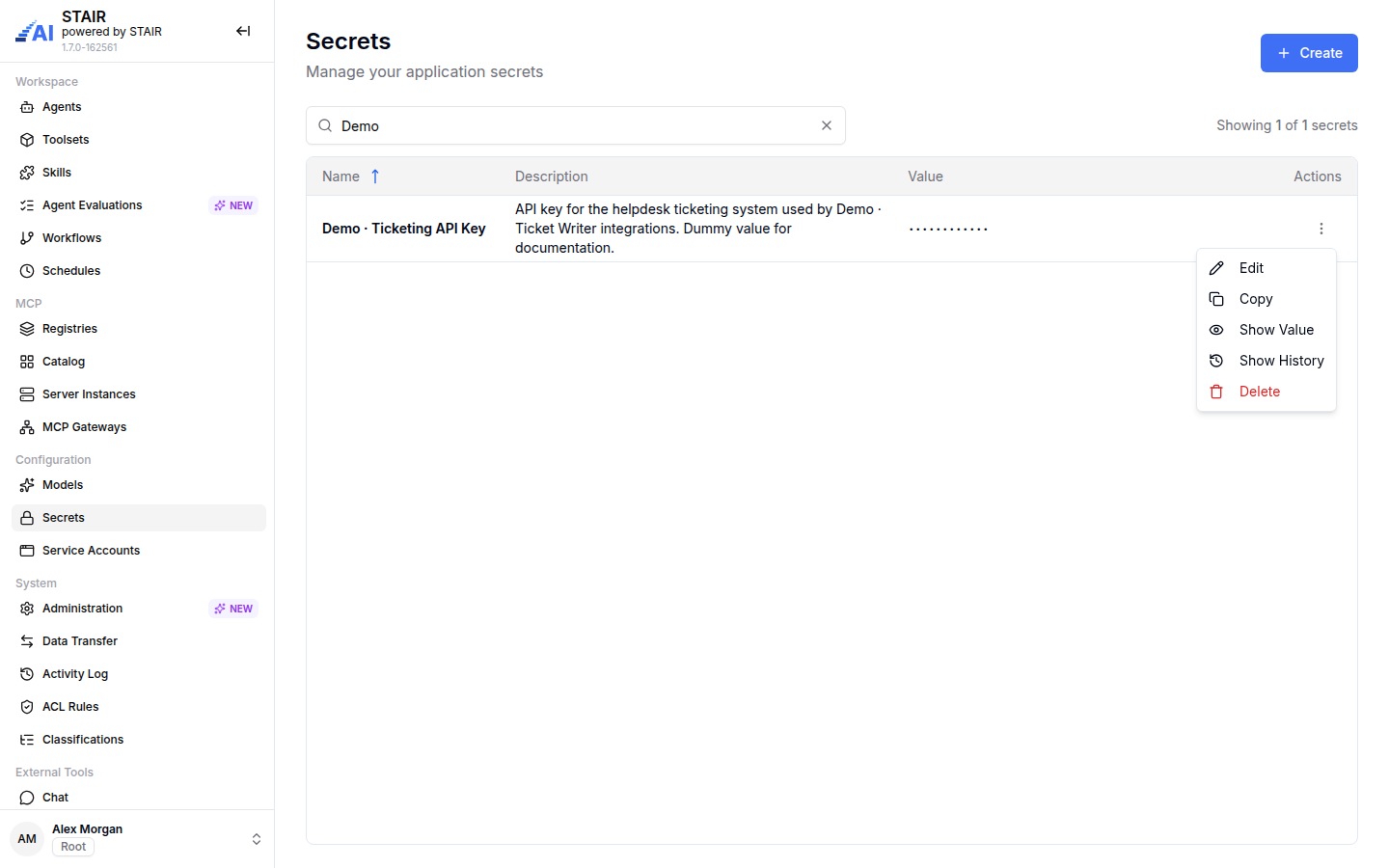
The list shows Name, Description, Value and Actions. Values are masked. Search with "Search by secret name or description".
How to create a secret
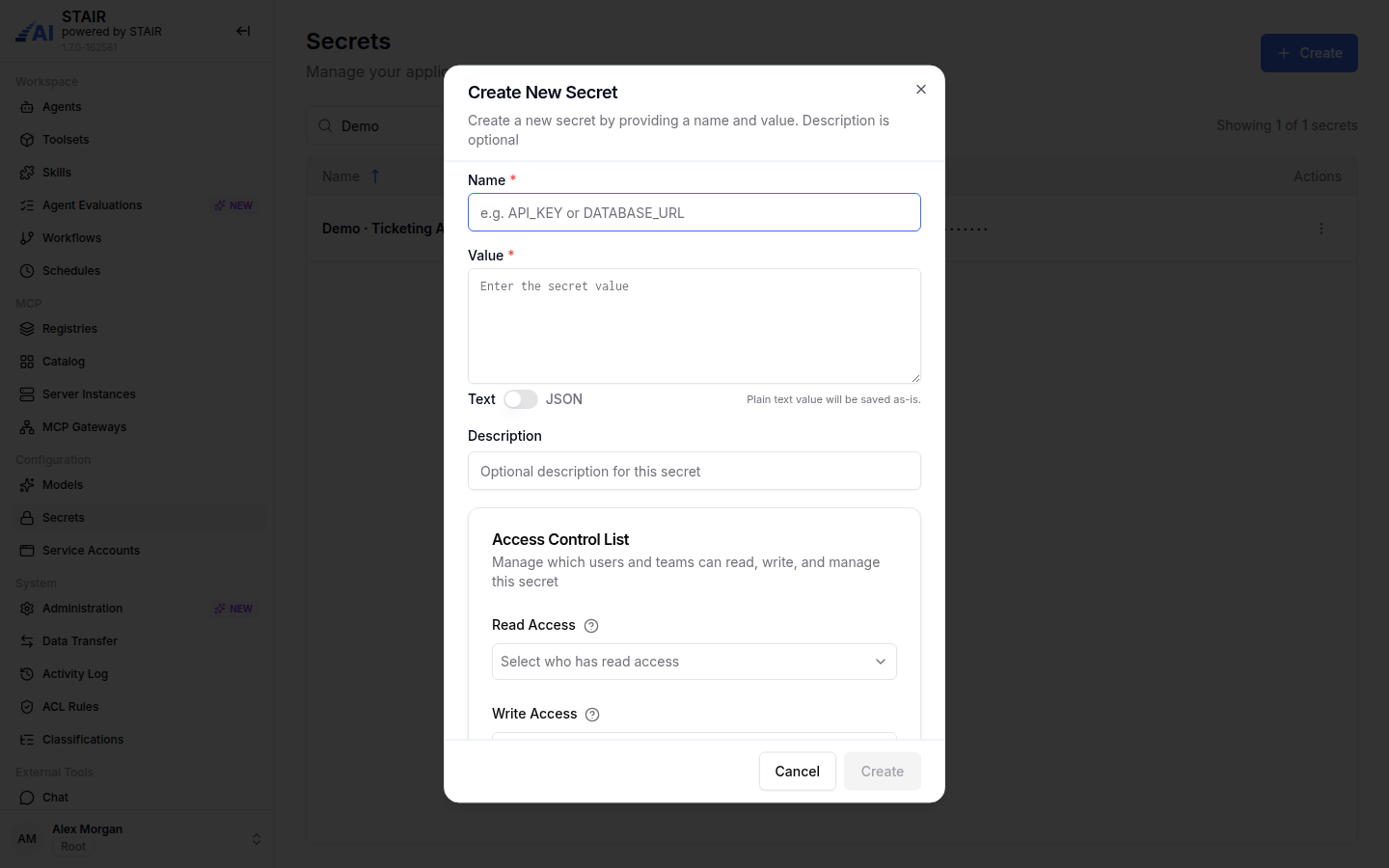
- In the sidebar, open Secrets and click Create. The Create New Secret dialog opens.
- Enter a Name, for example
API_KEYorDATABASE_URL. Choose a name that tells others what the secret is for, because pickers show the name. - Enter the Value. Use the Text / JSON switch to choose the input mode:
- Text: "Plain text value will be saved as-is."
- JSON: the value must be valid JSON.
- Optionally add a Description.
- In Access Control List, check Manage Access (required, "Me" by default) and add Read Access and Write Access for the users and teams that need the secret.
- Click Create.
How to use a secret in a model provider
- In the sidebar, open Models, then the Providers tab.
- Click Create, or open a provider's row menu
⋮and click Edit. - In Authentication secret, search for and select the secret. Choose No secret for a provider without authentication.
- Click Create or Save changes. Use Try provider in the Edit provider dialog to check that the key works.
How to view or copy a secret value
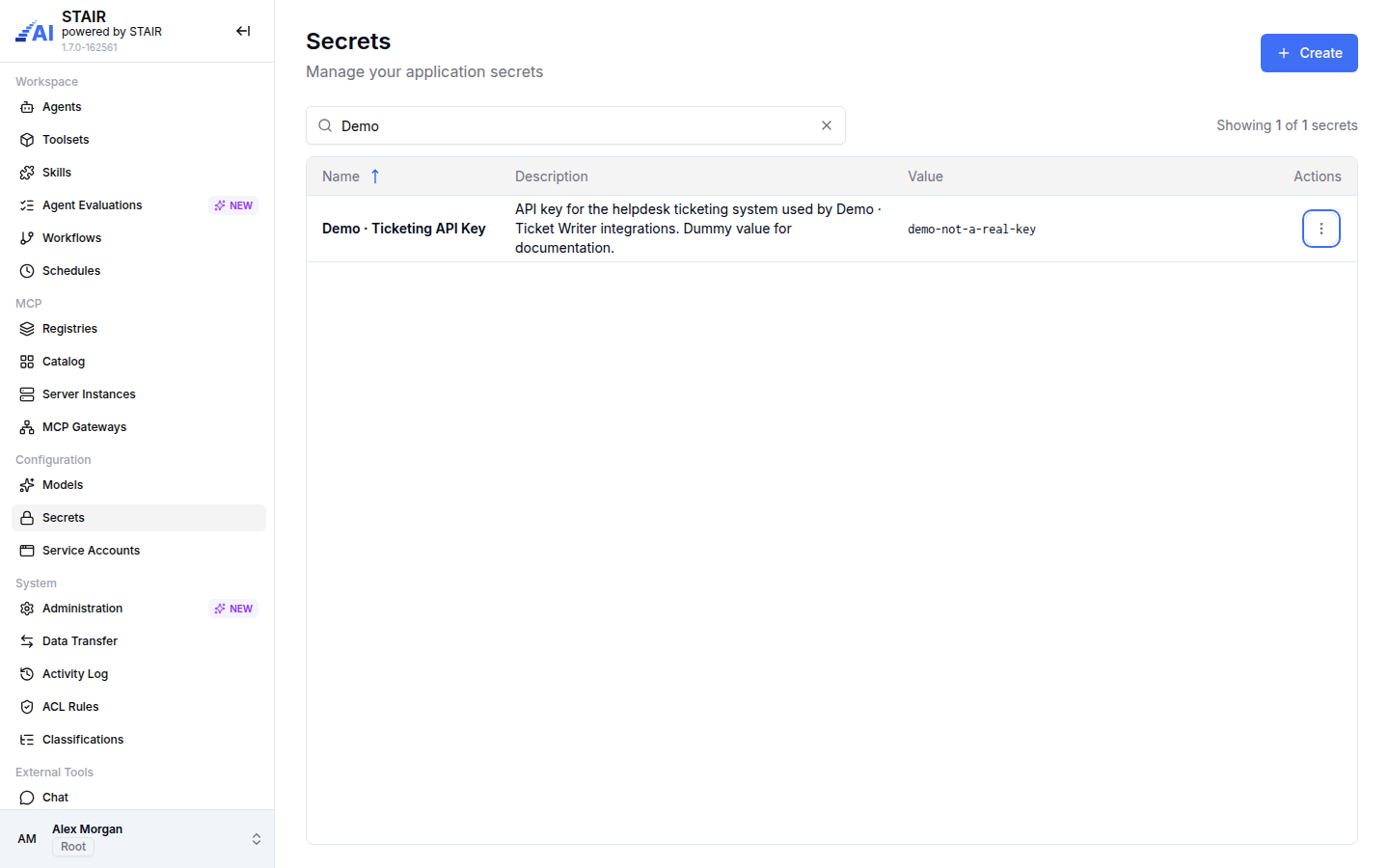
The value is masked in the list. Users with access to the secret can still read it:
- Open the row menu
⋮of the secret. - Click Show Value to show the value in the list. Click Hide value in the same menu to mask it again.
- Click Copy to copy the value to the clipboard without showing it.
How to edit, rotate or delete a secret
- Open the row menu
⋮of the secret and click Edit. - In Edit Secret, change Name, Value, Description or the access lists. All fields except Description are required.
- Click Save. Records that reference the secret use the new value.
To remove a secret, click Delete in the row menu and confirm. Before deleting, make sure no model provider still uses it. Show History opens the Activity Log filtered to the secret, with every create, update, delete and access change.
Edit needs Write Access and Manage Access on the secret; Delete needs Manage Access.
Secret settings reference
| Field | Required | Description |
|---|---|---|
| Name | Yes | Name shown in the list and in secret pickers, for example API_KEY. |
| Value | Yes | The credential. Text is saved as-is; JSON must be valid JSON. |
| Text / JSON | — | Input mode of the value. |
| Description | No | What the secret is for. |
| Read Access | No | Users and teams that can view this secret. |
| Write Access | No | Users and teams that can edit this secret. |
| Manage Access | Yes | Users and teams that can manage access and settings. |
| Row action | What it does |
|---|---|
| Edit | Opens Edit Secret. |
| Copy | Copies the value to the clipboard. |
| Show Value / Hide value | Shows or masks the value in the list. |
| Show History | Opens the Activity Log for the secret. |
| Delete | Deletes the secret after confirmation. |
Troubleshooting secrets
Secrets is missing from the sidebar
Cause: the Secrets page needs the Admin role. Fix: ask a STAIR administrator for the role, or ask them to create the secret and give you access.
A secret does not appear in the Authentication secret picker
Cause: you have no access to the secret, or the search text does not match its name. Fix: ask the secret's manager to add you to Read Access, and search by the exact name.
Edit or Delete is disabled in the row menu
Cause: Edit needs Write Access and Manage Access, Delete needs Manage Access. Fix: ask a user listed in the secret's Manage Access to add you.
Create stays disabled or shows "Invalid JSON"
Cause: a required field is empty, or the value is in JSON mode but is not valid JSON. Fix: fill in Name and Value, or switch the value to Text.
A provider still fails after rotating a key
Cause: the provider references a different secret, or the new value is wrong. Fix: open the provider with Edit, check Authentication secret and click Try provider.
FAQ
Are secret values hidden in STAIR?
Values are masked in the Secrets list, and access is controlled per secret. Users with access can reveal a value with Show Value, copy it with Copy or see it in Edit Secret, so give access only to the people who need it.
Where are secrets used in STAIR?
Model providers reference a secret in their Authentication secret field. Toolset header values and MCP server instance environment variables are set in the toolset or instance itself.
Can a secret hold several values?
Yes. Switch the value to JSON and store a JSON object. The value must be valid JSON.
How do I rotate an API key?
Edit the secret, replace the Value and click Save. Every model provider that references the secret uses the new key.
Can I see who changed a secret?
Yes. Show History in the row menu opens the Activity Log with the secret's changes, the person and the date.