
Documentation menu
Toolsets and MCP Tools
Read the page as Markdown for LLMsA toolset in STAIR connects one MCP server, sets how its calls are authenticated and lists the MCP tools that agents are allowed to use.
How toolsets work in STAIR
An MCP server exposes tools: operations such as "evaluate an expression", "run a Python script" or "create a Jira issue". A toolset is the STAIR record for one such server. It holds:
- the server: either an MCP Server Instance that STAIR runs for you, or the URL of any running MCP server;
- the authentication mode: how STAIR authorizes calls to the server, with no credentials, a header, or OAuth;
- the tool list: the tools loaded from the server that agents may use.
Agents do not talk to MCP servers directly. You attach a toolset to an agent and pick which of its tools that agent may call. STAIR then calls the server on the agent's behalf, adding the credentials the toolset's authentication mode prescribes. The caller's own STAIR sign-in is never forwarded to the MCP server. A user's identity reaches the server only through a per-user mode: a Dynamic header or OAuth 2.1.
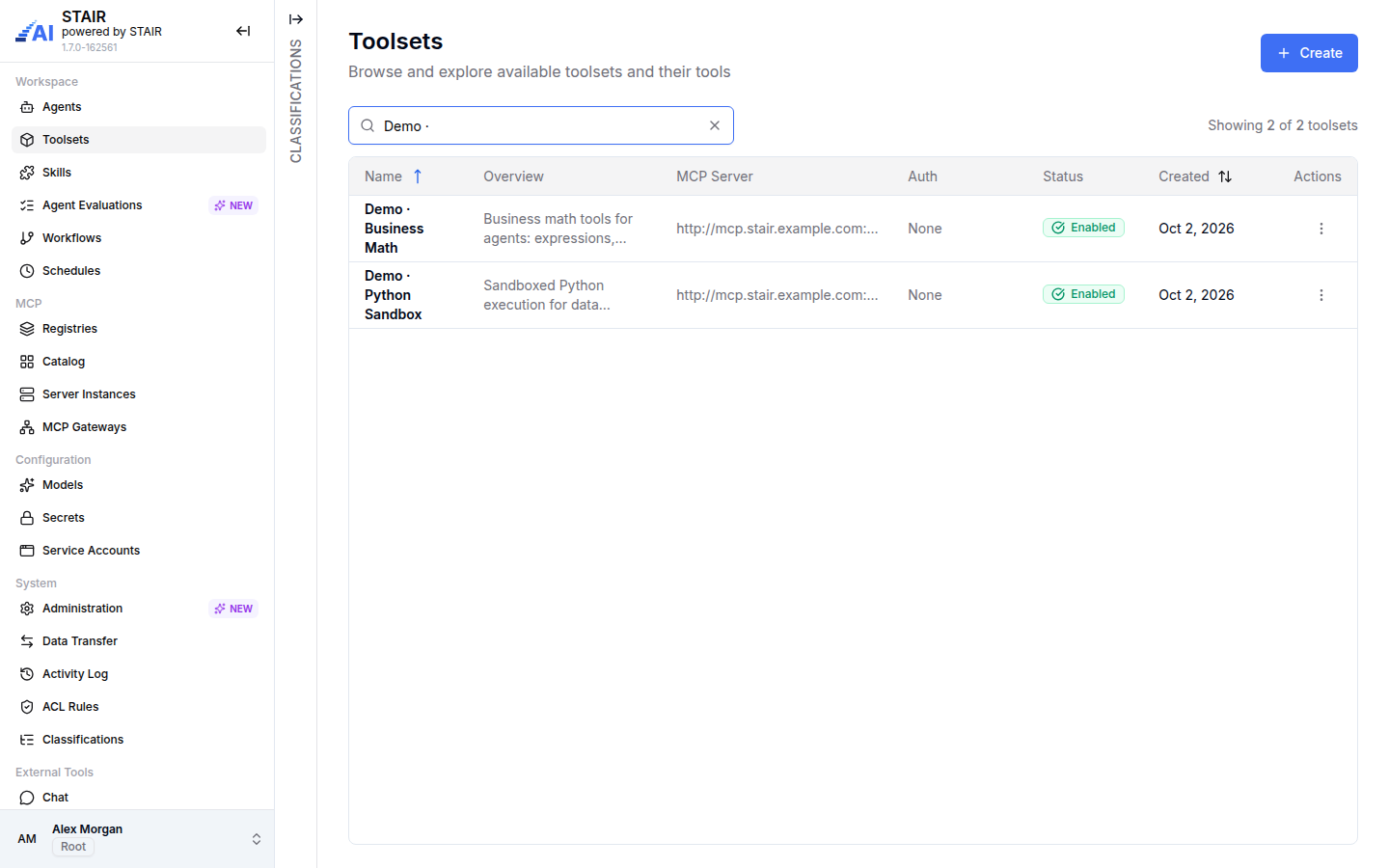
The Toolsets list shows Name, Overview, MCP Server, Auth, Status and Created. Search with "Search toolsets or their tools", or filter with the Classifications panel on the left edge.
How to create a toolset
Creating a toolset needs the Admin role.
- In the sidebar, open Toolsets and click Create.
- On the General tab, enter Name, Overview (a short Markdown summary shown on tool cards) and Description (full Markdown details for the people who use the toolset).
- Open the Tools tab. Under MCP server, choose one of:
- Choose existing instance, then pick the MCP Server Instance from the running instances. Deploy instances from the MCP Catalog first if the list is empty.
- Enter server URL, then paste the Server URL of any running MCP server.
- Under Authentication, choose a mode (see How to choose a toolset authentication mode) and fill in its fields.
- Click Load Tools from MCP Server. STAIR opens a short-lived window that connects to the server with the selected authentication (for OAuth 2.1 you sign in there) and returns the tool list. Allow pop-ups for STAIR if the browser blocks the window.
- In the tool list, keep the tools agents may use switched on. Use Select All / Deselect All and the search box for long lists.
- On the Access Control tab, check Owner and Manage Access and add Read Access and Write Access as needed.
- Optionally add custom JSON on the Advanced tab in Settings (JSON). Leave
{}if you do not need it. - Click Create.
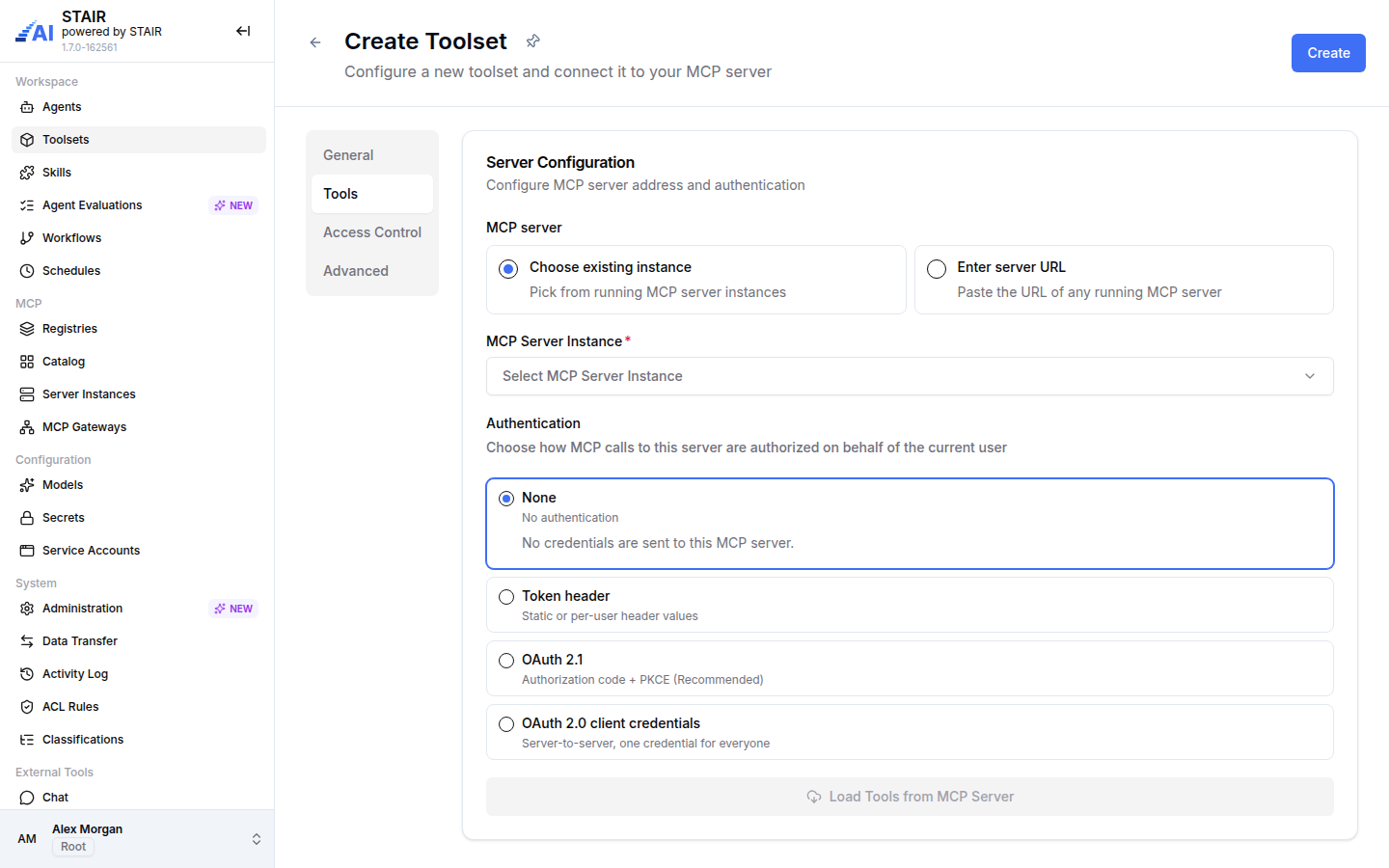
You can also start a toolset from the MCP Catalog (Add Toolset on a hosted server) or from a server instance (Used In → Add Toolset). See MCP Server Catalog.
How to choose a toolset authentication mode
The Authentication section ("Choose how MCP calls to this server are authorized on behalf of the current user") offers four modes.
| Mode | UI caption | Who the server sees | Use it for |
|---|---|---|---|
| None | No authentication | No credentials are sent to this MCP server. | Internal, read-only or public servers. |
| Token header | Static or per-user header values | A static value shared by all users, or a value each user enters on first use. | Servers that accept an API key or token in a header. |
| OAuth 2.1 | Authorization code + PKCE (Recommended) | The individual user, with their own OAuth token. | SaaS servers where each user must act under their own account. |
| OAuth 2.0 client credentials | Server-to-server, one credential for everyone | One service identity for everyone. | Servers that trust a single technical client. |
Token header: static and dynamic values
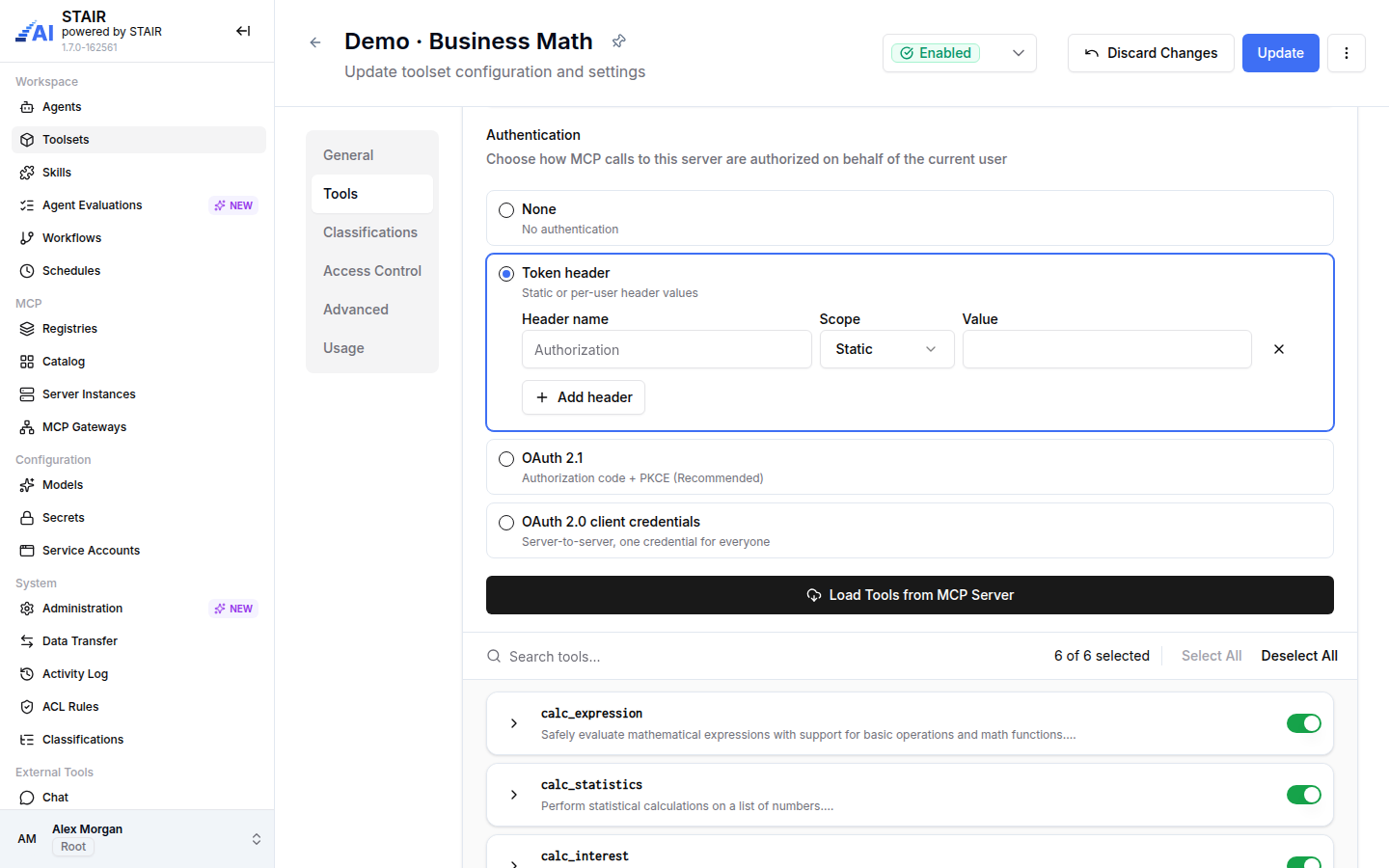
- Select Token header.
- Enter the Header name, for example
AuthorizationorX-Api-Key. - Choose the Scope:
- Static: enter the Value. Every call through this toolset sends the same value.
- Dynamic: no value is stored in the toolset. Each user enters their own value on first use ("Entered by each user on first use").
- Use Add header for more headers and the cross button to remove one.
OAuth 2.1 and OAuth 2.0 client credentials
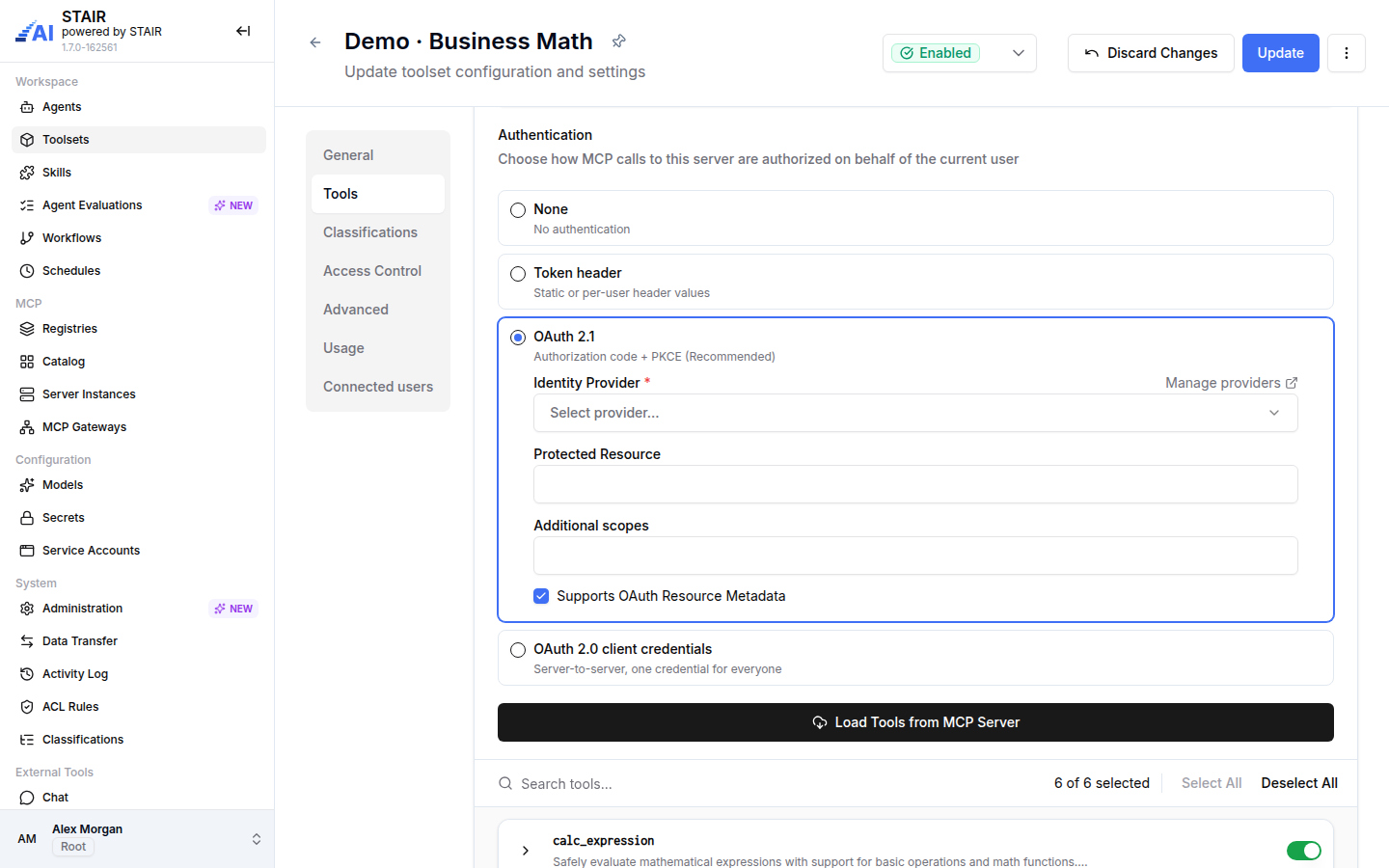
Both OAuth modes need an Identity Provider: a configuration of the OAuth or OIDC provider (Okta, Microsoft Entra or Generic OIDC) with its endpoints, client ID, client secret and scopes. An administrator creates it in Administration → Identity Providers and sets Usable for to the matching mode. The Manage providers link next to the field opens that page.
For OAuth 2.1:
- Select OAuth 2.1 and pick the Identity Provider.
- Optionally enter the Protected Resource (the resource the token is requested for) and Additional scopes.
- Keep Supports OAuth Resource Metadata checked if the MCP server publishes OAuth resource metadata, so STAIR can discover its authorization settings.
For OAuth 2.0 client credentials, select the mode, pick the Identity Provider and optionally enter Additional scopes.
What users see with per-user modes
With a Dynamic header or OAuth 2.1, nobody can sign in for the user in advance. The first time an agent uses the toolset for a user, STAIR asks that user for the credential. In STAIR Chat this is the "Connect to
How to attach a toolset to an agent
- Open the agent in edit mode and go to the Toolsets tab.
- Click Add Toolset, search for the toolset in step 1 (Choose Toolset) and select it.
- In step 2 (Select Tools), switch on the tools this agent may call.
- Click Add Toolset, then Update.
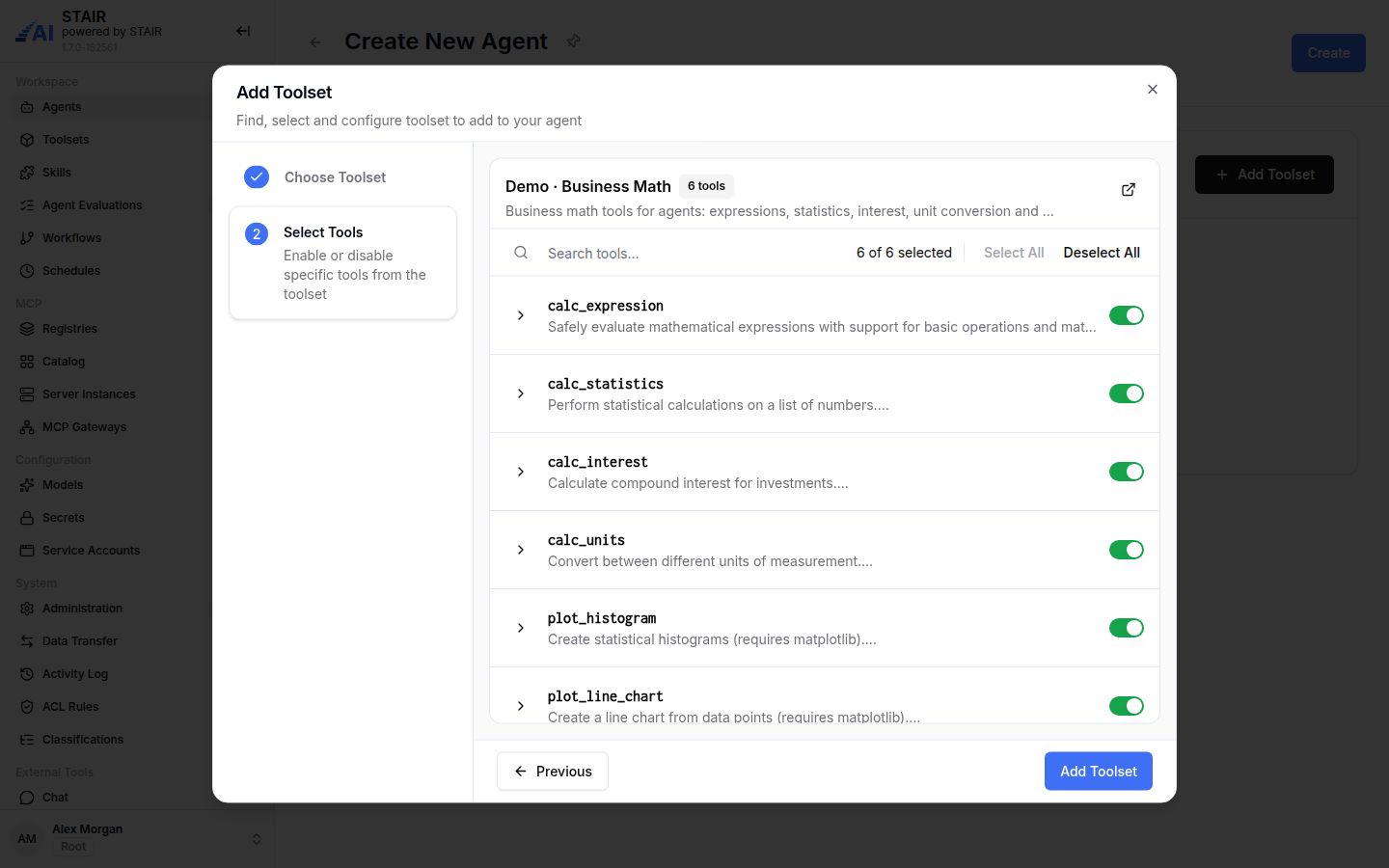
Tool selection is per agent: two agents can use different tools of the same toolset. On the agent you can also give a tool a custom description (Append or Replace) to steer how the model uses it. See AI Agents.
In the demo set, Demo · Finance Analyst uses four calculator tools of Demo · Business Math and the python_run tool of Demo · Python Sandbox.
How to edit or reload a toolset's tools
- Open the toolset and choose Edit in the actions menu (or the row menu
⋮). - On the Tools tab, change the server or authentication if needed and click Reload Tools from MCP Server to fetch the current tool list.
- Switch tools on or off and click Update.
A tool switched off in the toolset is not available to any agent. To disable a toolset completely, change its status to Disabled; agents that use it then show "Configuration issue detected".
How to manage connected users of a toolset
For toolsets with a Dynamic header or OAuth 2.1, the toolset page has a Connected users tab: "Users who have a stored credential for this toolset — a dynamic header value or an OAuth token".
- Open the toolset and go to Connected users.
- Find the user (columns Name, Username, Email, Last updated).
- Click Revoke and confirm. The user's stored credential is deleted, and STAIR asks the user again the next time an agent uses the toolset.
How users revoke their own toolset connections
Every user can see and remove the credentials STAIR stores for them.
- Open the user menu at the bottom of the sidebar and choose Connections.
- Open the Toolset tab ("Toolset connections").
- Find the toolset (columns Toolset, Connected, Expires at) and click Revoke.
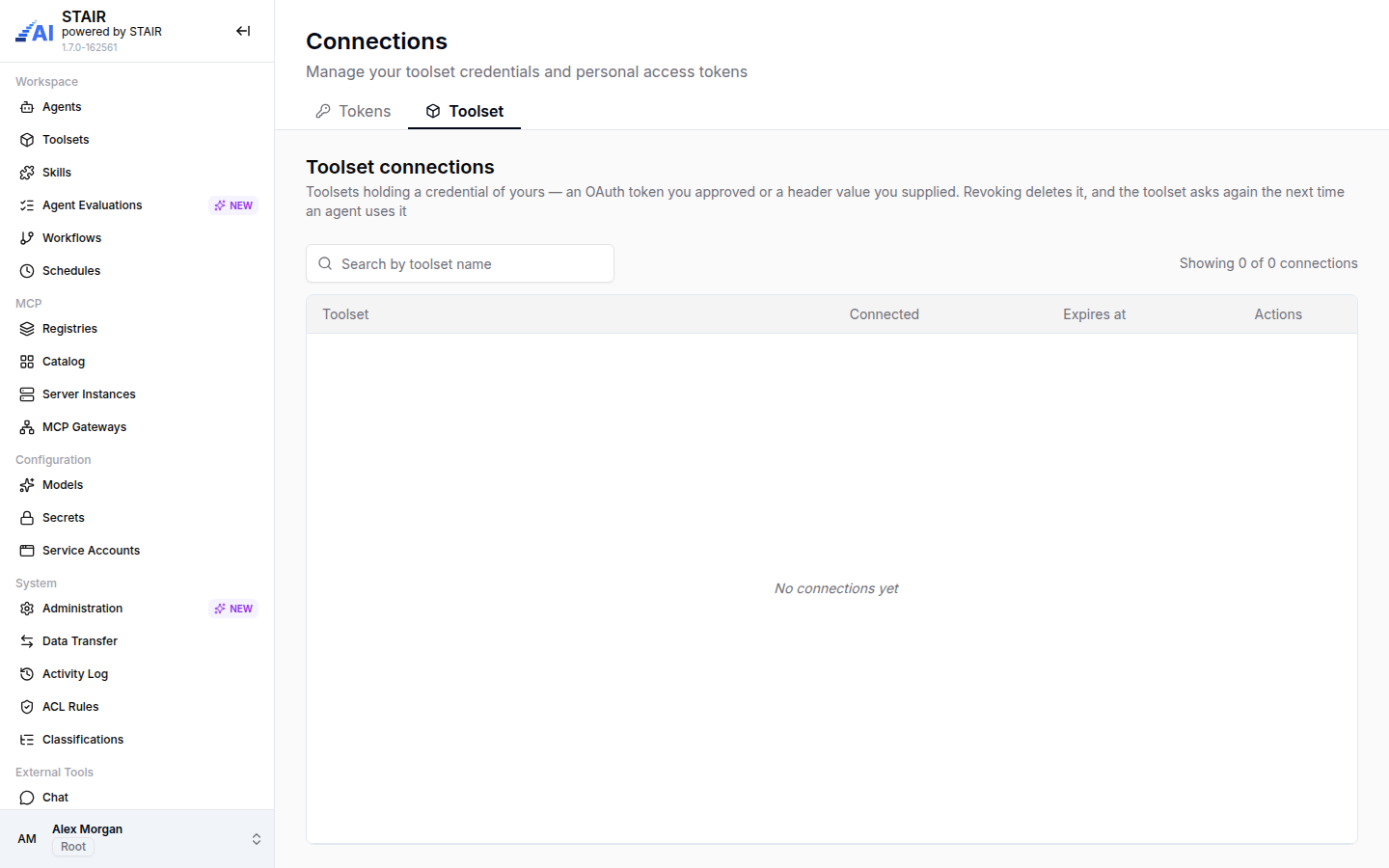
Revoking deletes the OAuth token or header value. The toolset asks for it again the next time an agent uses it.
How to read toolset usage
The Usage tab of an existing toolset shows how often its tools were called in the selected time range (default last 7 days): the total Tool calls, a Breakdown by tool and agent and the Call count by agent. Use it to see which agents depend on a toolset before you change or disable it.
Toolset settings reference
General tab
| Field | Required | Description |
|---|---|---|
| Name | Yes | Clear, descriptive name of the toolset, for example "Web Search". |
| Overview | Yes | Short Markdown summary shown on tool cards and in the list. |
| Description | Yes | Full Markdown description for the people who use the toolset. |
Tools tab
| Field | Required | Description |
|---|---|---|
| MCP server | Yes | Choose existing instance (pick an MCP Server Instance) or Enter server URL (paste a Server URL). |
| Authentication | Yes | None, Token header, OAuth 2.1 or OAuth 2.0 client credentials. Default: None. |
| Header name / Scope / Value | Yes, for Token header | Header to send; Static (one value for all users, entered here) or Dynamic (entered by each user on first use). |
| Identity Provider | Yes, for OAuth modes | Provider configuration from Administration → Identity Providers. |
| Protected Resource | No | OAuth 2.1 only. The resource the token is requested for. |
| Additional scopes | No | Extra OAuth scopes to request. |
| Supports OAuth Resource Metadata | No | OAuth 2.1 only. On by default. |
| Tool list | Yes | Tools loaded with Load Tools from MCP Server; switched-on tools are available to agents. |
Other tabs
| Tab | Description |
|---|---|
| Access Control | Owner (required), Read Access, Write Access, Manage Access (required). Toolsets have no Execute Access. |
| Advanced | Settings (JSON): optional JSON object with custom configuration; {} if not needed. The info button explains how HTTP headers are combined when an agent calls the server. |
| Classifications | View and edit mode. See Classifications. |
| Usage | View and edit mode. Tool call statistics. |
| Connected users | Existing toolsets with a per-user mode only. Stored user credentials with Revoke. |
Troubleshooting toolsets
Load Tools from MCP Server is disabled
No server is set. Pick an MCP Server Instance or enter a Server URL first.
Nothing happens after Load Tools from MCP Server
The browser blocked the pop-up window. Allow pop-ups for STAIR and click the button again.
"Identity Provider is required" or the provider list is empty
No Identity Provider is configured for this mode. Ask an administrator to add one in Administration → Identity Providers with Usable for set to OAuth 2.1 or OAuth2 Client Credentials.
A user keeps getting a sign-in prompt or a wrong account
The stored credential expired, was rejected by the MCP server, or belongs to another account. When the server rejects a stored value, STAIR asks the user again. The user revokes it in Connections → Toolset, or an administrator revokes it on Connected users; the next call asks for a fresh sign-in.
An agent shows "Configuration issue detected" after a toolset change
The toolset or one of the agent's tools was disabled or removed. Enable it again, or update the agent's Toolsets tab.
FAQ
What is the difference between a toolset and an MCP server instance?
An MCP server instance is a running server that STAIR deployed from the MCP Catalog. A toolset is the connection record that agents use; it can point to an instance or to any MCP server URL.
Which authentication mode should I use?
Use OAuth 2.1 when each user must act under their own account, a Dynamic token header when users have personal API keys, and a Static header or OAuth 2.0 client credentials when one technical identity is enough.
Does STAIR forward my STAIR sign-in to the MCP server?
No. The MCP server receives only the credentials defined by the toolset's authentication mode.
Can two agents use different tools from the same toolset?
Yes. Tool selection is stored on each agent, so every agent can enable its own subset of the toolset's tools.
How do I remove a credential STAIR stored for me?
Open the user menu, choose Connections, open the Toolset tab and click Revoke next to the toolset.