
Documentation menu
LLM Models
Read the page as Markdown for LLMsA model in STAIR is an LLM registered from a model provider; agents use it to answer and evaluations can use it as the judge model.
How models and model providers work in STAIR
STAIR splits an LLM connection into two records. Both live in the sidebar under Configuration → Models, on the AI Models page with the tabs Models and Providers.
- A model provider is the connection to an LLM service: its type, its Base URL and the Authentication secret STAIR sends to it. One provider serves many models.
- A model is one model of that provider, picked by its Model name/id, under a display Name that agents and evaluations refer to. The model also holds options that change how STAIR calls it: streamed token counts, the context window, structured output and pricing.
An agent's Model field and an evaluation's Judge model field list the models. Changing a provider's Base URL or secret therefore applies to every model of that provider at once. The API Base URL and Authentication secret are not model fields: a model always takes them from its provider.
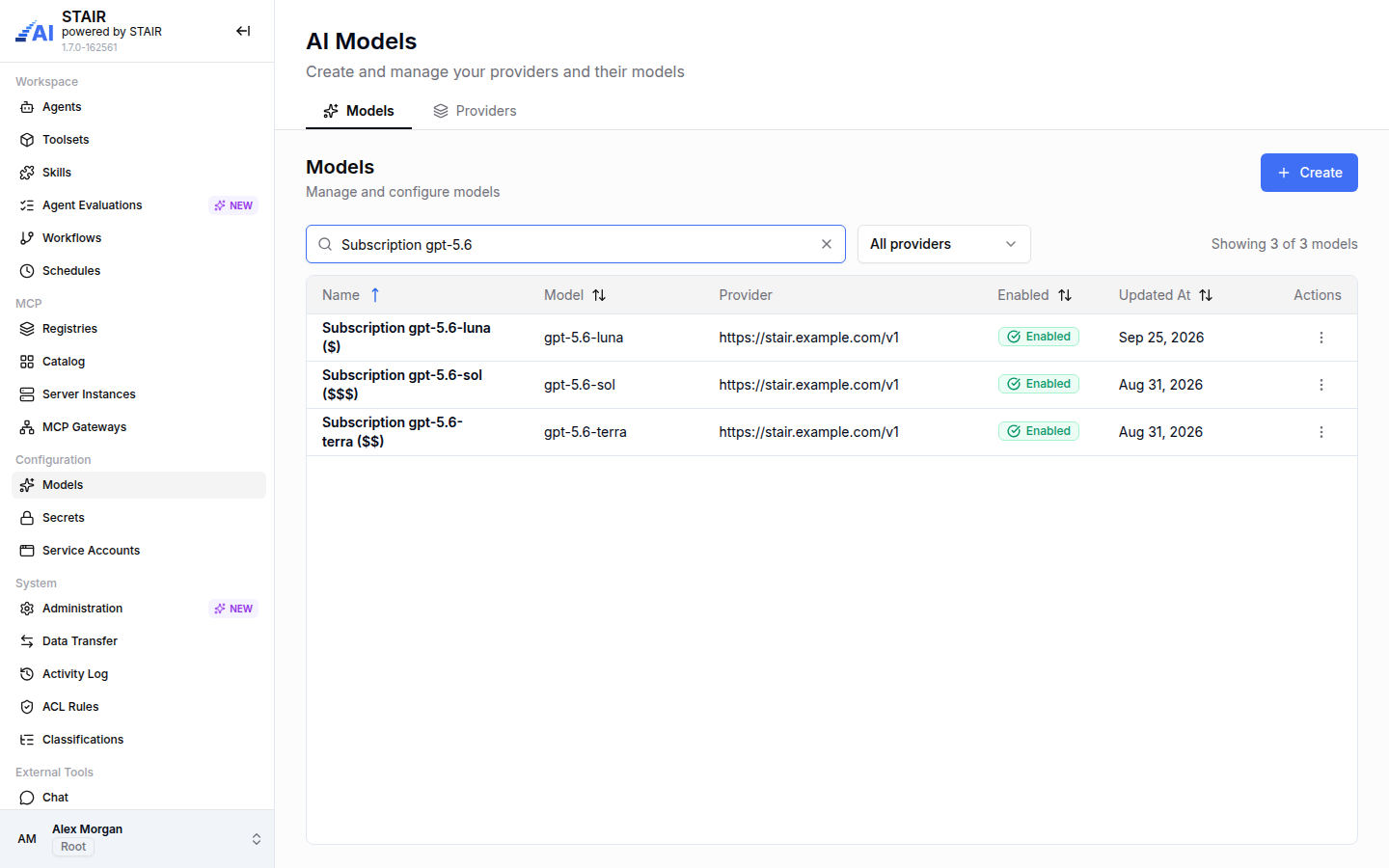
The Models tab lists Name, Model, Provider, Enabled, Updated At and Actions. Search with "Search by name or model name", or narrow the list with the All providers filter. Click a row to open the model.
How to add a model provider
Managing models and providers needs the Admin role.
- If the provider needs a key, first store it as a secret. See Secrets.
- In the sidebar, open Models, then the Providers tab.
- Click Create. The Add Provider dialog opens.
- Choose the Provider type: Open AI, Open Router, Azure OpenAI, vLLM, Ollama or Custom. STAIR fills in Name and Base URL for the type.
- Change Name if you keep several providers of one type, and set Base URL to your endpoint if it differs.
- In Authentication secret, pick the secret with the key, or keep No secret.
- Click Create.
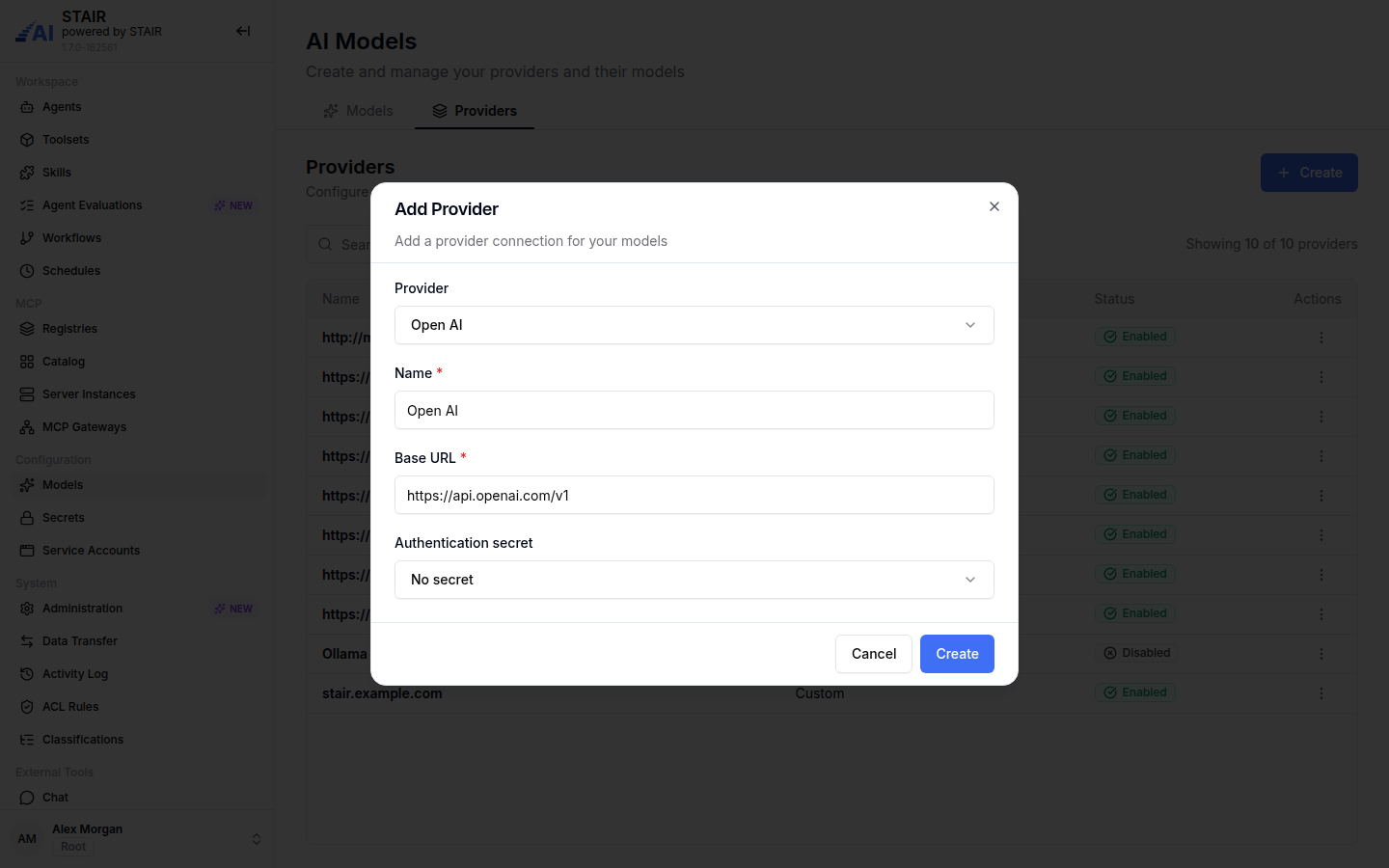
The Providers tab lists Name, Type and Status. Use All types to filter by type.
How to test and enable a model provider
- On the Providers tab, open the row menu
⋮of the provider and click Edit. - Click Try provider. STAIR connects to the Base URL with the selected secret and reports whether the connection works.
- To change the status, use the Enabled / Disabled control at the top of the dialog. A disabled provider can be enabled only after a successful Try provider in the same dialog.
- Click Save changes to keep edits to Name, Base URL or the secret.
How to add a model from a provider's model list
- On the Providers tab, open the row menu
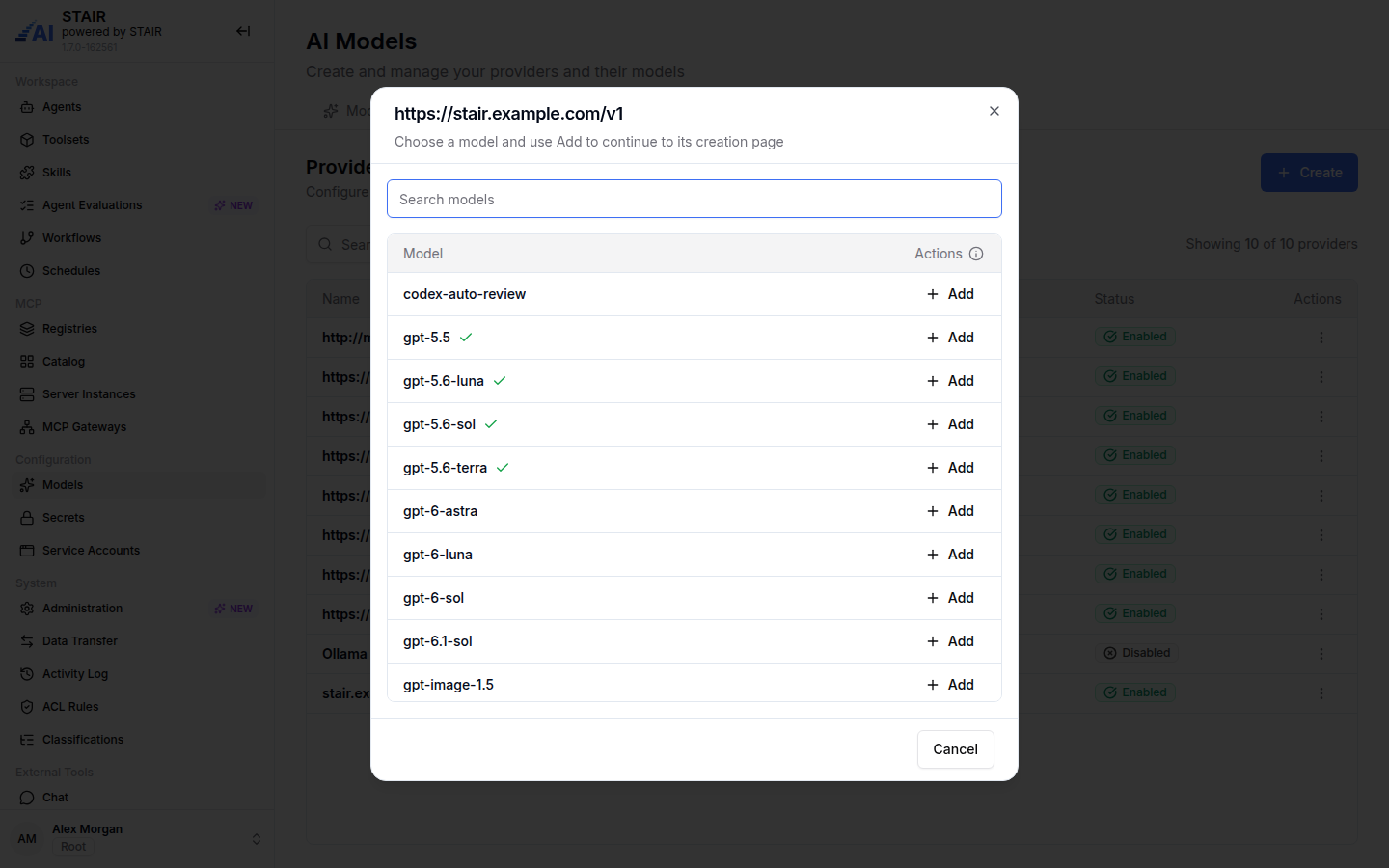
⋮of the provider and click Get models. - The List of models dialog shows the models the provider reports. A check mark marks models that are already added to STAIR. Use Search models for long lists.
- Click Add next to a model. STAIR opens the Create Model page with the provider and the model already selected.
- Complete the form as in How to create a model.
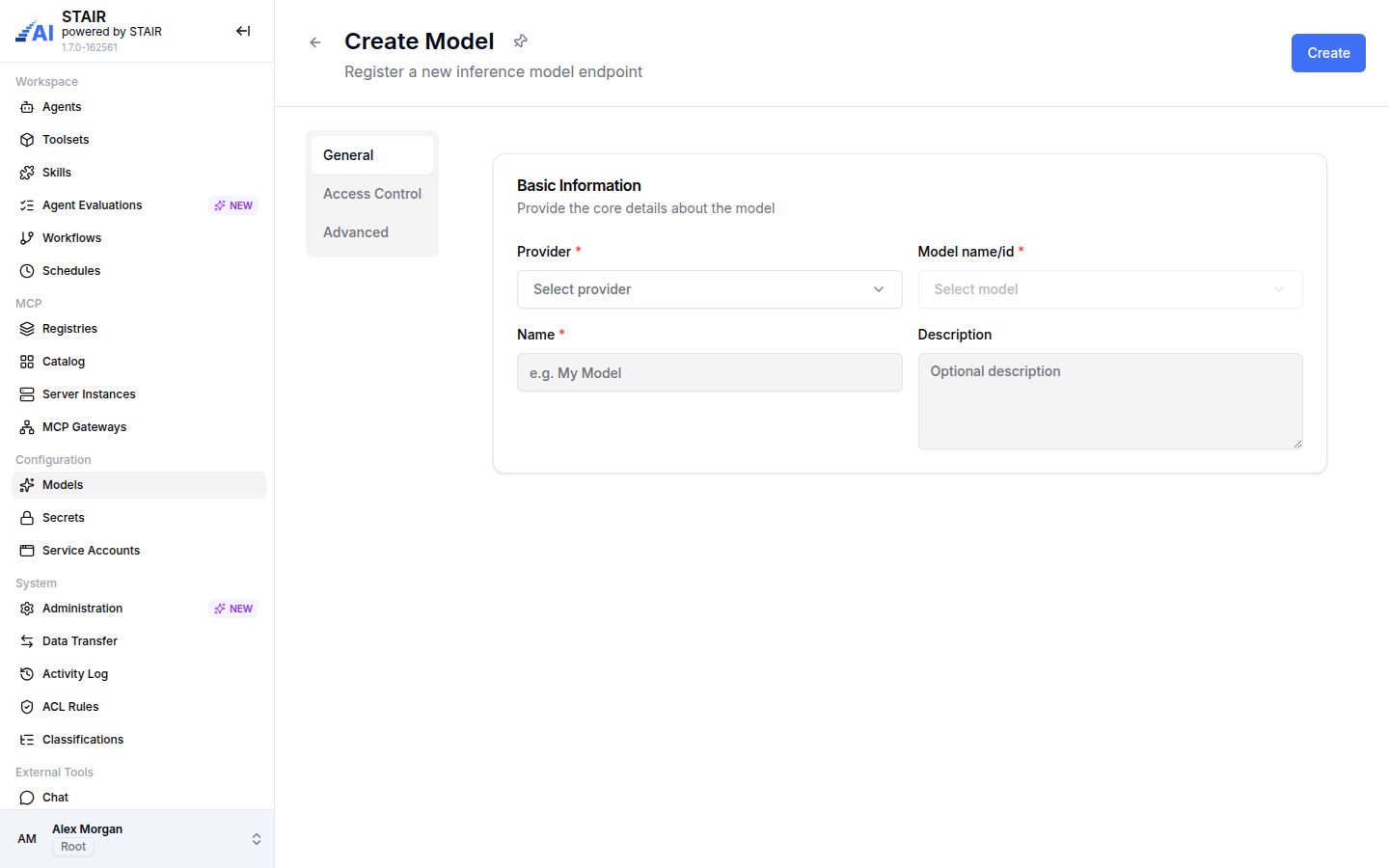
How to create a model
- In the sidebar, open Models and click Create on the Models tab.
- On the General tab, choose the Provider. Model name/id becomes available and lists the models of that provider. Pick one.
- Enter a Name (for example "My Model"). Agents and evaluations show this name. Add a Description if useful.
- On the Access Control tab, check Manage Access (required, "Me" by default) and add Read Access and Write Access as needed. Add the users, teams and service accounts that may call the model in Execute Access.
- On the Advanced tab, set the server options and pricing (see How to set context window, structured output and pricing).
- Click Create.
How to set context window, structured output and pricing
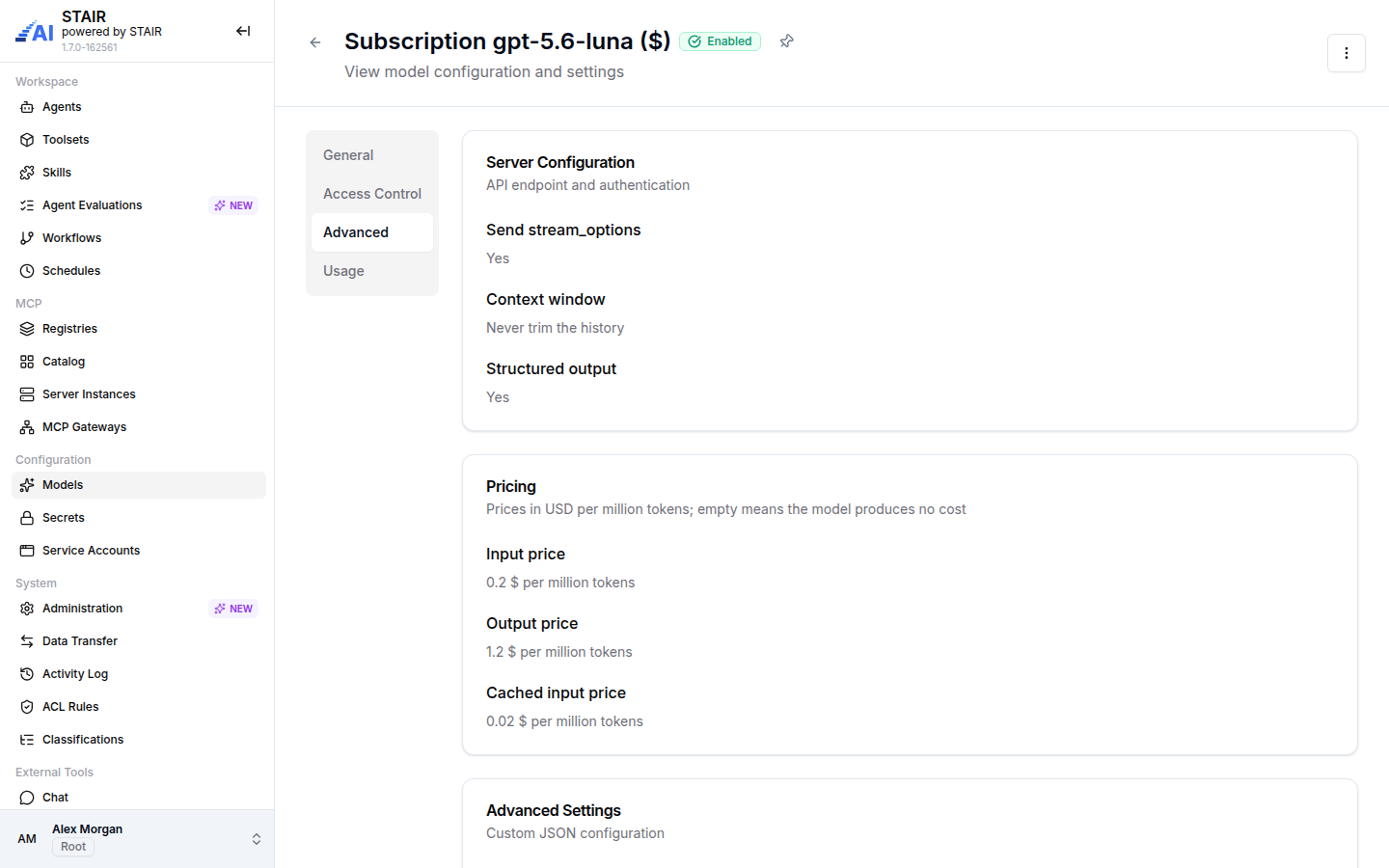
The Advanced tab of a model has three sections.
Server Configuration
- Send stream_options: on by default. STAIR asks the backend for token counts on a streamed response. Turn it off only for a backend that rejects unknown request fields: with it on, such a backend fails every streaming request.
- Context window: how many tokens the model accepts in one request. STAIR trims the conversation history to fit it. Leave it empty ("Never trim the history") to never trim.
- Structured output: requests responses in the structured output format the model supports.
Pricing: prices in USD per million tokens. An empty price means the model produces no cost.
- Input price and Output price: the price of prompt and completion tokens.
- Cached input price: the cached part of the prompt is counted inside the input tokens and billed lower. Leave it empty to price it at a tenth of the input rate.
The prices feed the Estimated cost figures on the Usage tabs of models and agents.
Advanced Settings: Settings (JSON), an optional JSON object with custom configuration. Leave {} if you do not need it.
How to test a model
- Open the model and choose Edit in the actions menu
⋮. - Click Try model on the General tab, or choose Try model in the actions menu
⋮. - STAIR sends a test call to the model through its provider. It shows "Model is available" on success, or "Model test failed" with the error message from the provider.
To change the model's status, use the Enabled / Disabled badge on the edit page and confirm the status change. Click Update to save other edits, or Discard Changes to drop them.
How to read model usage
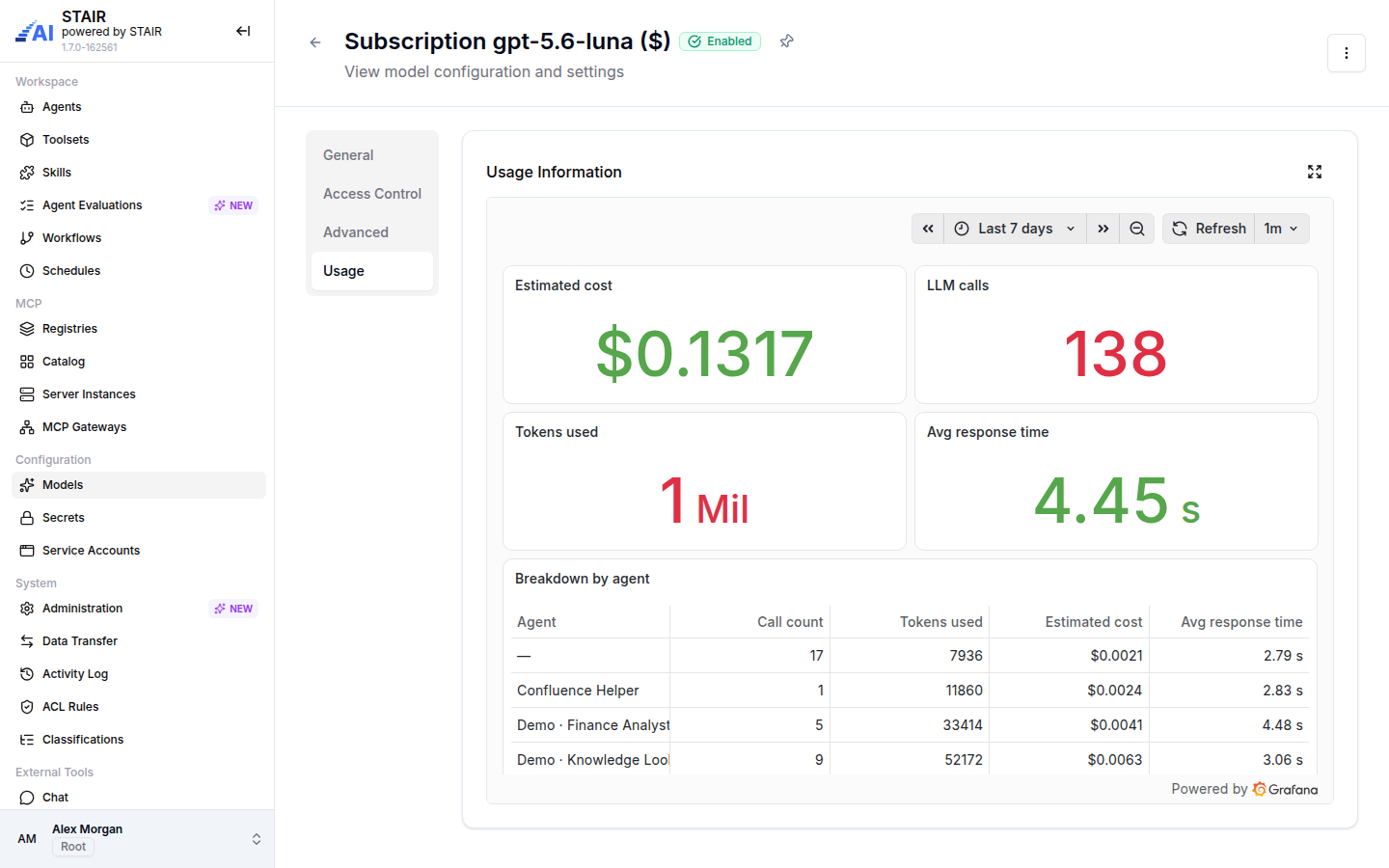
Open a model and select the Usage tab. The "Usage Information" dashboard shows, for the selected time range (Last 7 days by default):
- Estimated cost, LLM calls, Tokens used and Avg response time;
- Breakdown by agent: Agent, Call count, Tokens used, Estimated cost and Avg response time.
Use the time range picker and Refresh to change the period, and the fullscreen button to enlarge the dashboard.
Model settings reference
Model provider fields
| Field | Required | Description |
|---|---|---|
| Provider | Yes | Provider type: Open AI, Open Router, Azure OpenAI, vLLM, Ollama or Custom. Prefills Name and Base URL. |
| Name | Yes | Display name of the provider. Must be unique. |
| Base URL | Yes | Endpoint of the provider's API. Every model of the provider uses it. |
| Authentication secret | No | The secret with the provider key, or No secret. |
| Enabled / Disabled | — | Status, shown in the Edit provider dialog. Enabling needs a successful Try provider. |
Model fields: General tab
| Field | Required | Description |
|---|---|---|
| Provider | Yes | The model provider the model belongs to. |
| Model name/id | Yes | The provider's identifier of the model, picked from the provider's model list. |
| Name | Yes | Display name used by agents, evaluations and usage dashboards. |
| Description | No | Free text. |
The model view also shows the API Base URL that the model takes from its provider.
Model fields: Access Control tab
| Field | Required | Description |
|---|---|---|
| Read Access | No | Users and teams that can view this model. |
| Write Access | No | Users and teams that can edit this model. |
| Manage Access | Yes | Users and teams that can manage access and settings. |
| Execute Access | No | Users, teams and service accounts that can call this model. |
Model fields: Advanced tab
| Field | Required | Description |
|---|---|---|
| Send stream_options | No | Asks for token counts on streamed responses. On by default. |
| Context window | No | Maximum tokens per request. History is trimmed to fit; empty means never trim. |
| Structured output | No | Requests structured output responses. |
| Input price | No | USD per 1M input tokens. |
| Output price | No | USD per 1M output tokens. |
| Cached input price | No | USD per 1M cached input tokens. Empty means a tenth of the input price. |
| Settings (JSON) | No | Optional JSON object with custom configuration. |
Model actions
| Where | Actions |
|---|---|
Model view, actions menu ⋮ |
Edit, Copy, Show History, Delete |
Model edit page, actions menu ⋮ |
Copy, Try model, Show History, Delete |
Provider row menu ⋮ |
Get models, Edit, Delete |
Copy creates a new model with the same settings and " (copy)" added to the name. Show History opens the Activity Log filtered to the model.
Troubleshooting models
Model name/id is disabled in Create Model
Cause: no provider is selected yet. Fix: choose the Provider first; the model list then loads from that provider.
The model list of a provider is empty
Cause: the provider's Base URL or secret is wrong, or the provider does not report models. Fix: open the provider with Edit, click Try provider and correct Base URL or Authentication secret until the test succeeds.
A provider cannot be enabled
Cause: STAIR enables a provider only after a successful connection test. Fix: in the Edit provider dialog, click Try provider first. If the test fails, the message "Provider is malfunctioning and requires more configuration" appears; fix the Base URL or the secret and try again.
Streaming responses fail with a backend that works for non-streamed calls
Cause: the backend rejects the stream_options request field. Fix: turn off Send stream_options on the model's Advanced tab. Streamed responses then carry no token counts.
Long conversations fail with a context length error
Cause: the conversation is larger than the model accepts. Fix: set Context window on the model's Advanced tab to the model's limit, so STAIR trims the history to fit.
Estimated cost stays at zero
Cause: the model has no prices. Fix: enter Input price and Output price on the Advanced tab. An empty price means the model produces no cost.
FAQ
What is the difference between a model and a model provider in STAIR?
A model provider holds the connection: type, Base URL and authentication secret. A model is one LLM of that provider with a display name, access rules, context window and pricing. One provider can serve many models.
Where do I set the API key of an LLM?
Store the key as a secret, then pick it in the provider's Authentication secret. Models never hold a key of their own.
Which LLM services can STAIR connect to?
The provider types are Open AI, Open Router, Azure OpenAI, vLLM, Ollama and Custom. Use Custom for any other endpoint that speaks the same API.
What does Context window do?
It sets how many tokens the model accepts in one request. STAIR trims the conversation history to fit it; an empty value means the history is never trimmed.
How does STAIR calculate the estimated cost of a model?
It multiplies the tokens used by the model's input, output and cached input prices, set in USD per million tokens on the Advanced tab. Without prices the model produces no cost.
Who can use a model?
Users and teams with Read Access see the model. Execute Access lists the users, teams and service accounts that can call it. Agents refer to the model by its Name.