
Documentation menu
Agent Workflows
Read the page as Markdown for LLMsA workflow in STAIR is a graph of steps (agents, conditions, notifications and actions) that runs from a Start node to an End node with one input.
How workflows work in STAIR
A workflow is built on a Graph of nodes. Every graph begins with Start and finishes with End. Between them you add nodes of four types:
| Node | What it does |
|---|---|
| Start | Holds the Initial instructions of the workflow. A run can replace them with its own input. |
| STAIR Agent | Runs a configured STAIR agent on a Task and returns its Response. |
| Condition | Routes the flow to an IF or an ELSE branch, based on an expression. |
| Notification | Sends a message through Telegram or Teams. |
| Action | Calls an external API (API Call) with a URL, HTTP method, headers and body. |
Nodes pass data forward. A later node can use the output of an earlier one through template variables: type {{ in a text field to pick one. For example, the Start node provides Initial Instructions, and a STAIR Agent node provides Response, Agent Name and, when it fails, Failed and Error Message. A Condition node returns Result and Matched Condition. A Notification node returns Sent and Sent At. An Action node returns Status and Result.
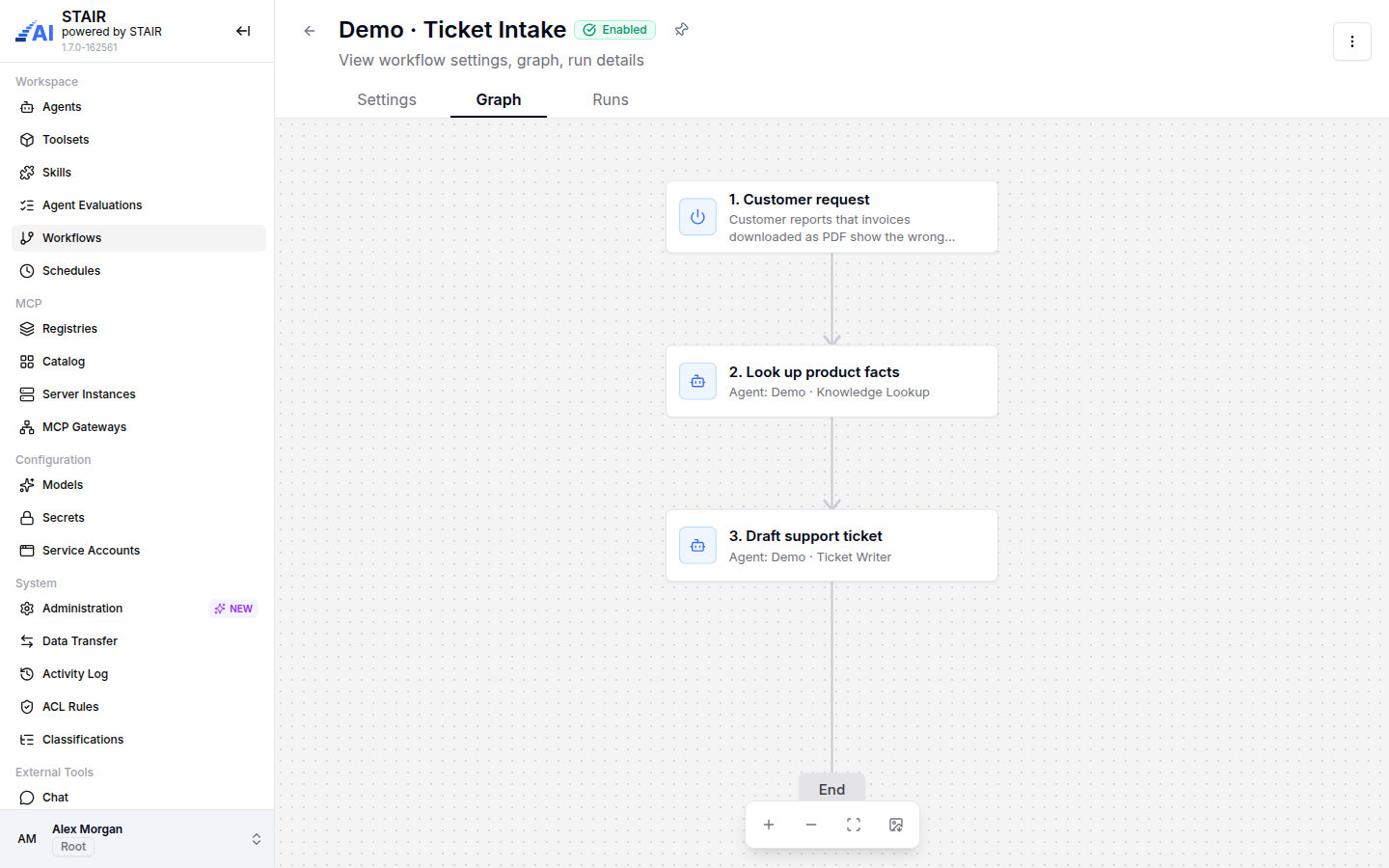
Each run of a workflow saves its input, the path taken through the graph, and the output of every node. A workflow runs when you start it from the console or when a schedule fires.
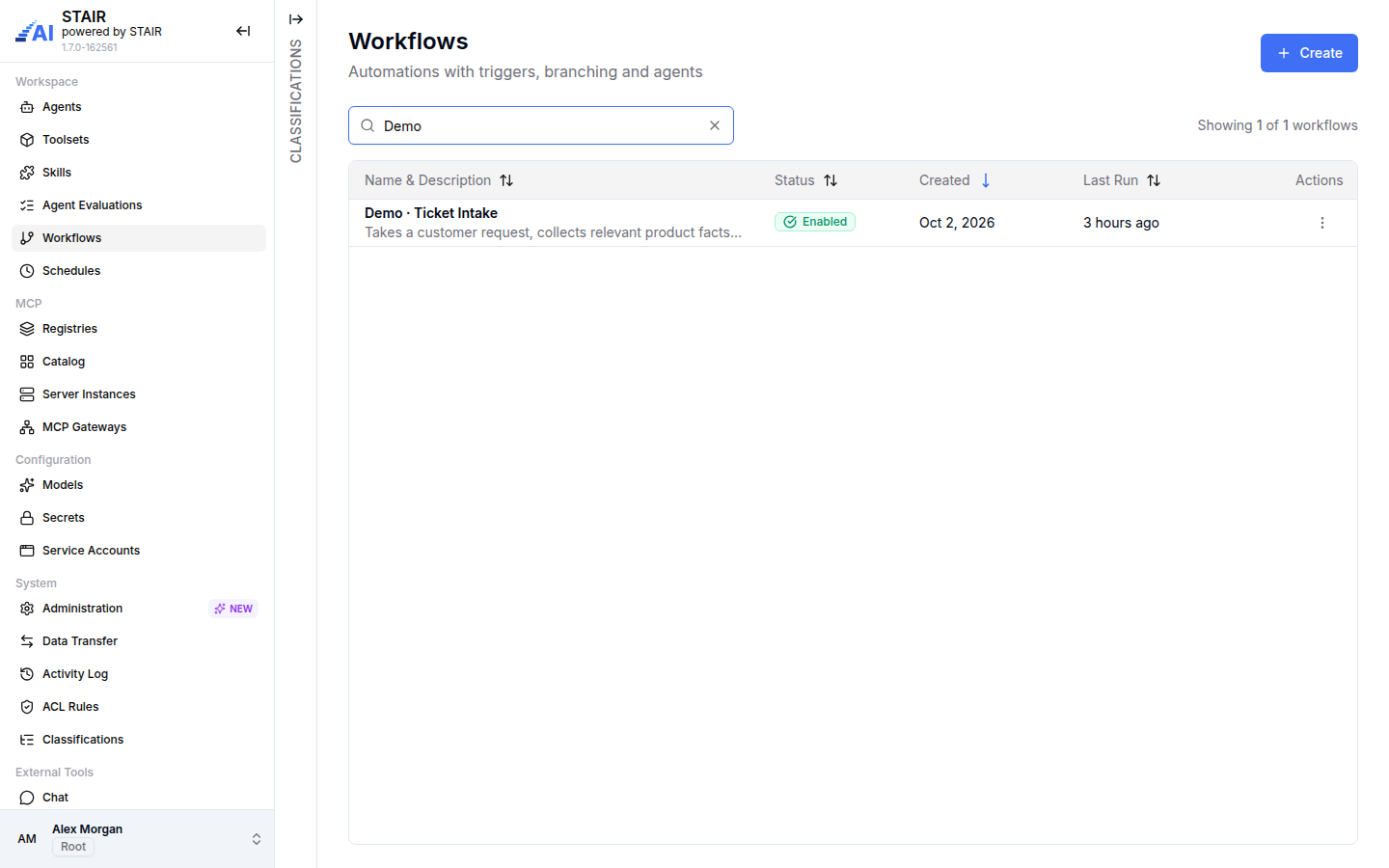
How to create a workflow
- In the sidebar, open Workflows and click Create.
- On the Settings tab, enter a Name and a Description. Set the Owner, and under Configuration Access set Read Access, Write Access and Manage Access.
- Open the Graph tab. Select the Start node and enter the Initial instructions that the workflow uses by default.
- Click + on the connection where the next step should go and pick STAIR Agent, Condition, Notification or Action.
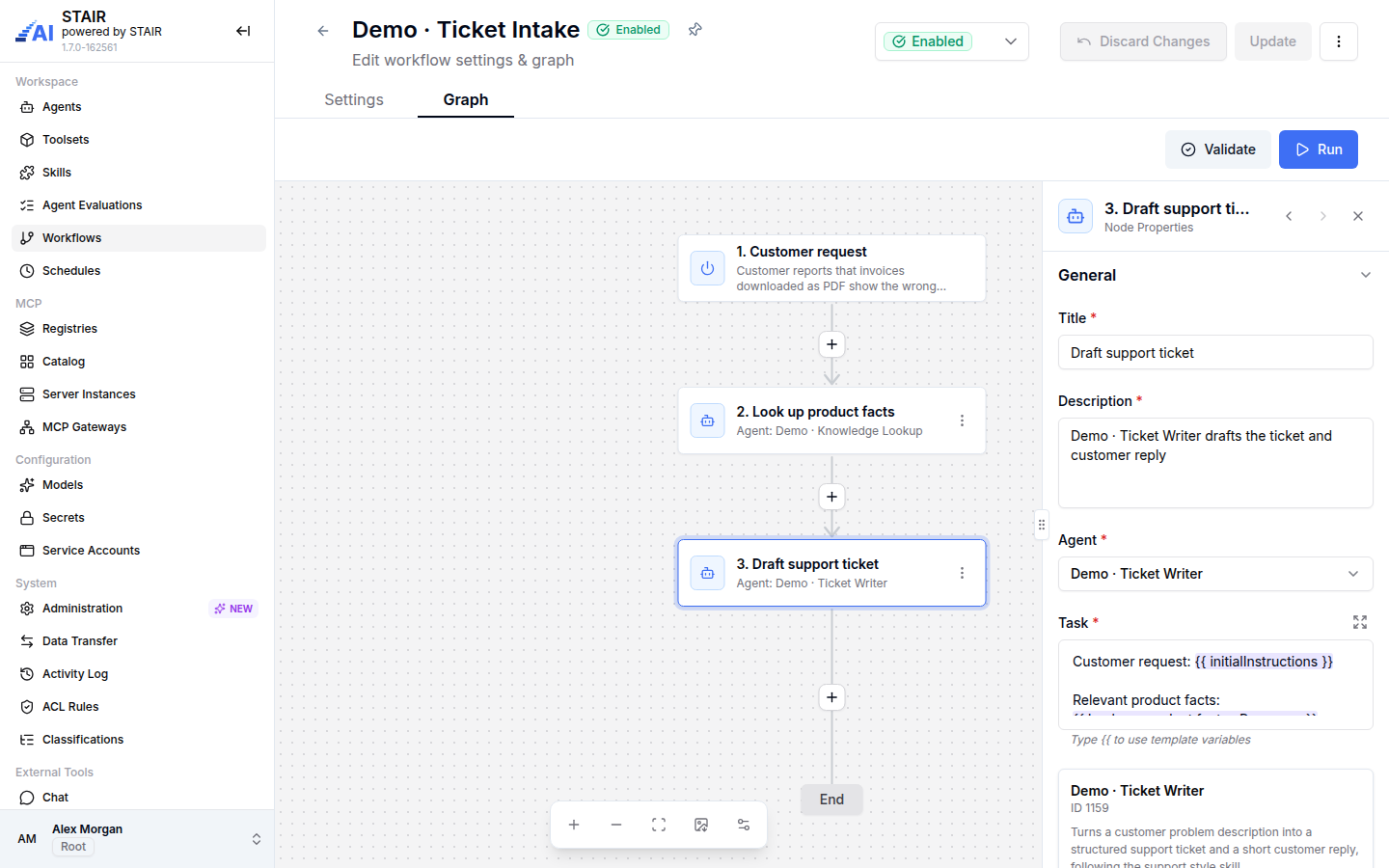
- Select the new node and fill in its Node Properties in the right panel (see the tables below). Fields marked with an asterisk are required.
- Repeat steps 4–5 until the graph is complete. Use the node menu (⋮) to Duplicate a node or Delete Node.
- Click Validate. STAIR lists every problem by node, for example "Agent is required" or "Agent node title must be unique".
- Click Create.
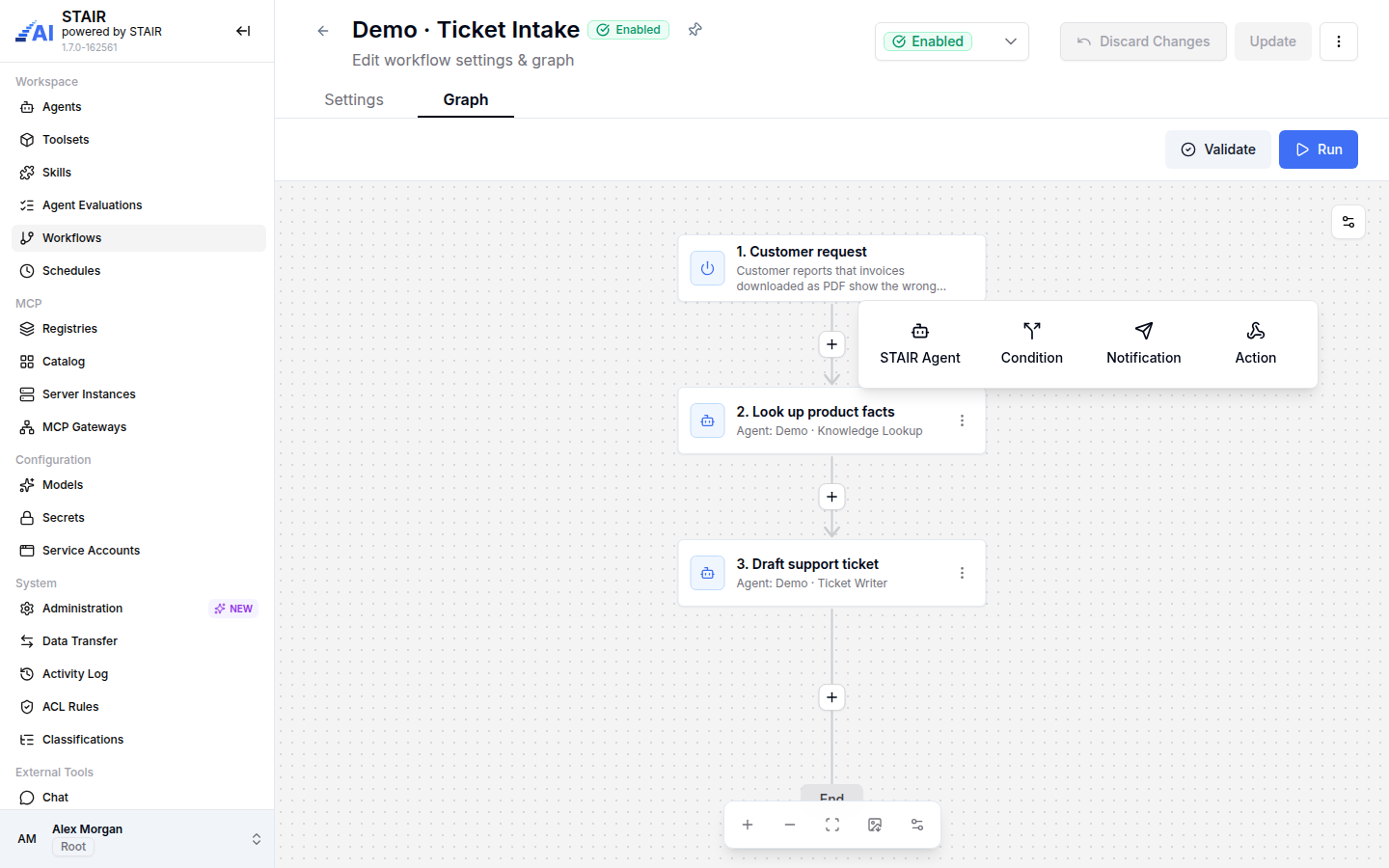
The canvas has Zoom in, Zoom out, Fit to view and Download as image. A node with missing required fields shows Incomplete. You cannot enable a workflow while any node is incomplete.
How to configure a STAIR Agent node
- Select the node on the canvas.
- Enter a Title. Agent node titles must be unique within the workflow.
- Pick the Agent. The panel shows the agent's description, role, tools and sub-agents.
- Write the Task: the text sent to the agent. Type
{{to insert a variable, for example the initial instructions or the response of an earlier agent node. - Under Error Policy, choose what happens if the agent call fails: Fail workflow, Continue on error or Route to 'error' branch.
How to run a workflow and read the run history
- Open the workflow. The view has the tabs Settings, Graph and Runs.
- Click Run. In Run workflow, enter the Initial Instructions for this run and click Run. The workflow must be enabled, and in the editor it must be saved first.
- Open the Runs tab. Each run shows Run ID, Status, Created at, Created by, Duration and Nodes.
- Open a run to see its Input, the Path Taken through the graph, the Node outputs, the final Output and the Logs.
- To run the workflow again with the same input, click Re-run on the run page.
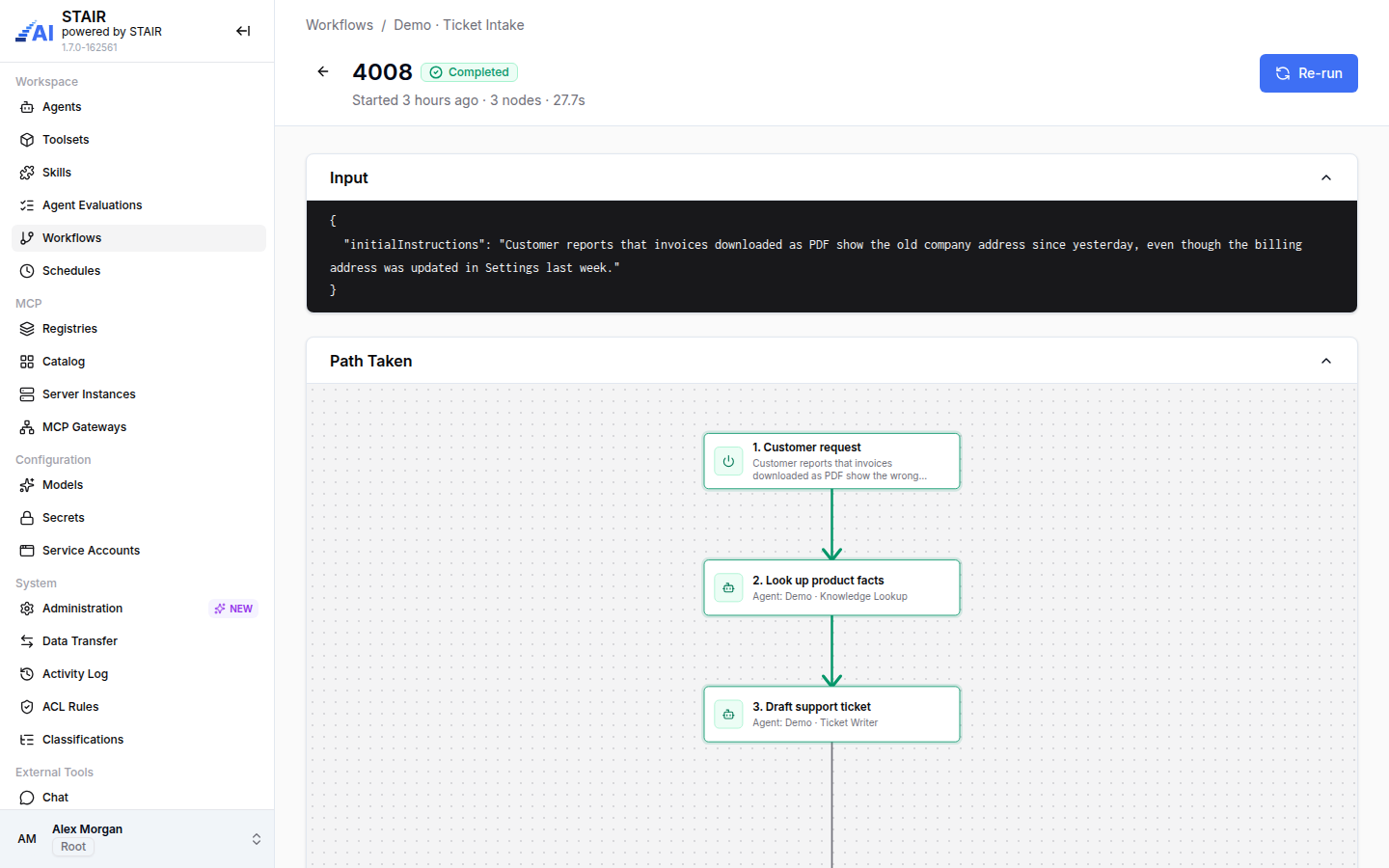
To run a workflow on a timetable, create a schedule of the type Workflow. See Scheduled Agent Runs.
How to enable, copy and delete a workflow
- Enable or disable: in the editor, use the status menu next to the title (Enabled / Disabled) and confirm the status change. Only enabled workflows can run.
- Copy: in the list, open the row menu (⋮) and click Copy. The copy gets " (copy)" added to its name.
- Delete: in the row menu, click Delete. Deleting a single run is possible in the run's row menu on the Runs tab.
- Classify: use the Classifications tab on the workflow, or the Classifications panel in the list to filter by classification. See Classifications.
Workflow settings reference
Settings tab
| Field | Required | Description |
|---|---|---|
| Name | Yes | Name of the workflow. |
| Description | Yes | What the workflow does. |
| Owner | Yes | The primary maintainer or team accountable for the workflow. |
| Read Access / Write Access | No | Users and teams that can view or edit the workflow. |
| Manage Access | Yes | Users and teams that can manage access and settings. |
Node properties
| Node | Field | Required | Description |
|---|---|---|---|
| All | Title | Yes | Name of the node on the canvas. Unique for STAIR Agent nodes. |
| Start | Initial instructions | No | The default input. A run replaces it with the Initial Instructions entered in Run workflow. |
| STAIR Agent | Agent | Yes | The STAIR agent to run. |
| STAIR Agent | Task | Yes | The request sent to the agent. Supports {{…}} variables. |
| STAIR Agent | On Error | No | Fail workflow, Continue on error or Route to 'error' branch. |
| Condition | Conditions | Yes | The expression that sends the flow to the IF route or the ELSE route. |
| Notification | Notification Type | Yes | Telegram or Teams, with the settings of the chosen channel (for example Chat ID and Message for Telegram, or a webhook URL for Teams). |
| Action | Action Type | Yes | API Call. |
| Action | API Endpoint URL | Yes | The URL to call. |
| Action | HTTP Method, Headers, Body | No | The request details. |
| Action | Response Format, Store Response in Variable | No | How to read the response and where to keep it for later nodes. |
Troubleshooting workflows
"Complete all required node fields before enabling this workflow"
At least one node is marked Incomplete. Open each such node and fill in the fields marked with an asterisk, then click Validate.
"Agent node title must be unique"
Two STAIR Agent nodes have the same Title. Rename one of them. Titles are used to refer to node outputs.
The Run button is disabled
The workflow is disabled, or the editor has unsaved changes ("Save workflow before running"). Enable the workflow, or click Update first.
A run fails at an agent node
Open the run and check the Node outputs of that node for Error Message and Error Status Code. Then check that the agent is enabled and that its model and toolsets work. Set On Error to Continue on error if the workflow should go on without that node.
FAQ
Which node types does a workflow support?
Start, STAIR Agent, Condition, Notification (Telegram or Teams), Action (API Call) and End.
How do I pass the answer of one agent to the next?
In the Task of the next STAIR Agent node, type {{ and pick the Response of the earlier node. STAIR replaces the variable with that text when the workflow runs.
Can I change the input for one run only?
Yes. Click Run and enter different Initial Instructions. The Start node keeps its default text.
Can a workflow run on a schedule?
Yes. Create a schedule of the type Workflow, pick the workflow and enter the Initial Input. See Scheduled Agent Runs.
Can I export the graph as a picture?
Yes. Click Download as image in the canvas controls.