
Documentation menu
Knowledge Base and RAG
Read the page as Markdown for LLMsThe STAIR Knowledge base keeps documents in categories and answers questions from them with retrieval-augmented generation (RAG) and cited sources.
How the Knowledge base works in STAIR
Knowledge is a separate STAIR app with the same single sign-on as the STAIR Console and STAIR Chat. Open it from External Tools → Knowledge in the console sidebar or in STAIR Chat. To go back, click Platform or Chat in the Knowledge sidebar.
The Knowledge base is built from four things:
| Part | What it is |
|---|---|
| Category | A named set of documents with a description, a retriever and access permissions. The assistant reads the category names and descriptions to decide where to look for an answer |
| Document | A file or a web page uploaded into a category. STAIR reads it, splits it into chunks and indexes the chunks for search |
| Document type | A preset that sets how a kind of document is read and chunked, for example PDF Documents, MD or Webscraper |
| Retriever | The method a category uses to pick passages for an answer, for example whole documents or a window of chunks around each match |
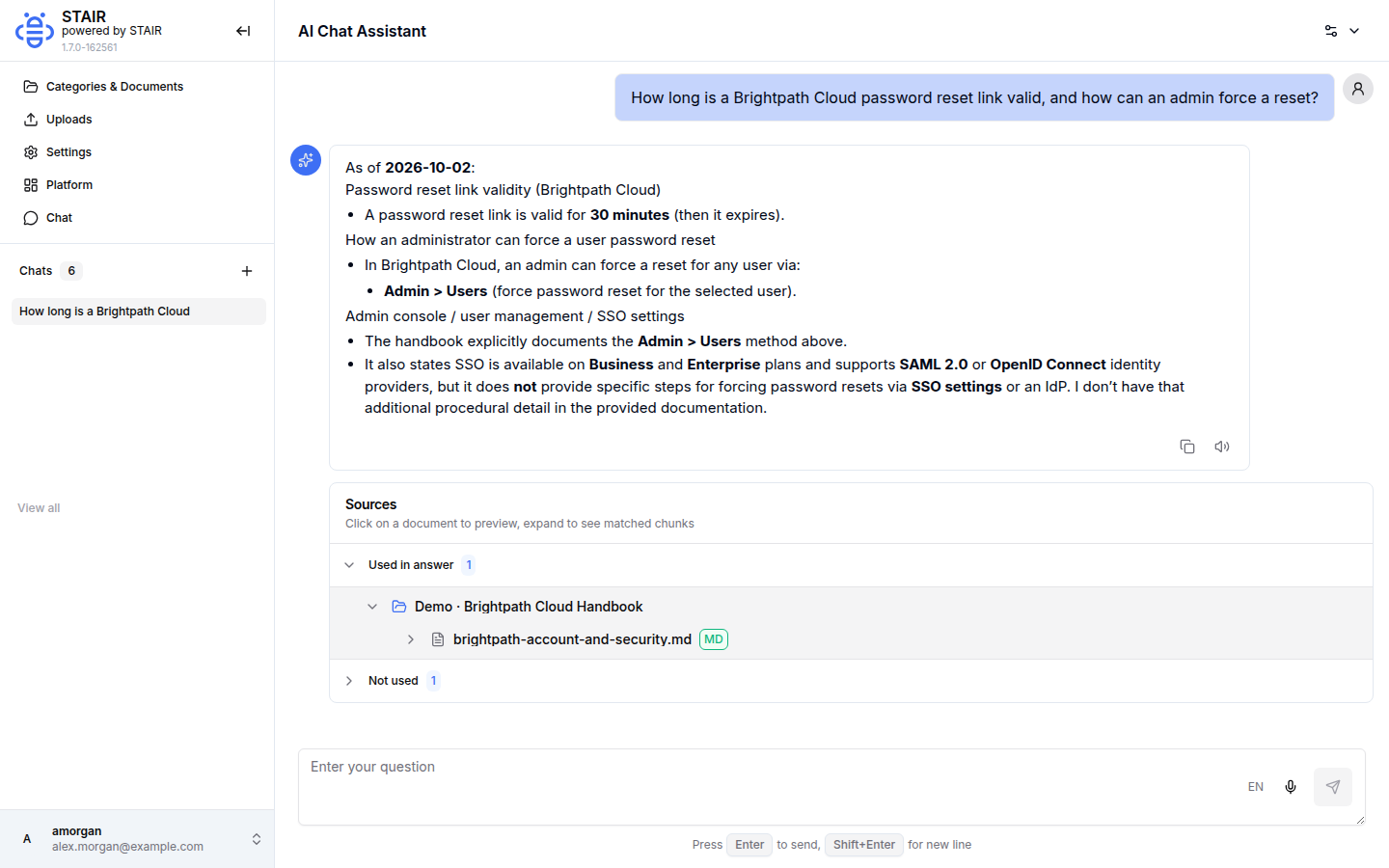
When you ask a question, the AI Chat Assistant picks the categories that match it, retrieves the most relevant passages and writes an answer from them. Every answer lists its Sources: the documents used in the answer and the matches that were found but not used.
Agents use the same Knowledge base through the RAG toolset. An agent then searches the categories that the asking user can access and can cite the same sources. See How to connect STAIR agents to the Knowledge base.
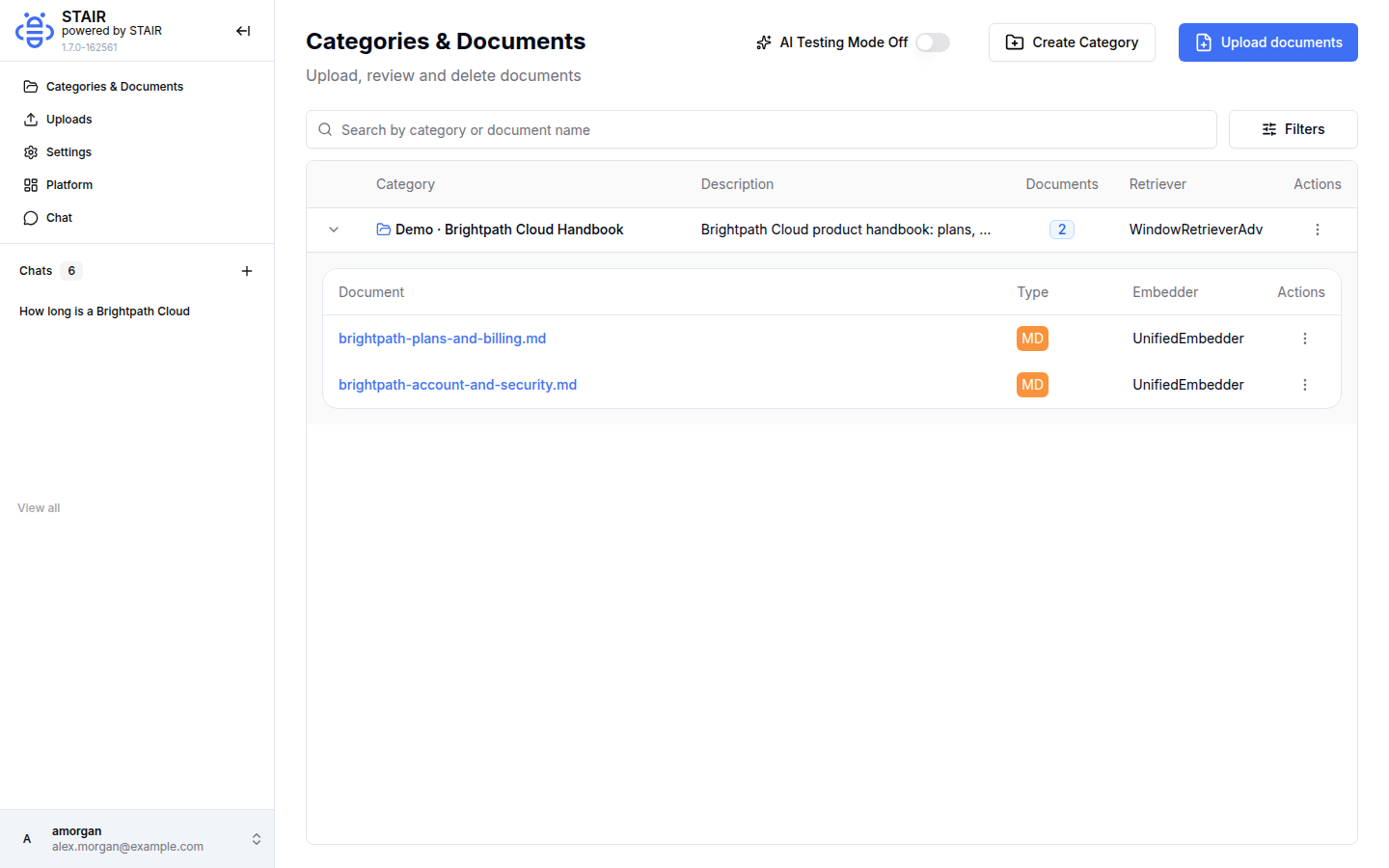
How to create a knowledge category in STAIR
- In the Knowledge sidebar, open Categories & Documents and click Create Category.
- In Name, enter a short, specific name, for example
Demo · Brightpath Cloud Handbook. - In Permissions, choose the access groups whose members may get answers from this category.
- In Retriever, keep the default or choose another retrieval method.
- In Description, describe what the documents cover. Name the topics users will ask about: the assistant uses this text to route questions to the category.
- In Type, keep Documents ("Used for files").
- Click Create.
To change a category later, open its ⋮ menu and select Edit. Delete removes the category together with its documents.
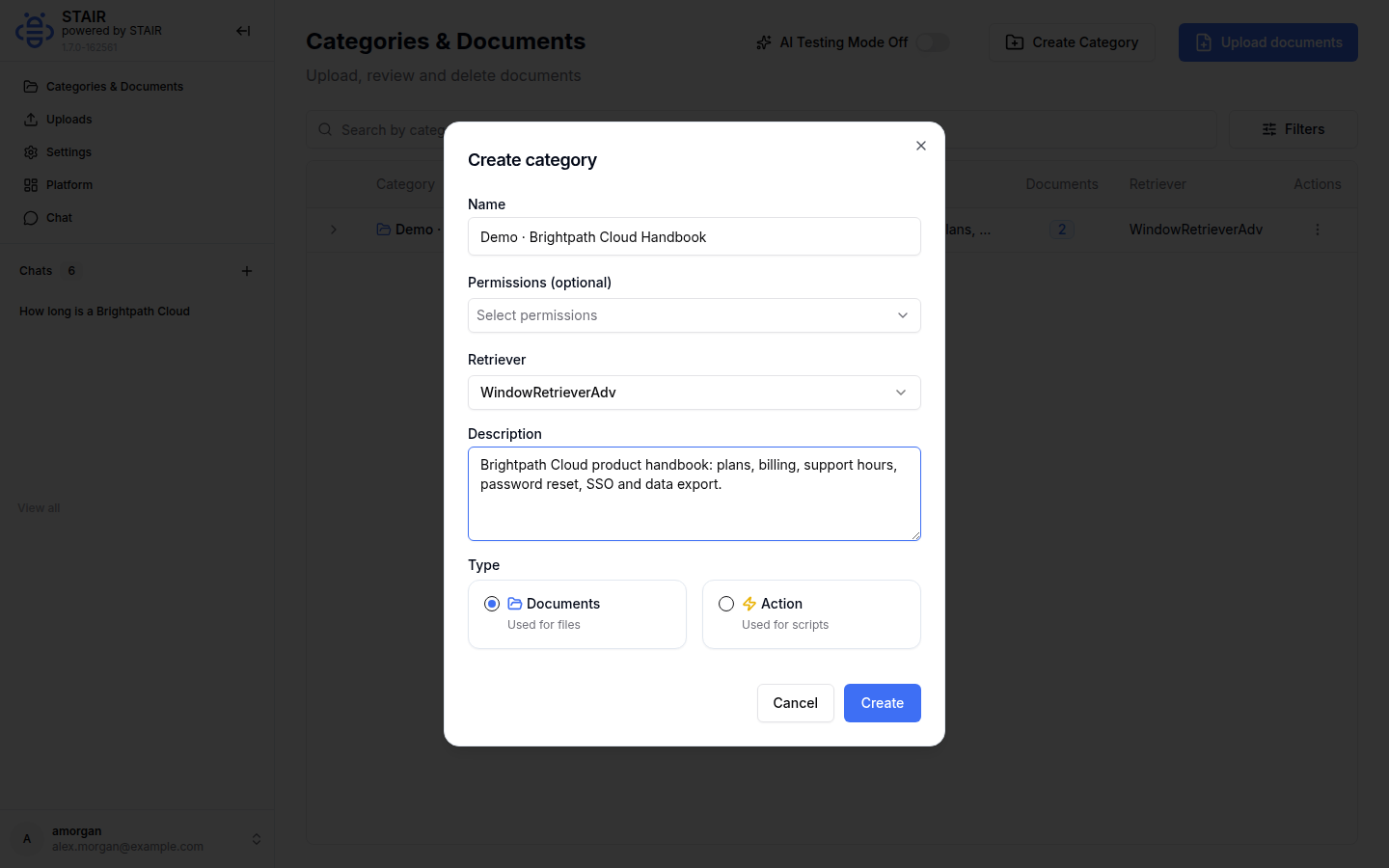
How to upload documents to the STAIR Knowledge base
- On Categories & Documents, click Upload documents, or open a category's
⋮menu and select Upload Documents. - In Category, choose the category.
- In Embedder, choose the embedding model, if the field is shown.
- In Type, choose the document type, for example PDF Documents or MD. The rest of the dialog depends on the type:
- for files, drag the files onto the drop zone or click it to select them, and optionally add a description to each file;
- for a web scraper type, enter the URL and set Max depth, Allow subdomains and Restrict to base path;
- for OneDrive, enter the Folder path and click Sign in with OneDrive;
- for Confluence, enter the Confluence URL, the Space key and optionally a Page; turn on Require auth to enter a Username and Password.
- Click Upload. STAIR starts the import in the background and shows the job ID.
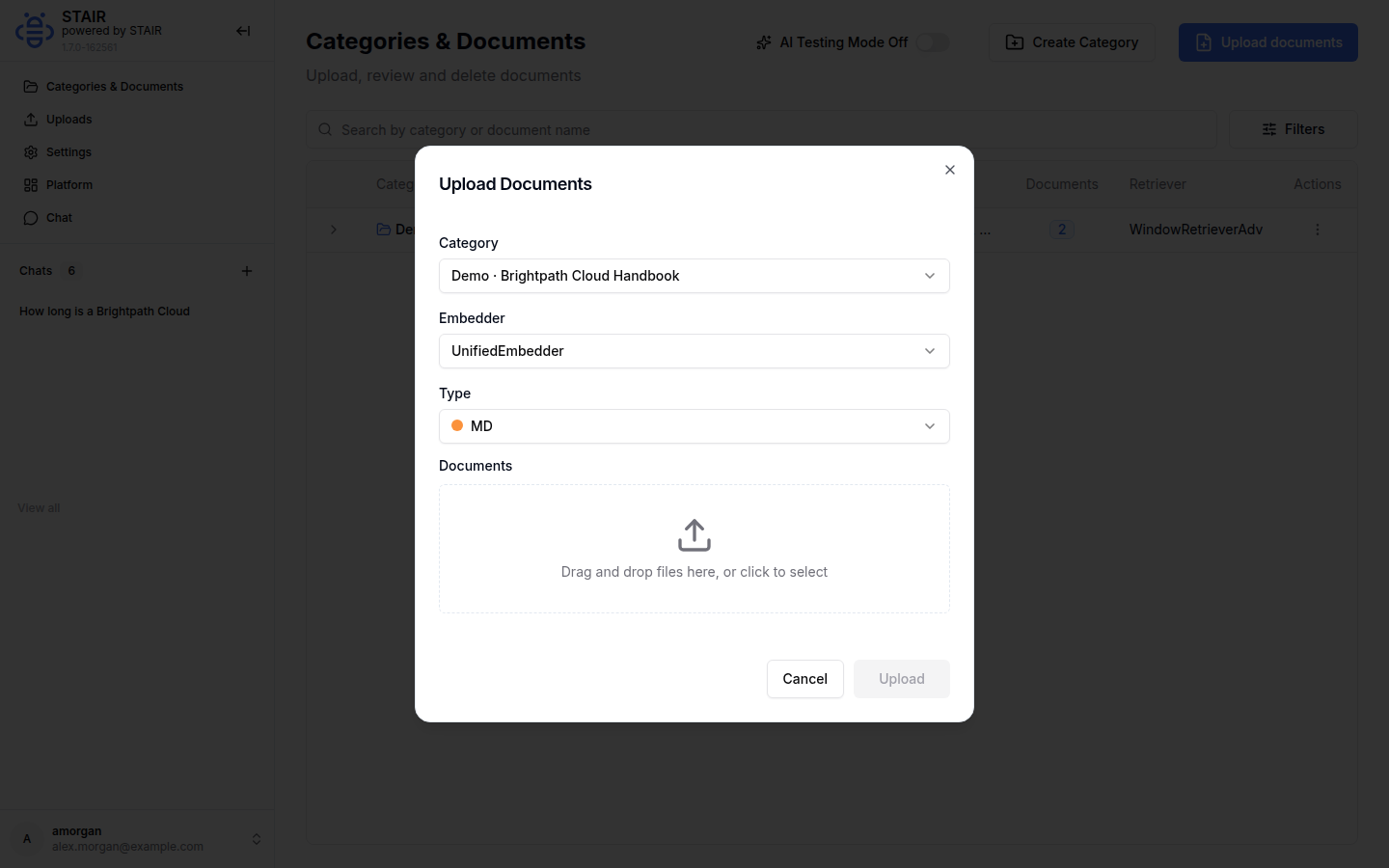
How to track document processing in STAIR Knowledge
- In the Knowledge sidebar, open Uploads.
- Each upload shows its Category, Author, Date, the number of processed Documents (for example
2 / 2) and its Status. - Expand an upload to see the status of each file.
A document goes through Uploaded, Reading, Chunking and Embedding to Done. If a step fails, the status is Reading Error, Chunking Error or Embedding Error, and the upload shows Done with Errors or Error. To remove or cancel an upload, use Actions while its status is Uploaded, Done or Error.
How to ask questions in STAIR Knowledge
- In the Knowledge sidebar, click + next to Chats to start a new chat.
- In Enter your question, type the question and press Enter. Shift+Enter starts a new line. To dictate, click the microphone (Start listening).
- Read the answer and check Sources under it:
- Used in answer lists the categories and documents that the answer is based on;
- Not used lists matches that were found but did not go into the answer.
- Click a document in Sources to preview it next to the chat with the matched passages highlighted. Expand a document to see the matched chunks and their relevance in percent.
Earlier chats stay in the Chats list in the sidebar; View all shows the full list.
How to test which categories match a question
On Categories & Documents, turn on AI Testing Mode. A test chat opens next to the category list. Enter a question to see which categories match it ("Matching categories"), without a full answer. Use it to check that a category's name and description route questions as you expect. Knowledge administrators can also choose a different Embedder, Retriever, Provider and Model for testing, and return to the defaults with Reset to Global.
How to connect STAIR agents to the Knowledge base
The RAG toolset connects agents to the Knowledge base through an MCP server. When the Knowledge app is installed, the STAIR installer creates the toolset. It has two tools:
| Tool | What it does |
|---|---|
get_knowledge |
Sends the question to the Knowledge base and returns the answer with a "Sources" line that links to the documents |
get_document |
Returns a whole document by the ID taken from a get_knowledge result |
The toolset authenticates every call as the user who asks. It uses Token header authentication with a Dynamic Authorization header, so each user enters their own Knowledge API key once:
- In the Knowledge app, open Settings → API Keys and click Create API Key.
- In Expires At, enter the number of days the key stays valid and click Create.
- Copy the key from the "Long-term API Key" dialog. It is shown only once.
- In the STAIR Console, attach the RAG toolset to an agent and enable
get_knowledgeandget_document. See AI Agents. - The first time the agent uses the toolset for you, STAIR asks for the header value. Enter
Bearerfollowed by your key.
The agent then sees only the categories that your access groups allow, the same as in the Knowledge app. Credentials that users have entered are listed on the toolset's Connected users tab and in each user's Connections → Toolset. See Toolsets and MCP Tools.
How to manage document types in STAIR Knowledge
Document types are managed in Settings → Documents under Document Presets ("Prepare configurations: Reader + Chunker for users").
- Click Create Preset.
- Enter a unique Document Type, a Description and a Color.
- Choose the Reader that extracts text from the files and the Chunker that splits it, with chunk size in Units and Overlap.
- Click Create. The type appears in the Type list of the upload dialog.
To delete presets, tick them and click the delete icon.
STAIR Knowledge settings reference
Category fields
| Field | Required | Description |
|---|---|---|
| Name | Yes | Name of the category; shown in the list, in uploads and in sources |
| Permissions | No | Access groups whose members can get answers from the category |
| Retriever | Yes | Retrieval method used for the category's documents |
| Description | Yes | What the documents cover; the assistant uses it to route questions |
| Type | Yes | Documents (used for files) or Action (used for scripts) |
Upload fields
| Field | Required | Description |
|---|---|---|
| Category | Yes | Category that receives the documents |
| Embedder | Yes, when shown | Embedding model used to index the chunks |
| Type | Yes | Document type preset; decides the source fields below |
| Documents | For file types | Files to upload, each with an optional description |
| URL, Max depth, Allow subdomains, Restrict to base path | For web scraper types | Start page and crawl limits |
| Folder path | For OneDrive | Folder to import after Sign in with OneDrive |
| Confluence URL, Space, Page, Require auth | For Confluence | Space to import, optional page, optional credentials |
Settings tabs
| Tab | What it holds |
|---|---|
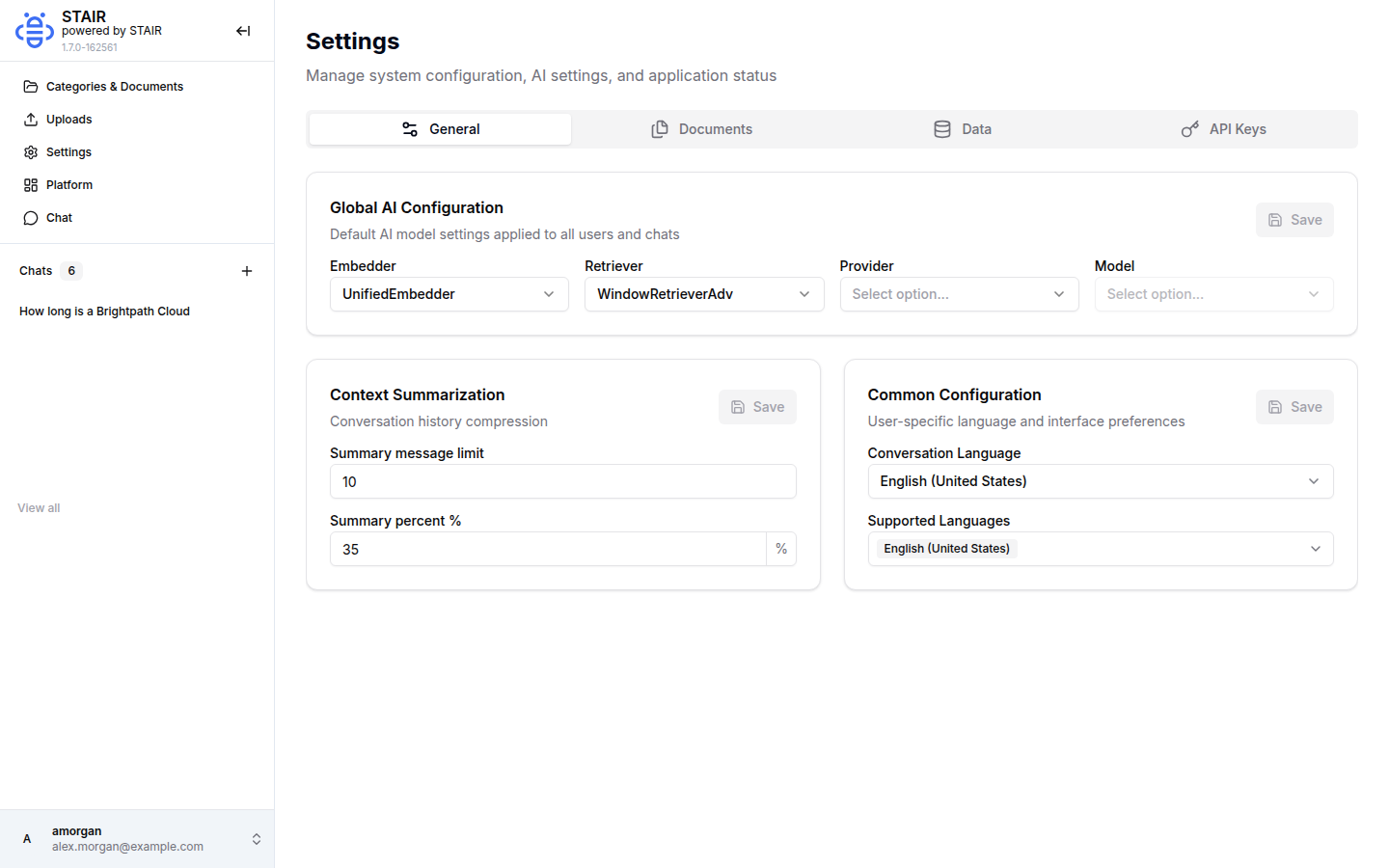
| General | Global AI Configuration (Embedder, Retriever, Provider, Model), Context Summarization (Summary message limit, Summary percent %), Common Configuration (Conversation Language, Supported Languages) |
| Documents | Document Presets: document types with reader and chunker |
| Data | Schemas & Objects of the index, Backup & Migration (Import, Export) and a Danger Zone |
| API Keys | API Key Management: your long-term API keys with Status, Last Used and Expires At |
Troubleshooting
The assistant says it cannot help with the question
Cause: no category that you can access matches the question. Either your access groups are not in the category's Permissions, or its name and description do not mention the topic. Fix: add your group to Permissions, or make the Description name the topics. Check the result with AI Testing Mode.
The upload dialog says "No categories available for upload"
Cause: no category exists yet, or none is available to you. Fix: click Create Category first, then upload.
An upload shows Reading Error, Chunking Error or Embedding Error
Cause: STAIR could not read the file, split it or index it, for example because the file type does not match the chosen document type. Fix: delete the upload, choose the document type that matches the files and upload them again.
An agent's RAG tool fails with "Unauthorized: missing Authorization header"
Cause: the RAG toolset received no Knowledge credential for the user.
Fix: create a Knowledge API key and enter it as Bearer <key> when STAIR asks. If a stored value is wrong, revoke it in Connections → Toolset and enter it again.
FAQ
What is RAG in STAIR?
Retrieval-augmented generation: before answering, STAIR retrieves passages from your uploaded documents and the model writes the answer from them. Each answer lists the documents it used as sources.
Which document sources can STAIR Knowledge import?
Uploaded files, web pages from a URL, OneDrive folders and Confluence spaces. The document type decides how the content is read and chunked.
Can AI agents use the Knowledge base?
Yes. Attach the RAG toolset to the agent. The agent searches the Knowledge base on behalf of the asking user, with that user's API key.
Who can see the documents in a category?
Members of the access groups set in the category's Permissions. The same rule applies to answers in the Knowledge app and to agents that use the RAG toolset.
Does STAIR Knowledge show where an answer comes from?
Yes. The Sources panel lists the documents used in the answer, with a preview and the matched passages.