
Documentation menu
STAIR Console Navigation
Read the page as Markdown for LLMsThe STAIR Console sidebar groups pages into Workspace, MCP, Configuration, System and External Tools; your role decides which items appear.
How the STAIR Console is organized
Every page of the STAIR Console has the same layout:
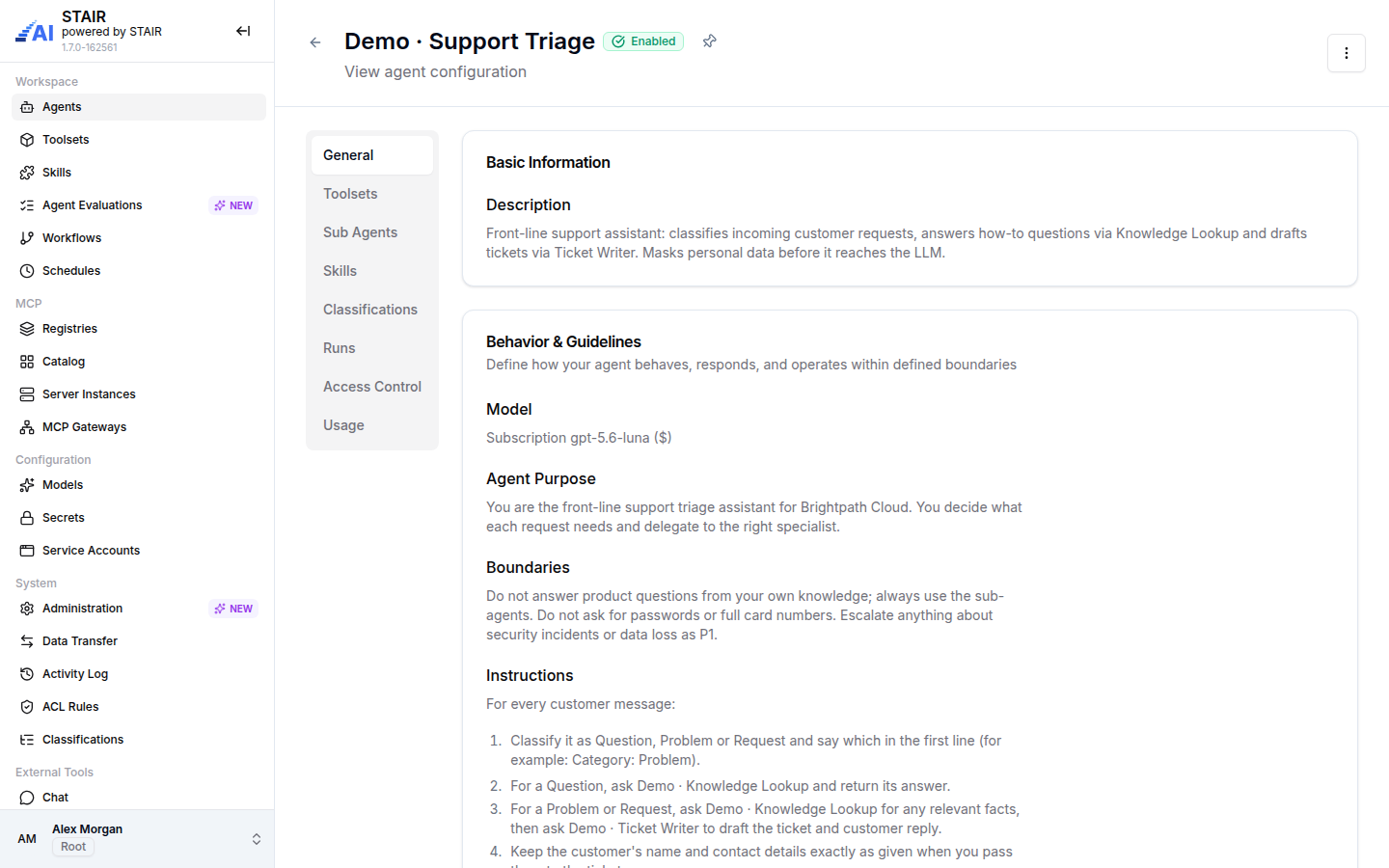
- Sidebar on the left. The header shows the logo, the product name (STAIR, "powered by STAIR") and the build number. The arrow button Collapse sidebar shrinks the sidebar to icons. Items that are new in this version carry a NEW badge until you open them once.
- User button at the bottom of the sidebar, with your initials, name and role label (Root, Admin, User or Classifier). It opens the user menu.
- Main area with the page title, a short subtitle and, on list pages, a Create button, a search box and a table.
On list pages, click a row to open the record's view page. The ⋮ menu at the end of a row holds actions such as Edit, Copy, Show History and Delete. View and edit pages use vertical tabs on the left, for example General, Toolsets, Access Control and Usage.
STAIR Console sidebar reference
The table lists every sidebar item in STAIR 1.7, in sidebar order, with the roles that see it. Root sees every item.
| Group | Item | What you do there | Roles that see the item |
|---|---|---|---|
| Workspace | Agents | Create, run and manage AI agents. This is the start page | All roles |
| Workspace | Toolsets | Connect MCP servers and choose the tools agents may use | All roles |
| Workspace | Skills | Manage instruction packages (SKILL.md and files) |
All roles |
| Workspace | Agent Evaluations | Test agents with scripted requests and evaluators | Admin, User |
| Workspace | Workflows | Build multi-step automations on a graph | All roles |
| Workspace | Schedules | Run a workflow or an agent on a cron schedule | All roles |
| MCP | Registries | Manage the sources of the MCP Catalog | Admin |
| MCP | Catalog | Browse MCP servers, deploy them or add them as toolsets | Admin |
| MCP | Server Instances | Manage MCP servers that STAIR runs | Admin |
| MCP | MCP Gateways | Expose tools and agents to external MCP clients through one endpoint | Admin, Classifier |
| Configuration | Models | Manage model providers and LLM models (tabs Models and Providers) | Admin |
| Configuration | Secrets | Store credentials, such as LLM provider API keys, that model providers reference | Admin |
| Configuration | Service Accounts | Manage non-human identities and their API keys | Admin |
| System | Administration | Installation-wide settings, jobs, license, runtime logs, identity providers | Admin |
| System | Data Transfer | Export records into a bundle and import bundles | Admin, User |
| System | Activity Log | See who created, changed or deleted which record | All roles |
| System | ACL Rules | See which permissions a user, team or service account has | All roles |
| System | Classifications | Manage the classification groups used to filter records | Classifier |
| External Tools | Chat | Open STAIR Chat in a new tab | All roles |
| External Tools | Knowledge | Open the Knowledge app in a new tab | All roles |
Some sidebar items open a page that you can view but not change. For example, every role sees Toolsets, but only an Admin can create a toolset. Inside a page, what you can do with each record also depends on its access list: Read, Write, Manage and Execute. See Security and Access Control.
STAIR roles in the console
| Role | What the role adds |
|---|---|
| Root | Sees every page and has full rights on every record, regardless of access lists. Only Root can add MCP servers to a custom registry source |
| Admin | Manages installation-wide configuration: MCP registries, catalog and server instances, models, secrets, service accounts, administration. Creates toolsets, skills, schedules and MCP Gateways |
| User | Builds and runs agents: creates agents, workflows and agent evaluations, uses Data Transfer |
| Classifier | Manages classification groups on the Classifications page, assigns classifications to records and sees MCP Gateways |
A person can hold several roles; the user button shows the highest one (Root, then Admin, Classifier, User). Pages that a role cannot open redirect to Agents.
How to use the STAIR Console user menu
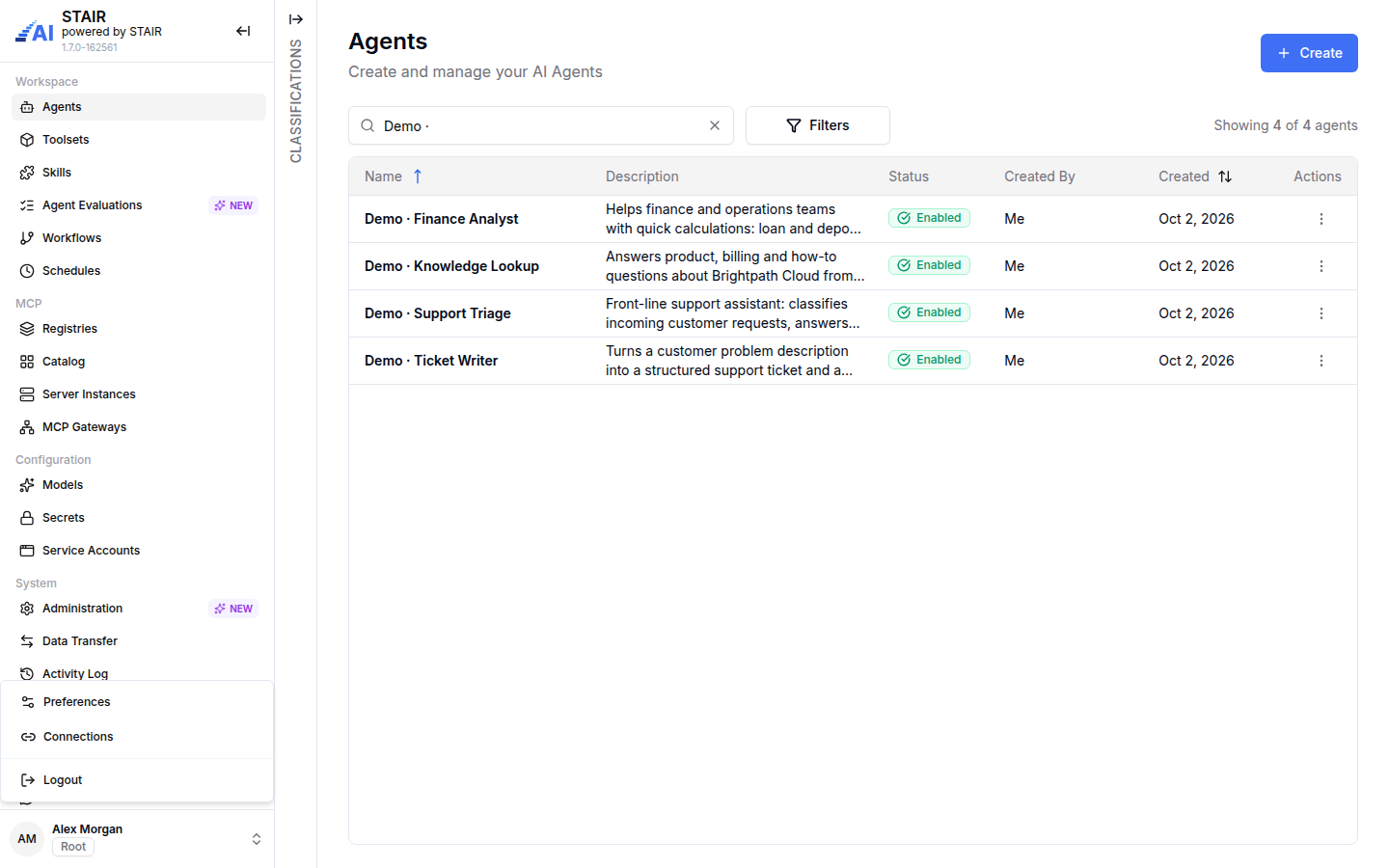
- At the bottom of the sidebar, click your name.
- Choose an item:
- Preferences opens My Preferences, where you set the console Language (English, Русский or Deutsch). See User Preferences.
- Connections opens your personal connections, with the tabs Tokens (personal API keys,
aip_sk_…) and Toolset (credentials you gave to toolsets, which you can revoke). See API Keys and Service Accounts and Toolsets and MCP Tools. - Logout signs you out of STAIR.
How to open STAIR Chat and Knowledge from the console
- In the sidebar, under External Tools, click Chat or Knowledge.
- The app opens in a new browser tab with the same sign-in.
- To go back, click Platform in the STAIR Chat or Knowledge sidebar.
See STAIR Chat for both apps.
How to find records quickly in the STAIR Console
- Search. Every list page has a search box, for example "Search by agent name and description" on Agents.
- Filters. Agents has a Filters button (status, creator, owner, toolset, sub-agent, skills).
- Classifications panel. On Agents, Toolsets, Skills, Workflows and MCP Gateways, the vertical Classifications tab on the left edge of the list opens a filter by classification. See Classifications.
- Pin page. The pin icon next to a record title pins the page as a tab for quick access. Unpin all removes all pinned tabs.
- Show History. The Show History row action opens the Activity Log filtered to that record.
Troubleshooting
A page opens the Agents list instead
Cause: your role does not include the page. For example, Models needs Admin. Fix: ask your STAIR administrator for the role listed in the sidebar reference above.
"You do not have the required roles"
Cause: your account has no console role. With STAIR Chat access only, the console redirects you to STAIR Chat after a countdown; without any role, it offers to sign out. Fix: ask your administrator to assign a role.
The Create button is missing or a record cannot be edited
Cause: creating that record type needs another role, or you lack Write or Manage permission on the record. Fix: ask the record's owner for access, or an administrator for the role.
FAQ
Where are my preferences and API keys in the STAIR Console?
Both are in the user menu at the bottom of the sidebar: Preferences for the language, Connections → Tokens for personal API keys.
Why do I see fewer sidebar items than a colleague?
Sidebar items depend on your roles. Root sees everything; MCP, Configuration and Administration pages need Admin; Classifications needs Classifier.
Can I change the product name and logo in the sidebar?
Yes. An administrator can set Application name, Logo and Favicon in Administration → General. See STAIR Administration.
Where did "Connected Apps" go?
In STAIR 1.7 it is called Service Accounts, under Configuration.
How do I make more room for the page content?
Click Collapse sidebar (the arrow in the sidebar header). The sidebar shrinks to icons; click the arrow again to expand it.