
Documentation menu
Logs and Usage Metrics
Read the page as Markdown for LLMsSTAIR records usage metrics, run history, configuration changes and runtime logs, so you can see what agents did, what it cost and who changed what.
How logs and usage metrics work in STAIR
STAIR shows four kinds of records, each in the place where you need it:
| What | Question it answers | Where to find it |
|---|---|---|
| Usage | How much an agent, toolset, model or service account was used and what it cost | Usage tab of agents, toolsets and models; View Usage on service accounts |
| Runs | What happened in one run: its input, output, status and duration | Runs tab of agents and workflows; Runs of agent evaluations |
| Activity Log | Who created, changed or deleted a record, and what exactly changed | System → Activity Log; Show History in a record's menu |
| Logs | What the STAIR runtime and the MCP servers printed while they worked | Administration → Runtime Logs; Logs on a server instance |
Usage dashboards and runtime logs are embedded dashboards ("Powered by Grafana"). They have a time range picker (default Last 7 days for usage, Last 1 hour for logs), Refresh with an auto-refresh interval, and a fullscreen button. Every chat message, API call, workflow step, schedule and evaluation counts in usage, whatever started it.
STAIR keeps run history and Activity Log entries for the number of days set in Administration → Automation. See STAIR Administration.
How to see the usage and cost of a STAIR agent
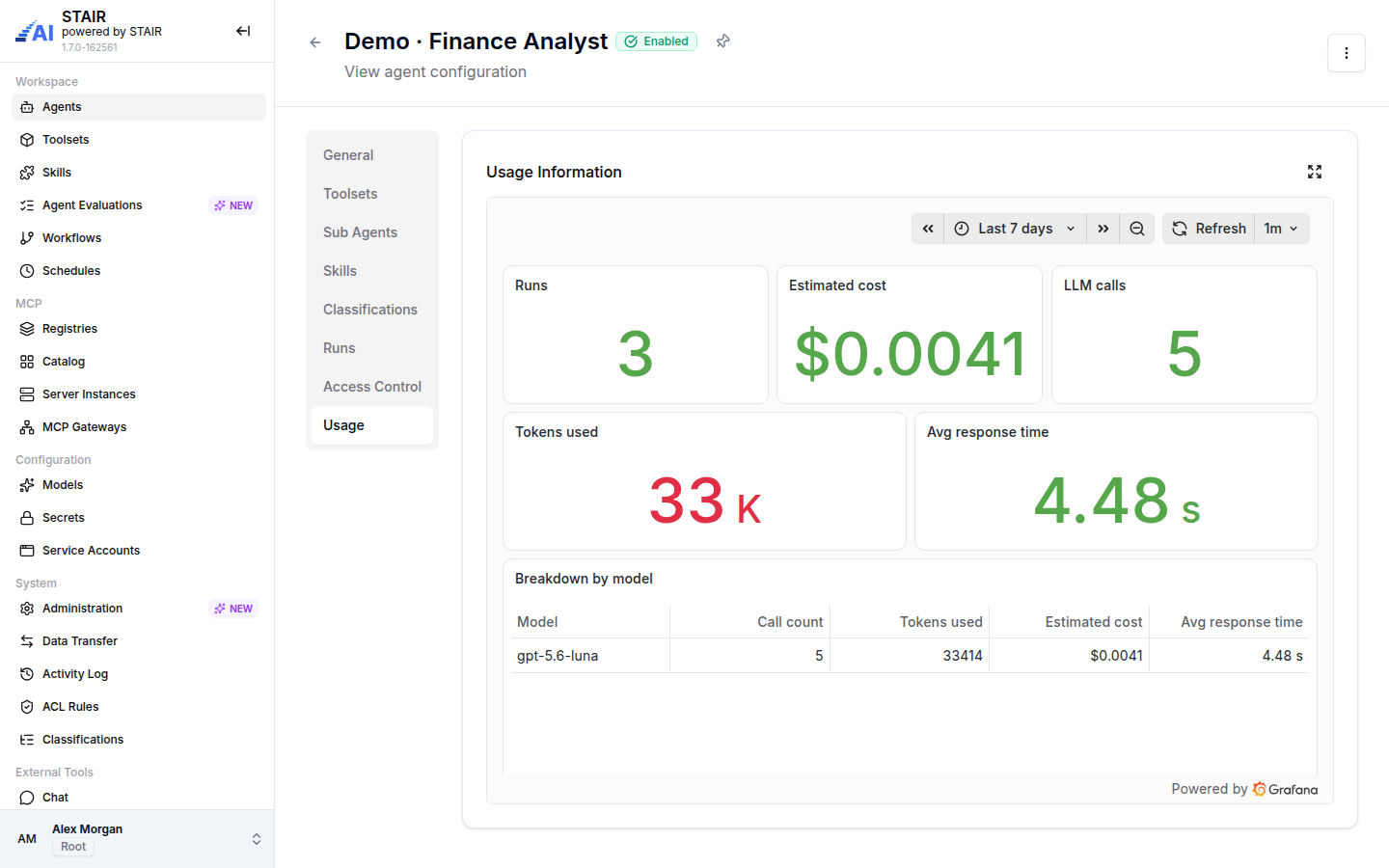
- In Agents, open the agent and select the Usage tab.
- Choose the time range. The dashboard shows:
- Runs, Estimated cost, LLM calls, Tokens used and Avg response time;
- Breakdown by model: call count, tokens, estimated cost and average response time for each model the agent used.
Estimated cost is calculated from the token prices set on the model. See LLM Models.
How to see toolset, model and service account usage in STAIR
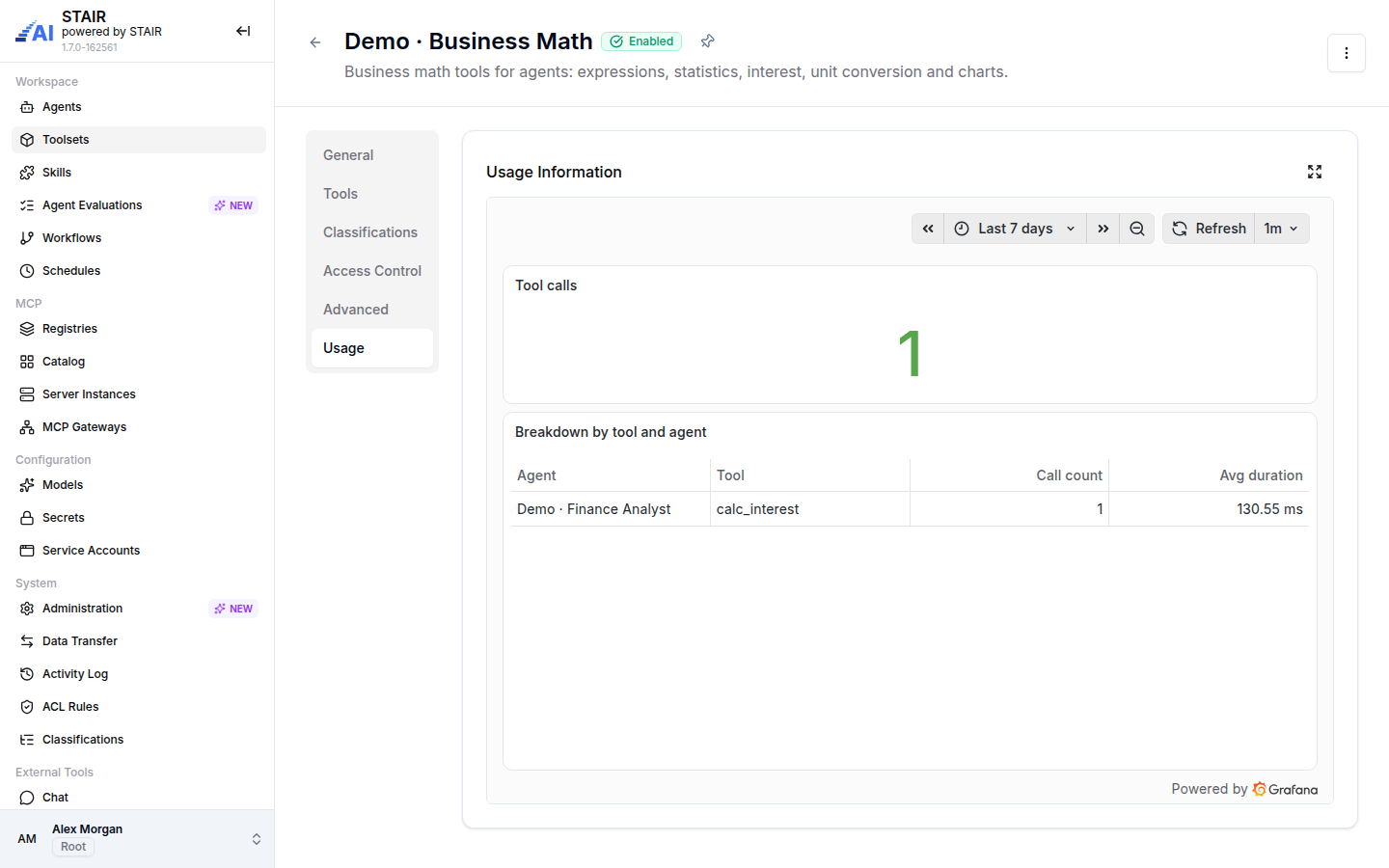
- Toolset: open the toolset and select Usage. The dashboard shows Tool calls and Breakdown by tool and agent: which agent called which tool, how often, and the average duration.
- Model: in Models, open the model and select Usage. The dashboard shows Estimated cost, LLM calls, Tokens used, Avg response time and Breakdown by agent.
- Service account: in Service Accounts, open the
⋮menu of the account and select View Usage. The dashboard shows the runs, cost, LLM calls and tokens of the requests made with its keys, with a Breakdown by agent.
Use the toolset dashboard to see which tools agents actually call, and the model dashboard to see which agents drive the cost of a model.
How to review STAIR agent and workflow runs
A run is one execution started from the STAIR Console or by a schedule.
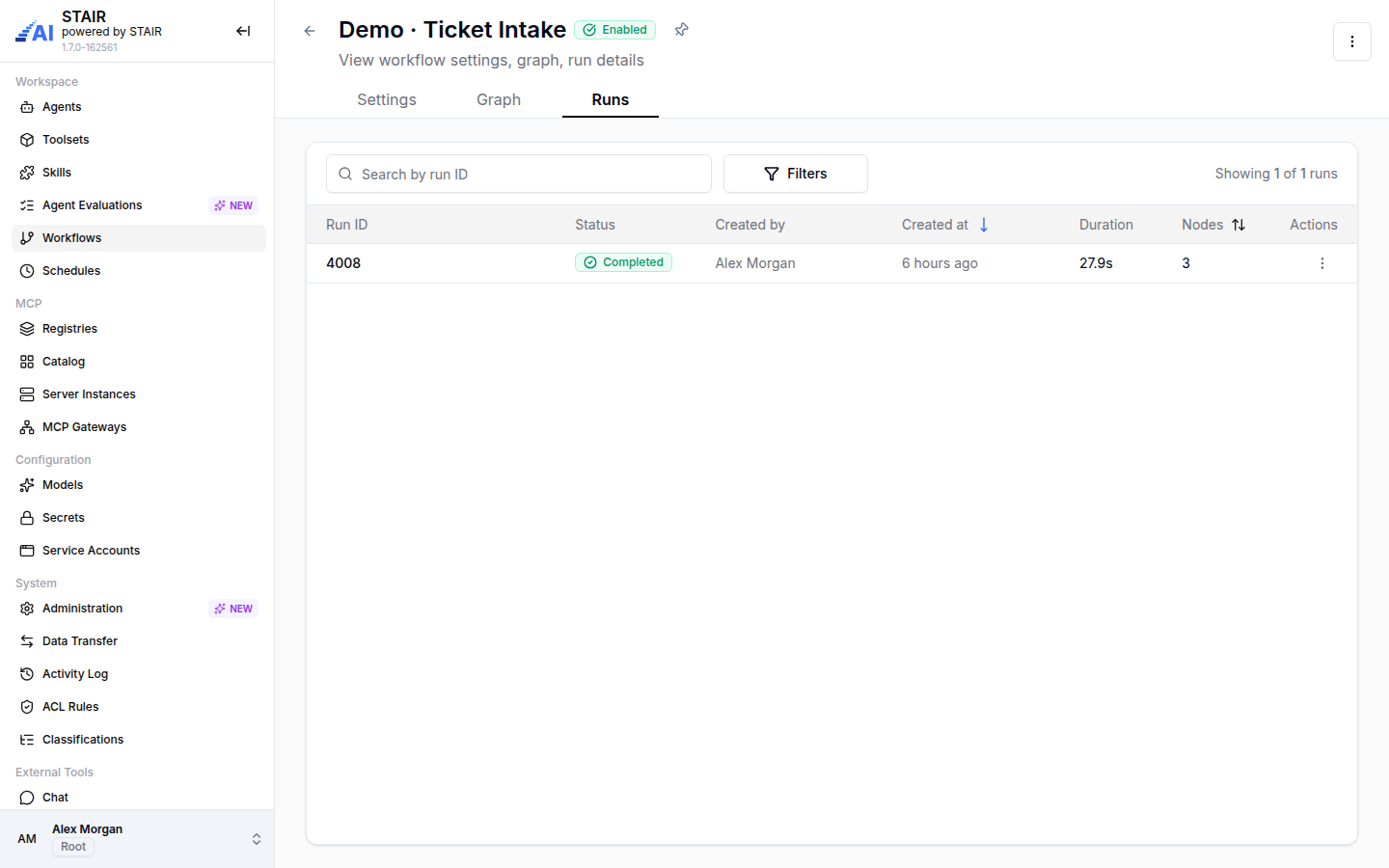
- Open the agent or the workflow and select the Runs tab.
- The list shows Run ID, Status (for example Running, Completed or Failed), Created by, Created at and Duration. Workflow runs also show the number of Nodes.
- Search by run ID, or use Filters.
- Click a run to open it. An agent run shows its Input, Output and Logs. A workflow run shows each step with its input, output and duration. See Agent Workflows.
Agent runs come from the agent's Run action and from schedules. Conversations in STAIR Chat and calls through the API are not listed as runs, but they appear on the Usage tab.
How to find who changed a STAIR record
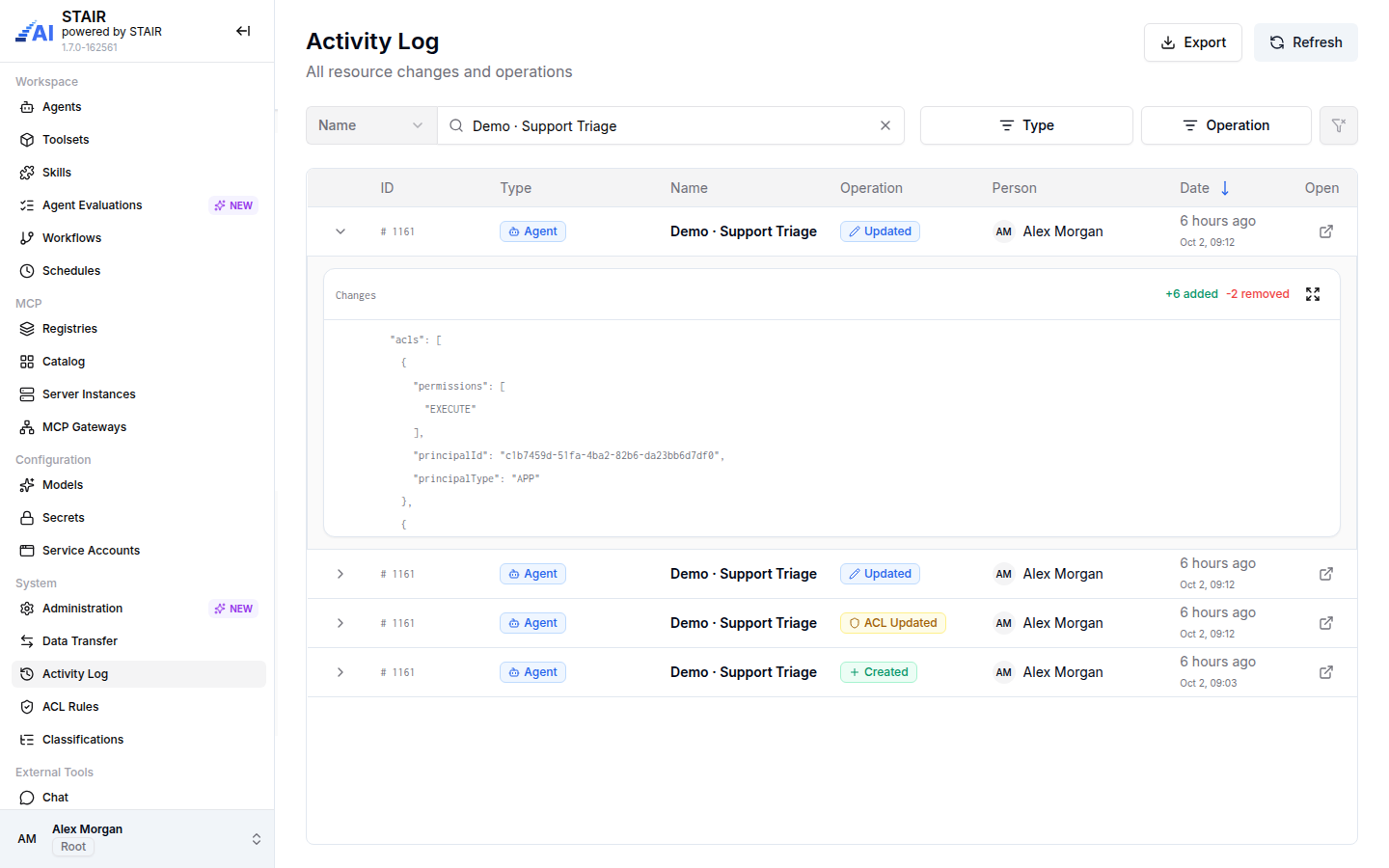
- In the sidebar, open System → Activity Log ("All resource changes and operations"). To open the history of one record, select Show History in its
⋮menu instead. - Search by Name or User, and filter by Type (for example Agent, Toolset, Model, Secret, Workflow) and Operation (Created, Updated, Status Changed, Deleted, ACL Updated). Clear Filters resets them.
- Expand a row to see the Changes: the fields before and after the change.
- Click Open in a row to preview the record.
- Click Export to download the Activity Log.
How to view STAIR runtime logs
- In Administration, open the Runtime Logs tab. The tab is available to the Root and Admin roles.
- Narrow the logs with the filters Namespace, Service, Pod, Container, Task type and Task id, and with Search for text in the log lines.
- Choose the time range and click Refresh.
Use Task type and Task id to follow one run, for example of a workflow or an evaluation, across the STAIR services.
To see the logs of one MCP server that STAIR runs, open MCP → Server Instances, open the instance and scroll to Logs. Click Refresh for new lines or the fullscreen button for a larger view. See MCP Server Catalog.
Logs and usage metrics reference
Usage dashboards
| Where | Tiles | Breakdown |
|---|---|---|
| Agent → Usage | Runs, Estimated cost, LLM calls, Tokens used, Avg response time | By model: Call count, Tokens used, Estimated cost, Avg response time |
| Toolset → Usage | Tool calls | By tool and agent: Call count, Avg duration |
| Model → Usage | Estimated cost, LLM calls, Tokens used, Avg response time | By agent: Call count, Tokens used, Estimated cost, Avg response time |
| Service account → View Usage | Runs, Estimated cost, LLM calls, Tokens used, Avg response time | By agent |
Activity Log columns
| Column | Description |
|---|---|
| ID | ID of the changed record |
| Type | Kind of record, for example Agent, Toolset or Secret |
| Name | Name of the record |
| Operation | Created, Updated, Status Changed, Deleted or ACL Updated |
| Person | User who made the change |
| Date | When the change was made |
| Open | Preview of the record |
Runtime Logs filters
| Filter | Description |
|---|---|
| Namespace, Service, Pod, Container | Which part of the STAIR runtime wrote the log line |
| Task type, Task id | The run that the log line belongs to |
| Search | Text to find in the log lines; * matches everything |
Troubleshooting
The Usage tab shows no data
Cause: there were no calls in the selected time range, or the record is new. Fix: choose a longer time range, for example Last 30 days, and click Refresh.
The agent's Runs tab is empty, but Usage shows runs
Cause: the Runs tab lists only runs started with Run or by a schedule. Chat conversations and API calls appear only in usage. Fix: use the Usage tab for chat and API traffic, or start a run with Run.
Runtime Logs shows "No data"
Cause: no log lines match the filters in the time range.
Fix: reset the filters to All, set Search to * and choose a longer time range.
Old runs or Activity Log entries are missing
Cause: the data purge removed history older than the retention days. Fix: check the retention days in Administration → Automation and raise them if you need a longer history.
FAQ
Does STAIR show the cost of each agent?
Yes. The agent's Usage tab shows the estimated cost for the selected period, calculated from the token prices set on each model.
Can I see which user changed an agent?
Yes. The Activity Log shows the person, the date and the changed fields for every change. Select Show History in the agent's menu to open its history.
Are STAIR Chat conversations counted in usage?
Yes. Usage counts every call to an agent, whether it comes from STAIR Chat, the API, a workflow, a schedule or an evaluation.
Who can see runtime logs?
The Root and Admin roles, on the Runtime Logs tab in Administration.
How long does STAIR keep run history and audit logs?
As many days as set in Administration → Automation. Older entries are deleted by the purge job.