
Documentation menu
MCP Server Catalog
Read the page as Markdown for LLMsThe STAIR MCP Catalog lists MCP servers from public and custom registries and lets you deploy them as server instances or add them as toolsets.
How the MCP Catalog works in STAIR
The sidebar group MCP holds three pages that work together:
- Registries: the sources of catalog entries. Static registries sync automatically; custom registry sources are managed by users.
- Catalog: one searchable list of the MCP servers from all enabled registries.
- Server Instances: the MCP servers that STAIR deploys and runs for you from catalog entries.
A catalog entry becomes usable for agents in one of two ways:
- Deploy: STAIR starts a managed MCP Server Instance of the server. You then create a toolset on top of the instance.
- Add Toolset: the server is already hosted elsewhere. STAIR opens the toolset form with the hosted endpoint URL filled in.
Agents never use catalog entries or instances directly; they always use a toolset. See Toolsets and MCP Tools.
Registries
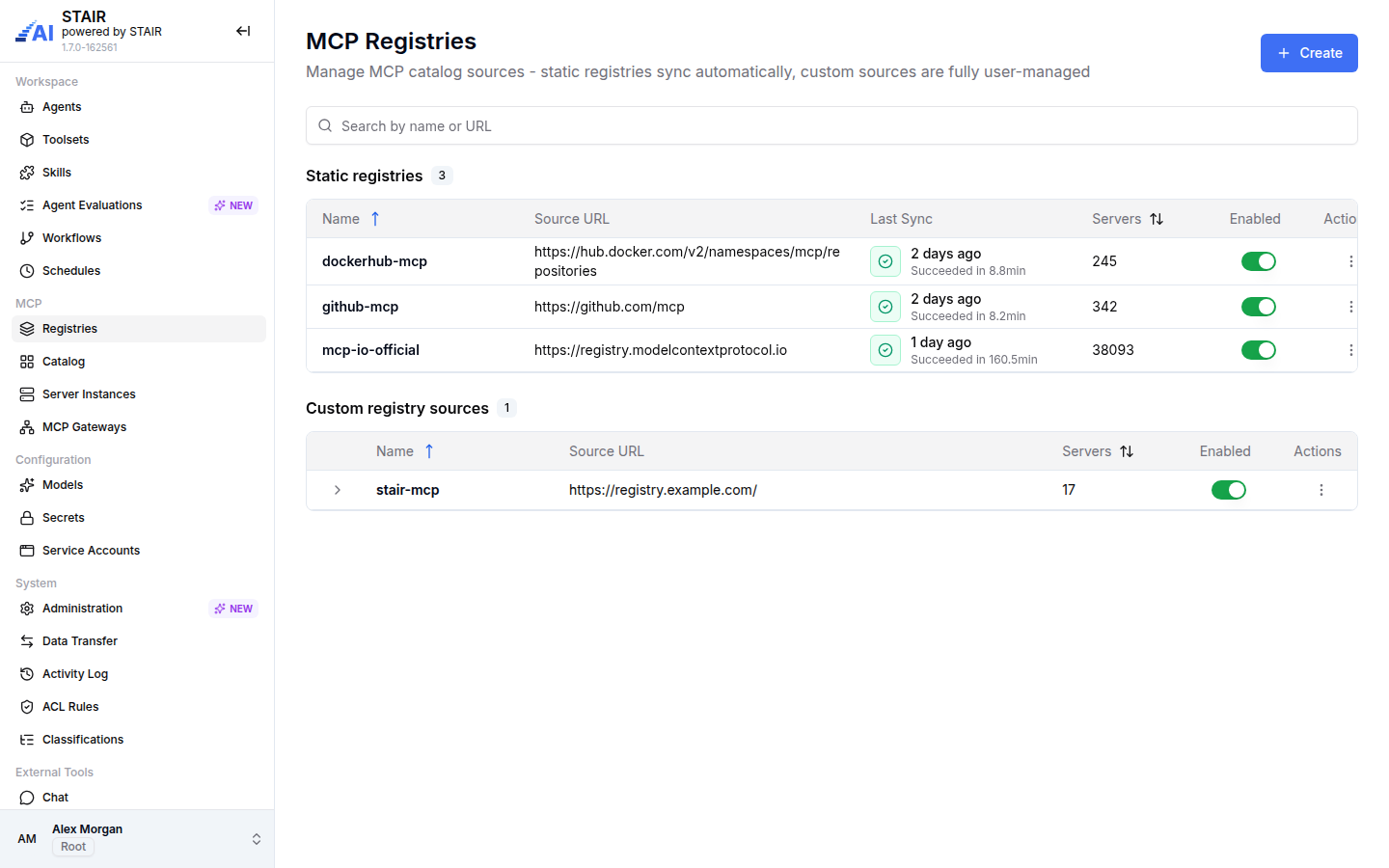
MCP Registries ("Manage MCP catalog sources - static registries sync automatically, custom sources are fully user-managed") has two sections.
- Static registries: public registries that STAIR syncs on a schedule, such as the official MCP registry, the Docker Hub MCP namespace and GitHub's MCP list. Columns: Name, Source URL, Last Sync (time and duration of the last sync), Servers, Enabled, Actions. Row menu: Sync, Edit, Delete.
- Custom registry sources: your own catalog sources. Expand a row to see its catalog entries. Row menu: Add New MCP, Edit, Import, Export, Delete.
Search both sections with "Search by name or URL". The Enabled switch keeps a source in the list while removing its entries from the Catalog.
How to add a custom registry source
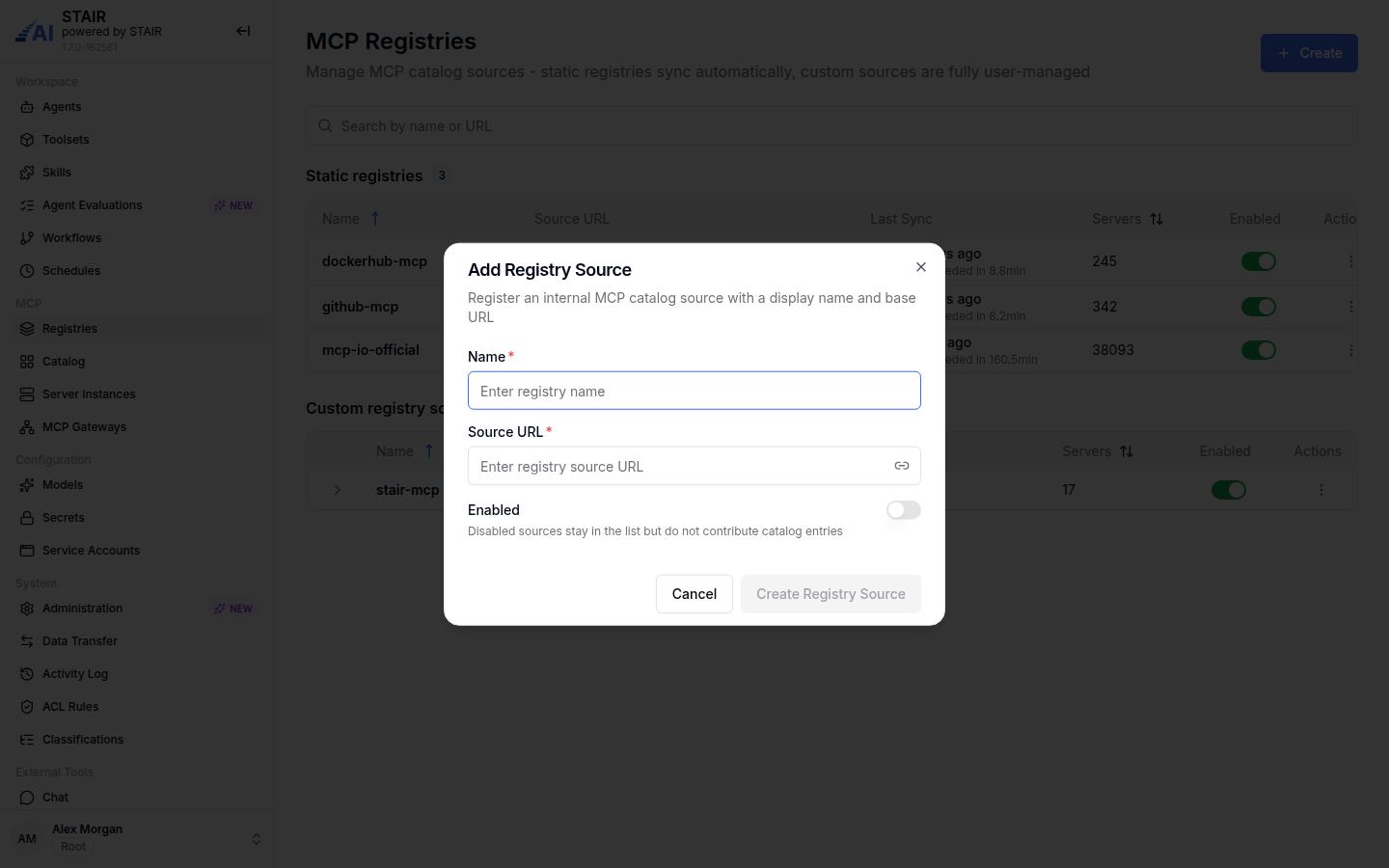
- In the sidebar, open Registries and click Create. The Add Registry Source dialog opens.
- Enter a Name and the Source URL.
- Turn on Enabled so the source adds its entries to the Catalog. The switch is off by default: "Disabled sources stay in the list but do not contribute catalog entries."
- Click Create Registry Source.
How to add MCP servers to a custom registry source
- In the row menu
⋮of the custom source, click Add New MCP. The Create MCP Server page opens. This action needs the Root role. - Enter the Name, Description and Overview, and optionally the Website URL and Repository URL.
- Enter how STAIR runs the server: a Docker Image, an NPX package or a UV package.
- Add the environment variables the server needs. For each, set Name, Description, Placeholder, Required ("Must be provided before the server can start") and Secret ("Value will be masked and never shown in plain text").
- Save the entry.
To move entries between installations, use Export (select entries, then Export Selected) and Import (upload the exported .json file) in the source's row menu.
How to sync a static registry
Open the row menu ⋮ of a static registry and click Sync. Last Sync shows the result. The automatic sync schedule is set in Administration → Automation under MCP registry sync. See STAIR Administration.
Catalog
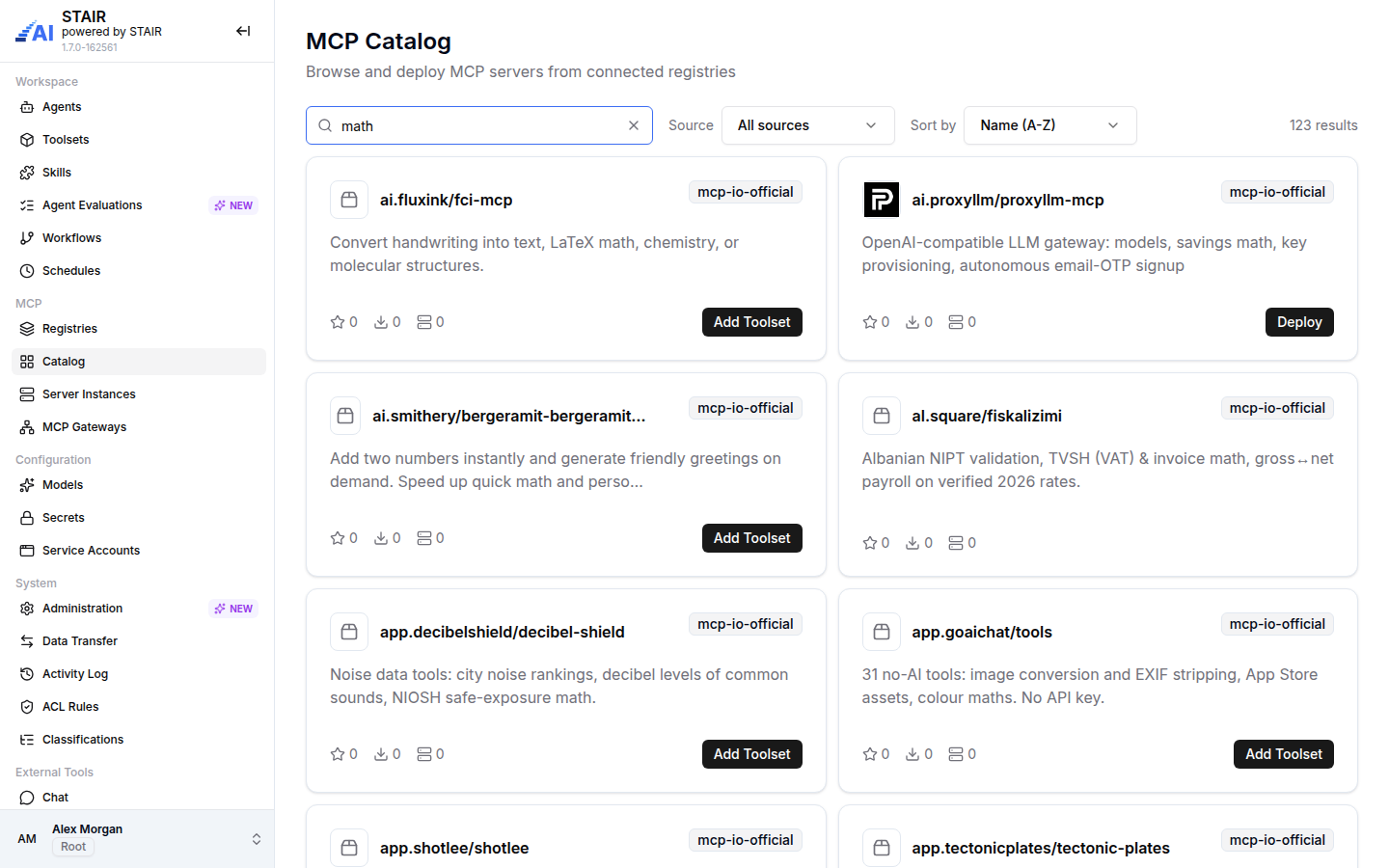
MCP Catalog ("Browse and deploy MCP servers from connected registries") shows a card per server: name, source registry, short description, rating, downloads, number of deployed instances, and the action Deploy or Add Toolset.
- Search with "Search servers".
- Filter by registry with Source (All sources by default).
- Sort by Name (A-Z), Top rated or Most downloaded.
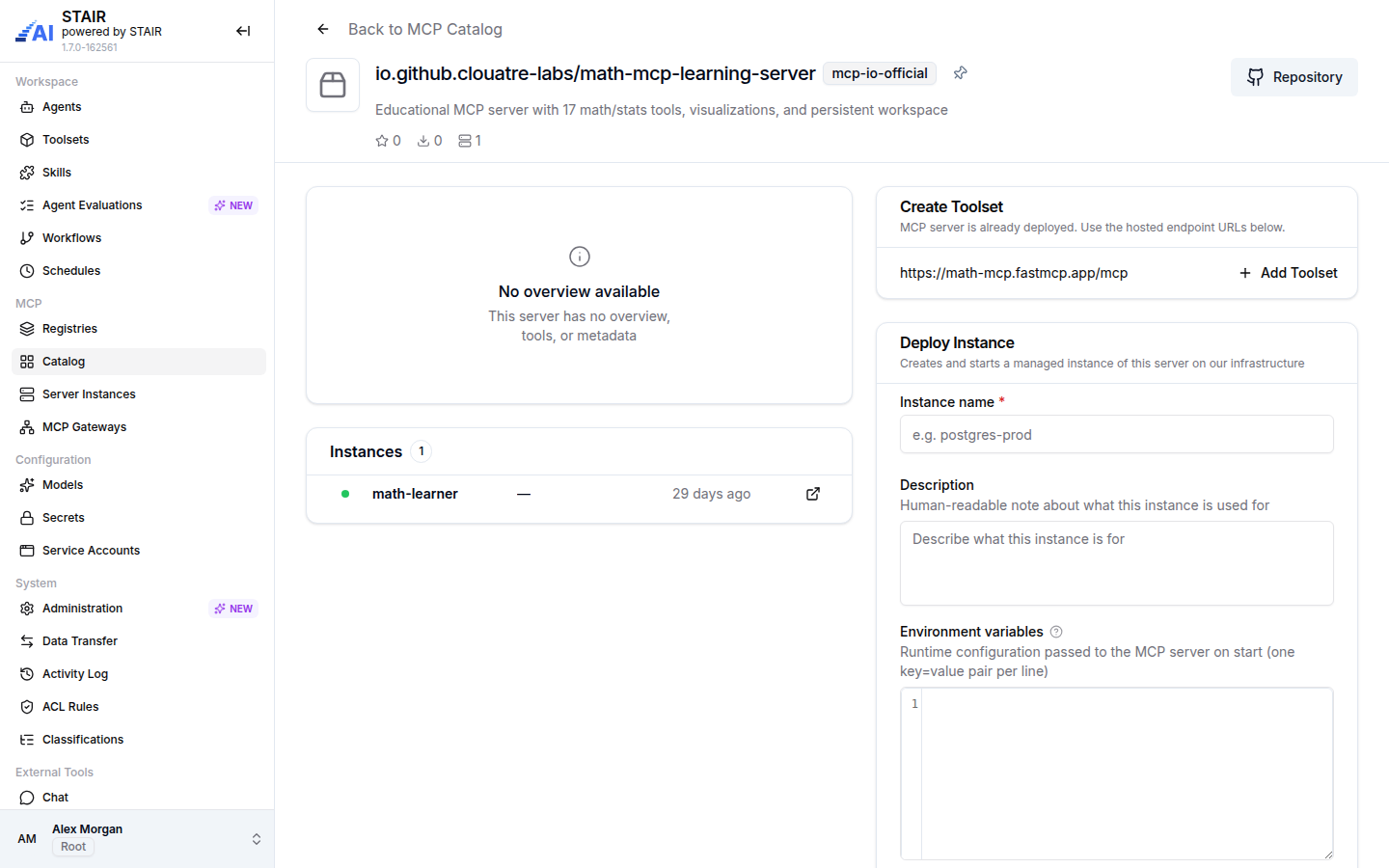
Click a card to open the server's detail page. It shows the source, the stats, Repository and Docs links, the overview and Available Tools, the Instances already deployed from this entry, a Create Toolset card with hosted endpoint URLs (when the server has them), a Deploy Instance card and, when the entry defines authentication, How to connect.
How to deploy an MCP server from the Catalog
- In the sidebar, open Catalog and find the server.
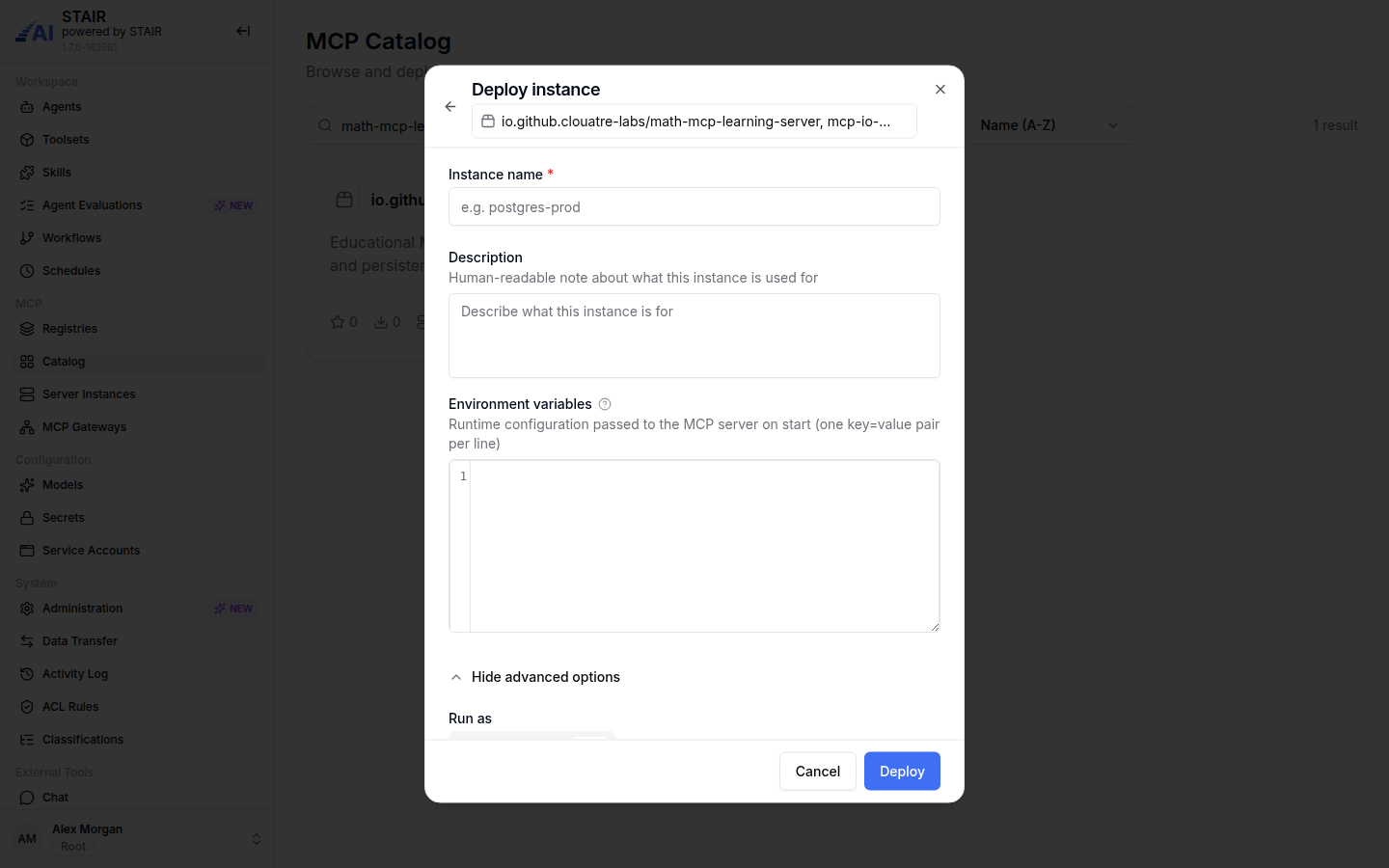
- Click Deploy on its card, or open the card and use the Deploy Instance form. The Deploy instance dialog opens.
- Enter the Instance name: Latin letters, numbers and hyphens, starting and ending with a letter or number (for example
postgres-prod). - Optionally enter a Description ("Human-readable note about what this instance is used for").
- In Environment variables, enter the server's configuration, one
key=valuepair per line. The Parameters Reference lists the variables the entry defines, their defaults and which are required. - Optionally click Show advanced options to change how the server runs:
- Run as: Docker (isolated container), npx (needs Node.js) or uv (Python 3.10+), as far as the entry supports them;
- Image, Base OS, Entrypoint and Command for Docker, or Run package for npx and uv;
- Transport: HTTP or STDIO_ONLY, with Port and HTTP Args.
- Click Deploy. The new instance appears on Server Instances.
How to add a hosted MCP server as a toolset
- Click Add Toolset on the server's card or detail page.
- If the server offers several hosted endpoints, pick one in Choose an endpoint and click Continue.
- STAIR opens Create Toolset with the endpoint as the server URL. Complete the toolset as described in Toolsets and MCP Tools.
Server Instances
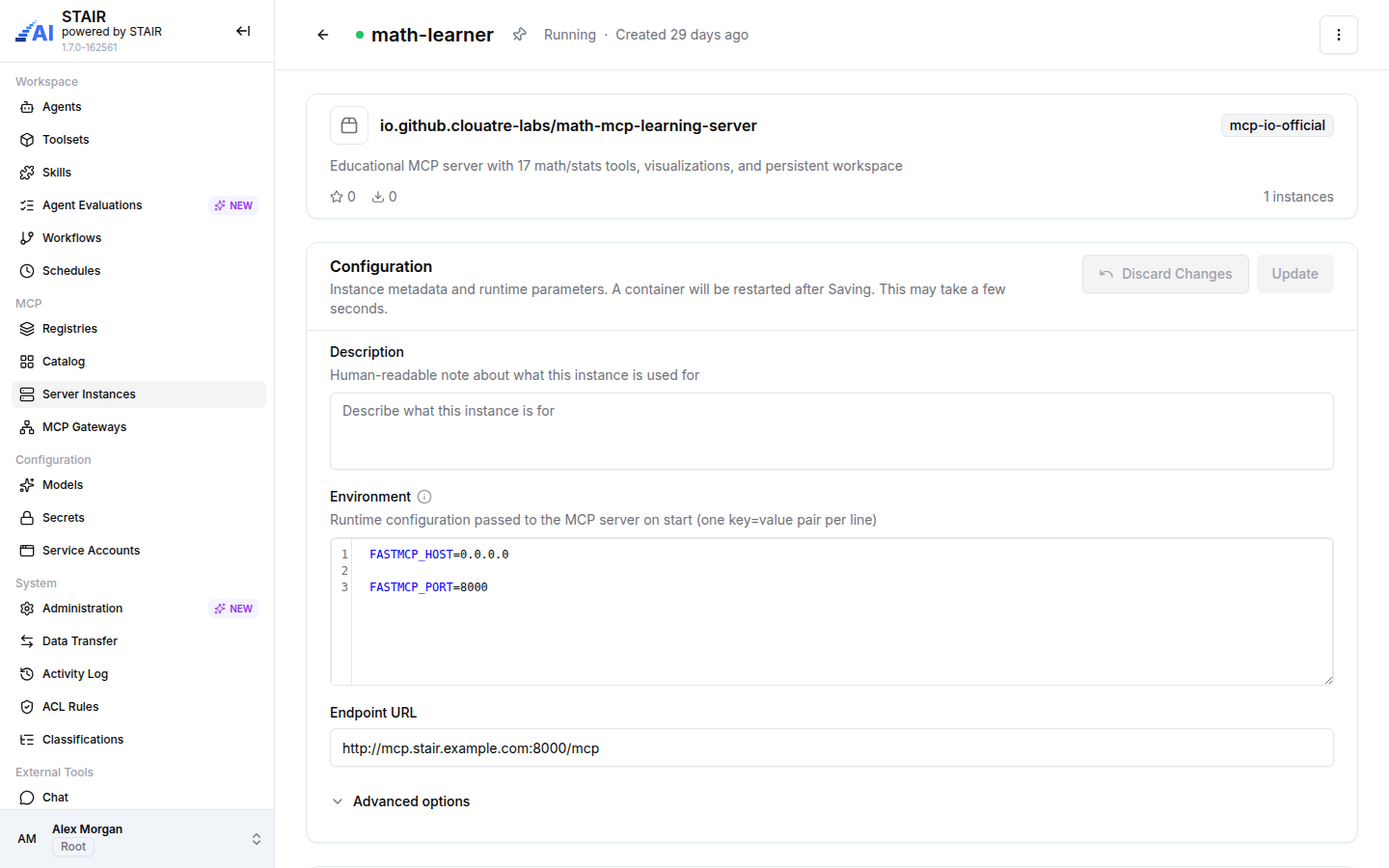
MCP Server Instances ("Manage your running MCP server instances") lists the instances with a status dot, Name, Template (the catalog entry), Description, Server Address, Toolsets (how many toolsets use it), Created and Actions. Filter by Status (All, Running, Building, Pending, Not deployed, Stopped) and Source. Deploy Instance opens a catalog picker and then the deploy dialog.
Click an instance to open its page:
- the header with the status and age, and the actions menu
⋮with Restart, Start, Stop and Delete; - Configuration: Description, Environment (
key=valueper line), Endpoint URL and Advanced options (Image, Command, Args, Image pull policy, Container port, and Update or Recreate as the way changes are applied). Click Update to save; the container restarts. Discard Changes drops your edits; - Used In: the toolsets that use the instance, and Add Toolset to create a new one;
- Logs: the server's output, with Refresh and fullscreen;
- Access Control List: Read Access, Write Access and Manage Access.
How to create a toolset from a server instance
- Open the instance on Server Instances.
- In Used In, click Add Toolset.
- Complete the toolset form; the instance is already selected as the MCP server.
You can also start from Toolsets → Create and pick the instance under Choose existing instance.
MCP Server Catalog settings reference
Registry source fields
| Field | Required | Description |
|---|---|---|
| Name | Yes | Display name of the registry source. |
| Source URL | Yes | Base URL of the catalog source. |
| Enabled | No | Off by default. Off: the source stays in the list but contributes no catalog entries. |
Deploy instance fields
| Field | Required | Description |
|---|---|---|
| Instance name | Yes | Latin letters, numbers and hyphens; starts and ends with a letter or number. |
| Description | No | What the instance is used for. |
| Environment variables | Depends on the entry | One key=value pair per line. Required variables must be set. |
| Run as | No | Docker, npx or uv, as configured for the entry. |
| Image / Base OS / Entrypoint / Command | No | Docker options. |
| Run package | No | npx or uv package version. |
| Transport | No | HTTP or STDIO_ONLY. |
| Port | No | Port number 1–65535, or empty. |
| HTTP Args | No | Extra arguments for the HTTP transport. |
Server instance statuses
| Status | Meaning |
|---|---|
| Running | The server is up and serves its endpoint. |
| Building | The instance is being built and is not serving yet. |
| Pending | The instance is waiting to start. |
| Not deployed | The instance record exists but nothing runs. |
| Stopped | The instance was stopped with Stop. |
| Failed | The instance could not start; check Logs. |
Troubleshooting the MCP Catalog
A server is missing from the Catalog
Cause: its registry is disabled, has not synced yet, or the search or Source filter hides it. Fix: check Enabled and Last Sync on Registries, run Sync on a static registry, and clear the filters.
The card shows Add Toolset instead of Deploy
Cause: the server is offered only through hosted endpoints, so STAIR cannot run it. Fix: use Add Toolset to connect to the hosted endpoint, or add an entry with a Docker image or package to a custom registry source.
Deploy reports "Provide values for all required properties"
Cause: a required environment variable is empty. Fix: open Parameters Reference in the dialog and add every required variable as a key=value line.
Deploy rejects the instance name
Cause: the name contains characters other than Latin letters, numbers and hyphens, or starts or ends with a hyphen. Fix: use a name such as postgres-prod.
An instance stays in Pending or Failed
Cause: the server cannot start, often because of a wrong image, command or environment value. Fix: read Logs on the instance page, correct Environment or Advanced options, click Update, or use Restart.
FAQ
What is the difference between a catalog entry, a server instance and a toolset?
A catalog entry describes an MCP server. A server instance is a copy of it that STAIR runs. A toolset connects agents to a running server, through an instance or a hosted URL, and sets its authentication and tools.
Is the MCP Catalog read-only?
No. From the Catalog you can deploy a server as a server instance with Deploy, or connect a hosted server with Add Toolset. Custom registry sources can also be edited.
Can I add my own MCP servers to the Catalog?
Yes. Create a custom registry source on Registries and use Add New MCP (Root role) or Import to add entries.
How often do static registries sync?
On the schedule set in Administration → Automation under MCP registry sync. You can also run Sync for one registry at any time.
What happens when I change an instance's environment?
Click Update to save. STAIR restarts the container, which may take a few seconds.