
Documentation menu
MCP Gateways
Read the page as Markdown for LLMsAn MCP Gateway in STAIR is one MCP endpoint that exposes chosen toolset tools and agents to external MCP clients, secured with an API key.
How MCP Gateways work in STAIR
Toolsets make MCP tools available to STAIR agents. An MCP Gateway makes them available outside STAIR: to an IDE assistant, a desktop chat client or your own MCP client. One gateway bundles:
- toolsets and the MCP tools you pick from each of them;
- agents, each exposed as one stateless MCP tool;
- an Endpoint URL that MCP clients connect to;
- an access list that decides who may call the gateway (Execute Access).
Clients authenticate with a STAIR API key sent in the STAIR-API-KEY request header. STAIR then calls each tool on behalf of the key's owner: toolsets with a per-user authentication mode (a Dynamic token header or OAuth 2.1) use that user's own credential, exactly as they do for agents. The client's API key itself is never forwarded to the MCP servers.
MCP Gateways are in the sidebar under MCP → MCP Gateways. The list shows Name, Description, Status and Actions. Search with "Search gateways by name or description", or filter with the Classifications panel on the left edge. The row menu has Edit, Copy, Show History and Delete.
How to create an MCP Gateway
- In the sidebar, open MCP Gateways and click Create. The Create MCP Gateway form opens.
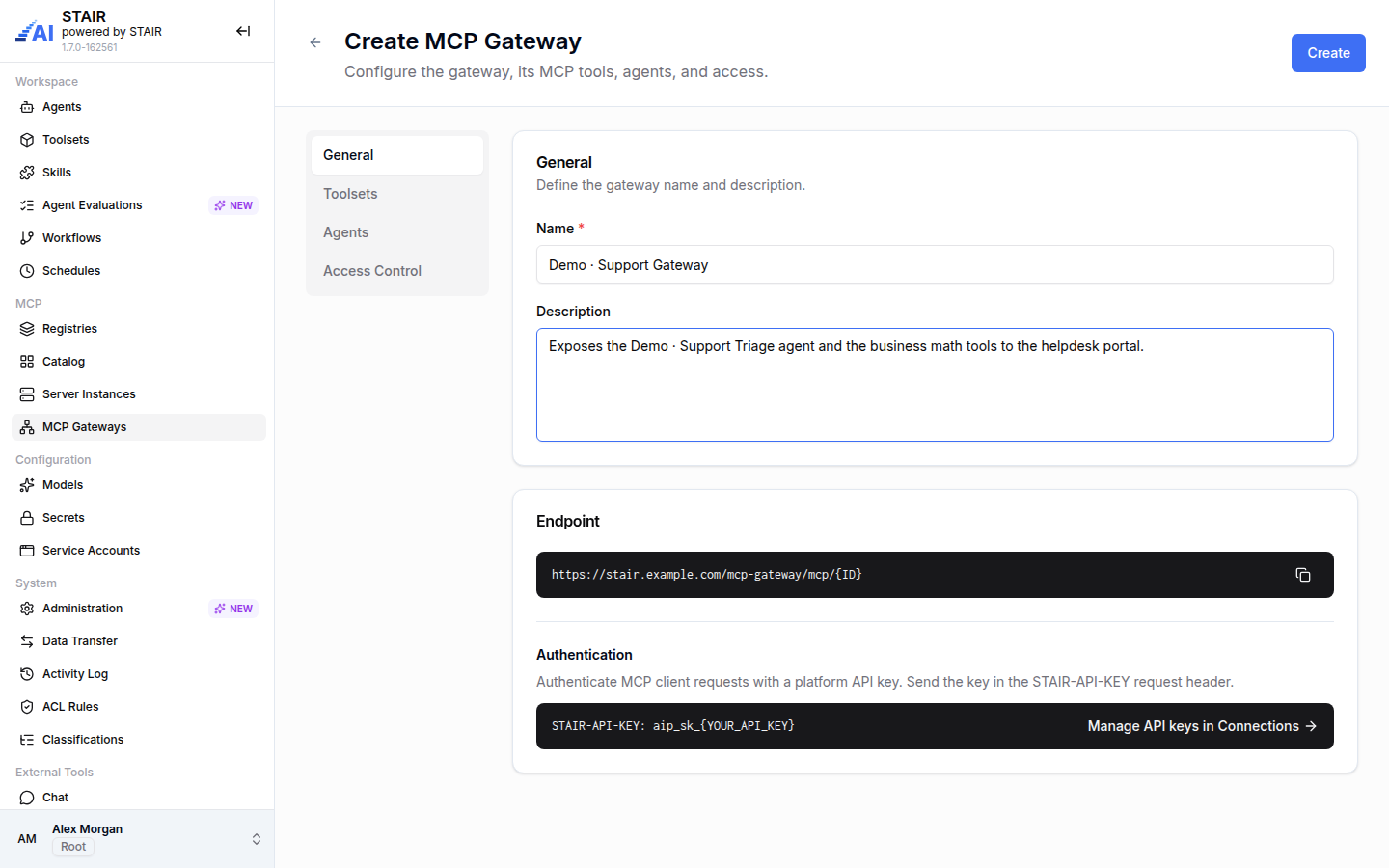
- On the General tab, enter a Name and a Description ("Describe how this MCP gateway will be used"). The Endpoint and Authentication blocks show how clients will connect.
- On the Toolsets tab, add the toolsets whose tools the gateway exposes (see How to add toolsets and MCP tools to a gateway).
- On the Agents tab, select the agents to expose (see How to expose agents as MCP tools).
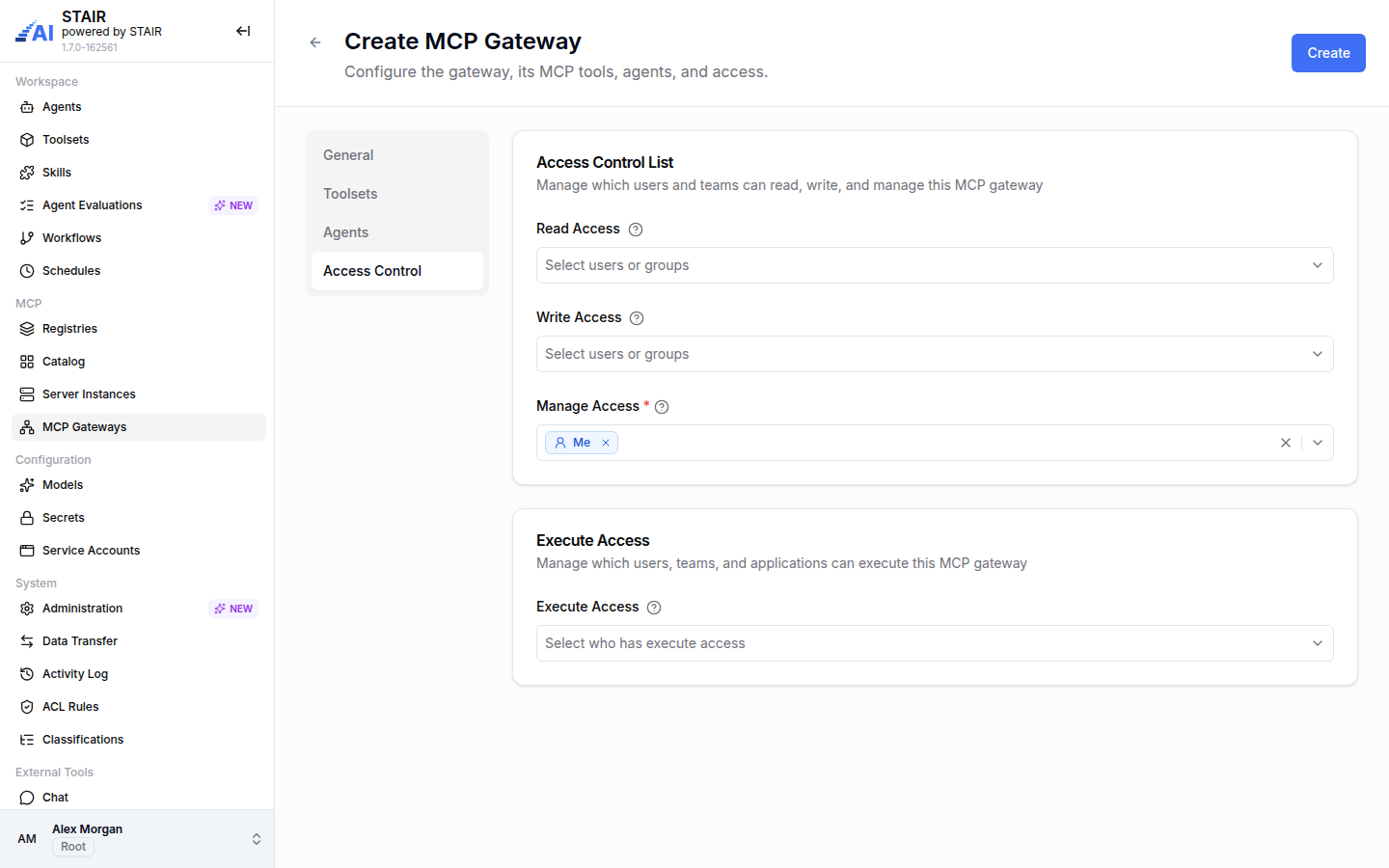
- On the Access Control tab, check Manage Access (required) and add Read Access and Write Access as needed. Add every user, team or service account that will call the gateway to Execute Access.
- Click Create.
How to add toolsets and MCP tools to a gateway
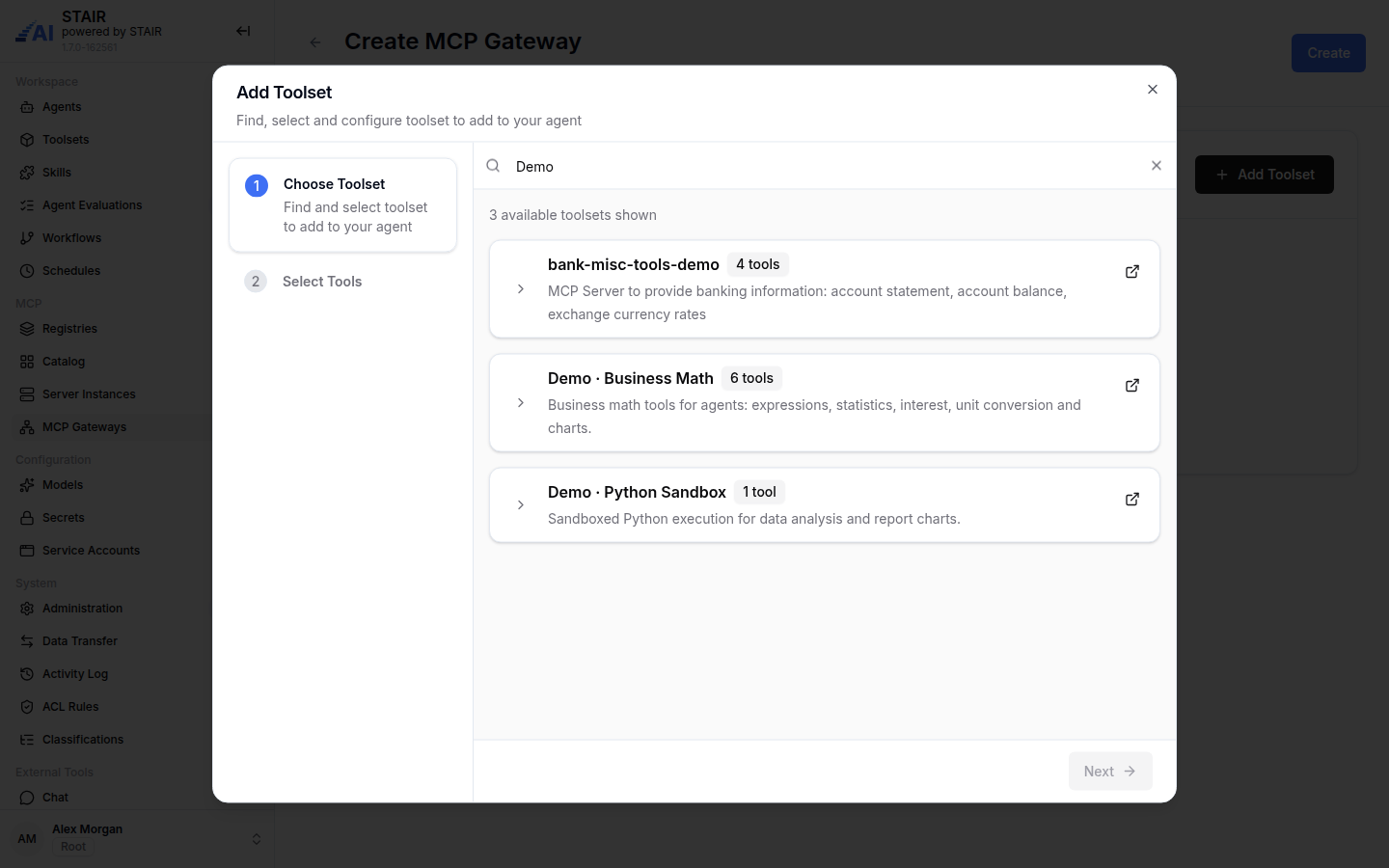
- On the Toolsets tab of the gateway form, click Add Toolset.
- In step Choose Toolset, search with "Search by toolset name or description" and select a toolset. Click Next.
- In step Select Tools, choose the MCP tools of that toolset the gateway exposes.
- Confirm. Repeat for further toolsets.
If two sources in one gateway offer a tool with the same name, STAIR adds a short prefix or suffix to keep the names unique. Tools with unique names keep their own names.
How to expose agents as MCP tools
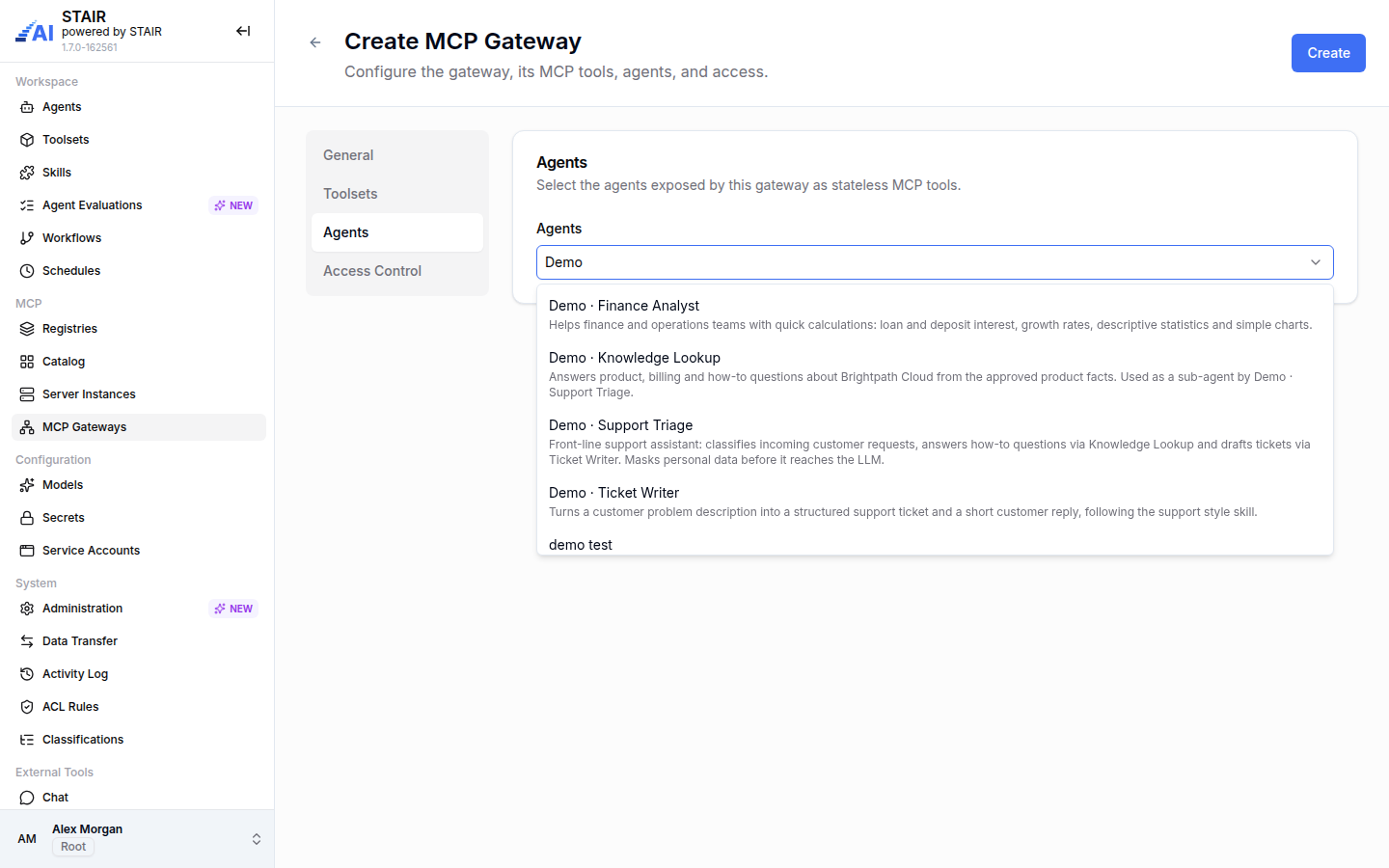
- On the Agents tab ("Select the agents exposed by this gateway as stateless MCP tools"), open Agents.
- Search and select one or more agents.
Each agent becomes one MCP tool named after the agent; characters other than letters, digits, _ and - become _. The tool takes a messages list in the chat completions shape (role and content) and returns the agent's answer. The tool is stateless: the gateway keeps no conversation history, so a client that wants a multi-turn conversation sends the earlier messages again with each call.
A caller with Execute Access on the gateway can run the agents the gateway exposes, without a separate Execute permission on each agent.
How to connect an MCP client to an MCP Gateway
Create a personal API key in the user menu → Connections → Tokens (Create access token), or generate a key for a service account. The key starts with
aip_sk_and is shown only once. See API Keys and Service Accounts.Make sure the key's owner (you, your team or the service account) is in the gateway's Execute Access.
Open the gateway and copy the Endpoint URL from the gateway's page with Copy endpoint.
In the MCP client, add a remote MCP server over HTTP with that URL and the header:
STAIR-API-KEY: aip_sk_…A typical client configuration looks like this:
{
  "mcpServers": {
    "stair": {
      "url": "<Endpoint URL of the gateway>",
      "headers": { "STAIR-API-KEY": "aip_sk_…" }
    }
  }
}
Reconnect the client. It lists the selected toolset tools and one tool per exposed agent.
If a toolset in the gateway uses a per-user authentication mode and the key's owner has not connected it yet, the tool call returns a link to sign in or enter the value. After that, the call works with the user's own credential.
How to view, edit or disable an MCP Gateway
- Click a gateway in the list to open it. The tabs are General (Description, Endpoint, Authentication), Toolsets, Agents, Classifications and Access Control.
- To change the tools or agents, choose Edit, change the tabs and save.
- To take the gateway out of use without deleting it, change its status from Enabled to Disabled and confirm. A disabled gateway offers no tools to clients.
- Copy creates a new gateway with the same settings and " (copy)" added to the name. Show History opens the Activity Log for the gateway.
MCP Gateway settings reference
General tab
| Field | Required | Description |
|---|---|---|
| Name | Yes | Display name of the gateway. |
| Description | No | How the gateway will be used. |
| Endpoint | — | Read-only URL MCP clients connect to; Copy endpoint copies it. |
| Authentication | — | Read-only: clients send STAIR-API-KEY: aip_sk_…. Link Manage API keys in Connections. |
Toolsets, Agents and Access Control tabs
| Field | Required | Description |
|---|---|---|
| Toolsets | No | Toolsets and the MCP tools of each that the gateway exposes. |
| Agents | No | Agents exposed as stateless MCP tools. |
| Read Access | No | Users and teams that can view the gateway. |
| Write Access | No | Users and teams that can update the gateway. |
| Manage Access | Yes | Users and teams that can update access and manage the gateway. At least one manager is required. |
| Execute Access | No | Users, teams and service accounts that can execute (call) the gateway. |
Troubleshooting MCP Gateways
The MCP client gets 401 or 403
Cause: the STAIR-API-KEY header is missing, the key is expired or revoked, or its owner is not in the gateway's Execute Access. Fix: create a new key in Connections → Tokens if needed, send it in STAIR-API-KEY, and add the owner to Execute Access.
The client connects but lists no tools
Cause: no toolsets or agents are added, no tools are selected, or the gateway is Disabled. Fix: edit the gateway, add toolsets with selected tools or agents, and set the status to Enabled.
A tool returns a sign-in or consent link instead of a result
Cause: the toolset uses a per-user authentication mode and the user has not connected it yet, or the stored credential expired. Fix: open the link, sign in or enter the value, then repeat the call.
An agent tool forgets the previous answer
Cause: agent tools are stateless; the gateway keeps no history. Fix: send the earlier user and assistant messages in messages with every call.
A tool name has an unexpected prefix or suffix
Cause: two sources in the gateway offer the same tool name, so STAIR made the names unique. Fix: rename the agent or remove the duplicate tool from one of the toolsets if you need the plain name.
FAQ
What is an MCP Gateway in STAIR?
It is one MCP endpoint that bundles chosen toolset tools and agents for external MCP clients, such as IDE assistants. Clients authenticate with a STAIR API key in the STAIR-API-KEY header.
Which API key does an MCP Gateway accept?
A STAIR API key that starts with aip_sk_: a personal key from Connections → Tokens or a service account key. The key's owner needs Execute Access on the gateway.
How are agents exposed through an MCP Gateway?
Each selected agent becomes one stateless MCP tool named after the agent. The tool takes a messages list and returns the agent's answer.
Does the MCP Gateway send my API key to the MCP servers?
No. STAIR authorizes each call with the toolset's own authentication mode, using your personal credential for per-user modes.
Do I need Execute Access on each exposed agent?
No. Execute Access on the gateway is enough to run the agents that the gateway exposes.