
Documentation menu
STAIR Administration
Read the page as Markdown for LLMsSTAIR Administration holds installation-wide settings: branding, session timeout, data purge and sync schedules, jobs, license and identity providers.
How STAIR Administration works
Administration is in the sidebar under System and is available to the Root and Admin roles. The page has six tabs:
| Tab | What it is for |
|---|---|
| General | Application name, logo, favicon and the agent session timeout |
| Automation | Rules that STAIR runs on a timer: data purge, directory sync, MCP registry sync |
| Jobs | Background jobs of the whole installation: exports, imports, purges and syncs |
| License | License status, expiry and per-entity limits with current usage |
| Runtime Logs | An embedded log viewer for the STAIR runtime |
| Identity Providers | OAuth and OIDC provider configurations that toolsets use for OAuth authentication |
Settings on General and Automation take effect only after you click Save. The Restore defaults menu offers Restore all or restoring only the current tab; STAIR asks for confirmation (Yes, restore or No, keep current values) because the action cannot be undone.
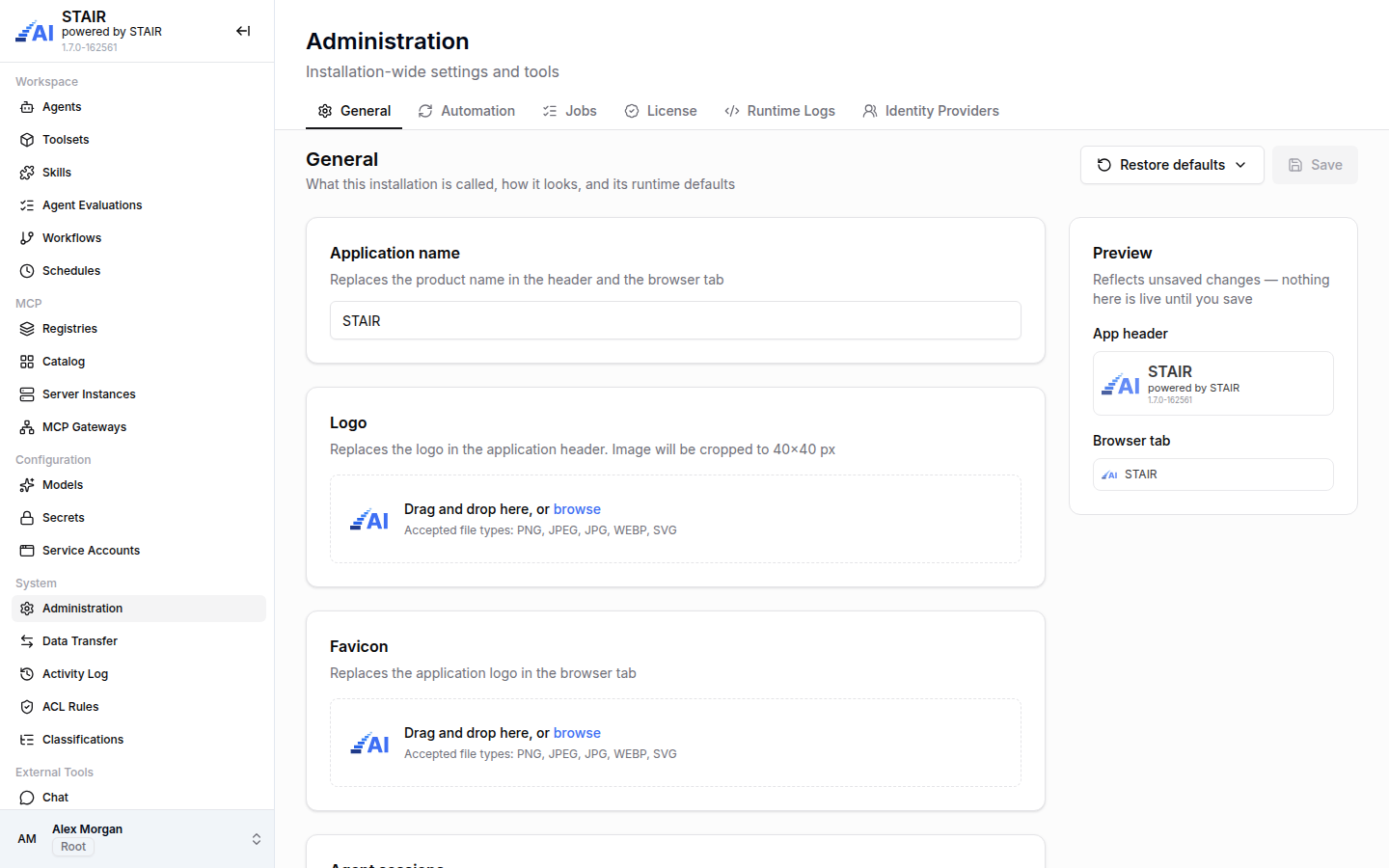
How to change the STAIR application name and logo
- In the sidebar, open Administration. The General tab opens.
- In Application name, enter the name that replaces "STAIR" in the header and the browser tab.
- In Logo, drag an image onto the drop zone or click browse. The logo is cropped to 40×40 px. Accepted file types: PNG, JPEG, JPG, WEBP, SVG.
- In Favicon, upload the icon for the browser tab in the same way.
- Check the Preview panel on the right. It shows the header and browser tab with your unsaved changes.
- Click Save.
The header keeps the line "powered by STAIR" under your application name.
How to set the STAIR agent session timeout
- In Administration → General, scroll to Agent sessions.
- In Session timeout, enter the number of minutes that STAIR keeps an idle agent session before it drops the session's context.
- Click Save.
A longer timeout lets a user continue a conversation after a pause without the agent losing its working state; a shorter one frees resources sooner.
How to change data retention and automation schedules in STAIR
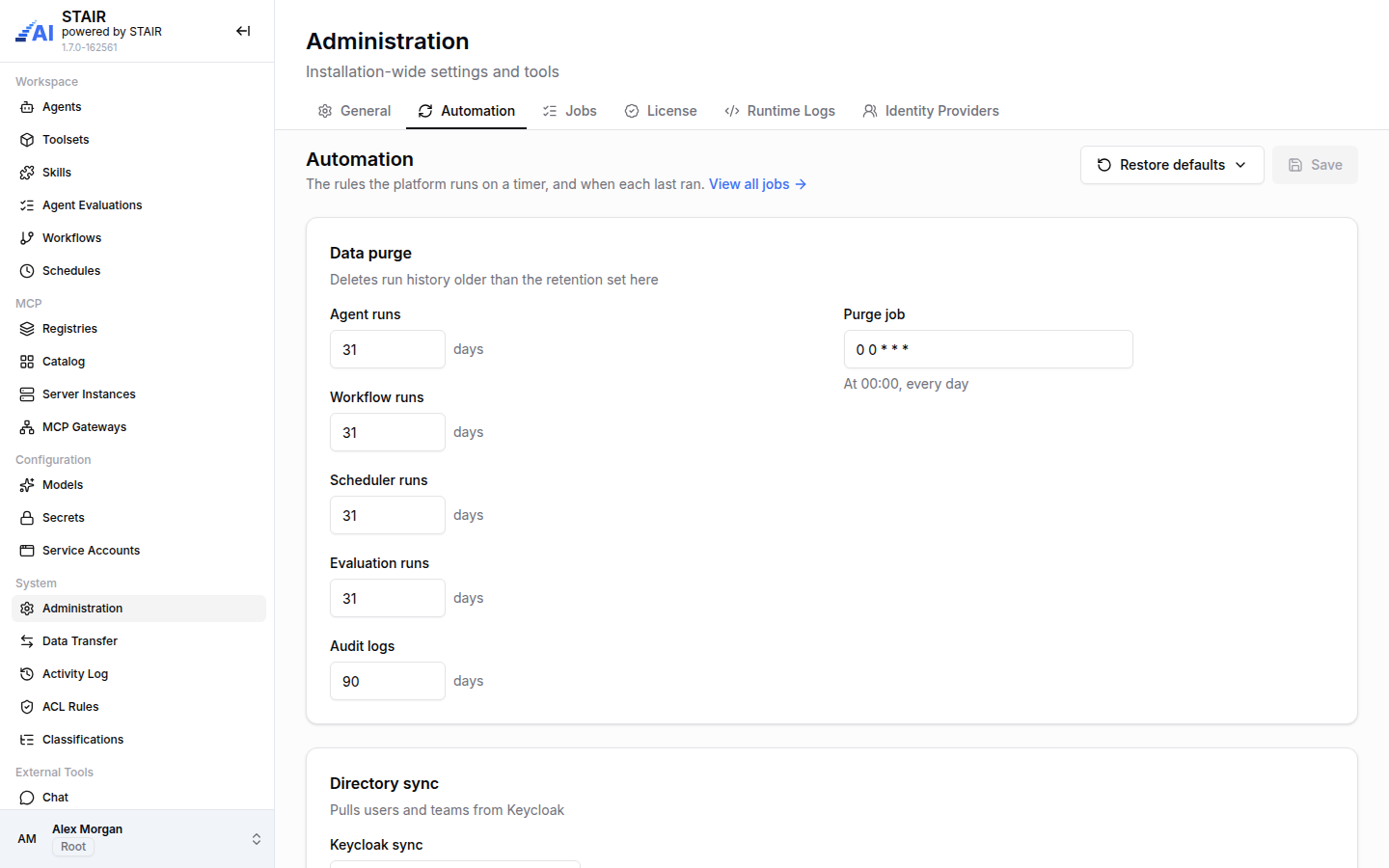
- In Administration, open the Automation tab.
- Under Data purge, set how many days STAIR keeps the history of Agent runs, Workflow runs, Scheduler runs, Evaluation runs and Audit logs.
- In Purge job, enter a five-field cron expression for when the purge runs. Below the field, STAIR shows the schedule in words, for example "At 00:00, every day".
- Under Directory sync, set Keycloak sync: when STAIR pulls users and teams from the directory.
- Under MCP registry sync, set Sync schedule (when catalog entries are refreshed from connected registries) and Stale after (after how many days catalog entries that were not refreshed are removed).
- Click Save.
Purged history cannot be restored. Audit logs are the history shown in the Activity Log.
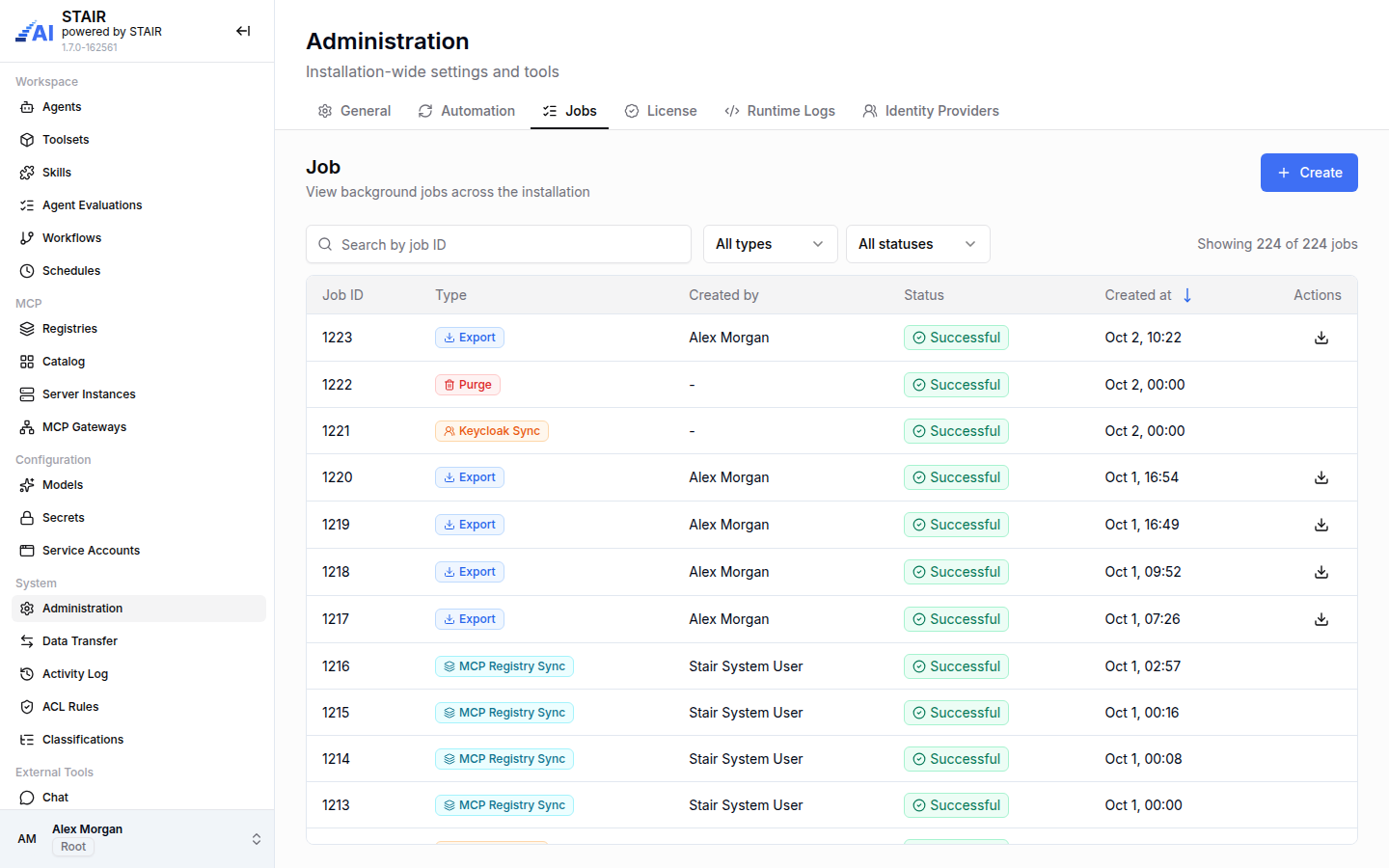
How to view and start STAIR jobs
The Jobs tab lists every background job of the installation, newest first.
- In Administration, open the Jobs tab.
- Filter with All types (Export, Import, Keycloak Sync, Purge, MCP Registry Sync) and All statuses (Pending, Running, Successful, Failed, Interrupted), or search by job ID.
- Click a job to open Job Details: type, status, start and finish time, creator, duration and the result. For a successful export, click the download icon in the row, or Download in Job Details, to get the bundle.
To start a job now instead of waiting for its schedule:
- On the Jobs tab, click Create.
- In Job Type, choose the job:
- Export or Import opens the Data Transfer dialog, where you choose what to move.
- Purge runs the data purge rules from Automation. STAIR warns that this deletes run history and cannot be undone.
- Keycloak Sync pulls users and teams now.
- MCP Registry Sync refreshes one registry: choose it in Registry source.
- Click Run Now to start the job. For Export and Import, the button reads Choose what to export or Choose what to import.
Jobs started by a schedule show "-" or a system user in Created by.
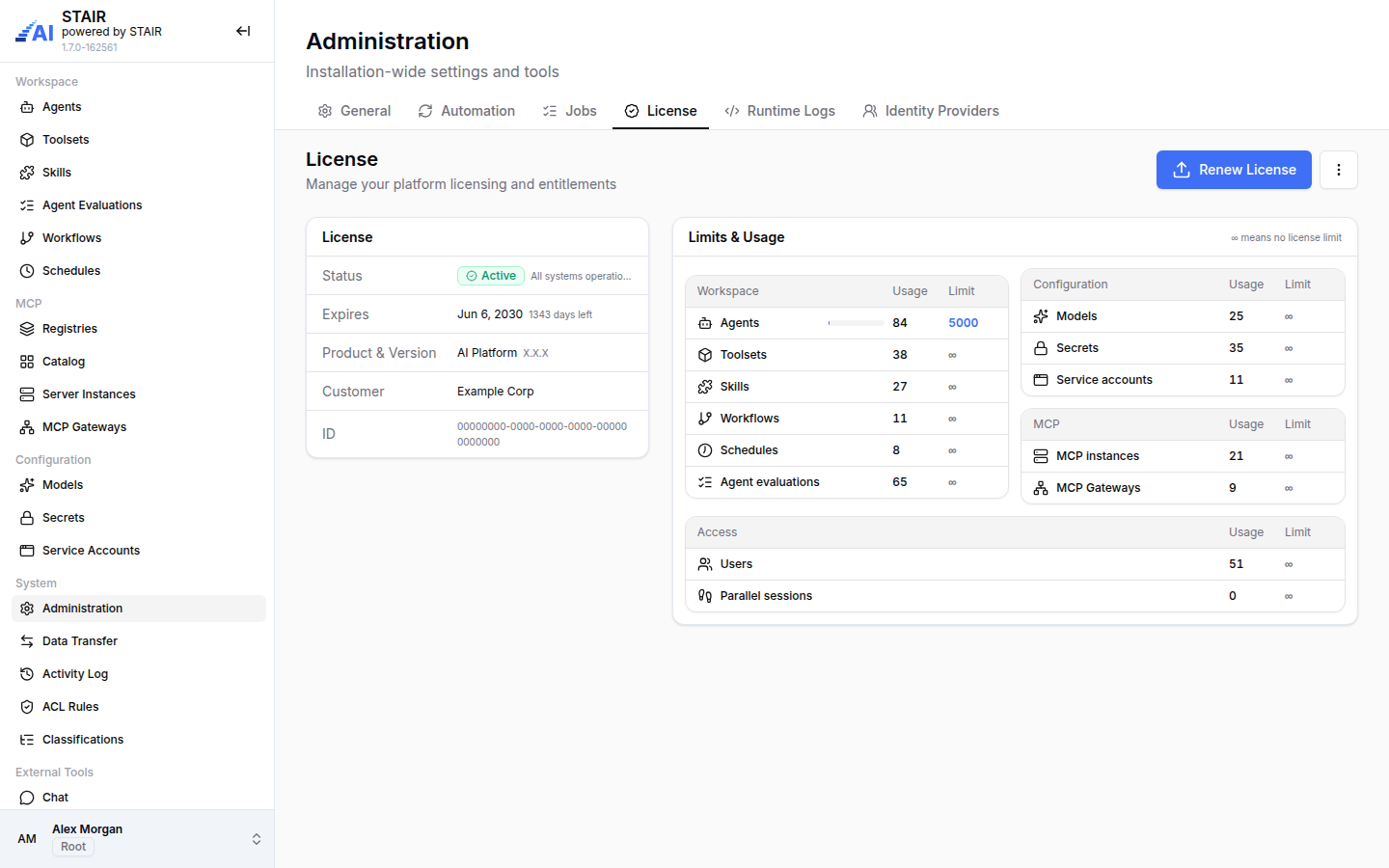
How to check and renew the STAIR license
- In Administration, open the License tab.
- Under License, check Status, Expires (with the days left), Product & Version, Customer and ID.
- Under Limits & Usage, compare Usage and Limit for each entity, grouped into Workspace (agents, toolsets, skills, workflows, schedules, agent evaluations), Configuration (models, secrets, service accounts), MCP (MCP instances, MCP Gateways) and Access (users, parallel sessions). The symbol ∞ means no license limit.
- To install a new license file, click Renew License, drop the file or click browse, then click Apply License.
The license status is one of Active, Expiring soon, Expired, Over limit or No license. When the license is expiring, expired, missing or over a limit, STAIR shows a banner at the top of the console.
How to view STAIR runtime logs
- In Administration, open the Runtime Logs tab.
- Look through the logs of the STAIR runtime in the embedded log viewer, for example when an agent run fails.
How to add an identity provider in STAIR
Identity providers let toolsets use OAuth: OAuth 2.1 (each user signs in) or OAuth 2.0 client credentials (one credential for everyone).
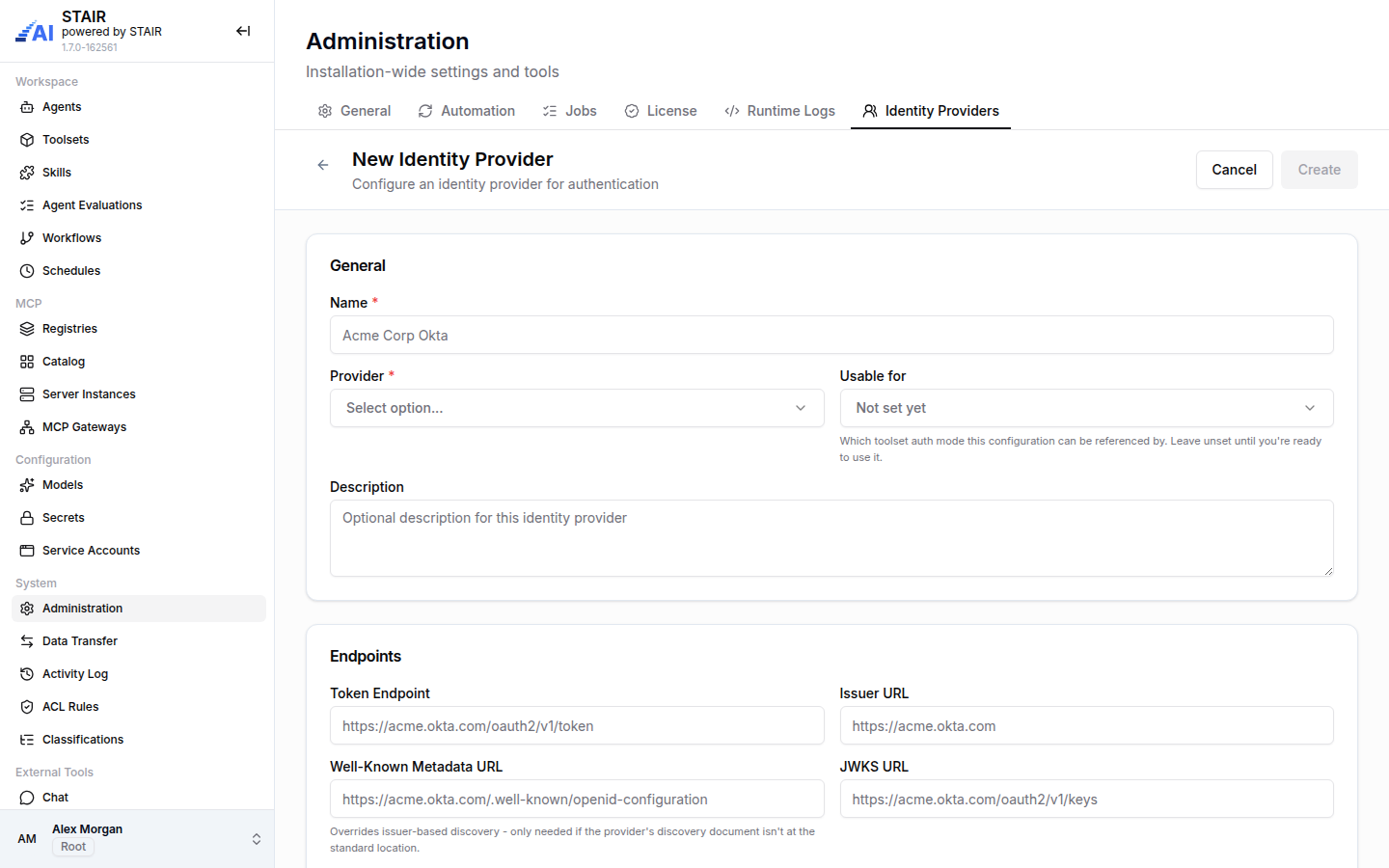
- In Administration, open the Identity Providers tab and click Create.
- Under General, enter Name, choose Provider (Okta, Microsoft Entra or Generic OIDC) and, when you are ready to use it, Usable for: OAuth 2.1 (authorization code) or OAuth2 Client Credentials.
- Under Endpoints, enter Token Endpoint and Issuer URL. Fill Well-Known Metadata URL only if the provider's discovery document is not at the standard location, and JWKS URL if needed.
- Under Client, enter Client ID, Client Secret and Scopes (comma-separated).
- Set the access list and click Create.
The new provider appears in the Identity Provider field of a toolset's OAuth authentication mode that matches Usable for. See Toolsets and MCP Tools.
STAIR Administration settings reference
General tab
| Field | Required | Description |
|---|---|---|
| Application name | No | Replaces the product name in the header and the browser tab |
| Logo | No | Replaces the logo in the header; cropped to 40×40 px; PNG, JPEG, JPG, WEBP or SVG |
| Favicon | No | Replaces the logo in the browser tab; PNG, JPEG, JPG, WEBP or SVG |
| Session timeout | Yes | Minutes an idle agent session is kept before its context is dropped |
Automation tab
| Field | Required | Description |
|---|---|---|
| Agent runs, Workflow runs, Scheduler runs, Evaluation runs | Yes | Days of run history to keep; older history is deleted by the purge job |
| Audit logs | Yes | Days of Activity Log history to keep |
| Purge job | Yes | Five-field cron expression for the data purge, for example 0 0 * * * |
| Keycloak sync | Yes | Five-field cron expression for pulling users and teams |
| Sync schedule | Yes | Five-field cron expression for refreshing MCP catalog entries, for example 0 0 1 * * |
| Stale after | Yes | Days after which catalog entries that were not refreshed are removed |
Identity provider fields
| Field | Required | Description |
|---|---|---|
| Name | Yes | Display name, shown when a toolset picks the provider |
| Provider | Yes | Okta, Microsoft Entra or Generic OIDC |
| Usable for | No | Toolset auth mode that can reference this provider: OAuth 2.1 (authorization code) or OAuth2 Client Credentials. Leave Not set yet until it is ready |
| Description | No | Free text |
| Token Endpoint | Depends on mode | The provider's token URL |
| Issuer URL | No | The provider's issuer; used for discovery |
| Well-Known Metadata URL | No | Overrides issuer-based discovery |
| JWKS URL | No | The provider's signing keys URL |
| Client ID | For client credentials | Client registered with the provider |
| Client Secret | For client credentials | Secret of that client |
| Scopes | No | Comma-separated scopes, for example openid, profile, email |
Troubleshooting
Administration is missing from the sidebar
Cause: Administration is available only to the Root and Admin roles. Fix: ask a STAIR administrator for the Admin role.
Save stays disabled
Cause: nothing has changed on the tab, or a value is invalid. Fix: change a value; check the messages under the fields, for example "Enter a positive whole number".
"Invalid cron expression"
Cause: the schedule is not a valid five-field cron expression (minute, hour, day of month, month, day of week).
Fix: correct the expression; for example 0 0 * * * runs every day at 00:00. Intervals must be positive, for example */2.
An identity provider cannot be deleted
Cause: toolsets still use it. The Used by column shows how many. Fix: switch those toolsets to another provider or authentication mode, then delete the provider.
An identity provider does not appear in a toolset
Cause: Usable for is Not set yet or set to the other OAuth mode. Fix: edit the provider and set Usable for to the mode that the toolset uses.
A license banner is shown at the top of the console
Cause: the license is expiring soon, has expired, is missing, or usage exceeds a limit. Fix: open Administration → License, check Limits & Usage, and upload a new license with Renew License.
FAQ
Who can open STAIR Administration?
Users with the Root or Admin role. Other roles do not see the item in the sidebar.
Does changing the application name rename STAIR everywhere?
It replaces the product name in the console header and browser tab. The header still shows "powered by STAIR".
What does the purge job delete?
Run history of agents, workflows, schedules and evaluations, and Activity Log entries, older than the retention days set on the Automation tab. Agents, workflows and other configuration are not deleted.
Can I run a purge or sync job without waiting for its schedule?
Yes. On the Jobs tab, click Create, choose the job type and click Run Now.
What does ∞ mean on the License tab?
It means the license sets no limit for that entity.