
Documentation menu
API Keys and Service Accounts
Read the page as Markdown for LLMsSTAIR API keys (aip_sk_…) let scripts, apps and MCP clients call agents. Users create personal keys; service accounts hold keys for integrations.
How API keys and service accounts work in STAIR
STAIR has two kinds of API key holders:
| Holder | Who creates it | Where | What the key can do |
|---|---|---|---|
| Personal API key (access token) | Any user, for themself | User menu → Connections → Tokens | Everything the user can do: the key gets the roles and permissions of the user who created it. |
| Service Account key | An Admin | Service Accounts (sidebar group Configuration) | Only what the service account was granted in ACLs, for example Execute Access on an agent or an MCP Gateway. |
Both kinds of key start with aip_sk_ and are used the same way:
- in the OpenAI-Compatible API, as
Authorization: Bearer aip_sk_…orSTAIR-API-KEY: aip_sk_…; - in an MCP client that connects to an MCP Gateway, as
STAIR-API-KEY: aip_sk_….
Rules that apply to every key:
- Shown once. STAIR displays the key value only right after it is created. STAIR stores only a hash of the key, so nobody, including an administrator, can display it again. If the value is lost, create a new key and revoke the old one.
- Expiration is mandatory. Every key has an Expiration Date, at most 5 years ahead. An expired key stops working.
- No scopes. A key cannot be limited to some agents or actions. Limit what a key can do by choosing who holds it: use a service account with only the ACL entries the integration needs, instead of a personal key of a powerful user.
Use a personal key for your own scripts and tests. Use a service account for anything that runs on behalf of a team or a product, such as a helpdesk portal, a CI job or a reporting bot: the key keeps working when a person leaves, and its access is visible and reviewable in ACL Rules.
How to create a personal API key
- Open the user menu at the bottom of the sidebar and select Connections.
- On the Tokens tab, click Create access token.
- Optionally enter a Name and a Description, so you can recognize the key later.
- Choose an Expiration Date.
- Click Create access token.
- In the Access token created dialog, click Copy token and store the value in a secret store. The dialog warns: "Copy this token now. It cannot be displayed again".
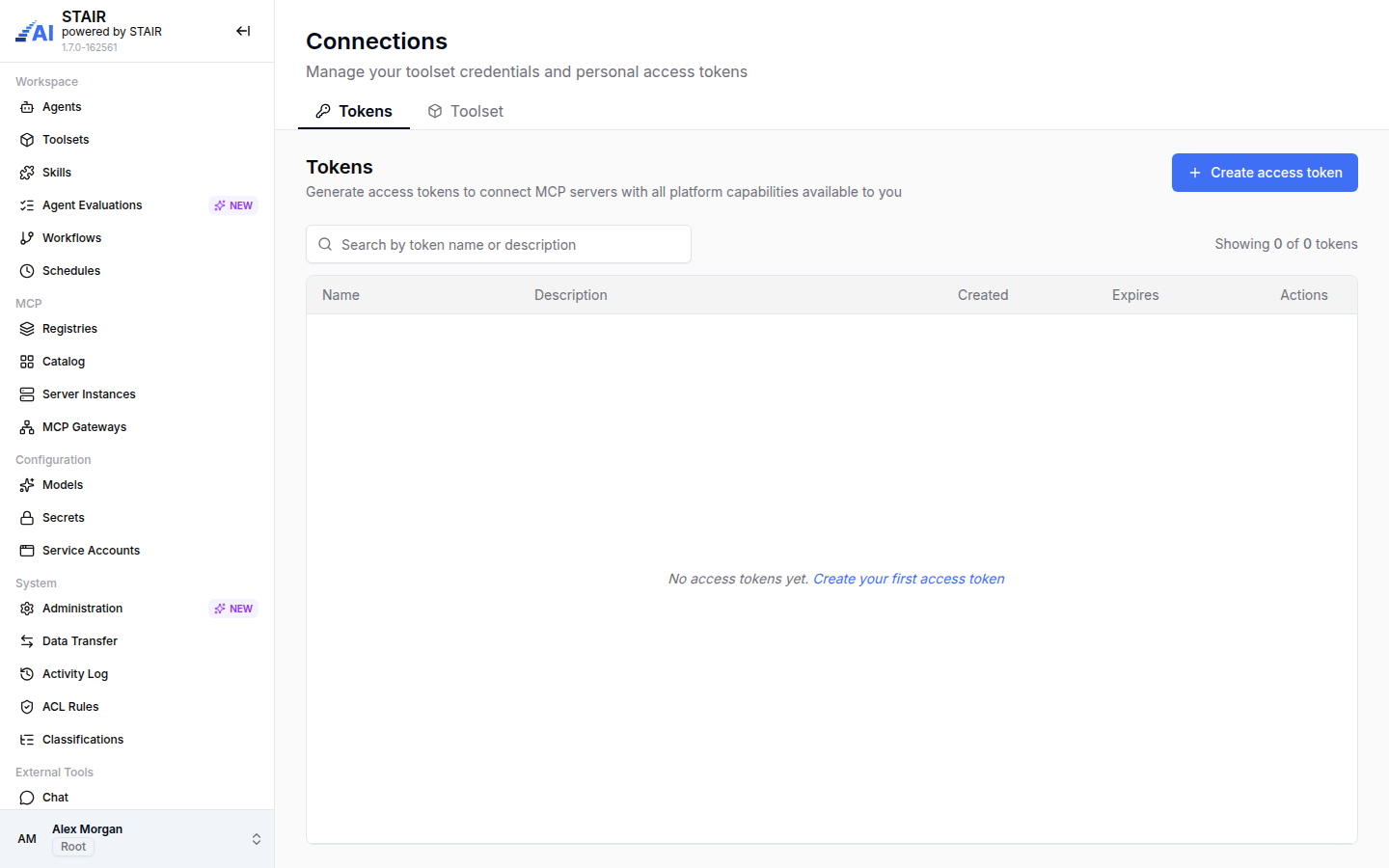
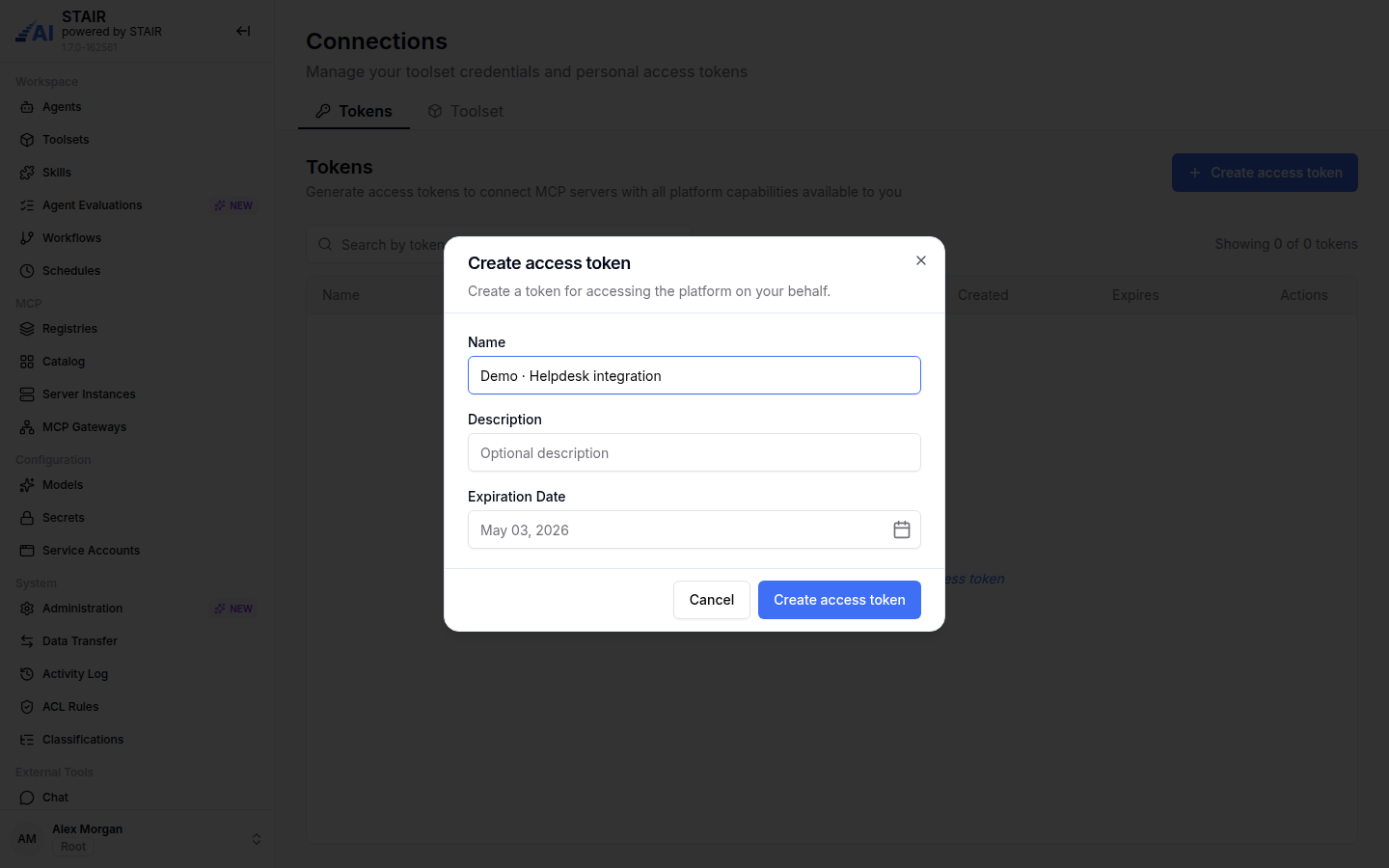
The Tokens table lists your keys with Name, Description, Created and Expires. It never shows the key value.
How to revoke a personal API key
- Open the user menu and select Connections, then the Tokens tab.
- In the key's row, use the revoke action in Actions.
- Confirm Revoke access token?.
A revoked key stops working at once and cannot be restored.
How to create a service account
You need the Admin role.
- In the sidebar, open Service Accounts and click Create.
- Enter the Service Account Name and, optionally, a Description of the integration.
- Under Access Control List, choose who may see the service account (Read Access) and who may change it, generate keys and delete it (Manage Access, required; defaults to you).
- Under Do you want to generate API key now?, choose:
- Yes, generate key now to enter a Key Name and an Expiration Date and click Create Service Account & Generate Key, or
- No, I'll add key later and click Create.
- If you generated a key, copy it from the confirmation dialog. It is shown only once.
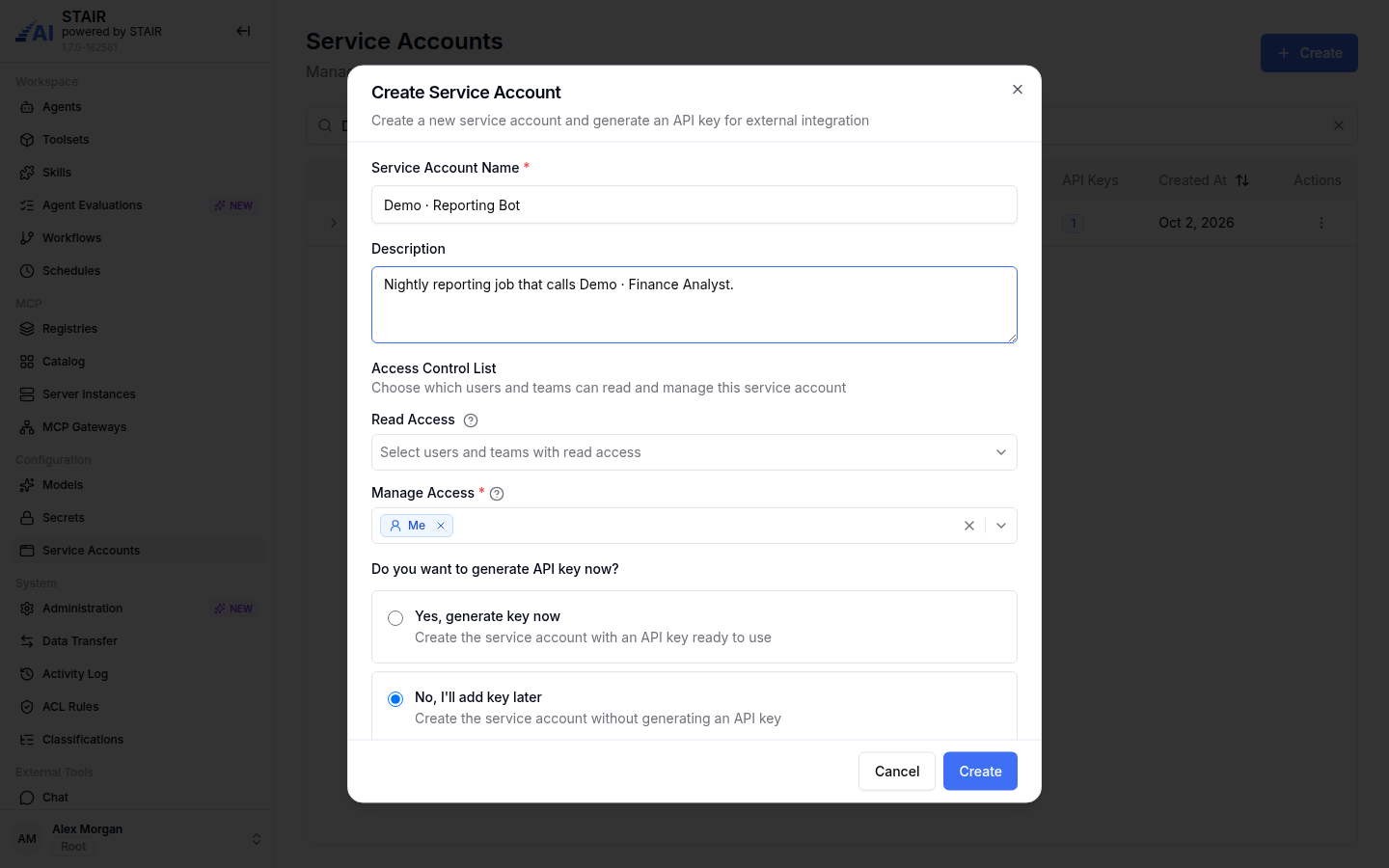
A new service account can do nothing yet. Grant it access as described in the next section.
How to give a service account access to agents and MCP Gateways
A service account gets access only through ACL entries on the records it needs:
- Open the agent, model or MCP Gateway the integration calls, and open its Access Control tab in edit mode.
- In Execute Access, search for the service account by name and add it.
- Save the record with Update.
For example, the service account Demo · Helpdesk Portal has Execute Access on the agent Demo · Support Triage, so the helpdesk portal can call that agent through the OpenAI-compatible API and nothing else. To check everything a service account can reach, open ACL Rules, filter by Service Accounts and select it. See Security and Access Control.
How to generate and revoke service account keys
A service account can hold several keys, for example one per environment, so you can rotate a key without downtime.
- In Service Accounts, open the
⋮menu of the service account and select Generate Key. - Enter a Key Name, or leave it empty to have one generated.
- Choose an Expiration Date and click Generate Key.
- Copy the key from the confirmation dialog.
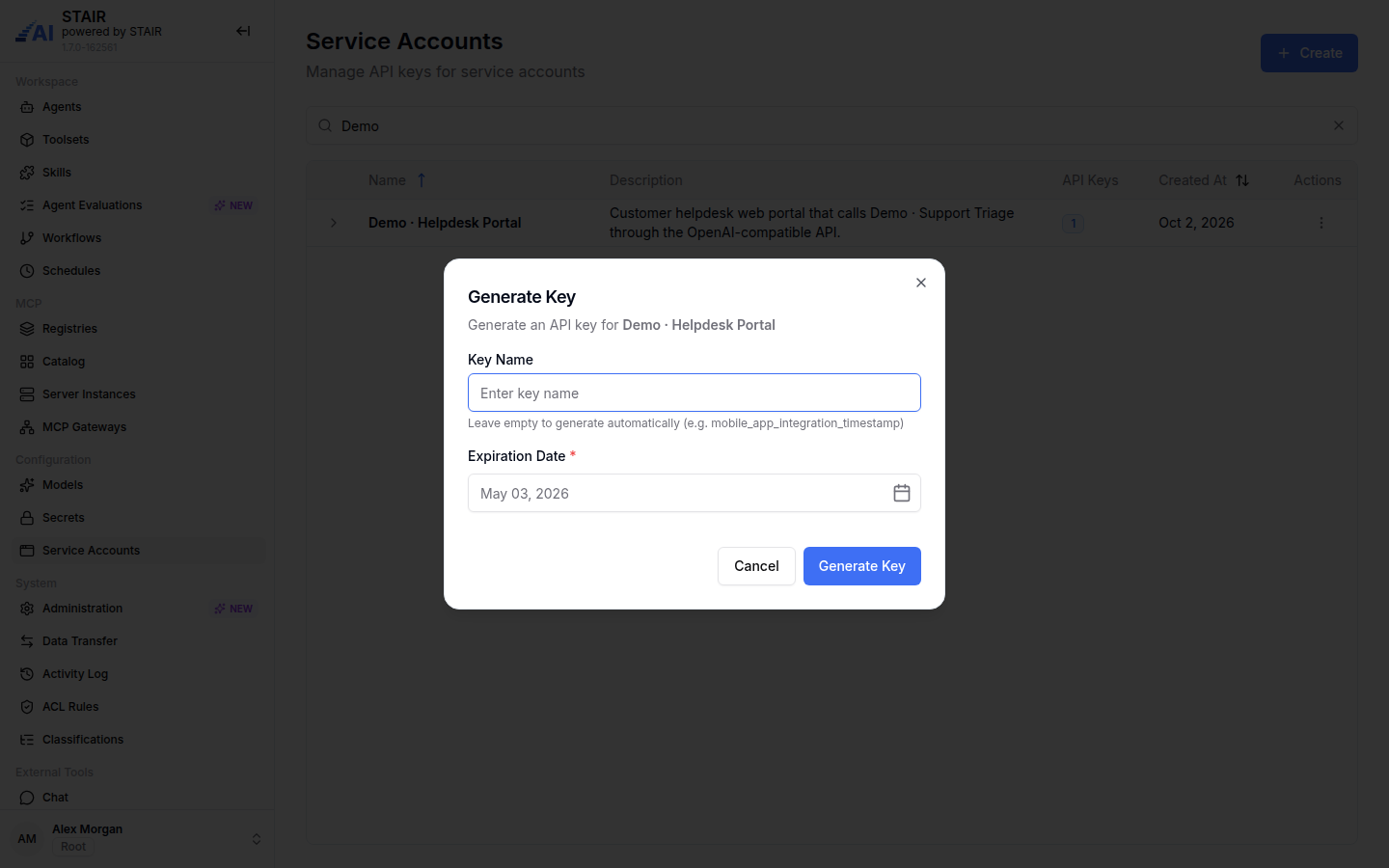
To see or revoke keys, click the arrow at the start of the service account's row. The expanded row lists each key with Key Name, Created at and Expires at. Click Revoke and confirm Revoke API Key to disable a key permanently.
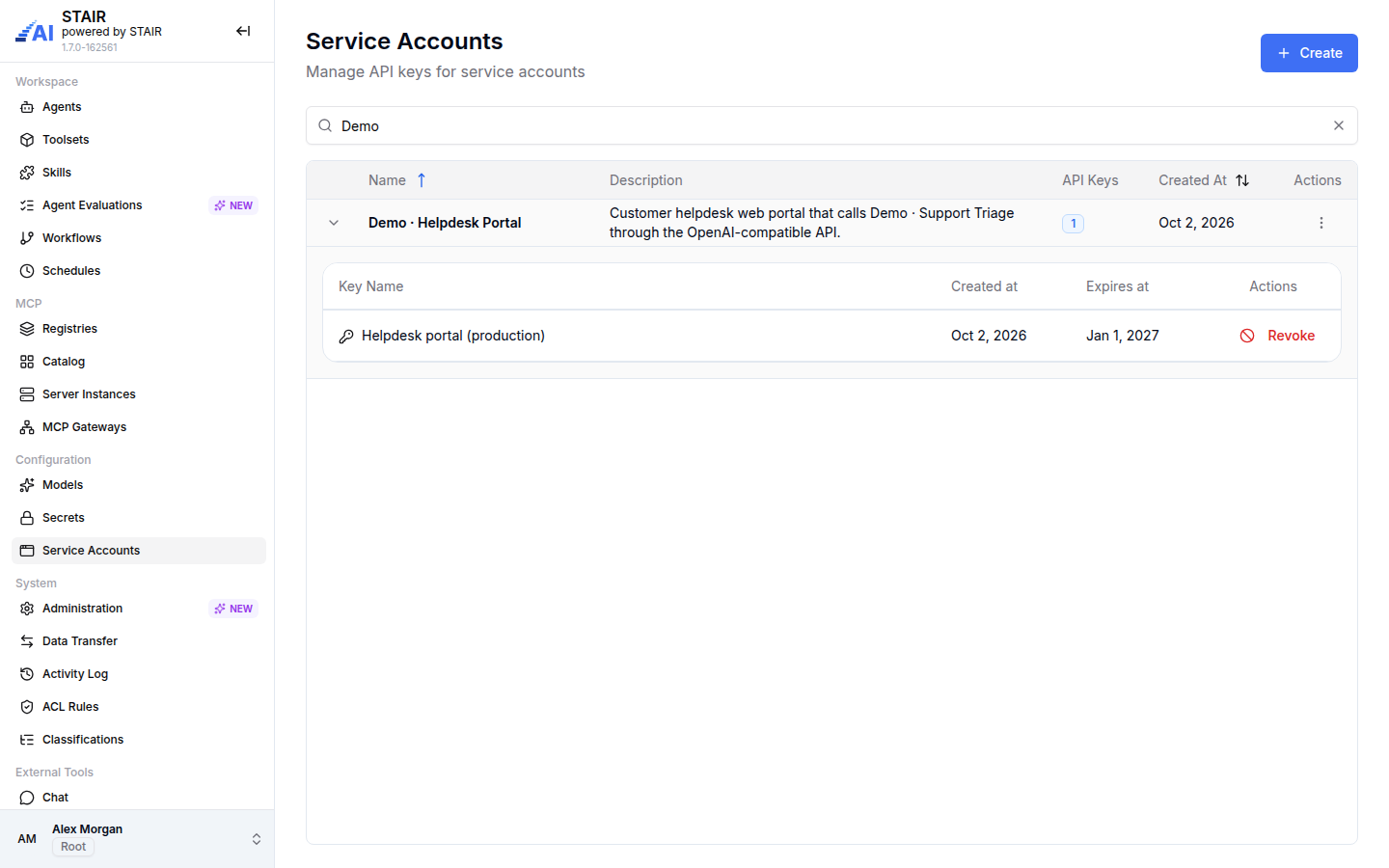
To rotate a key: generate a new key, switch the integration to it, then revoke the old one.
How to view service account usage
In Service Accounts, open the ⋮ menu of the service account and select View Usage. The dialog shows the Usage Information dashboard for the service account, with a time range selector and a fullscreen mode. Use Show History in the same menu to open the Activity Log for the service account (see Logs and Usage Metrics).
API key and service account settings reference
Personal API key (Create access token)
| Field | Required | Description |
|---|---|---|
| Name | No | A label for the key in the Tokens list. |
| Description | No | What the key is used for. |
| Expiration Date | Yes | The last day the key works. Must be in the future, at most 5 years ahead. |
Service account (Create Service Account)
| Field | Required | Description |
|---|---|---|
| Service Account Name | Yes | The name shown in Service Accounts, in ACL pickers and in ACL Rules. |
| Description | No | Which integration uses the service account. |
| Read Access | No | Users and teams that can view the service account. |
| Manage Access | Yes | Users and teams that can edit and delete the service account and manage its keys. Defaults to you. |
| Do you want to generate API key now? | Yes | Yes, generate key now or No, I'll add key later. |
Service account key (Generate Key)
| Field | Required | Description |
|---|---|---|
| Key Name | No | A label for the key. Left empty, STAIR generates one. |
| Expiration Date | Yes | The last day the key works. Must be today or later. |
Service account row menu
| Action | What it does |
|---|---|
| Edit | Changes the name, description and Access Control List. |
| Generate Key | Creates a new key for the service account. |
| View Usage | Opens the usage dashboard of the service account. |
| Show History | Opens the Activity Log filtered to the service account. |
| Delete | Deletes the service account. |
Troubleshooting API keys and service accounts
The key value is lost
STAIR stores only a hash of each key, so the value cannot be shown again. Create a new key, update the integration, and revoke the old key.
Requests with a service account key return 403 or 404 for an agent
The service account has no Execute Access on that agent, or the agent name is wrong. Add the service account to the agent's Execute Access and check the access in ACL Rules.
A key that worked yesterday returns 401
The key has expired or was revoked. Check Expires in Connections → Tokens, or Expires at in the service account's expanded row, and generate a new key.
The dialog says "Choose a future expiry date."
The Expiration Date is missing or not in the future. Pick a later date in the date picker.
FAQ
Can I see an API key again after creating it?
No. STAIR shows the key value once, right after creation, and stores only a hash. If you lose the value, create a new key and revoke the old one.
Can I limit an API key to one agent?
Not on the key itself: API keys have no scopes and get the permissions of their holder. Create a service account, grant it Execute Access only on that agent, and use the service account's key.
How long can an API key be valid?
You choose the Expiration Date when you create the key, up to 5 years ahead. Every key must have an expiration date.
Who can create service accounts?
Users with the Admin role create service accounts in Service Accounts. Users and teams in a service account's Manage Access can edit it and manage its keys.
What is the difference between a personal API key and a service account key?
A personal API key acts as you, with all your roles and permissions. A service account key acts as the service account, which can use only the records it was granted in ACLs.