
Documentation menu
Security and Access Control
Read the page as Markdown for LLMsSTAIR secures agents with SSO sign-in, roles, per-record ACLs, managed secrets, PII masking and an Activity Log of every change.
How security and access control work in STAIR
Every request to STAIR passes the same checks, in this order:
- Identity. A person signs in through SSO. A script or integration sends an
aip_sk_API key, which acts as the user or the service account that owns it. - Role. The role decides which kinds of objects you may see and create, for example whether the Models or Service Accounts pages are available.
- ACL. The record's Access Control List decides what you may do with one specific agent, toolset, model, secret or other record.
- Data protection. For agents that handle personal data, STAIR masks PII before anything reaches the LLM provider.
- Audit. Every create, update, status change, delete and ACL change is recorded in the Activity Log.
Sign-in with SSO
The STAIR Console, STAIR Chat and Knowledge share one single sign-on (SSO) login page, provided by Keycloak. Signing in to one app signs you in to the others. Users and teams come from the identity provider: teams are synchronized on a schedule set in Administration → Automation (Keycloak sync).
Your display name and role are shown at the bottom of the sidebar. Logout in the user menu ends the session.
Identity Providers under Administration are a separate feature: they configure OAuth for toolsets that call MCP servers on the user's behalf, not the sign-in to STAIR. See Toolsets and MCP Tools.
STAIR roles
Each user has one or more roles. The role label (Root, Admin, User or Classifier) appears under the user's name in the sidebar.
| Role | What it allows |
|---|---|
| Root | Full access to everything, regardless of ACLs. Root also adds custom MCP catalog entries. |
| Admin | Manages shared infrastructure: models and model providers, toolsets, skills, MCP Catalog, registries, server instances and MCP Gateways, secrets, service accounts, schedules and Administration. Also has everything a User has. |
| User | Creates and uses agents, workflows and agent evaluations, works in STAIR Chat, and creates personal API keys. Sees records shared with them through ACLs. |
| Classifier | Manages Classifications and assigns them to agents, toolsets, skills, workflows and MCP Gateways. Can view all records so that they can be classified. |
Roles are assigned in the identity provider, not in STAIR. Service accounts have no role from this list: they can only use the records they were granted in ACLs. See API Keys and Service Accounts.
Owner and ACL permissions
Agents, toolsets, skills, workflows, agent evaluations, models, secrets, server instances, MCP Gateways, schedules and service accounts each carry their own ACL. You edit it on the record's Access Control tab (or the Access Control List section of a dialog).
| Setting | Meaning |
|---|---|
| Owner | The primary maintainer or team accountable for the record. Required where shown; defaults to you. |
| Read Access | Can view the record. |
| Write Access | Can edit the record. |
| Manage Access | Can edit the record, change its ACL, and delete it. Required; defaults to you. |
| Execute Access | Can run or call the record: chat with or call an agent, call a model, run an agent evaluation, or connect to an MCP Gateway. |
Permissions include the weaker ones: Manage Access includes write, execute and read; Write Access includes execute and read; Execute Access includes read.
ACL entries can name a user, a team or, for Execute Access, a service account. Granting a team gives the permission to all its members. Pickers search users by name, email or team.
To let an integration call an agent, add its service account to the agent's Execute Access. To let a colleague change an agent but not delete it or change who can see it, give them Write Access.
How to review permissions in ACL Rules
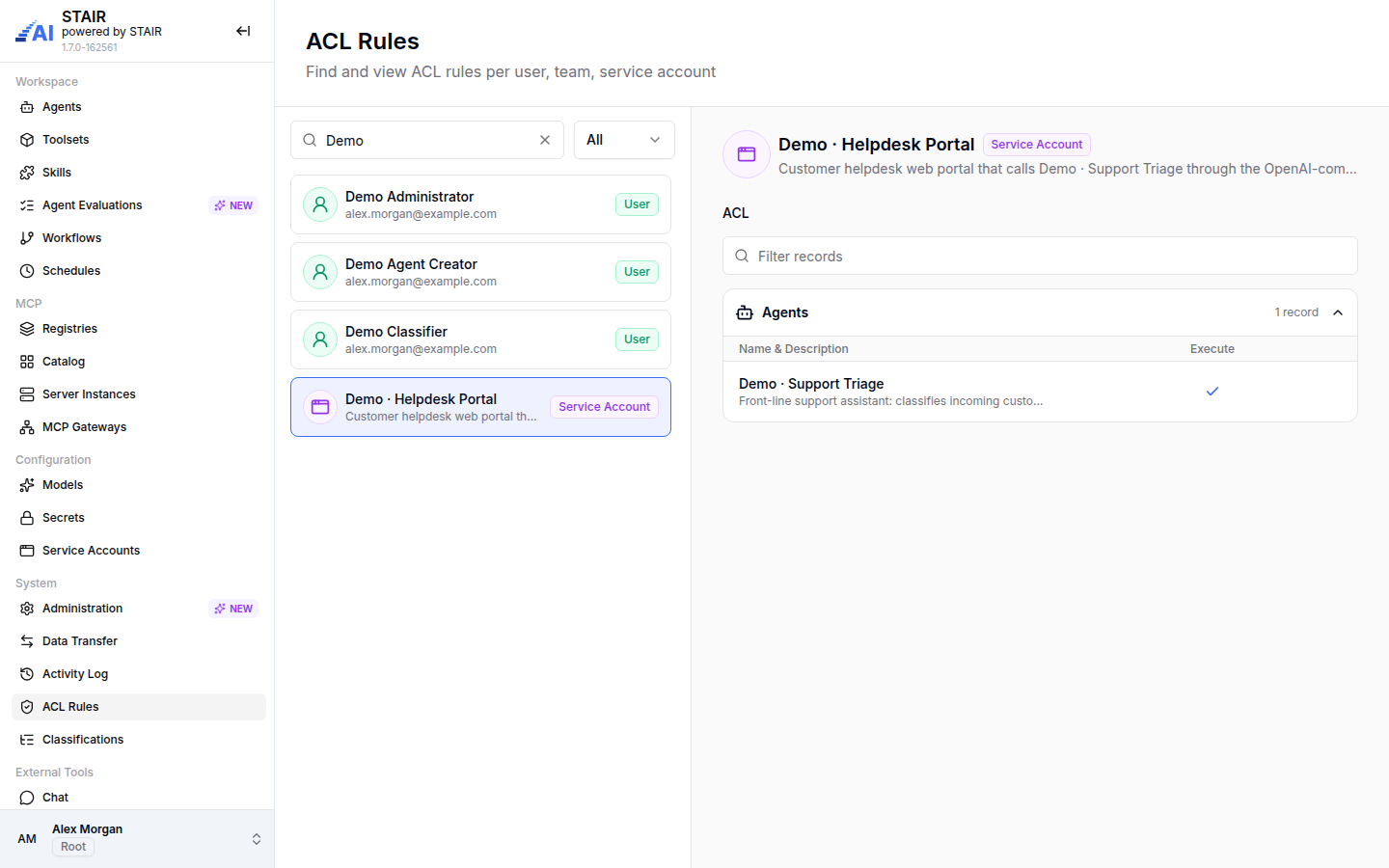
ACL Rules shows, for one user, team or service account, every record they can access and with which permissions. It is a read-only view: change permissions on each record.
- In the sidebar, open ACL Rules.
- Search by name, email or description, and optionally narrow the list with All, Users, Teams or Service Accounts.
- Select the principal. For a user, the card shows their Roles and Teams.
- Review the ACL section. Records are grouped by type (Agents, Toolsets, Skills, Models, Secrets, Server Instances, Workflows, Service Accounts), with the columns Name & Description, Owner, Read, Write, Manage and Execute.
- Use Filter records to find one record, and choose All sources, Direct only or Via teams to see whether a permission was granted to the person directly or through a team.
How secrets are handled in STAIR
LLM provider API keys are stored as Secrets and referenced by name from the model provider. Static toolset header values and MCP server instance environment variables are entered in the toolset or the instance itself.
- Secrets (sidebar group Configuration) is available to Admins. The list shows each secret's value masked.
- Show Value reveals a value only to users the secret's ACL allows. Each secret has its own Read Access, Write Access and Manage Access.
- Credentials that belong to one person stay with that person. When a toolset asks each user for a token or an OAuth sign-in, STAIR stores it per user. Each user sees and revokes their own credentials in the user menu under Connections → Toolset, and toolset owners see who is connected on the toolset's Connected users tab.
- API keys are stored only as a hash, so they can never be displayed again after creation.
See Secrets.
How PII masking protects personal data
PII masking is set per agent, in the Personally Identifiable Information section of the agent's General tab.
- Open the agent in edit mode.
- Turn on Handles personal data.
- Select at least one entry in PII Entity Types.
- Click Update.
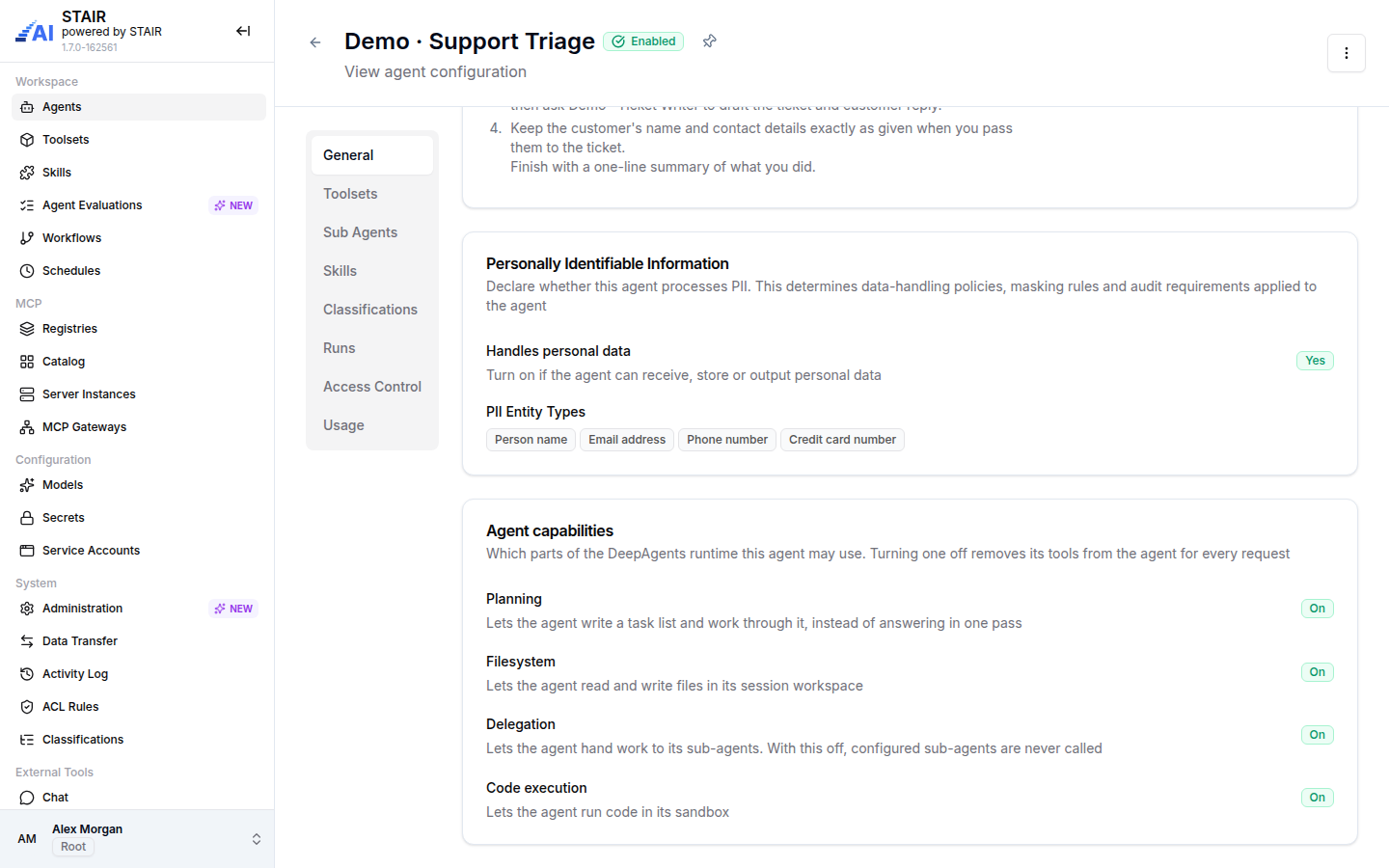
When the switch is on, STAIR detects the selected entity types in every message and replaces them with typed placeholders such as <PERSON_1> or <EMAIL_ADDRESS_1> before the text reaches the LLM provider. The LLM only ever sees the placeholders. Tools that the agent calls receive the real values, and the user sees the real values in the answer.
| Entity type | Label in the agent form |
|---|---|
PERSON |
Person name |
EMAIL_ADDRESS |
Email address |
PHONE_NUMBER |
Phone number |
LOCATION |
Location |
CREDIT_CARD |
Credit card number |
IBAN_CODE |
IBAN |
IP_ADDRESS |
IP address |
RU_PASSPORT |
Russian passport number (Russian only) |
Detection works for English (en) and Russian (ru) text.
PII masking is fail-closed: if the PII detector is unavailable, the request fails instead of sending unmasked data to the LLM.
How to audit changes in the Activity Log
The Activity Log records every change to STAIR records: who changed what and when.
- In the sidebar, open Activity Log.
- Search by Name or User (the field selector next to the search box).
- Narrow the list with Type (for example Agent, Toolset, Model, Secret, Service Account, Key, MCP Gateway, Workflow) and Operation (Created, Updated, Status Changed, Deleted, ACL Updated). Clear Filters resets them.
- Click the arrow at the start of a row (Show details) to see the Changes for that entry, with added and removed lines.
- Use Open to preview the record, Refresh to load new entries and Export to download the log.
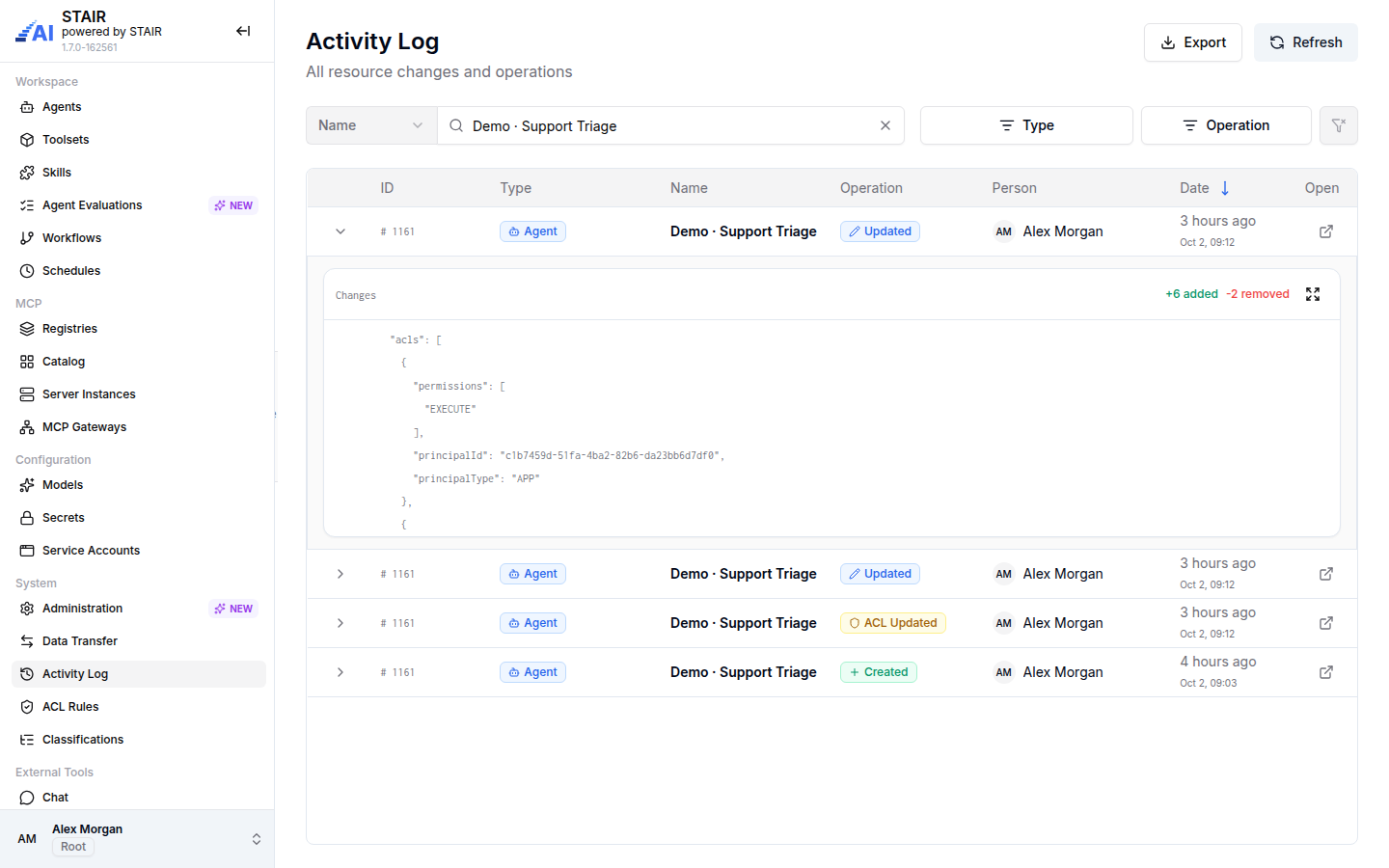
To see the history of one record, choose Show History in the record's actions menu. It opens the Activity Log filtered to that record.
Audit entries are kept for the number of days set in Administration → Automation (Audit logs).
Troubleshooting security and access control
A user cannot see an agent that exists
The user has no ACL entry on the agent, directly or through a team. Add the user or one of their teams to Read Access (to view) or Execute Access (to use) on the agent's Access Control tab, then check the result in ACL Rules.
A sidebar page such as Models or Secrets is missing
The page requires the Admin role. Ask your identity provider administrator to assign the role; ACL entries alone do not unlock these pages.
An agent with PII masking returns an error for every request
PII masking is fail-closed: when the PII detector cannot be reached, requests to agents with Handles personal data turned on fail on purpose. Ask your STAIR administrator to check the PII service. Agents without the switch keep working.
A team member lost access after leaving a team
Permissions granted through a team end when the person leaves the team. In ACL Rules, select the person and choose Via teams to see which permissions came from teams.
FAQ
Does the LLM provider see personal data?
Not for agents with Handles personal data turned on. STAIR replaces the selected PII entity types with placeholders such as <PERSON_1> before the request reaches the LLM, and restores the real values in the answer.
What happens if the PII detector is down?
Requests to agents with PII masking fail instead of sending unmasked data. This fail-closed behavior applies only to agents that have Handles personal data turned on.
What is the difference between a role and an ACL?
A role is assigned in the identity provider and decides which kinds of objects you can work with. An ACL is set on each record and decides who can read, write, manage or execute that one record.
Can I give access to a whole team?
Yes. Every ACL picker accepts teams, and all team members get the permission. ACL Rules shows whether a person's permission came directly or Via teams.
Where can I see who changed an agent?
Open the agent's actions menu and choose Show History, or open Activity Log and search by the agent's name. Expand an entry to see the exact changes.