
Documentation menu
STAIR Chat
Read the page as Markdown for LLMsSTAIR Chat is the end-user web app of STAIR where people talk to agents, attach files, organize conversations in folders and share chats.
How STAIR Chat works in STAIR
STAIR Chat is a separate app that uses the same single sign-on as the STAIR Console. Open it from External Tools → Chat in the console sidebar. Inside STAIR Chat, External Tools → Platform returns to the console and Knowledge opens the Knowledge app.
- Agents, not models. The composer has an agent picker. Every entry is a STAIR agent that your account has access to. The agent you choose answers with its own model, toolsets, skills and sub-agents.
- One agent per chat. After the first message, the agent is locked for that chat. The composer shows the agent name with a lock icon. To talk to another agent, start a New chat.
- Connections. STAIR Chat lists agents through connections, which are managed in Providers & Agents. A connection points to an endpoint that is compatible with the OpenAI API, usually the STAIR endpoint. It can set an ID Prefix, which is shown in front of every agent name from that connection (for example,
<prefix>.Demo · Support Triage). The prefix tells apart agents that have the same name on different connections. - Conversations are sessions. Each chat keeps its own session, so the agent remembers the earlier turns of that chat. Chats are grouped by time (Today, Previous 7 Days, Previous 30 Days, Older) and can be moved into folders.
- Personal data. If an agent has Handles personal data turned on, STAIR masks the configured PII entity types before the text reaches the LLM provider. You still see the real values in the chat. See Security and Access Control.
How to start a chat with an agent in STAIR Chat
- In the STAIR Chat sidebar, click New chat.
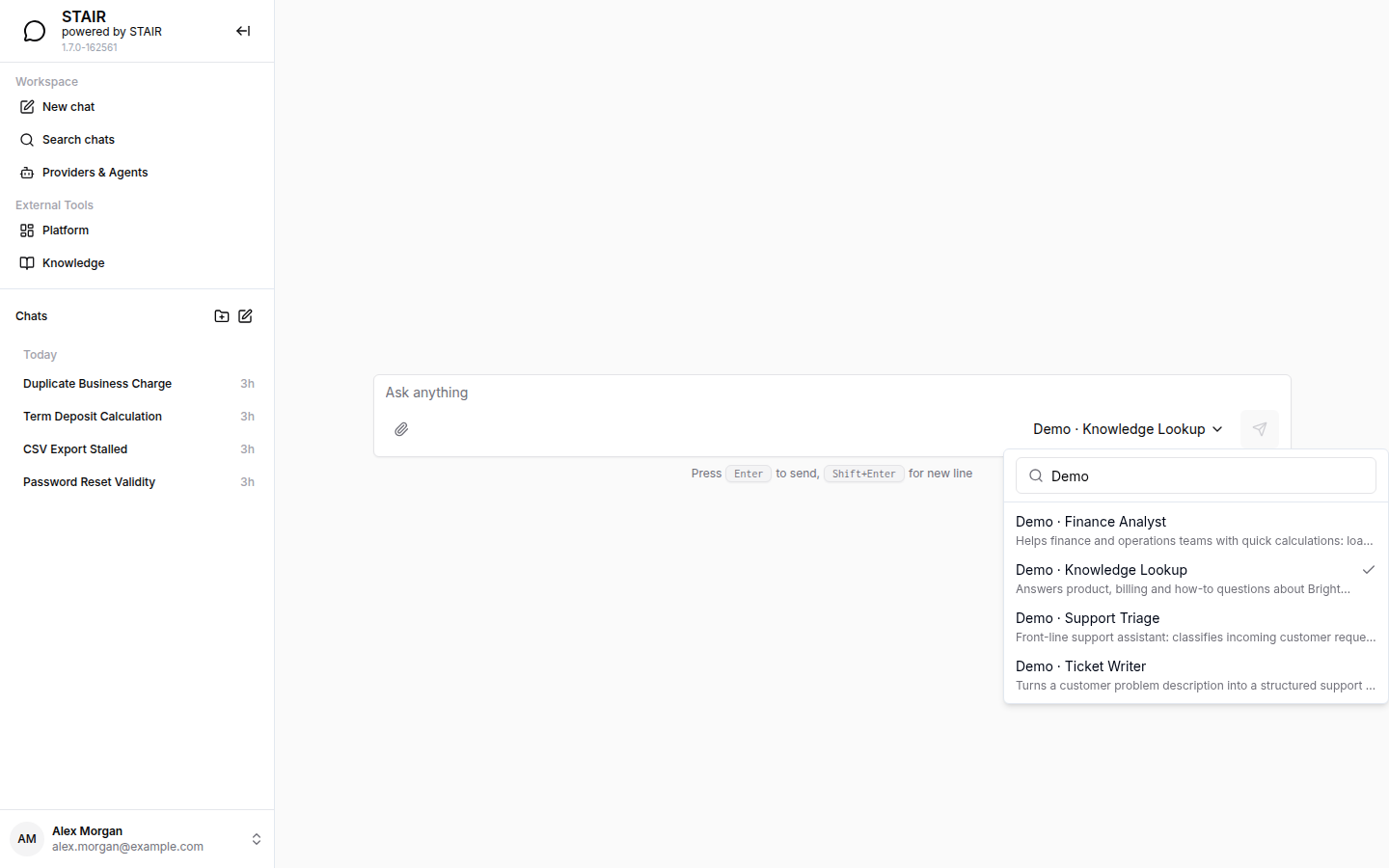
- In the composer, open the agent picker (Select agent). Type in Search models to filter the list, then pick an agent.
- Type your message in Ask anything. Press Enter to send it, or Shift+Enter to add a new line.
- Watch the answer stream in. While the agent works, the chat shows Thinking... and a card for each tool call ("Calling …" while it runs, "Called …" when it is done).
- To see what a tool received and returned, expand the n tool calls summary and then a tool call. Each call shows Arguments and Result.
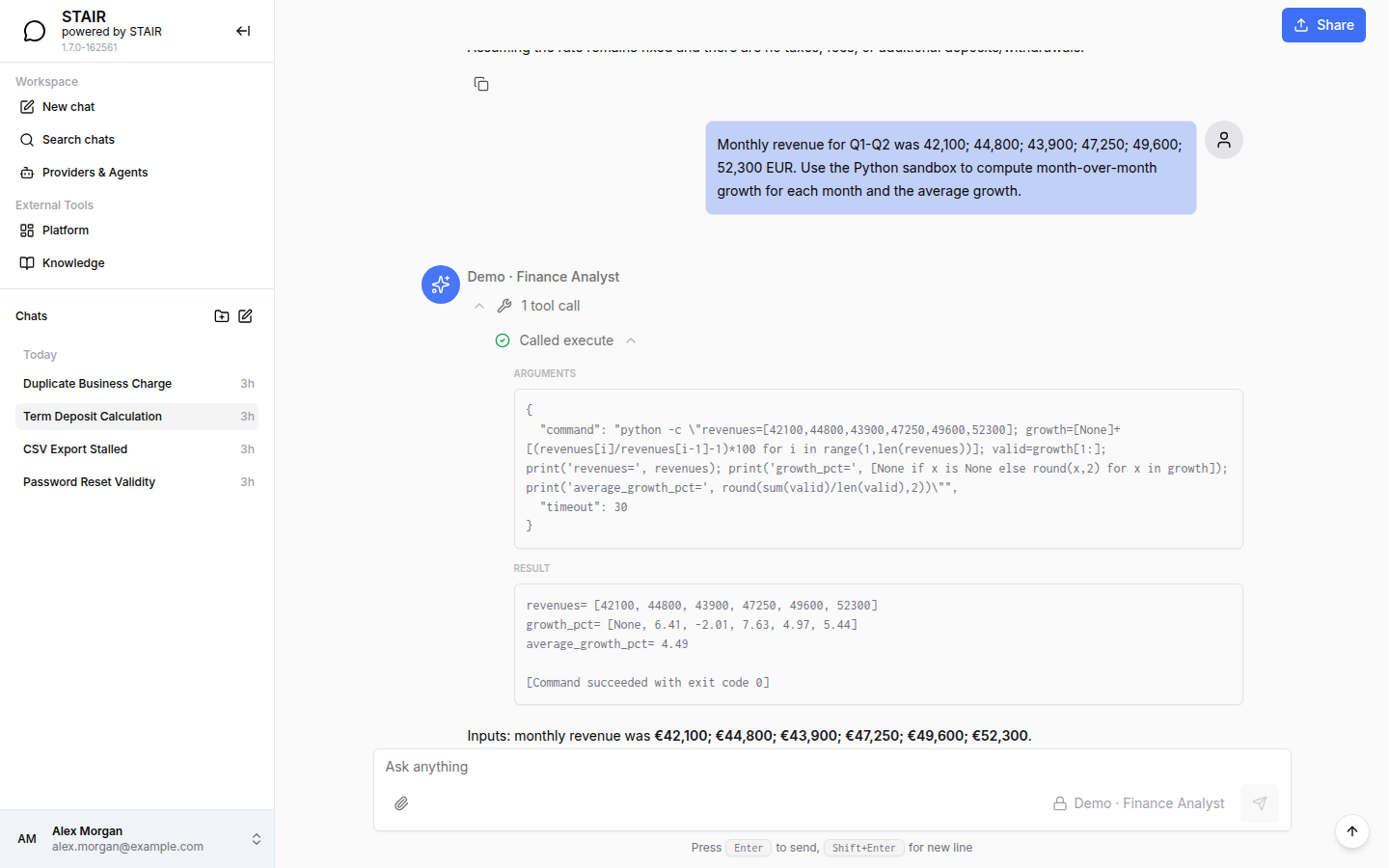
Use the copy buttons under a message, a response or a code block to copy it to the clipboard.
How to attach files in STAIR Chat
- In the composer, click Attach file (the paperclip) and select one or more files.
- Each file is shown as a chip above the message. Click the remove icon on a chip to drop the file before sending.
- Send the message. The files are sent with it to the agent. Attachments stay in the conversation, and you can download them later.
If a chip shows "Upload failed — remove and try again", remove the file and attach it again.
How to organize chats in folders in STAIR Chat
- Next to Chats in the sidebar, click New folder and type a name.
- Drag a chat from the list onto the folder to move it.
- Open the folder menu (More actions) to start a New chat inside the folder, Rename the folder or Delete it.
Deleting a folder deletes the folder and all messages in it, and this cannot be undone. To find an older chat, click Search chats and type part of its title.
How to share a chat from STAIR Chat
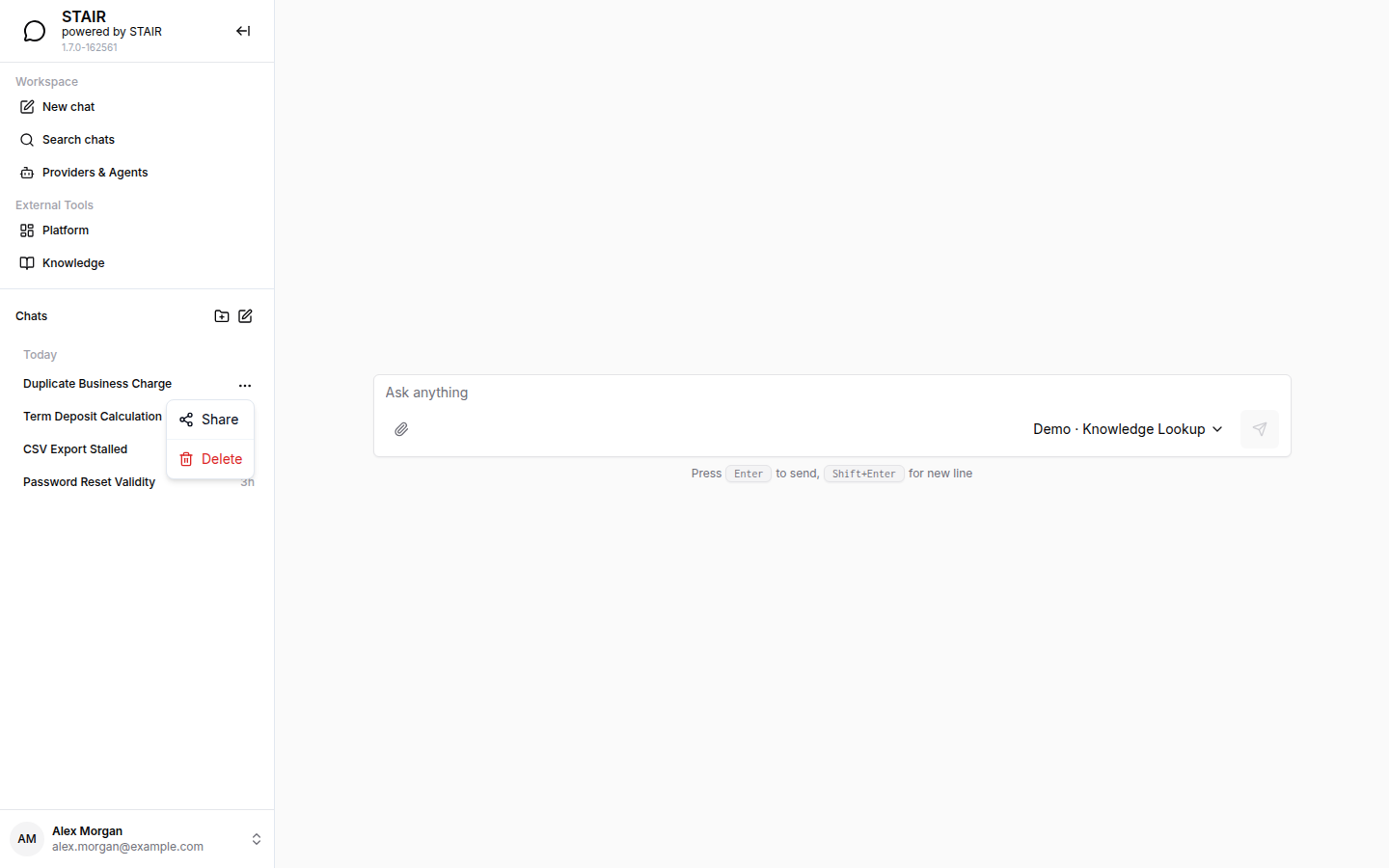
- Open the chat menu in the sidebar (More actions for
) and click Share. You can also click Share at the top of an open chat. - In Create public link, click Copy to copy the Public share URL.
- Send the link. When another user opens it, STAIR Chat imports a copy of the conversation into their chats.
Anyone with the link can view the shared conversation. Check it for sensitive or private content before you share it. In the same menu, Delete removes a chat from your history for good.
How to use sources in STAIR Chat answers
When an agent answers from documents, for example through a knowledge-base toolset, STAIR Chat shows a Sources panel next to the answer. Each source shows how relevant it is (Confidence n%). Use Open source to view a document or Download source to save it.
How to connect an agent to an external service in STAIR Chat
Some toolsets act on your behalf in an external system, for example with OAuth 2.1. The first time such an agent needs your sign-in, STAIR Chat opens the dialog Connect to
- Click Authorize. A new tab opens the provider's sign-in page. You never type your credentials into STAIR Chat.
- Sign in and approve the access in that tab. The dialog closes by itself and the agent continues the request.
- To review or revoke the connection later, click Manage connections. You can also open Connections → Toolset from the user menu in the STAIR Console.
If the browser blocks the new tab, allow pop-ups for STAIR and click Authorize again. Toolset authentication modes are described in Toolsets and MCP Tools.
How to manage Providers & Agents in STAIR Chat
Providers & Agents is shown to users with the Root role. It lists the connections STAIR Chat uses to find agents. Each connection card shows its name, a Public badge if it is shared, its URL, an enable switch, and Edit and Delete. Expand a card to see its agents, filter them with Filter agents by name or ID, and reload the list with Refresh.
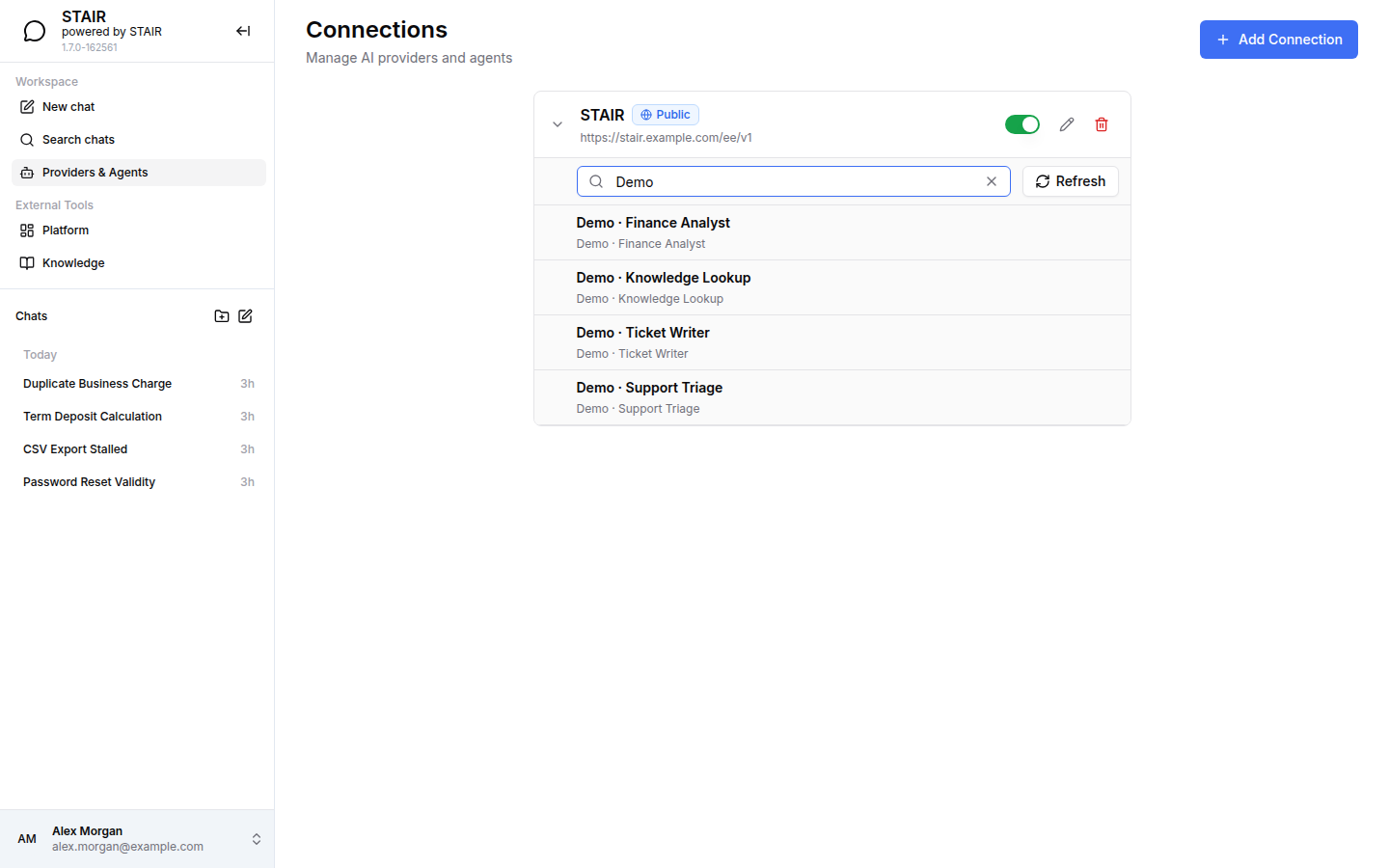
To add a connection:
- Open Providers & Agents and click Add Connection.
- Fill in URL, Display Name, Auth type and the other fields (see the table below).
- Click Test Connection. If it fails, check the URL and the credentials.
- Click Add.
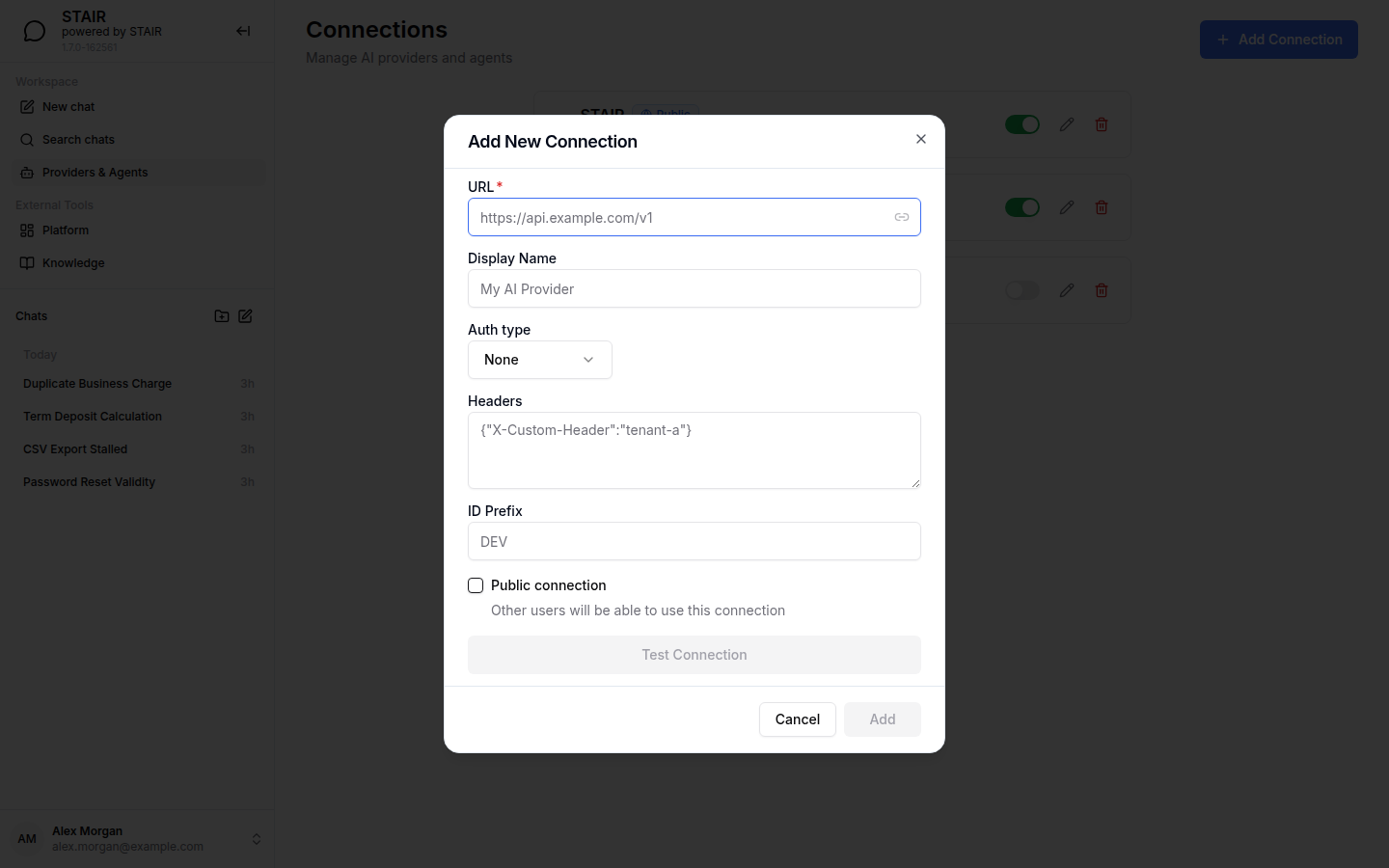
STAIR Chat connection settings reference
| Field | Required | Description |
|---|---|---|
| URL | Yes | Base URL of an endpoint that is compatible with the OpenAI API, for example https://stair.example.com/ee/v1. |
| Display Name | No | Name shown on the connection card. |
| Auth type | No | None, Bearer or OAuth. |
| Token | For Bearer | The token sent to the endpoint. When you edit a connection, leave it empty to keep the current key. |
| Headers | No | Extra request headers as a JSON object, for example {"X-Custom-Header":"tenant-a"}. |
| ID Prefix | No | Text shown in front of every agent name from this connection, followed by a dot. |
| Public connection | No | Other users will be able to use this connection. |
Knowledge app
Knowledge is the STAIR app for document knowledge bases. It opens from External Tools → Knowledge in the console or in STAIR Chat and uses the same sign-in. You upload documents into categories and ask questions that are answered from them, with sources. Agents use the same knowledge base through the RAG toolset; their answers then show the Sources panel in STAIR Chat. See Knowledge Base and RAG.
Troubleshooting STAIR Chat
The agent picker shows "No available agents"
Your account has no access to any agent, or no connection is enabled. Ask the agent owner for Execute Access, or ask a Root user to check the connection in Providers & Agents.
An agent is missing from the picker
The agent is disabled, your account has no access to it, or its connection is turned off. Check the agent status in the STAIR Console (Agents). Then open Providers & Agents, expand the connection and click Refresh.
"Something went wrong" instead of an answer
The agent did not return a response. Click Try again. Open Details to see the error. If it repeats, check the agent's model and toolsets in the STAIR Console.
The Connect dialog says the tab couldn't be opened
The browser blocked the pop-up. Allow pop-ups for STAIR and click Authorize again.
I cannot change the agent of an existing chat
That is expected. The agent is locked after the first message. Start a New chat and pick another agent.
FAQ
Which agents can I use in STAIR Chat?
You can use the agents that your account has access to, on every enabled connection. The agent picker lists them, and Search models filters them by name.
Why do agent names in the picker start with a prefix?
The prefix is the ID Prefix of the connection that lists the agent. A Root user sets it in Providers & Agents. It tells apart agents with the same name on different connections.
Who can see a chat I share?
Anyone who has the public link can view the shared conversation. Opening the link imports a copy into the viewer's own chats.
Does the LLM provider see personal data that I type in STAIR Chat?
If the agent has Handles personal data turned on, STAIR replaces the selected PII entity types with placeholders before the LLM call. You and the agent's tools still see the real values.
Can I use the same agents outside STAIR Chat?
Yes. STAIR agents are also available through the OpenAI-compatible API, where model is the agent name. See OpenAI-Compatible API.