
Documentation menu
AI Agents
Read the page as Markdown for LLMsAn AI agent in STAIR is a named assistant built from a model, instructions, toolsets, skills and sub-agents, which users call in chat or through the API.
How AI agents work in STAIR
An agent is a configuration record. When someone sends it a message, STAIR assembles the agent from that record and runs it:
- Model. The LLM that writes the answers. You pick it from the models registered in STAIR.
- Agent Purpose, Boundaries, Instructions. Three Markdown texts that tell the agent what it is for, which rules it must never break and how it should work. Boundaries are high-priority rules that override the instructions.
- Toolsets. Connections to MCP servers. For each toolset you choose which of its tools this agent may call.
- Skills. Instruction packages (a
SKILL.mdfile plus optional files) that the agent reads when a task matches the skill. - Sub Agents. Other agents this agent can hand work to. Each sub-agent runs with its own model, instructions and toolsets.
- Agent capabilities. Switches that turn the built-in planning, file, delegation and code tools on or off.
- Personally Identifiable Information. Whether the agent handles personal data and which entity types STAIR masks before text reaches the model.
- Access Control. Who owns the agent, who can read, edit and manage it, and who can run it (Execute Access).
The agent name is how the agent is called. In STAIR Chat you pick the agent by name, and in the OpenAI-compatible API the model field carries the agent name. Agents are Enabled or Disabled. Only enabled agents can be run.
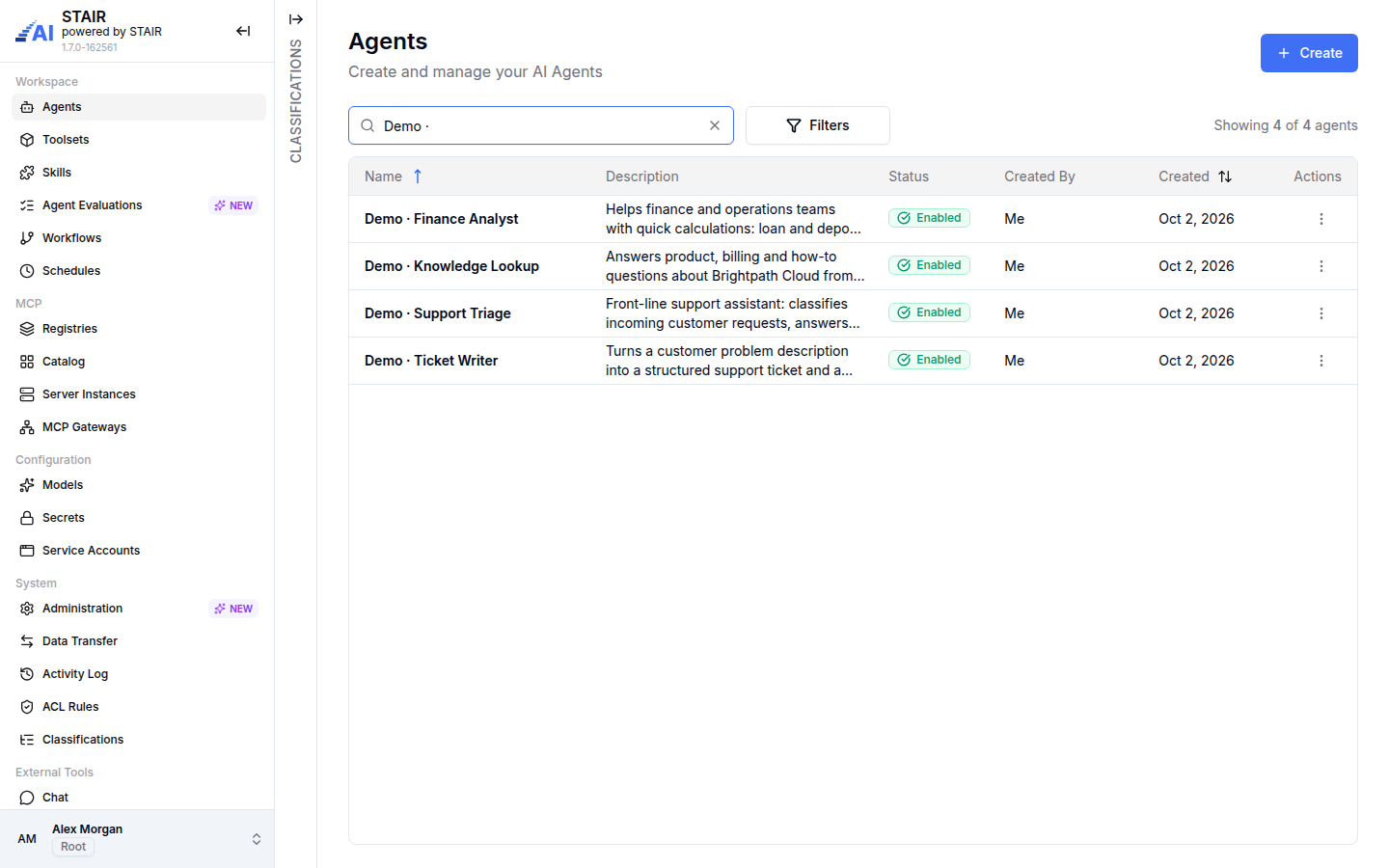
The Agents list shows Name, Description, Status, Created By and Created. Use the search box ("Search by agent name and description"), Filters (Status, Created By, Owned By, Toolset, Sub-Agent, Skills) or the Classifications panel on the left edge to narrow the list. A warning icon with the tooltip "Configuration issue detected" marks an agent whose model, toolset or sub-agent is disabled.
How to create an AI agent
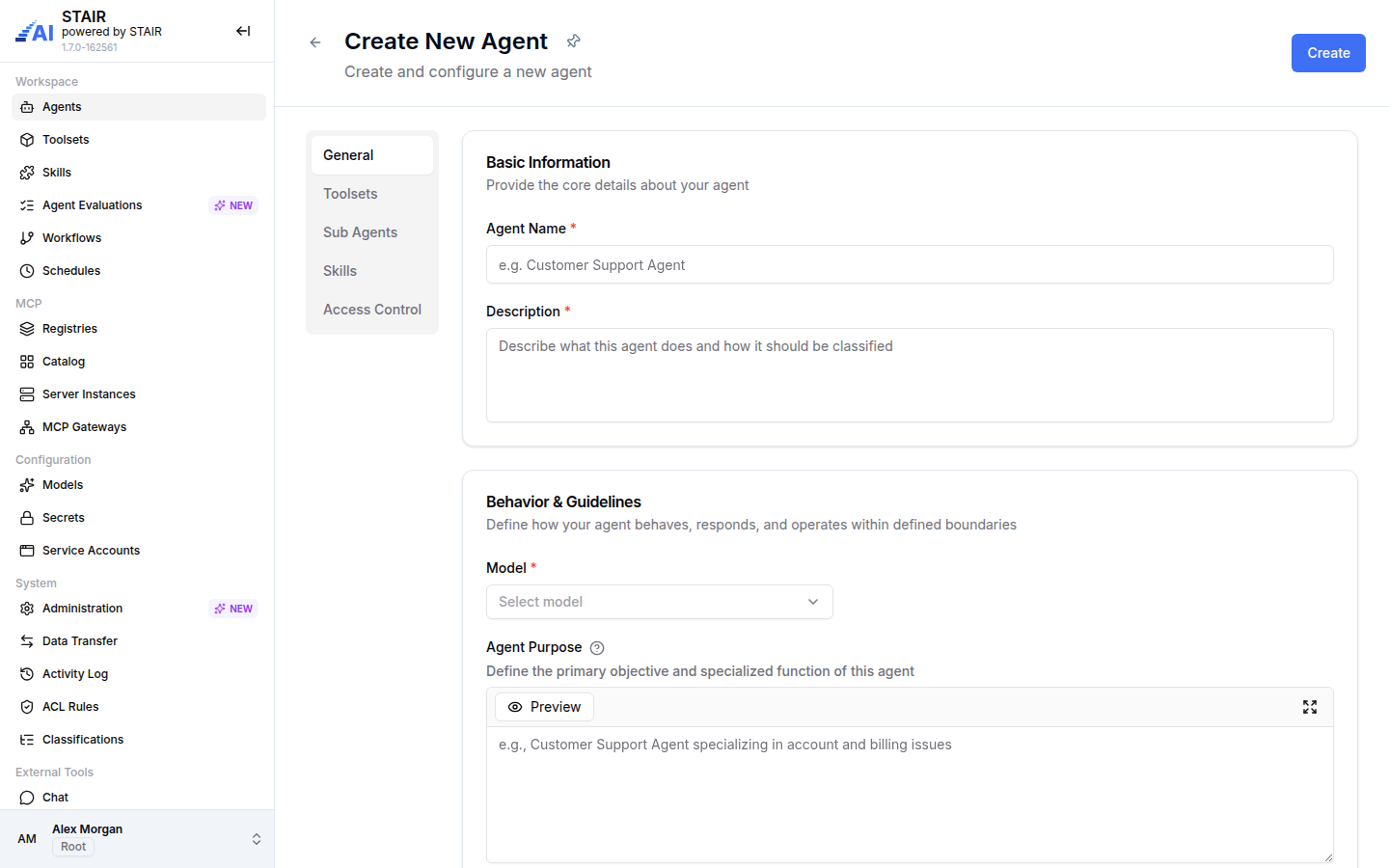
- In the sidebar, open Agents and click Create.
- On the General tab, fill in Agent Name and Description.
- Under Behavior & Guidelines, select a Model. The list shows each model with its provider and a cost mark.
- Optionally write Agent Purpose, Boundaries and Instructions. These fields accept Markdown; use Preview to check the result and Open fullscreen for long texts.
- If the agent can receive or produce personal data, turn on Handles personal data and select the PII Entity Types (see How to configure PII masking for an agent).
- Review the Agent capabilities switches. All four are on by default.
- Optionally attach toolsets, sub-agents and skills on the Toolsets, Sub Agents and Skills tabs.
- On the Access Control tab, check Owner and Manage Access (both default to "Me") and add the users, teams or service accounts that may run the agent under Execute Access.
- Click Create.
To start from an existing agent, open the row menu ⋮ and click Copy. STAIR opens a prefilled form with " (copy)" added to the name. Disabled or attention-required models, toolsets, tools and sub-agents are left out of the copy.
How to edit, disable or delete an AI agent
- In the Agents list, click the agent to open its view, or choose Edit in the row menu
⋮. - In view mode, open the actions menu (top right) and click Edit.
- Change the fields and click Update. Discard Changes reverts the form.
- To disable or enable the agent, use the status badge menu (Enabled / Disabled) next to the title in edit mode and confirm the status change.
- To delete the agent, choose Delete in the row menu or the actions menu.
Quick Overview in the row menu shows the description, skills, toolsets and tools, sub-agents and any configuration issues without leaving the list. Show History opens the Activity Log for this agent.
How to configure PII masking for an agent
PII masking is set per agent in the Personally Identifiable Information section of the General tab.
- Turn on Handles personal data ("Turn on if the agent can receive, store or output personal data").
- In PII Entity Types, select at least one type. STAIR requires a type whenever the switch is on.
- Click Create or Update.
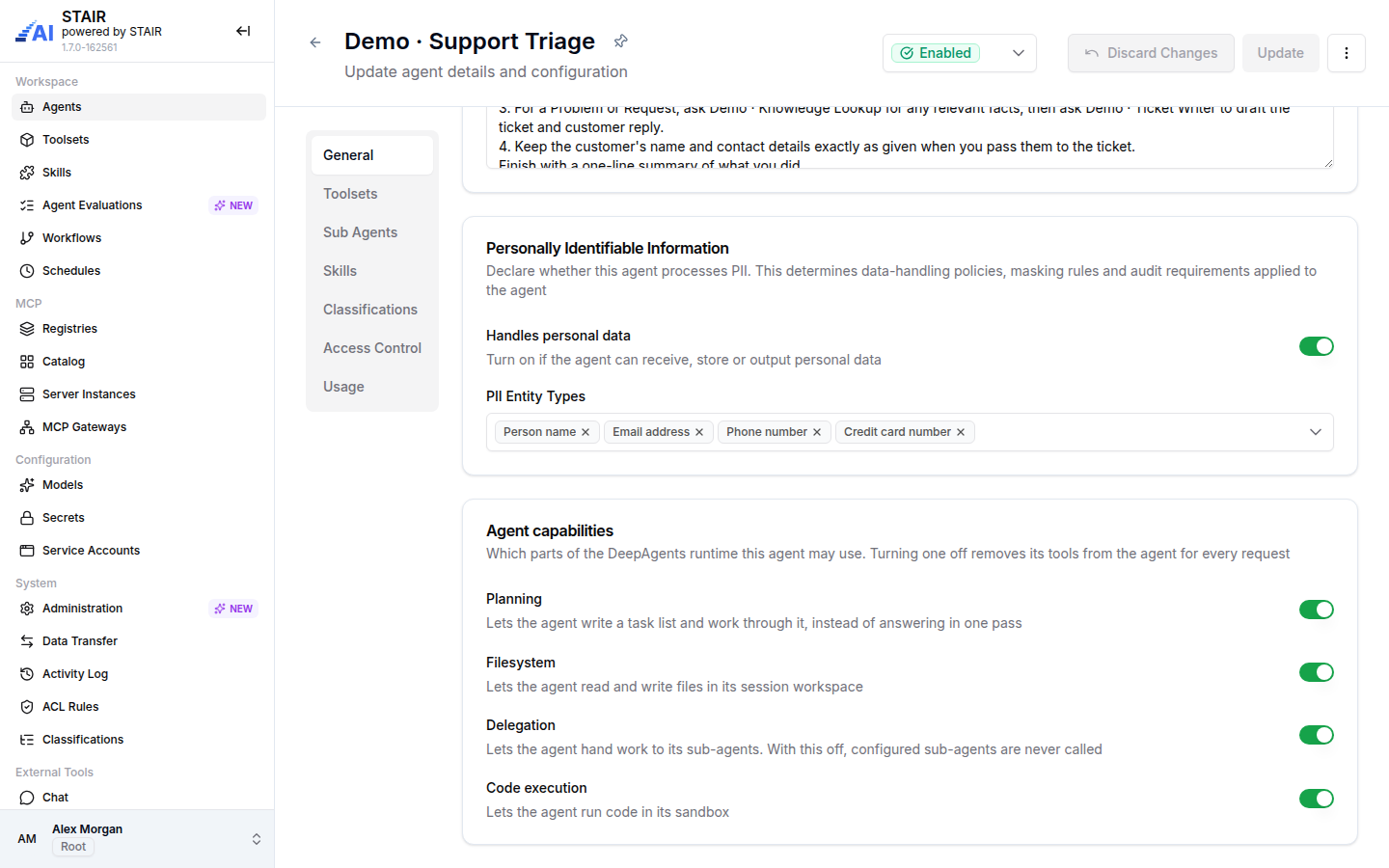
With masking on, STAIR detects the selected entity types in the request and replaces them with placeholders such as <PERSON_1> before the text reaches the LLM provider. Tools and the user see the real values. Masking covers the whole request, including the sub-agents the agent delegates to. Masking is fail-closed: if the detector is unavailable, the request is not executed.
| PII Entity Types option | Entity type |
|---|---|
| Person name | PERSON |
| Email address | EMAIL_ADDRESS |
| Phone number | PHONE_NUMBER |
| Location | LOCATION |
| Credit card number | CREDIT_CARD |
| IBAN | IBAN_CODE |
| IP address | IP_ADDRESS |
| Russian passport number (Russian only) | RU_PASSPORT |
Detection supports English and Russian text.
How to choose agent capabilities
The Agent capabilities section controls the built-in tools of the agent runtime. Turning a capability off removes its tools from the agent for every request.
| Capability | What the agent can do when it is on | Effect of turning it off |
|---|---|---|
| Planning | Write a task list and work through it, instead of answering in one pass. | The agent answers without a task list. |
| Filesystem | Read and write files in its session workspace. | The agent cannot work with files, and its skills are not loaded, because the agent reads skills as files. |
| Delegation | Hand work to its sub-agents. | Configured sub-agents are never called. |
| Code execution | Run code in its sandbox. | The agent cannot run code itself. Tools from toolsets are not affected. |
Turn off what the agent does not need: a short tool list keeps prompts smaller, which helps models with a small context window.
How to add toolsets to an agent
- Open the agent in edit mode and go to the Toolsets tab.
- Click Add Toolset. Step 1, Choose Toolset, lists the toolsets you can use; search by name or description and select one.
- In step 2, Select Tools, switch individual tools on or off, or use Select All / Deselect All.
- Click Add Toolset, then Update.
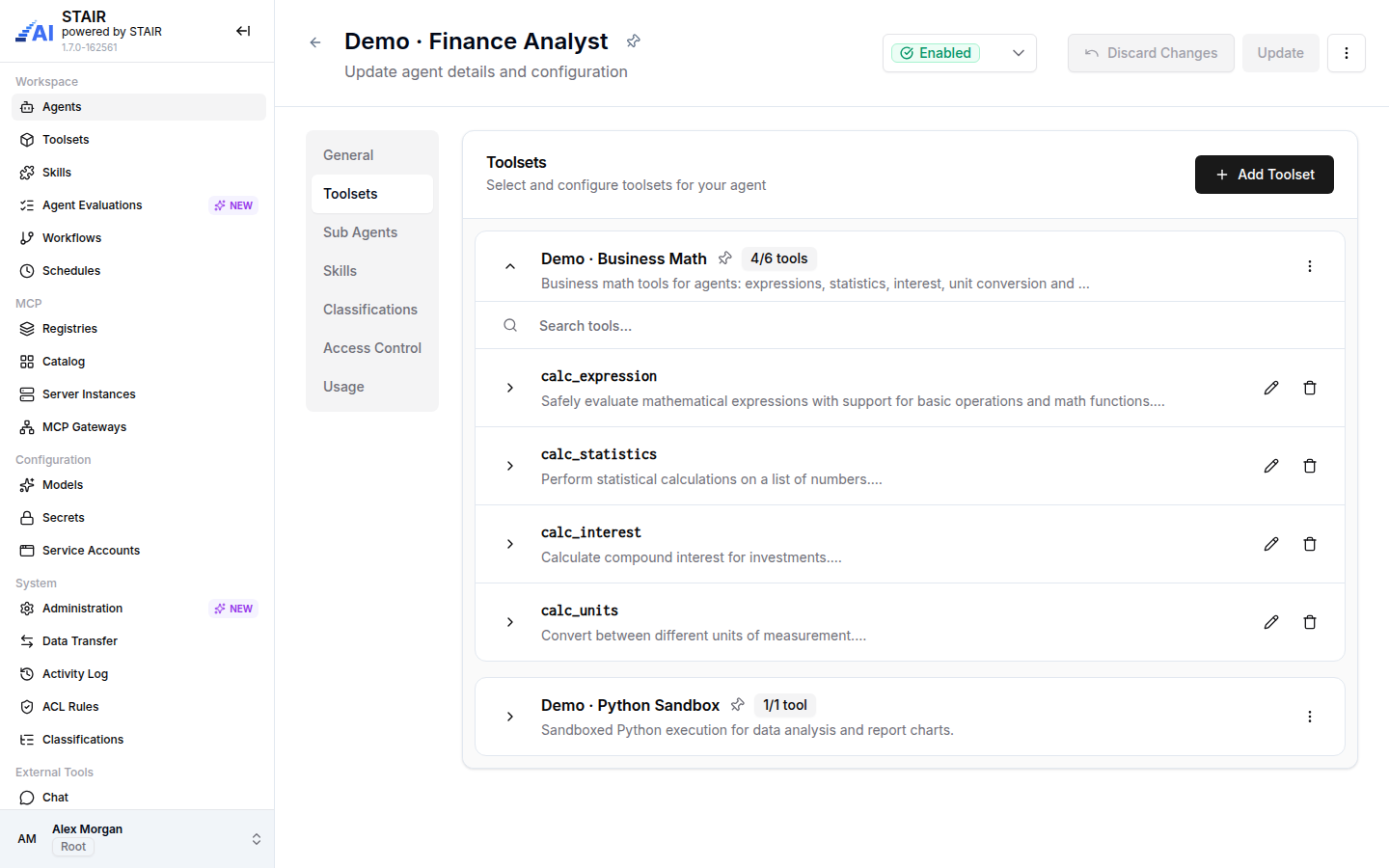
Each toolset card shows the number of enabled tools, for example "4/6 tools". Expand the card to see the tools. For each tool:
- The pencil icon opens a custom description. Append adds your text after the original tool description; Replace replaces it entirely. "Preview what the model will see" shows the result. A customized tool carries the Override badge.
- The bin icon removes the tool from this agent.
The card menu offers Configure (reopen the tool selection), View details (open the toolset) and Delete (detach the toolset from this agent; the toolset itself stays in STAIR). See Toolsets and MCP Tools for creating toolsets.
How to add sub-agents for delegation
A sub-agent is an existing agent that another agent (the orchestrator) can delegate tasks to. Create the specialist agents first, then attach them.
- Open the orchestrator in edit mode and go to the Sub Agents tab.
- Click Add Sub-Agent, search for agents in the "Add Sub-Agents" dialog, select one or more and confirm with Add Sub-Agents.
- On each sub-agent card, optionally write how this agent should behave as a sub-agent ("Describe how this agent should behave as a sub agent").
- In the orchestrator's Instructions, say when to use which sub-agent.
- Make sure Delegation is on in Agent capabilities, then click Update.
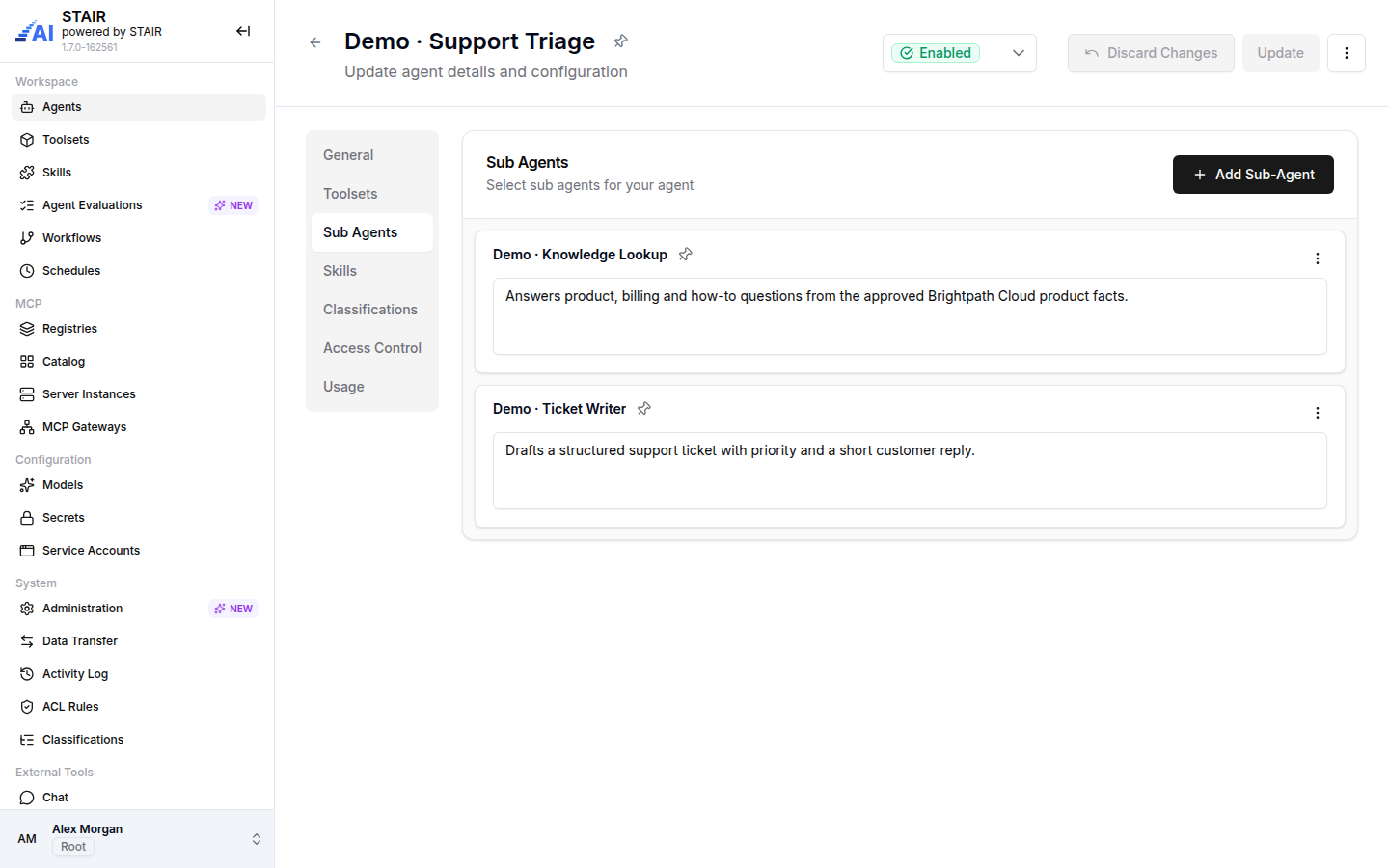
The orchestrator decides whom to call from each sub-agent's description. The text on the sub-agent card replaces the sub-agent's own Description for this orchestrator; leave it empty to use the original description. Each sub-agent runs with its own model, instructions and toolsets. A sub-agent can have sub-agents of its own; whether it calls them depends on its own Delegation switch.
In the demo set, Demo · Support Triage classifies a customer request, asks Demo · Knowledge Lookup for product facts and asks Demo · Ticket Writer to draft the ticket.
How to add skills to an agent
- Open the agent in edit mode and go to the Skills tab.
- Click Add Skills, select one or more skills in the dialog and confirm.
- Click Update.
Keep Filesystem on: the agent reads its skills as files. See Agent Skills.
How to test an AI agent in STAIR Chat
- In the sidebar, under External Tools, open Chat. STAIR Chat opens with the same sign-in.
- Click New chat and choose the agent in the Select agent picker. Agents appear with the ID prefix of their connection.
- Type a message and press Enter.
- Check the answer. Tool calls appear as cards ("Calling …" while running, "Called …" when done) with their arguments and results.
- If a toolset needs your own credential, STAIR Chat shows "Connect to
". Click Authorize and, in the new tab, sign in or enter the requested value. The request then continues.
To run the agent without chat, open the agent view, choose Run in the actions menu, enter the Initial Instructions and click Run. The run appears on the Runs tab with its status (Pending, Running, Completed, Failed), creator and duration. For repeatable checks, use Agent Evaluations.
How to read agent usage
The Usage tab (view and edit mode of an existing agent) shows "Usage Information" for a time range, by default the last 7 days. Use Refresh to reload it and the fullscreen button for a larger view.
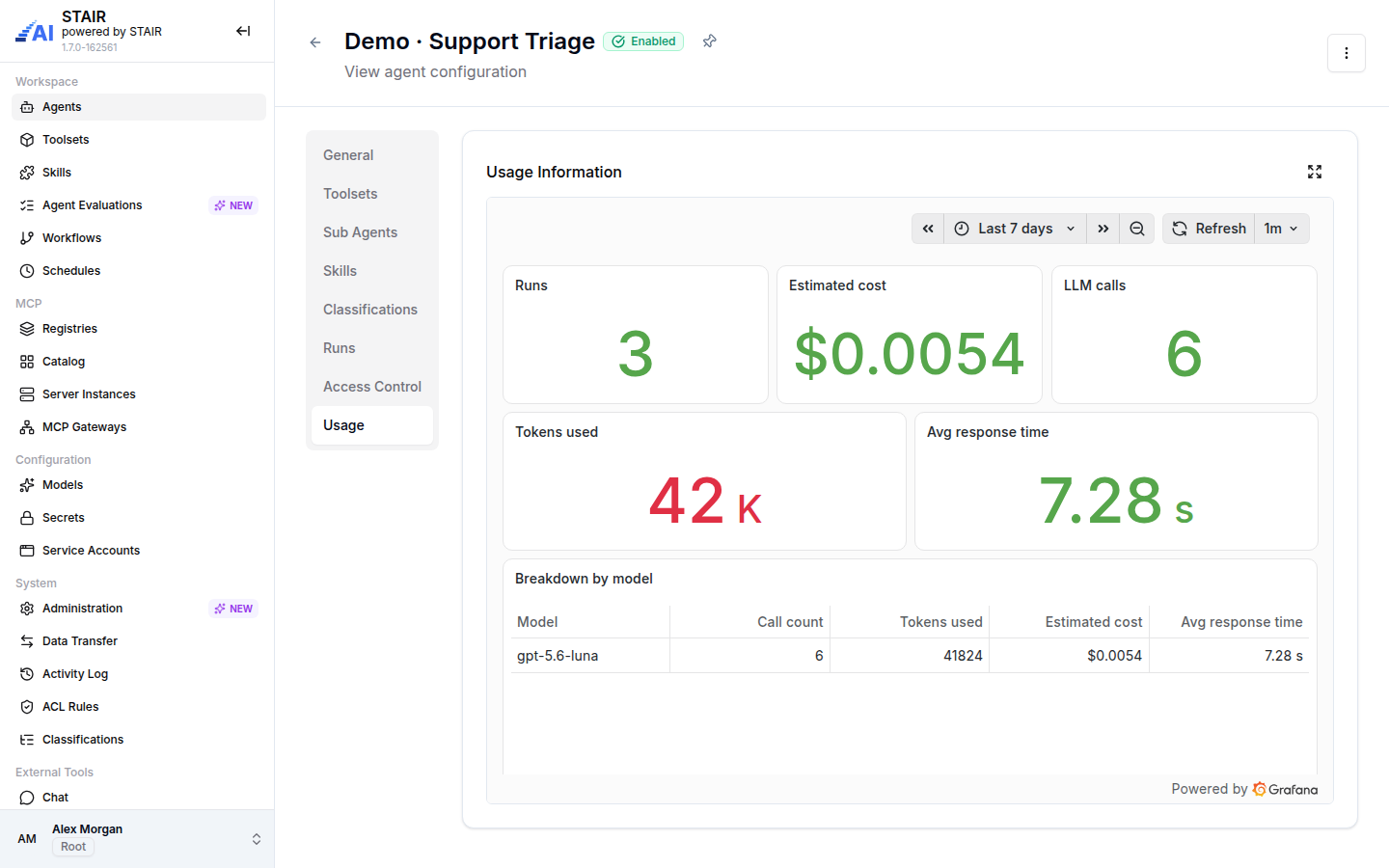
| Metric | Meaning |
|---|---|
| Runs | How many times the agent was run in the range. |
| Estimated cost | Cost of the agent's LLM calls, from the prices set on the models. |
| LLM calls | Number of calls the agent made to its models. One run can make several calls. |
| Tokens used | Input and output tokens across all LLM calls. |
| Avg response time | Average time per LLM call. |
| Breakdown by model | Call count, tokens used, estimated cost and average response time per model. |
Estimated cost stays at zero for a model without prices. Prices are set on the model; see LLM Models.
How to classify an AI agent
The Classifications tab of an existing agent lists the classification groups that apply to agents. Tick the classifications that describe the agent and click Save. Editing classifications needs the Classifier role. Classified agents can be found through the Classifications panel on the Agents list. See Classifications.
AI agent settings reference
General tab
| Field | Required | Description |
|---|---|---|
| Agent Name | Yes | Display name of the agent. Used to pick the agent in STAIR Chat and as model in the API. |
| Description | Yes | What the agent does. Also used by an orchestrator to decide when to delegate to this agent. |
| Model | Yes | The LLM the agent uses. |
| Agent Purpose | No | Markdown. The primary objective and specialized function of the agent. |
| Boundaries | No | Markdown. Strict rules and limits that override the instructions, for example "Never share personal data". |
| Instructions | No | Markdown. How the agent behaves, responds and which steps it follows. |
| Handles personal data | No | Switch. Turns on PII masking for the agent. |
| PII Entity Types | Yes, when Handles personal data is on | Entity types STAIR masks before text reaches the model. |
| Planning / Filesystem / Delegation / Code execution | No | Agent capabilities switches, all on by default. |
Other tabs
| Tab | Available in | Contents |
|---|---|---|
| Toolsets | Create, view, edit | Attached toolsets, enabled tools, custom tool descriptions. |
| Sub Agents | Create, view, edit | Attached sub-agents and their sub-agent descriptions. |
| Skills | Create, view, edit | Attached skills. |
| Classifications | View, edit | Classifications of the agent. |
| Runs | View | Runs started with Run or by a schedule. |
| Access Control | Create, view, edit | Owner (required), Read Access, Write Access, Manage Access (required), Execute Access. |
| Usage | View, edit | Usage dashboard. |
Troubleshooting AI agents
A warning icon "Configuration issue detected" appears next to the agent
The agent's model, one of its toolsets or tools, or a sub-agent is disabled or needs attention. Open Quick Overview in the row menu to see which one, then enable it or replace it in the agent.
The Run action is unavailable
The agent is disabled ("Enable agent to run"). Switch the status badge to Enabled in edit mode and click Update.
The agent never calls its sub-agents
Delegation is off, or the orchestrator does not know when to delegate. Turn on Delegation, describe each sub-agent clearly on its card and name the sub-agents in the Instructions.
The agent ignores an attached skill
Filesystem is off, so the skill files are not loaded. Turn on Filesystem. Also check that the skill's SKILL.md description says when to use it.
The agent cannot be selected in STAIR Chat
You do not have Execute Access to the agent, or the agent is disabled. Ask the owner to add you, your team or your service account under Execute Access.
Requests to a PII-enabled agent fail
PII masking is fail-closed: when the detector is unavailable, STAIR does not run the request. Contact your STAIR administrator.
The form cannot be saved
A required field is empty: Agent Name, Description, Model, Owner or Manage Access, or PII Entity Types while Handles personal data is on.
FAQ
Are Agent Purpose, Boundaries and Instructions required?
No. Only Agent Name, Description, Model, Owner and Manage Access are required. An agent without instructions still answers, but with no guidance from you.
What is the difference between a sub-agent and a toolset?
A toolset gives the agent tools from an MCP server. A sub-agent is another STAIR agent with its own model and instructions that the agent hands a whole task to.
Does the LLM provider see personal data when PII masking is on?
No. The provider sees placeholders such as <PERSON_1> for the selected entity types. Tools and the user see the real values.
Who can run an agent?
Users, teams and service accounts listed under Execute Access on the agent's Access Control tab. Write Access and Manage Access include Execute Access.
Does copying an agent copy its runs and usage?
No. Copy opens a new agent form with the configuration of the original. Runs and usage stay with the original agent.