
Documentation menu
Classifications
Read the page as Markdown for LLMsClassifications in STAIR are labels, organized in colored groups, that tag agents, toolsets, skills, workflows and MCP Gateways for filtering.
How classifications work in STAIR
A classification belongs to a group. A group has a name, a color and an Applies to list that says which record types it can tag: Agents, Toolsets, Skills, Workflows and MCP Gateways. Inside the group, each classification is one term, for example the group "Demo · Business Area" with the classifications "Customer Support" and "Finance".
Classifications are used in two places:
- On a record. The Classifications tab of an agent, toolset, skill, workflow or MCP Gateway shows the groups that apply to that record type. You tick the classifications that describe the record and click Save.
- On a list. The Classifications panel on the left edge of the Agents, Toolsets, Skills, Workflows and MCP Gateways lists filters the list by classification.
Managing groups and assigning classifications to records needs the Classifier role. Everyone who can see a list can filter it by classification.
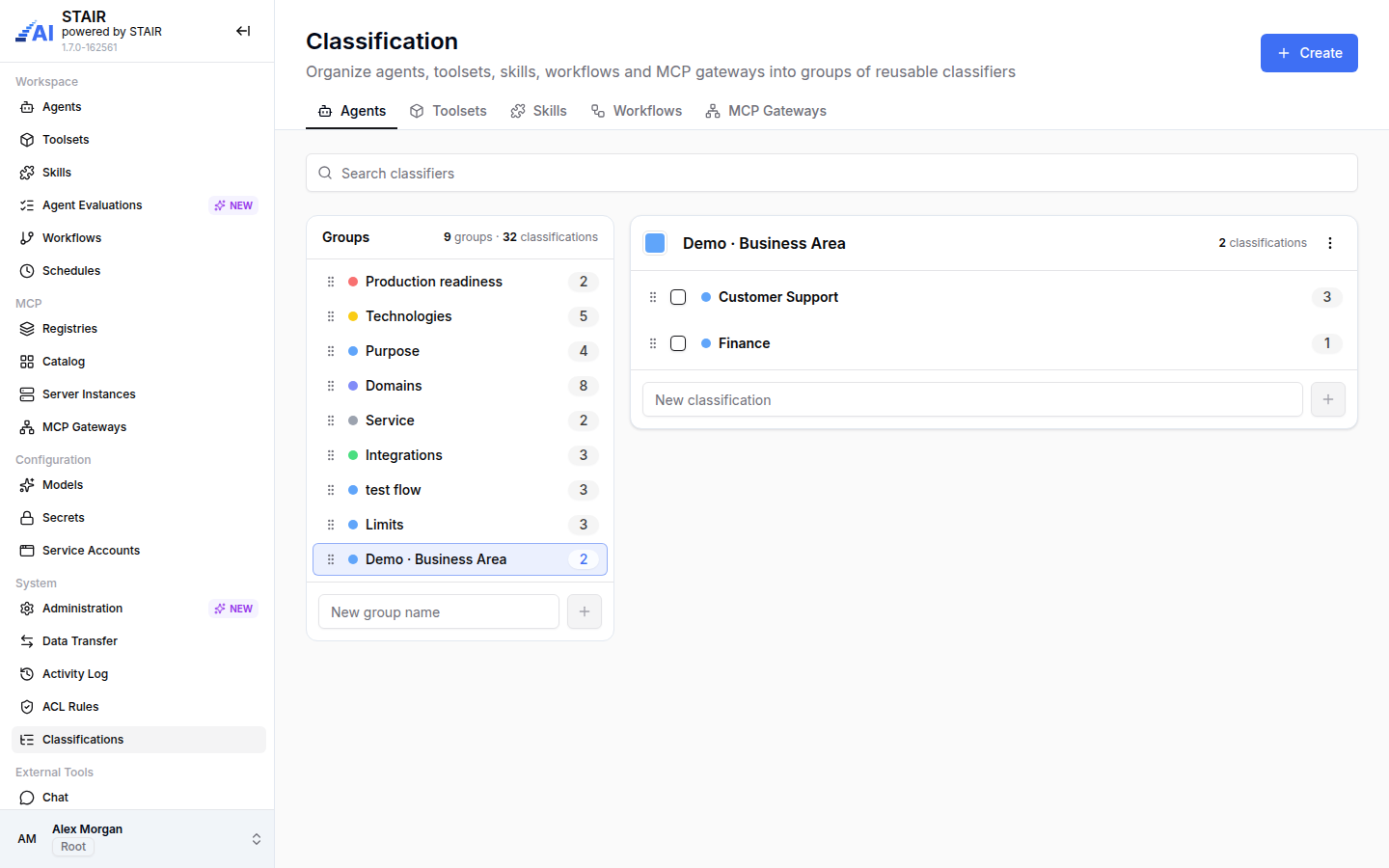
The number next to each classification shows how many records of the selected type use it.
How to create a classification group
- In the sidebar, under System, open Classifications.
- Click Create. The "Create New Group" dialog opens.
- Enter the Name. Use letters, numbers, spaces, hyphens or underscores.
- Pick a Color.
- Under Applies to, tick the record types the group can tag. At least one is required.
- Optionally enter Terms: the first classifications of the group, separated by commas.
- Click Create.
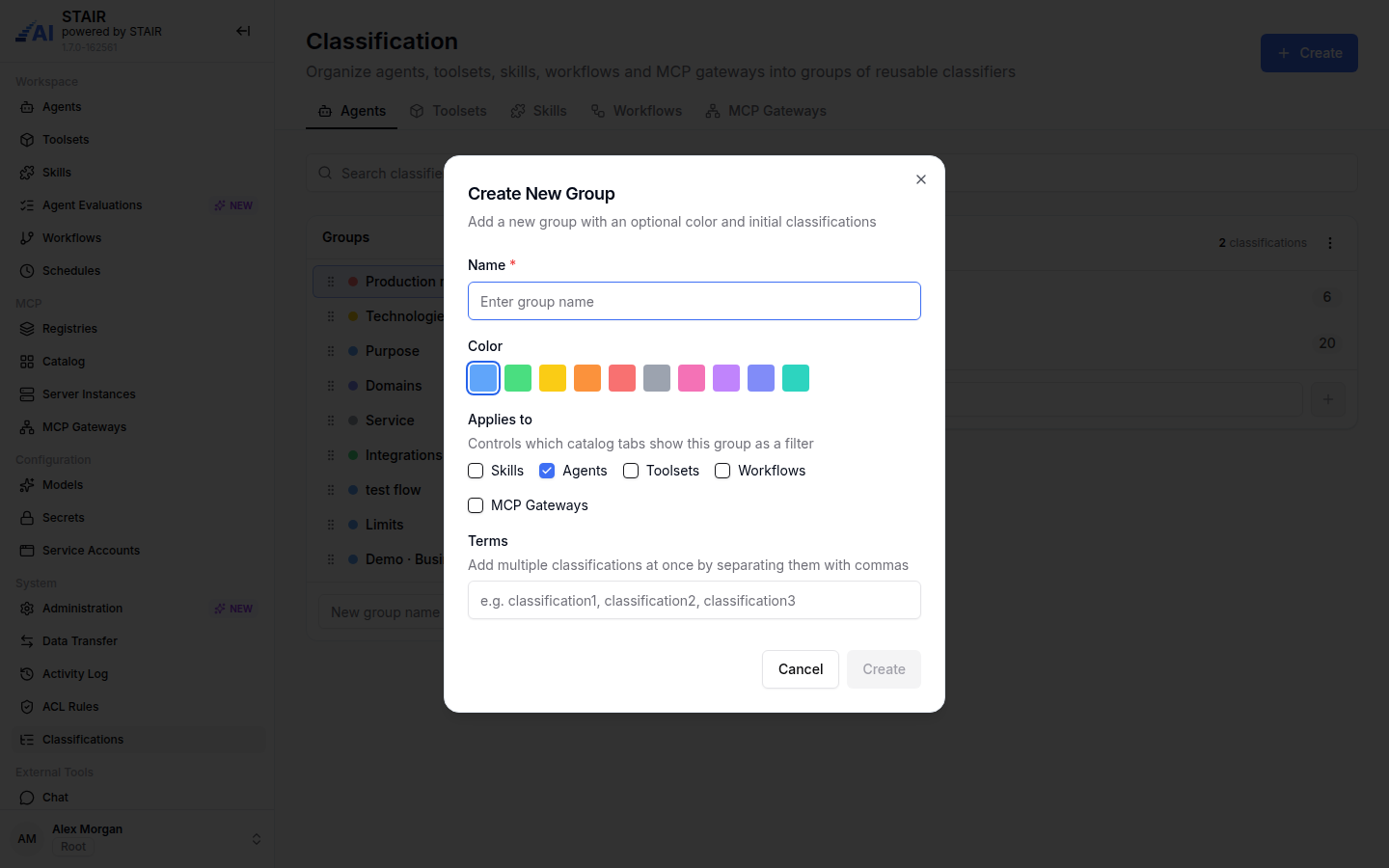
To add a group quickly, type a name into "New group name" under the group list and click the plus button. The group is created for the record type of the open tab.
How to add, rename and organize classifications
- On the Classification page, open the tab of the record type (Agents, Toolsets, Skills, Workflows or MCP Gateways) and select a group.
- To add a classification, type it into "New classification" and click the plus button.
- To rename a classification or a group, use Rename. Renaming a classification replaces its name wherever it is used. Renaming a group changes only the group; its classifications and the records keep their assignments.
- To change a group's color, use Change Color in the group menu.
- To reorder groups or classifications, drag them by the handle.
- To work on several classifications at once, tick them and choose Merge, Move or Delete:
- Merge joins them into one target classification, existing or new. Their assignments move to the target. This cannot be undone.
- Move moves them to another group.
- Delete removes them from all records. This cannot be undone.
Before you rename, merge or delete classifications that are in use, STAIR shows how many agents, toolsets, skills, workflows or MCP Gateways use them. Deleting a group deletes all its classifications.
How to classify a record
- Open the agent, toolset, skill, workflow or MCP Gateway.
- Go to the Classifications tab ("Categories this agent belongs to — used to browse and filter it across the catalog").
- Tick the classifications that apply. The counter next to each group (for example "1/2") shows how many of its classifications are ticked.
- Click Save.
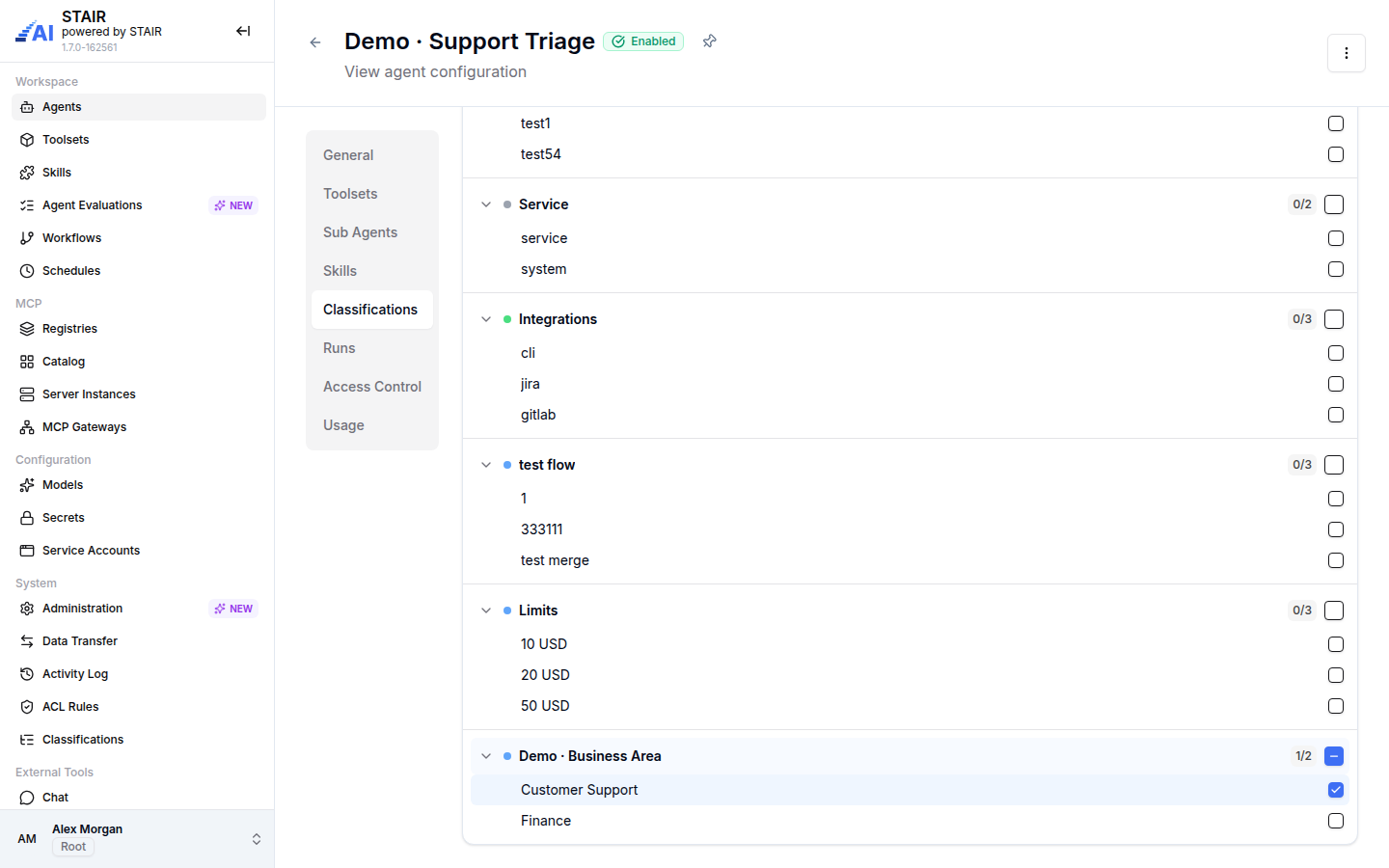
The tab appears only on saved records, not in the Create form. Without the Classifier role, the tab is read-only.
How to filter a list by classification
- Open a list that has the panel, for example Agents.
- Click the vertical Classifications tab on the left edge of the list ("Open classifications filter").
- Find a classification with "Search across classifications", or expand a group.
- Tick one or more classifications.
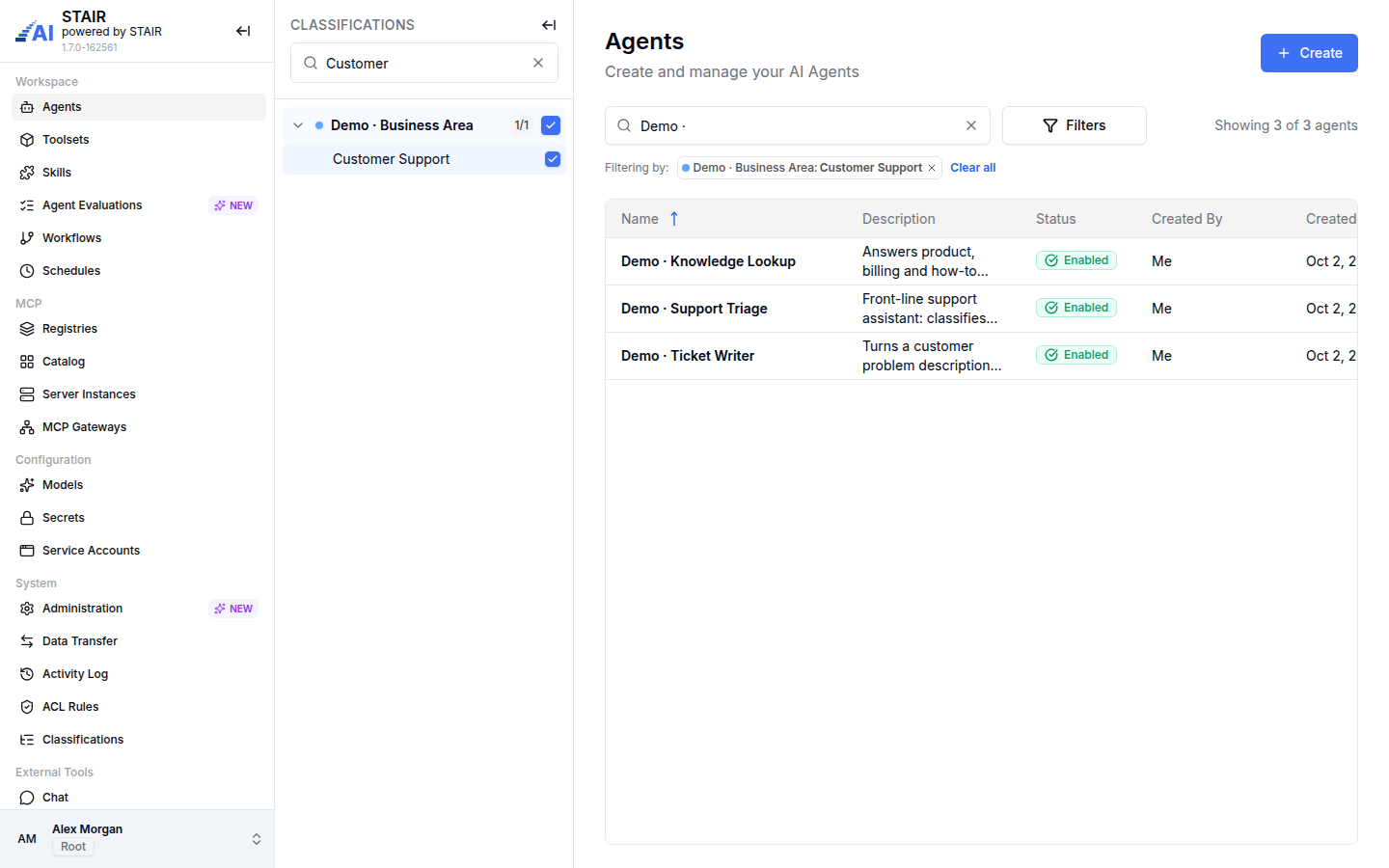
Active filters appear above the table after "Filtering by:" as chips; remove one with its cross, or all with Clear all. Classifications ticked in the same group widen the result (a record needs any of them). Classifications from different groups narrow it (a record needs one from each group). A record without classifications does not appear while a classification filter is active.
Classification settings reference
Create New Group dialog
| Field | Required | Description |
|---|---|---|
| Name | Yes | Group name. Letters, numbers, spaces, hyphens and underscores. Must be unique. |
| Color | No | One of Blue, Green, Yellow, Orange, Red, Gray, Pink, Purple, Indigo, Teal. Default: Blue. |
| Applies to | Yes | Record types the group can tag: Skills, Agents, Toolsets, Workflows, MCP Gateways. Controls which catalog tabs show this group as a filter. |
| Terms | No | Initial classifications, separated by commas. |
Where classifications appear
| Place | What you can do | Role |
|---|---|---|
| System → Classifications | Create, rename, color, reorder, merge, move and delete groups and classifications. | Classifier |
| Classifications tab on a record | Assign classifications and Save. | Classifier (others read only) |
| Classifications panel on a list | Filter the list. | Any user who sees the list |
Troubleshooting classifications
The Classifications page or the Save button is missing
Your account does not have the Classifier role. Ask a STAIR administrator to grant it.
A group does not appear on a record or in a list panel
The group's Applies to does not include that record type. Open the group on the Classification page and add the record type, or create the group on the right tab.
"Use letters, numbers, spaces, hyphens, or underscores only"
The group name contains another character, for example a dot or a slash. Remove it.
A record disappears from the list when a filter is active
The record has none of the ticked classifications, or no classifications at all. Assign a classification on the record's Classifications tab, or clear the filter.
FAQ
Who can create and assign classifications?
Users with the Classifier role. All other users can filter lists by classification but cannot change them.
Can one group apply to several record types?
Yes. Tick several record types under Applies to when you create the group.
What happens to records when I merge classifications?
Their assignments move to the target classification. The merge cannot be undone.
Do classifications change how an agent behaves?
No. Classifications organize and filter records in the STAIR Console; they are not sent to the model.